
Data recovery on vintage hard drives like the Hitachi HDS5C3030ALA630 starts with identifying the failure type – electronic, firmware, or mechanical. Each requires a different approach, and misdiagnosis can make things worse. Here’s a quick guide to help you assess your situation and decide on the next step.
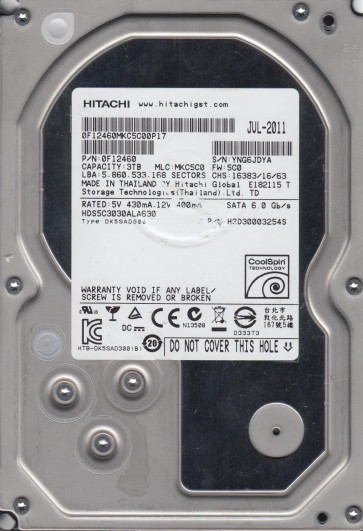
The Hitachi HDS5C3030ALA630 (also known as the Hitachi Deskstar 5K3000 or a Toshiba-branded equivalent, as Toshiba acquired Hitachi’s HDD business) is a 3TB, 5400 RPM, 3.5-inch SATA hard drive. It is part of the CoolSpin series, which is designed for low power consumption and high capacity, typically used for archival, backup, or media storage. The drive’s key components include the PCB (Printed Circuit Board), the HSA (Head Stack Assembly), the spindle motor, and the internal platters. A unique feature of this generation is its Advanced Format (4KB sector) technology, which can complicate recovery from logical issues. The drive often employs a Marvell controller and specific firmware that is prone to certain failure patterns, particularly with the internal firmware modules stored on the platters.
Identifying Common Failure Types
1. Firmware Corruption (The Most Common Failure)
This drive is notorious for firmware faults. Symptoms include: the drive spinning up, clicking normally for a few seconds, then going silent (spinning down) or making a faint, repetitive “tick-tick-tick” sound (not a mechanical crash but a head actuator trying to find firmware). The BIOS may not detect the drive, or it may show the correct model but with 0GB capacity or incorrect SN. This is almost always a software issue within the drive’s own firmware modules stored on the platters. The heads are functional, and the platters are undamaged. This is the most “recoverable” professional case.
2. Bad Sectors and Surface Degradation
While described as “bad sectors”, this often indicates a developing physical problem. The drive may be detected but extremely slow, constantly retrying reads, producing clicking noises during data access (a “seeking tick”), or the system freezes when attempting to copy certain files. In the HDS5C3030ALA630, this is often due to a weak head, a contaminant particle, or a very shallow platter defect. If the defect is progressive, it will worsen with operation. It is crucial to distinguish this from firmware corruption, as using software like CHKDSK or ScanDisk will force the drive to re-read and re-map bad sectors, causing further head wear and potentially crashing a marginal head.
3. Electrical/PCB Failure
The drive is completely dead: no spin, no sound, no detection in BIOS. This is often a failure of the TVS (Transient Voltage Suppression) diodes, the preamplifier on the flex cable, or the main controller chip. A visual inspection of the PCB may reveal a burnt component. This is a hardware failure, but one of the easier ones to recover from for a professional via a PCB swap (which requires firmware transfer). A simple replacement of the PCB with an identical donor board will NOT work unless the original firmware is transferred to the new PCB.
4. Mechanical Head Crash
This is the worst-case scenario. The drive will emit a loud, repetitive clicking sound (different from firmware clicking ¨C it’s a more metallic, scraping “clack-clack” sound) or a high-pitched whine. The drive may spin for a second, then stop. This indicates that one or more read/write heads have physically contacted the platter surface, scraping off the magnetic coating. Data recovery is extremely expensive and requires opening the drive in a cleanroom to replace the heads. Continued operation will destroy the platters completely.
Potential Recovery Paths
Professional Services (Recommended for ANY physical issue)
Diagnostic: A professional lab will first perform a full diagnostic using specialized tools (like PC-3000 or DeepSpar Disk Imager). They can definitively identify if the issue is firmware, PCB, or mechanical.
For Firmware:The lab will use tools to reload or patch the firmware modules via a direct interface to the drive’s controller. This is a non-invasive procedure that often restores full access to the data without opening the drive.
For Bad Sectors:The lab will use hardware-based stabilizers (like the DeepSpar USB Stabilizer) or specialized imaging tools that can prioritize the reading of critical data and skip bad areas intelligently. They will create an image, not attempt file system repairs on the failing drive.
For PCB Failure:A professional will source an exact-match donor drive. They will remove the controller ROM (EEPROM) from the original PCB and transplant it to the donor PCB, or use a tool to read/write the ROM via a programming socket. A simple PCB swap without this firmware transfer will fail.
For Head Crash:The lab will find a matching donor drive, open both drives in a Class 10 cleanroom, perform a head stack replacement, and then image the platters. This carries risk and is the highest-cost service (often $500 ¨C $2000+).
DIY Methods (Only for Logical/Non-Physical Issues)
WARNING: Do NOT attempt DIY recovery if you hear clicking, scraping, or the drive is not detected. Doing so will cause permanent damage.
Situation 1: Drive spins up but shows as uninitialized or RAW.This might be a logical file system corruption (e.g., accidental format or partition deletion).
- Use a USB-to-SATA adapter (don’t open the PC).
- Use data recovery software like DMDE or R-Studio. DO NOT use CHKDSK or any “quick fix” tools.
- Create a full sector-by-sector image to a large healthy disk. R-Studio can do this in “raw” mode.
- Recover files from the disk image, not the failing drive directly.
Situation 2: Drive is detected but shows wrong capacity or unusual model info.This strongly indicates firmware corruption. DIY recovery is possible only if you have a professional tool like a PC-3000 UDMA, which is cost-prohibitive for a single recovery. No free software can fix internal firmware of this drive. Your only safe DIY option is to power it off and send it to a lab. Attempting to use “low-level format” or “firmware update” tools (like the official Hitachi Drive Fitness Test) will most likely brick the drive and make professional recovery harder or impossible.
What Not to Do
- DO NOT RUN CHKDSK /F or /R. This is the single greatest cause of unrecoverable data on a failing drive. It forces the drive to read every sector, stressing the heads, and modifies the file system structure.
- DO NOT OPEN THE DRIVE. The internal platters are in a cleanroom-grade environment. Any dust or fingerprint will cause a head crash. One spec of dust is enough to destroy the platter surface.
- DO NOT FREEZE THE DRIVE. This is a myth for modern hard drives. It can cause condensation, which leads to head stiction and platter corrosion. It will not fix firmware or PCB issues.
- DO NOT ATTEMPT A PCB SWAP YOURSELF. Simply swapping the board from a donor drive will not work because the firmware on the controller ROM is unique to the original drive. Powering it on with the wrong firmware can destroy the adaptive data and make recovery impossible.
- DO NOT USE DATA RECOVERY SOFTWARE ON THE FAILING DRIVE. Always work from a disk image. Scanning the failing drive directly with recovery software will accelerate its failure.
- DO NOT PERSIST ON A CLICKING DRIVE. If the drive clicks, power it off immediately. Each click is a head attempting to seek and failing, wearing out the pivot bearing and potentially scraping the platters.
Summary
The Hitachi HDS5C3030ALA630 is a high-capacity, low-cost drive with a known weak spot: its firmware. The most common failure mode is firmware corruption, which often presents as a clicking sound or a drive that spins down after a few seconds. This is a software-level issue that is highly recoverable by professional labs using specialized tools. Bad sectors and electrical failures are the next most common issues. A head crash, which sounds like metallic scraping, is the most severe failure. For all physical issues (clicking, scratching, no spin), professional recovery is mandatory. For logical corruption, care must be taken to never write to the drive. The key to successful recovery is accurate diagnosis and knowing when to stop. Do not experiment:a single wrong attempt can turn a recoverable firmware problem into a permanent mechanical disaster.