
Data recovery on vintage hard drives like the Hitachi HCS721050CLA362 starts with identifying the failure type – electronic, firmware, or mechanical. Each requires a different approach, and misdiagnosis can make things worse. Here’s a quick guide to help you assess your situation and decide on the next step.
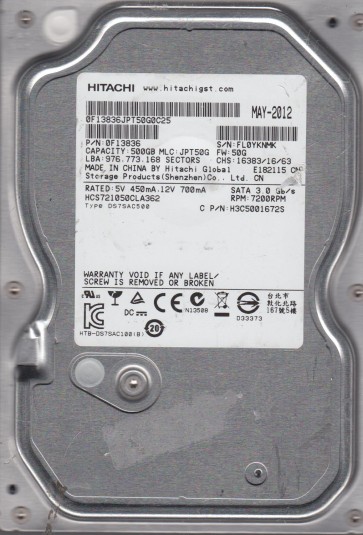
The Hitachi HCS721050CLA362 is a 500GB 7200RPM 3.5-inch SATA hard drive manufactured by Hitachi Global Storage Technologies (now part of Western Digital). This model utilizes an Advanced Format (AF) 4K sector technology with 512-byte emulation (512e) and typically features a 32MB cache. It was commonly used in desktop computers and external storage enclosures from the early 2010s. Key components include the main controller chip (often a Marvell or LSI based ASIC), a voice coil motor (VCM), preamplifier (preamp) on the head stack assembly (HSA), and a stable aluminum alloy platter (single or dual disk configuration). Understanding its architecture is crucial because firmware corruption, head damage, or weak read/write channels can present identical symptoms, requiring careful diagnosis before any recovery attempt.
Identifying Common Failure Types
1. Mechanical Failure (Heads & Motor)
Symptoms: Audible clicking, grinding, or whirring noises; drive not spinning up (silent with no vibration); repeated initial power hum followed by clicks. This is often caused by a head crash (stiction) or seized spindle motor bearing. The HCS7210 series is known for head weakness over time, especially after high thermal cycles. Immediate professional intervention is required as any further power-on can embed debris into the platter surface.
2. Electronic Failure (PCB & Preamp)
Symptoms: Drive is completely dead (no sound, no spinning, no detection); burnt smell or visible damage on the printed circuit board (PCB); drive detected with wrong capacity (0GB). Common failure points include a shorted TVS diode (transient voltage suppression) on the SATA power line, or a failed preamplifier chip on the flex cable. While a PCB swap is possible, the drive’s adaptive parameters (preamplifier calibration and mechanical adjustments stored in the PCB’s NVRAM or system area) must be transferred or matched exactly, otherwise recovery is impossible.
3. Logical Failure (Bad Sectors & Firmware)
Symptoms: Drive spins up, is detected in BIOS but with wrong parameters, freezes or hangs the system, extremely slow read/write, or shows “RAW” file system in Windows Disk Management. This can be due to damaged address translation tables (P-list, G-list corruption), failed firmware modules (especially modules 02, 03, and 1B), or degraded platter media. The AF 512e nature of this drive can cause complex sector mapping errors that standard software cannot resolve.
Potential Recovery Paths
Professional Data Recovery Services
Recommended for: All mechanical failures, severe electronic damage, or advanced logical failures requiring cleanroom intervention. Professional labs (e.g., ACE Lab, PC-3000 based) can perform head transplants in a class 10 cleanroom, manipulate firmware via terminal commands, and use specialized imaging tools to handle thousands of bad sectors. Expect costs ranging from $300 to $3000 depending on complexity. Choose a lab with specific Hitachi HCS7210 series experience, as the AF alignment and head alignment procedures are proprietary.
DIY Recovery (For Experienced Users Only)
PCB Replacement: If the failure is clearly electronic (no burnt odor, drive does not spin but PCB has visible damage), try swapping the PCB with an identical donor board. However, you must transfer the original PCB’s firmware ROM chip (usually a 8-pin serial EEPROM or a small TSSOP package) to the donor board using a hot air station or soldering iron. Without this, the drive will not calibrate or spin correctly. Warning: Using a donor board without ROM transfer will almost certainly cause firmware corruption or head damage.
Logical Imaging: For bad sector / firmware issues with a working drive, use professional-level software like HDD Raw Copy Tool (free) or R-Studio (paid). Never run chkdsk or any repair utility. Instead, clone the drive sector-by-sector (skipping errors) using a tool that supports “imaging” mode. In R-Studio, create a full image to a healthy target drive, then recover files from the image. For firmware issues, you must first use a PC-3000 or similar system to rebuild the translator, which is not available in consumer software. Warning: Powering on a mechanically failing drive even once can shatter heads and permanently obliterate data.
What Not to Do
- Do not force the platters to spin (e.g., by tapping the motor, putting the drive in a freezer, or using a different power adapter). Prying or pushing the spindle can bend the platter edge and create permanent scratches.
- Do not run disk repair or formatting tools (chkdsk /f, format, Diskpart clean, or any “Repair” feature in Windows). These rewrite the file system, making structure recovery nearly impossible.
- Do not open the drive enclosure unless you have a certified cleanroom (Class 100 or better). A single dust particle (5 microns) is larger than the head flying height (roughly 10 nanometers) and will crash the head instantly.
- Do not continuously power cycle the drive hoping it will work. This stresses the VCM, preamp, and platters, increasing damage exponentially.
- Do not rely on generic data recovery software for hardware-related failures. Software cannot fix a stuck motor or reattach a broken head. It will only waste time and potentially overwrite critical data areas.
Summary
The Hitachi HCS721050CLA362 is a reliable but aging drive prone to head weaknes and firmware translation errors. For any mechanical symptom (clicking, grinding, no spin) or advanced logical failure, the only safe path is a professional data recovery provider with Hitachi-specific tools. For purely electronic failures (dead PCB, no noise), a skilled technician can attempt a PCB swap with ROM transfer. For logical repair, use only specialized imaging software and never run system-level repair tools. Always treat the drive as fragile: every second of operation post-failure reduces recovery chances. Prioritize a complete, error-free image before any file recovery attempts. If the data is critical, immediate professional consultation is the most cost-effective and safest approach.