
Data recovery on vintage hard drives like the Hitachi HDS723015BLA642 starts with identifying the failure type – electronic, firmware, or mechanical. Each requires a different approach, and misdiagnosis can make things worse. Here’s a quick guide to help you assess your situation and decide on the next step.
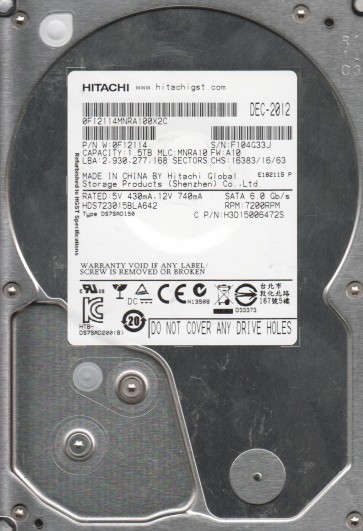
The Hitachi HDS723015BLA642 is a 3.5-inch, 7200 RPM, 1.5 Terabyte (1500GB) hard disk drive from the Deskstar 7K3000 series. This drive typically utilizes Advanced Format (4K sector) technology and has a SATA 6Gb/s interface. It is known for being a high-performance consumer drive but has a documented history of specific failure modes related to its head stack assembly (HSA) and firmware. Understanding that this is a mechanical device with precision parts is crucial; electronic failure is less common than mechanical failure for this model. The drive utilizes a Marvell 88i9140 controller and a 64MB cache. Data is stored on three or four platters with six or eight read/write heads.
Identifying Common Failure Types
1. Clicking or Ticking (Head Crash / Stiction Failure): This is the most common mechanical failure for this model. The drive will spin up but produce a repeating clicking sound. This indicates that the read/write heads are unable to land on the platters (stiction) or are physically damaged (head crash). Often caused by a sudden shock or power surge. Data recovery requires head replacement in a cleanroom. Indicators: Drive is detected in BIOS but makes a rhythmic clicking noise. System may freeze or hang.
2. Firmware Corruption (PCB/Logic Board Failure): The drive may spin up but be detected as an incorrect size (e.g., 0GB, 4GB, or 32MB), or it may not be detected at all in the operating system but the spindle motor runs continuously. This is often a firmware corruption issue, not a platter problem. It can be caused by a power spike or gradual degradation of the flash memory storing the firmware. Indicators: Drive spins but is not recognized, or shows a very small capacity. The drive may also respond with “ATAPI” errors but not spin down.
3. Spindle Motor Failure (Stuck Spindle): The drive will not spin up at all. You may hear a faint hum or no sound. The drive may be detected as “Not Ready” in BIOS. This is less common than head failure on this model but can occur due to a seized bearing or a bad motor driver chip on the PCB. Indicators: Zero sound or a single short click when power is applied. The platters are physically stuck.
4. Bad Sectors & Degraded Performance (Media Failure): The drive spins, is detected correctly, but the system becomes extremely slow, freezes, or reports “I/O Device Error.” This indicates the drive has developed weak or bad sectors, often due to media degradation or a minor head issue that is progressively getting worse. The drive may work for a while but then fail completely.
Potential Recovery Paths
Professional Data Recovery (Recommended for Mechanical/Firmware Issues): For cases involving clicking, firmware corruption, or spindle failure, professional intervention is almost always required. A data recovery lab will use specialized tools like a PC-3000 or DeepSpar imager and a certified cleanroom (Class 10 or better) to replace heads, repair firmware, or transplant the platters into a donor drive. For this model, a donor drive of identical model and firmware version is required. Cost typically ranges from $300 to $2000+ depending on severity. For firmware issues: Some labs can repair the PCB or reprogram the firmware chip using hot air tools and a PLCC programmer. For head crash: Cleanroom head replacement is mandatory.
DIY Recovery (Limited Scenarios – For Bad Sectors Only): If the drive is detected correctly, makes no unusual noises, but has bad sectors (slowness), you can attempt software-based imaging. Use a tool like ddrescue (Linux) or HDD Raw Copy Tool (Windows). Boot from a live Linux USB. Open a terminal and run: sudo ddrescue -d -f -r3 /dev/sdX /media/usb/backup.img /media/usb/log.log (replace sdX with the drive letter, e.g., sdb). This will create a sector-by-sector image, skipping bad areas. Do NOT use the drive as a boot device or run chkdsk (Windows) or fsck (Linux) directly on it, as this can cause further damage. A DIY attempt should only be done if the data is non-critical and you accept the risk of permanent data loss.
PCB Swap (Risky DIY for No-Spin Issues): If the drive does not spin (no click, no sound from motor), you can try a PCB swap. Order an exact matching PCB from a donor drive. Be aware that the firmware on the Hitachi HDS723015BLA642 is stored on the MCU flash on the PCB, not the platters. Simply swapping the PCB will not work. You must also transfer the original 8-pin serial flash (or modify the new PCB with the original firmware using a hot air station). This is a high-skill operation. For absolute beginners: do not attempt. It is better to seek professional help.
What Not to Do
– NEVER open the drive enclosure. Even a tiny speck of dust can scratch the platters, making recovery impossible. Hard drives are not sealed perfectly but are assembled in cleanrooms. Do not remove the cover. – DO NOT run CHKDSK /F or any filesystem repair tool on a failing drive. This forces the drive to attempt massive re-reads and can cause a clicking head to fully crash. – DO NOT apply physical shock (tapping, dropping) to the drive. This can cause additional head damage. – DO NOT freeze the drive. This is an outdated myth that can cause condensation, short circuit the PCB, and ruin the platters. – DO NOT attempt to recover data by using the drive as a secondary device in another computer if it makes unusual noises. This often causes more damage. – DO NOT use magnetic tools or strong magnets near the drive (e.g., to unscrew PCB magnets). This can erase the servo tracks. – DO NOT apply more than 12V to the power connector. Use a known-good power supply.
Summary
The Hitachi HDS723015BLA642 is a vulnerable drive prone to head failures and firmware corruption. The most critical step is accurate diagnosis: is it a mechanical noise (head/stiction problem), a firmware/PCB issue (detected but wrong size or no spin), or a bad sector problem (slow, errors)? For clicking or no-spin situations, professional data recovery is the only safe path. For slow/bad sectors, a careful DIY ddrescue attempt may succeed, but only if the drive maintains stable contact. Never open the drive, never freeze it, and never run repair tools on the failing volume. If the data is valuable, stop all DIY attempts immediately and contact a certified data recovery lab. The cost is an investment in the data, not the drive.