
Data recovery on vintage hard drives like the Hitachi HDT725032VLA360 starts with identifying the failure type – electronic, firmware, or mechanical. Each requires a different approach, and misdiagnosis can make things worse. Here’s a quick guide to help you assess your situation and decide on the next step.
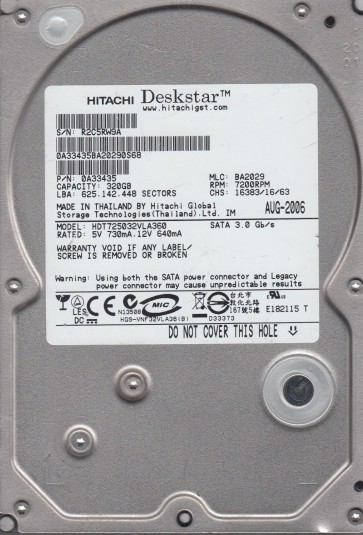
The Hitachi HDT725032VLA360 is a 3.5-inch parallel ATA (PATA/IDE) hard drive from the Deskstar 7K250 family, known for balanced performance and reliability. This generation typically uses fluid dynamic bearings (FDB) for quieter operation and Hitachi’s proprietary load/unload technology. The drive utilizes a Marvel or Infineon controller paired with a dedicated voice coil motor (VCM) driver chip. Common failure modes for this era include degraded read/write heads, spindle bearing seizing, PCB (Printed Circuit Board) component failure, and firmware corruption affecting the Adaptive Zone Layout (AZL) or defect lists.
Identifying Common Failure Types
1. Mechanical Failure (Heads & Spindle)
Symptoms: Repeated clicking or ticking sounds (head slap), grinding or scraping noises, drive not spinning up (silent or single low hum), or drive spinning up and then spinning down repeatedly. Cause: Pivot stiction, head crash onto the platter surface, or degraded spindle motor bearings. Data recovery requires cleanroom access.
2. PCB / Electronic Failure
Symptoms: Drive is completely dead (no sound, no detection), drive spins up but is not recognized by BIOS, burning smell, visible damaged components (blown TVS diodes, burnt controller chip). Cause: Power surge, failed voltage regulator (TVS diode), failed preamplifier, or damaged S-ATA connector. A PCB swap may sometimes work if the firmware and ROM are compatible.
3. Firmware Corruption
Symptoms: Drive spins up normally, BIOS detects it incorrectly (or shows wrong capacity like “0GB” or “LBA 0”), drive clicks but does not click if it stops, or the drive hangs the system during initialization. Cause: Bad sectors corrupting SA (Service Area) modules, failed translator (AZL table), or corrupted module 0x10 or 0x68. Professional firmware tools are often required.
4. Logical & Bad Sector Issues
Symptoms: Drive is detected but extremely slow to access directories, file system corruption, blue screens, massive reallocation counts in SMART data (Attribute 05, C5, C6). Cause: Physical media degradation, shock damage, or logical corruption from OS errors. This is a common gateway to mechanical failure as the drive attempts to read weak sectors.
Potential Recovery Paths
Professional Data Recovery Services
Recommended for: Any mechanical failure, severe clicking, audible scraping, or physical PCB damage. Process: Cleanroom HDA (Head Disk Assembly) replacement, donor head matching, component-level PCB repairs (e.g., replacing burnt diodes, or reprogramming ROM from the original PCB to a donor board), complex firmware repair using tools like PC-3000 or DeepSpar. Cost: Typically $300 – $3000+ depending on complexity and urgency. Success rate: High for this model when heads are not crashed onto data surfaces.
DIY Software Recovery
Applicable only for: Pure logical corruption, accidental deletion, or partition loss with zero physical damage symptoms. Tools: DDRescue or R-Studio (create a bit-for-bit disk image to a healthy drive, pausing on bad sectors). Steps: 1. Connect the HDT725032VLA360 via a quality external USB-to-IDE adapter (preferably powered). 2. Use a Linux live CD to run ‘ddrescue /dev/sdX /mnt/recovery/hitachi.img /mnt/recovery/hitachi.log’. 3. On Windows, R-Studio can create a disk image automatically. 4. Scan the image for lost files. Warning: Do NOT attempt a full surface scan, chkdsk /f, or format. Every bad sector read stresses the remaining good heads.
What Not to Do
- DO NOT open the hard drive enclosure (HDD cover). The platters are sealed in a cleanroom environment; any dust, hair, or fingerprint will cause a catastrophic head crash and likely destroy all data.
- DO NOT apply power if you suspect a PCB fault (burnt smell or visible damage). This can cascade and destroy the preamplifier inside the HDA.
- DO NOT freeze the drive. This is an obsolete myth that can cause condensation and corrosion, permanently damaging the heads and platters.
- DO NOT repeatedly power cycle the drive if you hear clicking. Each click can gouge the platter surface, reducing recoverability.
- DO NOT attempt a simple PCB swap by ordering a random identical model board. The HDT725032VLA360 often requires the original ROM chip to be transferred or reprogrammed.
Summary
The Hitachi HDT725032VLA360 is a mid-2000s PATA drive with common failure modes in electronics, firmware, and mechanical components. For clicking or non-spin scenarios, professional recovery is mandatory. For logical issues, a clean disk image via DDRescue is the safe DIY path. The highest recovery risk is from repeated operation of a failing drive. If you value the data, isolate the drive and consult a professional laboratory specializing in Deskstar 7K250 series issues. Do not attempt a head stack replacement outside a cleanroom.