
Data recovery on vintage hard drives like the Hitachi HTS424040M9AT00 starts with identifying the failure type – electronic, firmware, or mechanical. Each requires a different approach, and misdiagnosis can make things worse. Here’s a quick guide to help you assess your situation and decide on the next step.
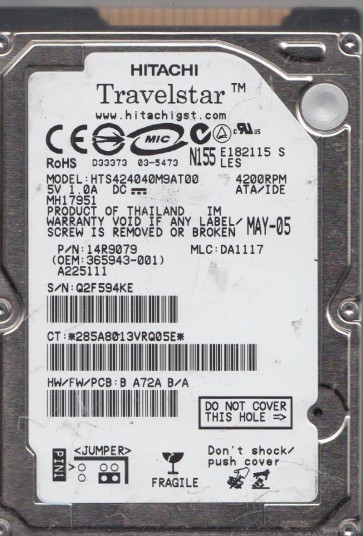
The Hitachi HTS424040M9AT00 is a 2.5-inch, 40GB, 4200 RPM PATA (IDE) hard drive manufactured by Hitachi Global Storage Technologies (now part of Western Digital). This drive is based on the Travelstar family, utilizing a single platter and classic fluid dynamic bearing motor. It is a legacy drive found in many older laptops and portable devices from the mid-2000s. As an older PATA drive, it is particularly susceptible to mechanical wear, stiction (sticktion), and electronics failure. Due to its age, the magnetic media may also experience bit rot or degradation over long periods of non-use. Understanding that this is a non-SSD, magnetic platter device is crucial for setting realistic recovery expectations.
Identifying Common Failure Types
1. Mechanical Failure (Head Crash / Stiction)
This is the most severe failure for the HTS424040M9AT00. Symptoms include a clicking, scraping, or grinding noise from the drive. The drive may spin up but fail to be detected. Often, the heads (read/write elements) have physically contacted the platter, damaging the magnetic coating, or the heads have become stuck to the platter surface (stiction) due to degrading lubricant. This failure is irreversible without professional clean-room intervention. Data recovery is extremely difficult and costly because the platter media is physically damaged.
2. Firmware Corruption (Media Access Failure)
The drive may spin up, appear in the BIOS with the correct model name, but refuse to access data. It might hang during initialization or report a “No Media” error. This is often caused by corrupted service area or module (e.g., defective P-list or G-list, corrupt translator). On Hitachi drives, this can manifest as a “Pseudo-Read” error where the drive tries to read data but fails. This is a software-level issue on the drive’s controller firmware and is often recoverable with specialized tools (e.g., PC-3000, MRT) that can re-read or repair the firmware modules.
3. Electronic Failure (PCB Damage)
The drive may show no signs of life: no spin-up sound, no vibration, and not detected by the computer. This is typically caused by a failed component on the printed circuit board (PCB), such as a blown TVS diode (transient voltage suppressor), a failed preamplifier chip, or a burned-out motor controller. While a PCB swap can sometimes restore operation, the HTS424040M9AT00 often has a unique adaptive tuning stored in an 8-pin serial EEPROM (usually a 25xx chip) on the original PCB. Simply swapping the PCB from another identical drive will not work unless the firmware is transferred or the drive has the same firmware revision and is adapted. A failed PCB is a moderate to hard problem, depending on component availability and the need for firmware transfer.
4. Logical Corruption (File System / Bad Sectors)
The drive spins up, is detected, but the operating system reports errors like “The drive is not formatted”, “Cannot read from source file or disk”, or extremely slow performance due to read errors. This is usually caused by file system corruption (damaged MBR, DBR, or directory structure) or an increasing number of bad sectors. Bad sectors on a 4200 RPM drive can be a sign of incipient mechanical failure (head degradation). Do not run CHKDSK or format the drive, as these actions can cause further damage.
Potential Recovery Paths
Professional Data Recovery Services
For Mechanical and Hard Firmware Failures: This is the only viable path. Do not attempt to open the drive yourself. Look for a Class 100 (ISO 5) cleanroom lab. Expect costs ranging from $500 to $2,500+ depending on damage. For the HTS424040M9AT00, the main challenge is finding a compatible donor drive (same model and firmware revision) for head swaps. Professional services can also handle FIRMWARE repair using advanced tools like PC-3000, which can force the drive into “Z-mode” or “Safe mode” to rebuild the translator. For Electronic Failure (PCB): Some labs offer PCB replacement and EEPROM transplant for a fee, which is less expensive than full mechanical recovery. For Logical Corruption: Professional services use disk imaging tools (DDRescue, PC-3000) to create a sector-by-sector clone of the failing drive, bypassing bad sectors, and then reconstruct the file system from the clone.
DIY Recovery Paths (Only for Logical and Some Electronic Issues)
Logical Recovery (Data Recovery Software): This is the safest DIY option. Step 1: DO NOT WRITE TO THE DRIVE. Use a USB-IDE/PATA adapter. Step 2: Create a disk image. Use a tool like R-Studio or DMDE to create a raw image (IMG) of the entire drive. If the drive has bad sectors, use DDRescue (Linux) or HDDSuperClone to copy data, skipping bad areas. Step 3: Scan the image file. Use data recovery software (e.g., Recuva, PhotoRec, R-Studio) to scan the image file for deleted or lost files. Do not scan the original drive. Electronic Recovery (PCB Swap): WARNING: This is risky but possible. You need an exact donor drive (same model and same firmware version number). Step 1: Identify the EEPROM chip on the original PCB (often marked “25xx” or has 8 pins). Step 2: Desolder the EEPROM from the original PCB. Step 3: Solder the original EEPROM onto the donor PCB. Step 4: Mount the donor PCB on your drive. The drive should spin up. This is advanced soldering work. Incorrect soldering can destroy the EEPROM. Use a low-wattage iron and flux.
What Not to Do
- NEVER OPEN THE DRIVE. The interior must be kept in a cleanroom. A single dust particle on the platter can destroy the heads.
- NEVER run CHKDSK / fsck or any disk repair utility. These tools write to the drive, overwriting the very data you need. They can also trigger a head crash on a mechanically failing drive.
- NEVER freeze the drive. This is an old myth that does not work for modern drives. Condensation will cause corrosion and short circuits.
- NEVER try to spin the platters manually. Do not turn the drive upside down or shake it, as this can cause the heads to scratch the platter.
- DO NOT use the drive if it makes unusual noises. Power it off immediately to prevent further damage.
- DO NOT attempt a PCB swap on a mechanical failure. A bad PCB cannot fix clicking heads. You will waste the donor PCB.
- DO NOT attempt to recover data to the same drive. This is extremely dangerous. Always save recovered files to a separate healthy drive.
Summary
The Hitachi HTS424040M9AT00 is a legacy PATA drive that is prone to mechanical, firmware, electronic, and logical failures. For any symptom involving physical noise (clicking, grinding, scraping), stop all use and seek a professional cleanroom service immediately. For logical corruption (drive is detected but data is missing), DIY data recovery using disk imaging and recovery software is a viable option. For electronic failure (no spin-up), a careful PCB swap with a firmware transplant may be attempted by experienced technicians. Do not attempt DIY for mechanical or complex firmware issues. Data recovery for this model is moderately expensive due to the need for donor drives and specialized tools, but the data is often retrievable if the platters are not severely scratched. Prioritize making a sector-by-sector image of the drive before any file-level recovery attempt. The key to success is recognizing the failure type early and taking the correct, non-destructive action.