
Data recovery on vintage hard drives like the Seagate ST4000VN008 starts with identifying the failure type – electronic, firmware, or mechanical. Each requires a different approach, and misdiagnosis can make things worse. Here’s a quick guide to help you assess your situation and decide on the next step.
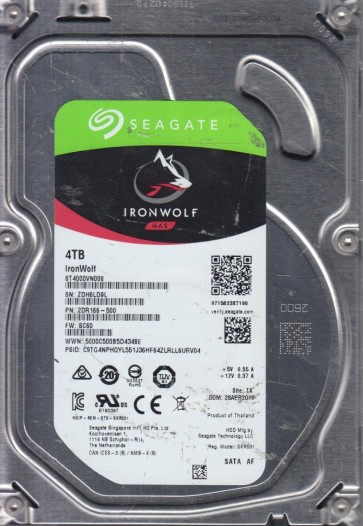
The Seagate ST4000VN008 is a 4TB hard drive from the IronWolf series, designed for NAS (Network Attached Storage) environments. It features a 5900 RPM spindle speed, SATA 6Gb/s interface, and utilizes CMR (Conventional Magnetic Recording) technology. This drive is known for its reliability in 24/7 operation but is susceptible to specific failure modes common to Seagate family drives, including firmware issues and head stack assembly failures. The drive controller is typically a Seagate proprietary chipset with firmware version SV12 or similar. Understanding its operational parameters is crucial for diagnosis. Common failure points include the preamp on the flex circuit, the motor driver IC, and the SA (System Area) on the platters. The drive uses a multi-platter design with a high data density, making recovery complex if physical damage occurs.
Identifying Common Failure Types
1. Firmware Corruption (SAP Fails / Bsy State)
This is a prevalent issue on Seagate drives including the ST4000VN008. Symptoms include the drive spinning up normally but not being detected by the BIOS or OS, or being detected with incorrect capacity (e.g., 0GB). The drive may make normal operational sounds (clicking can be absent in pure firmware cases). This occurs due to corrupted system area modules (SA modules like ID, Dir, RSVD) or a failed translator. DIY diagnosis: Listen for a steady spin without media access clicks. Professional tools can read SA modules via terminal commands. This is often recoverable with specialized firmware tools like PC-3000 UDMA or MRT.
2. Head Stack Assembly (HSA) Failure
Manifested as a repeated “click of death” or a ticking sound. The drive may spin up, then stop, retract heads, then attempt again. This indicates the heads cannot read the servo patterns on the platters. Causes include contamination, mechanical shock, or preamp failure. Important: The clicking sound is a sign of physical head-media contact. Do not operate the drive after hearing this. Professional recovery is required; DIY head replacement in a cleanroom environment is extremely risky. The ST4000VN008 uses specific head pairs that need exact matching.
3. Stiction / Motor Failure
The drive does not spin up at all, or makes a very faint hum without reaching operating speed. This can be caused by the read/write heads sticking to the platter surface (stiction) or a seized spindle motor bearing. If the drive is completely silent or emits a high-pitched whine, the motor driver IC may have failed. Diagnostic: Check for a hard drive PCB failure first. If the PCB is good (no shorted TVS diodes), the issue is internal. Professional data recovery can involve swapping the motor or using donor parts, but stiction often causes platter damage. DIY is not recommended.
4. Bad Sectors and Slow Performance
The drive is detected but becomes extremely slow, hangs during file access, or shows “I/O Device Error” in Windows. This indicates growing surface defects or a degrading actuator. SMART attributes like “Current Pending Sector Count” and “Reallocated Sector Count” will show high values. While some software tools attempt to remap sectors, this can stress the heads further. Immediate backup of readable data is critical. DIY: Use ddrescue in Linux to create a disk image, but stop if the drive makes unusual noises. Professional recovery can prioritize critical data using head-compatible imaging techniques.
Potential Recovery Paths
Professional Data Recovery Services
For cases of physical damage (clicking, no spin, stiction, or firmware failure): Send to a reputable lab specializing in Seagate drives. They use Class 100 cleanrooms for head replacements, specialized firmware tools (PC-3000, DeepSpar Disk Imager), and chip-off extraction if necessary. Costs vary widely ($300 to $3000+) based on complexity. Look for a lab that offers free evaluation and no-data-no-fee policies. Ensure they have experience with the IronWolf series specifically, as firmware reconstruction on these drives requires detailed knowledge of the SA structure.
DIY Software Solutions (Conditional)
Only attempt if the drive is electrically stable, detected by BIOS, and makes no unusual mechanical sounds. Use read-only tools: 1) Connect the drive via a SATA port (not USB-to-SATA adapter, which can add errors). 2) Use ddrescue (Linux) or HDDSuperClone to create a sector-by-sector image to a healthy target drive. 3) Do not use “chkdsk /f” or “repair” functions (see below). 4) For firmware issues without physical damage, some advanced users can attempt terminal commands using a USB-TTL adapter (like Seagate F3 terminal). Warning: This requires deep technical knowledge; wrong commands can permanently brick the drive.
What Not to Do
- Do not open the drive cover. The internal environment is sealed with a particulate filter. Opening it introduces dust that will scratch platters on spin-up, destroying data. Even a single speck of dust is catastrophic.
- Do not apply power to a clicking drive repeatedly. Each power-up cycle risks head slaps to the platter, causing more damage and data loss.
- Do not use “chkdsk /f” or “fsck” on a failing drive. These tools write to the drive to fix file system issues, which can overwrite the very data you need or cause the heads to crash onto bad sectors.
- Do not try freezer tricks. Freezing a hard drive can cause condensation and thermal stress, leading to platter warping or motor bearing damage. This myth is harmful.
- Do not use disk defragmenters or “repair” software (e.g., SpinRite, HDD Regenerator) on a drive with physical issues. They force heavy head movement and writes.
- Do not disassemble the PCB unless you have a clean workspace and ESD protection. Removing screws incorrectly can short components.
Summary
The Seagate ST4000VN008 is a robust NAS drive but vulnerable to firmware corruption (especially “BSY” state), head failure (clicking), and motor issues (no spin). Identifying the failure type by sound and detection status is the first critical step. For firmware issues without physical damage, specialized terminal tools or professional firmware repair is often successful. For any mechanical symptoms (clicking, grinding, no spin), immediate professional intervention is mandatory; DIY attempts nearly always worsen the situation. Always prioritize data safety over cost savings. If the drive is still spinning and accessible but slow, use read-only imaging tools like ddrescue immediately. Remember: every minute of wrong operation can permanently erase your data. When in doubt, power down and consult a specialist.