
Data recovery on vintage hard drives like the Western Digital WD1600LB starts with identifying the failure type – electronic, firmware, or mechanical. Each requires a different approach, and misdiagnosis can make things worse. Here’s a quick guide to help you assess your situation and decide on the next step.
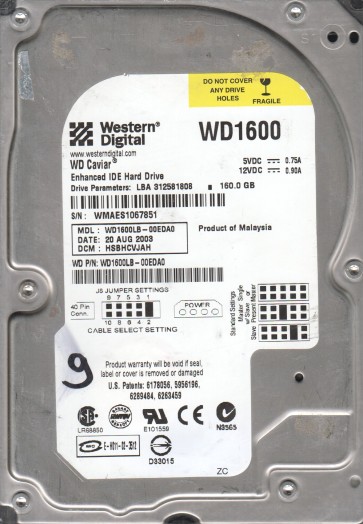
The Western Digital WD1600LB is a 160GB 3.5-inch hard disk drive from the WD Caviar series, typically utilizing a 5400 RPM spindle speed and an IDE (PATA) interface. Known for general-purpose storage in desktop systems of its era, it relies on a single platter design. Its failure profile is representative of mature mechanical drives, where gradual wear and environmental stress are primary concerns. Key characteristics include a relatively simple PCB layout compared to modern SATA drives and a greater susceptibility to head stiction and media degradation over time.
Common Failure Types
1. Mechanical Head Crash or Stiction
Symptoms: Drive spins up but produces a clicking, grinding, or scraping noise. Drive is not detected by BIOS, or is detected with zero capacity. Physical damage to the read/write heads or platter surface has occurred, often due to shock, vibration, or age-related lubrication failure. The heads may stick to the platter (stiction) after a period of inactivity.
2. Failed Spindle Motor (Binding or Seized)
Symptoms: Drive does not spin up at all, or produces a single short whine then stops. No sound of platters rotating. The spindle bearing has seized due to contamination, lubrication breakdown, or physical impact. This is often indicated by the F3 T> command prompt on the terminal when attempting to communicate, with no motor spin sequence.
3. Firmware/System Area Corruption
Symptoms: Drive spins up normally but is not detected, or is detected with the wrong capacity (e.g., 0 MB, LBA 0, or MBR read failure). The drive may click a few times before going silent. The system area modules on the platter (including translator, defect lists, and SMART data) are corrupted or inaccessible, often due to weak heads, bad sectors, or a failed firmware update.
4. Degraded Read/Write Heads
Symptoms: Drive is detected but operates slowly, reports read/write errors, or fails to copy specific files. The drive may produce a quiet, irregular noise. One or more of the physical read/write heads has become weak or failed, causing partial or total inability to access data on the platters. This is often accompanied by a high number of reallocated or pending sectors in SMART data.
5. PCB (Printed Circuit Board) Failure
Symptoms: Drive does not spin up, no motor sound, no activity LED. On this IDE drive, common failures include damaged 5V/12V power protection components (TVS diodes, fuses) or a failed preamplifier circuit. The electronic board itself is dead or partially functional, often caused by power surge or component aging.
Potential Recovery Paths
Professional Service: For clicking, grinding, or drives with a seized spindle, professional service is strongly recommended. A cleanroom environment (Class 100 or better) is required for head replacement or platter transfer. For firmware corruption on drives that spin normally but are not detected, professional tools (e.g., PC-3000, MRT) can reprogram the system area, rebuild translators, or access the SA directly. For head degradation, professional labs use specialized tools to isolate the working head and read data from the damaged one. For PCB failure, professional labs can perform a ROM transplant (replacing the PCB with a donor board that has the original drive’s unique adaptive data) which is far more reliable than simple board swaps. Expect costs from $500 to $2000+ depending on complexity.
DIY Methods (with warnings):
1. PCB Swap: For a drive that shows no power signs, you can attempt to swap the PCB with an identical donor board. The donor must have the exact same PCB number (printed on the board). This is a low-risk procedure if done carefully. However, the ROM on the original PCB must be transplanted to the donor board or the donor board must be reprogrammed. On many WD drives, simple swaps fail due to adaptive data in the ROM. Using a voltmeter to check the TVS diodes on the original PCB is a safer first step. If a diode is shorted, removing it may restore power for a super short test to see if the drive spins.
2. Freezing the Drive: A classic but last-resort trick for stiction or a slightly seized spindle. Place the drive in a sealed anti-static bag and freeze it for 4-6 hours. Install immediately into the system and try to power on. The contraction of metal may free a stuck head or bearing for a brief moment. This has a very low success rate and can cause extreme condensation damage. Only attempt if data is not critical and professional help is too expensive.
3. Software Imaging: If the drive is detected and clicking or causing errors, but you can read data intermittently, use a tool like DDRescue or HDDSuperClone to create a disk image in a single session. Never write to the failing drive. This only works if the drive has logical damage or a few bad sectors, not for mechanical failure like clicking heads.
What Not to Do
1. Do not repeatedly power cycle a clicking drive. Each attempt can cause the heads to scrape against the platter, physically destroying data. A single test to confirm the noise is acceptable.
2. Do not open the hard drive enclosure at home. The drive must be opened in a cleanroom. Even a tiny speck of dust or a fingerprint can permanently damage the platter surface and heads. Opening the drive voids any chance of a future professional recovery.
3. Do not use file recovery software (like Recuva, EaseUS) on a mechanically failing drive. These tools re-write the drive to install themselves or create virtual memory files, which can overwrite the data you are trying to save. Use only read-only imaging tools.
4. Do not apply new power or data cables repeatedly to a drive that does not spin up. This stresses the remaining circuits. Instead, check the PCB for damage first. Do not try to manually spin the platters with a finger or tool.
5. Do not ignore SMART data warnings. If the drive is reporting a high number of reallocated sectors or pending sectors, it is a sign of mechanical failure. Continuing to use the drive normally will worsen the condition. Proactive backup or imaging is critical before failure becomes catastrophic.
Summary
The WD1600LB is a classic parallel ATA drive susceptible to mechanical wear, head stiction, and system area corruption. Professional recovery is essential for physical issues like clicking or seized spindles. A simple PCB swap or software imaging may resolve electronic or logical faults, but DIY freezing is a long-shot only for low-value data. Non-invasive, read-only imaging is the primary safe DIY method for drives still spinning and detected. Avoid any operation that writes to the drive, opens the enclosure, or repeatedly stresses a failing mechanism. Prioritize backup of any SMART data warnings you receive.