
Data recovery on vintage hard drives like the Hitachi HTS543225A7A381 starts with identifying the failure type – electronic, firmware, or mechanical. Each requires a different approach, and misdiagnosis can make things worse. Here’s a quick guide to help you assess your situation and decide on the next step.
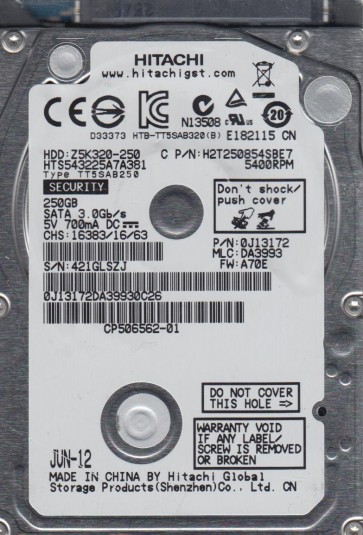
The Hitachi HTS543225A7A381 is a 2.5-inch, 250GB, 5400 RPM SATA hard disk drive from the Travelstar 5K250 series, manufactured primarily by HGST (a Western Digital subsidiary). This drive commonly served in laptops and external enclosures from the late 2000s. It uses perpendicular magnetic recording technology and features a fluid dynamic bearing motor. Known for reasonable reliability but prone to specific failure modes common to this generation, including head degradation and issues with the on-board media cache. The drive interprets data through the G-List (grown defect list) and P-List (primary defect list), with firmware stored on both the PCB and the platters. Understanding these components is critical for distinguishing between recoverable logical damage and irrecoverable physical damage without specialized equipment.
Identifying Common Failure Types
1. Logical / File System Corruption
The drive spins up and is recognized in BIOS but the operating system cannot read the partition or reports “RAW” or “unallocated space”. This is frequently caused by accidental formatting, failed write operations, or virus attacks. Symptoms include clicking sounds only during file access or instantly corrupting the Master Boot Record (MBR) / GPT. The drive’s SMART data often shows no immediate hardware warnings, but ‘Reallocated Sector Count’ may be high. DIY software may succeed if no physical damage exists.
2. Stiction / Motor Failure (Mechanical)
The drive fails to spin up at all, makes a quiet whining or “ticking” sound from the motor, or the platters refuse to rotate. The HTS543225A7A381 is susceptible to its motor spindle seizing, especially if shock was involved. In some cases, you might hear a faint attempt at rotation then silence. SMART data is inaccessible. This is a pure hardware failure requiring cleanroom intervention. Attempting DIY fixes like tapping or freezing the drive will almost certainly shatter the read/write heads or damage platters.
3. Click of Death (Head Failure / Read/Write Alignment)
Upon power-up, the drive performs a normal spin-up and then begins an audible repetitive clicking or tapping that sounds like “click-click-click…” for several seconds before going silent or repeating. This indicates that the read/write heads cannot find servo patterns on the platters, often due to a crashed head, degraded Head Stack Assembly (HSA), or preamp failure on the PCB. In the HTS543225A7A381, this is a common failure from physical shock. The PCB may be fine but the internal structural integrity is compromised. Data cannot be extracted by software and opening the drive outside a cleanroom will introduce particle contamination, destroying data further.
4. Firmware / Translator Corruption
The drive spins up, is detected with the correct model name but with zero capacity or the capacity shows as “0 GB”. Sometimes the drive responds to commands for only a few minutes then disappears. The HTS543225A7A381 stores critical firmware modules (identifying adapter, media cache, zone table) on the platters. If these modules become corrupt due to a bad sector or a microcode update failure, the drive’s internal “translator” cannot map logical addresses to physical sectors. This is often fixable with specialist tools (PC-3000, MRT) that can re-read the firmware region bypassing the defect. DIY attempts at firmware flashing with generic tools risk bricking the drive permanently.
Potential Recovery Paths
Professional Service (Recommended for Physical & Complex Firmware Failure)
- Cleanroom Head Replacement: For mechanical failures (head crash, seized motor), a certified data recovery lab will open the drive in a Class 100 or cleaner environment, replace the Head Stack Assembly with a matched donor drive, or perform a motor transfer. The success rate is high but labor-intensive, costing typically $500 – $2000+.
- Specialist Firmware Tools: For firmware corruption, labs use tools like PC-3000 or MRT to read the drive in a service mode, extract primary defect tables, and rebuild the translator. They can also disable unstable heads temporarily to image remaining data. This is rarely achievable with off-the-shelf software.
- Magnetic Force Microscopy (MFM): Used as a last resort when platters are badly scratched – extremely expensive and rarely needed for this consumer drive.
DIY Methods (For Logical Damage Only – NOT Physical)
- Use a Reliable Imaging Tool (e.g., ddrescue): If the drive has no unusual sounds and is detected correctly, download the operating system from a bootable Linux USB and run ‘ddrescue’ to create a sector-by-sector image to a healthy drive. This bypasses file system logic and tries to read slow sectors. Warning: Only attempt this if the drive is 100% quiet and no clicking.
- Software Data Recovery (e.g., Recuva, PhotoRec, DMDE): After creating an image, scan the image file for lost files. These tools can rebuild deleted partitions. Never install the recovery software onto the failing drive itself, as writing to it can overwrite the data you want to recover.
- Check SMART Data: Run CrystalDiskInfo or smartctl to examine the raw values. If ‘Reallocated Sectors’ is below 100 and ‘Current Pending Sectors’ is low, the drive may survive enough to image. If any red flags appear (especially ‘Read Error Rate’), stop immediately and seek professional help.
What Not to Do
- Do NOT Open the Drive: The internal platters are sealed in a clean environment. Even a single speck of dust or skin oil can irreparably damage the surface. Opening it at home will void any professional recovery chance.
- Do NOT Freeze the Drive: This is an old myth for mechanical motors. For the HTS543225A7A381, freezing can cause condensation inside the drive, leading to corrosion and short circuits. It will not fix head stiction but can cause platter seizure.
- Do NOT Apply Power Repeatedly: If you hear clicking or ticking, each power-on cycle can physically destroy more of the read/write heads and scratch platters. Stop immediately.
- Do NOT Write Any Data to the Drive: Not even to “test” a partition, or to run a chkdsk or fsck. These tools can overwrite data or cause the heads to read over bad areas, worsening the condition.
- Do NOT Use Commercial “Bug Fix” Software: Programs that promise to “fix” bad sectors with aggressive reinitialization are dangerous – they will unknowingly instruct the drive to replace bad sectors, possibly destroying translator data.
- Do NOT Use a Different Power Supply or Enclosure: Using a non-original adapter with incorrect voltage or wiring can fry the PCB preamp or motor controller. Only use the exact original (or replacement) power source.
Summary
The Hitachi HTS543225A7A381 is a robust but aging consumer hard drive. Its most common failures are logical corruption (often recoverable with patience), head crash (click of death, requiring cleanroom work), and firmware/translator issues (requiring specialist tools). Success depends entirely on correct diagnosis: if the drive spins up quietly and is recognized, attempt DIY imaging using a tool like ddrescue on a clone drive. If there is any abnormal sound (click, whir, grinding), the drive does not spin, or shows zero capacity, immediately power it down and consult a professional data recovery service. Never attempt to bypass hardware damage with software fixes. The cost of professional recovery is justified by the unique data it can preserve. Always prioritize data integrity over cost savings.