
Data recovery on vintage hard drives like the Hitachi HTS725025A9A362 starts with identifying the failure type – electronic, firmware, or mechanical. Each requires a different approach, and misdiagnosis can make things worse. Here’s a quick guide to help you assess your situation and decide on the next step.
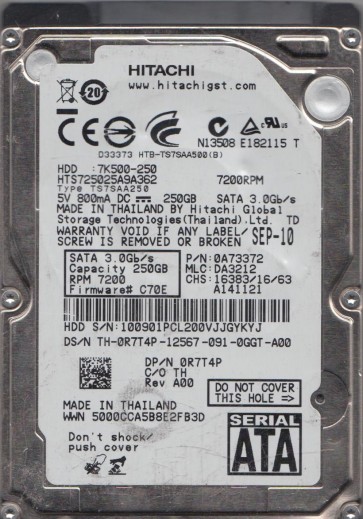
The Hitachi HTS725025A9A362 is a 2.5-inch 7200 RPM SATA hard drive with a 250GB capacity, part of the Travelstar 7K250 series. This drive utilizes perpendicular magnetic recording technology and features a dual-platter design. It is commonly found in laptops and external enclosures from the late 2000s to early 2010s. The drive’s controller is typically a Marvell-based processor, and it uses an On-Chip Servo system. Understanding that this is a mechanical device with delicate internal components (platters, read/write heads, spindle motor) is critical. The drive relies on air density for head flight; any contamination or mechanical shift can lead to catastrophic failure.
Identifying Common Failure Types
1. Firmware Corruption: A frequent software-level issue where the drive’s firmware (often stored in a serial flash chip) becomes corrupted. Symptoms: drive spins up but is not detected by BIOS, clicking sounds (not bad heads), or reporting incorrect capacity (e.g., 0GB or 128MB). This is not a physical head crash. 2. Bad Sectors and Reallocation Failures: As the drive ages, media defects develop. The drive attempts to reallocate bad sectors to a spare pool. When the spare pool is exhausted or the write-retry mechanism fails, the drive can become extremely slow, freeze during reads, or display “I/O Device Error” in Windows. This is often accompanied by high “Reallocated Sectors Count” and “Current Pending Sector” in S.M.A.R.T. data. 3. Head Crash or Stiction: A physical hardware failure. The read/write head physically contacts the platter surface (crash) or the heads stick to the platter (stiction). Symptoms: a grinding or screeching sound from the drive, clicking that is regular and rhythmic, or the drive not spinning up. This is a catastrophic failure that contaminates the platter surface with debris. 4. Spindle Motor Failure: The motor that rotates the platters fails. Symptoms: no spin-up sound at all, a brief whine followed by silence, or the drive repeatedly tries to spin up and fails. This can be due to a seized bearing or a failed driver chip on the PCB.
Potential Recovery Paths
Professional Data Recovery Services (Recommended for Physical Failure and Critical Data): For head crashes, stiction, spindle motor issues, or severe firmware corruption, professional intervention is almost always required. A lab will likely perform a platter transplant in a cleanroom (Class 100 or better) to a matching donor drive. For firmware issues, specialists use tools like PC-3000 or Data Extractor to repair microcode modules or rebuild translator data. Cost typically ranges from $300 to $2000+ depending on severity and turnaround time. DIY Recovery Paths (Only for Non-Physical Issues, No Valuable Data Backup): a. S.M.A.R.T. Analysis: Use tools like CrystalDiskInfo or HDDScan to read the drive’s S.M.A.R.T. values. Look for Raw Read Error Rate, Reallocated Sectors Count, and Current Pending Sector. If values are high but drive is detected and sounds healthy, proceed with caution. b. Cloning with Software: Use a disk imaging tool like DDRescue (Linux/Mac) or HDD Raw Copy Tool (Windows). Never work on the original drive. Connect it via a different SATA port or USB adapter. Use the tool to clone the drive to a known-good hard drive of equal or larger size. Pause and skip bad sectors. This process can take days. c. Freezing (Extreme and Last Resort): Only for stuck spindle motors or mild stiction. Place the drive in a sealed anti-static bag and put it in a freezer for 6-12 hours. Connect quickly and attempt to power on. This is risky as condensation can short-circuit electronics. Success is rare and temporary.
What Not to Do
Do not open the drive’s enclosure for any reason. The internal platters are extremely sensitive to dust, smoke particles, and fingerprints. Even a single speck can destroy data when the head attempts to fly. Do not apply power to a drive making grinding or scraping sounds. This can cause further platter damage and reduce recovery success. Do not attempt to use software “repair” tools like CHKDSK /F, chkdsk /r, or defrag on a failing drive. These tools generate heavy read/write activity that can push a borderline drive to total failure. Do not shake or tap the drive to “free” stuck heads. This can dislodge the head assembly and scratch the platters. Do not attempt to swap PCBs without matching the firmware version exactly. The Hitachi HTS725025A9A362 has a unique adaptive code stored on the drive’s system area, and swapping boards blindly can cause permanent data loss.
Summary
The Hitachi HTS725025A9A362 is a reliable but aging mechanical drive. Data loss scenarios typically fall into firmware corruption, bad sector proliferation, or physical head/motor failure. For any physical failure (noises, no spin, grinding) or if data is critically important, immediate professional help is the only safe path. Software-based DIY recovery is only viable for drives that are detected, spin silently, and show no signs of physical distress. Always prioritize creating a disk image over any repair attempts. The golden rule: never write data to the failing drive, and never use aggressive recovery software on the original hardware. Protecting the drive from further physical and electrical stress is the single most important factor in successful data recovery.