
Data recovery on vintage hard drives like the Hitachi HTS725050A7E635 starts with identifying the failure type – electronic, firmware, or mechanical. Each requires a different approach, and misdiagnosis can make things worse. Here’s a quick guide to help you assess your situation and decide on the next step.
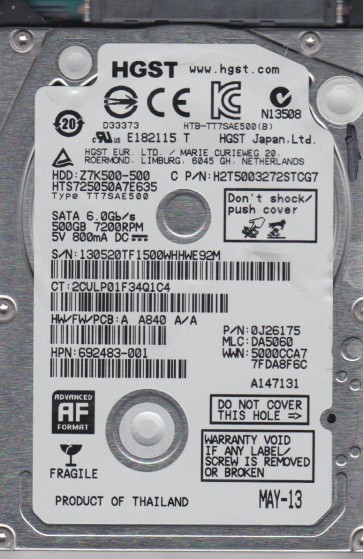
The Hitachi HTS725050A7E635 is a 2.5-inch SATA hard disk drive part of the Travelstar 7K500 series. It features a 500GB platter capacity and spins at 7200 RPM. This drive uses a traditional perpendicular magnetic recording (PMR) technology and is commonly found in laptops and external enclosures from the early 2010s. Key internal components include the voice coil motor (VCM), read/write heads, platters, spindle motor, and a printed circuit board (PCB) often identified by its specific firmware revision. Understanding the drive’s architecture is critical because failures are often specific to these components. The drive’s SATA interface is standard, but its internal firmware is proprietary, making logical recovery challenging without proper tools.
Identifying Common Failure Types
1. Mechanical Head Crash or Stiction
This is a hardware failure where the read/write head physically contacts the platter surface or becomes stuck on the platter (stiction). Symptoms include a loud clicking or grinding noise, the drive failing to spin up, or the system detecting the drive but not reading data. This is often caused by physical shock (dropping a laptop) or gradual wear on the head actuator mechanism. A head crash permanently damages the platter surface at the contact point, making any DIY recovery attempts extremely risky.
2. PCB (Printed Circuit Board) Failure
This is a hardware failure where the electronic components on the drive’s controller board fail. Common causes include power surges, overheating, or component aging (e.g., failed TVS diodes or preamp). Symptoms: the drive appears dead (no spin, no sound, no detection) or may spin up briefly then stop. The platters and heads are often mechanically intact. A common DIY approach is PCB swapping, but it requires matching the exact board revision and transferring the 8-pin serial flash ROM chip containing the unique firmware adaptation data.
3. Bad Sectors and Firmware Corruption
This is primarily a software or logical issue. Bad sectors develop due to media wear, weak magnetic spots, or impact damage. Firmware corruption can occur from improper shutdowns or virus attacks. Symptoms: the drive is detected but is extremely slow, causes system hangs, shows file system errors (e.g., “RAW” partition), or makes clicking sounds that are distinct from mechanical crashes (often a “chirping” or repetitive seeking sound as the firmware tries to reallocate bad sectors). The drive may enter a “busy” state and not respond to commands.
4. Spindle Motor Failure
A hardware failure where the motor that spins the platters seizes or fails to rotate. Symptoms: the drive makes a buzzing or whining sound but the platters do not spin, or the drive emits no sound at all except a faint electrical hum. This often requires clean-room disassembly to replace the motor assembly, which is a very high-risk procedure.
Potential Recovery Paths
Professional Data Recovery Services (Recommended for Mechanical or Complex Failures)
For head crashes, spindle motor failure, or severe firmware corruption, professional services are the only viable path. These labs operate in cleanroom environments (Class 100 or better) to avoid particle contamination. They use specialized tools like PC-3000 or DeepSpar DDI to image the drive at the hardware level, bypassing failing heads or bad sectors. For the HTS725050A7E635, they can perform head stack replacements using a donor drive of the exact same model and firmware revision. Costs range from $300 to $2000+ depending on severity. Benefits include the highest chance of full recovery and your data remaining intact.
DIY Recovery Paths (For Limited Software or Simple Hardware Issues)
For Bad Sectors (Software Issue): Use a tool like ddrescue (Linux) or HDDSuperClone (Windows/Linux). Boot the system from a different drive and connect the failing HTS725050A7E635 as a secondary drive. Run ddrescue with a log file to image the drive to a healthy target. This reads good sectors first and later attempts to re-read bad ones. Expect it may take days for a 500GB drive with many bad sectors. Never use chkdsk or fsck on the failing drive directly as it can cause further damage.
For PCB Failure (Hardware Issue): Only attempt this if you are skilled with electronics. First, visually inspect for burned components (TVS diodes). Source an exact donor PCB with the same board number (e.g., 0A95471). Remove the 8-pin serial flash ROM chip (often 25xx series) from the original PCB and transplant it to the donor board using a soldering station. Simply swapping PCBs without transferring the firmware will result in an inaccessible drive.
What Not to Do
- Do not open the drive. Exposing the platters to air (which contains microscopic particles) will permanently contaminate them and destroy data. Only a cleanroom can handle internal disassembly.
- Do not apply excessive power or poke at the PCB. This can damage components. Use a multimeter to test voltage rails before swapping PCBs.
- Do not run chkdsk (Windows) or fsck (Linux/macOS) on the failing drive. These tools assume the drive is healthy and can write to bad sectors, causing further data loss or forcing the drive to become completely unreadable.
- Do not repeatedly power cycle the drive. If it clicks or makes unusual sounds, each power-on risks worsening the head or platter damage.
- Do not freeze the drive. This is a dangerous myth. Condensation inside the drive will cause corrosion and head crashes. It offers no benefit for modern drives.
- Do not use data recovery software (like Recuva, EaseUS) on a drive with hardware failures. These tools work at the file system level and require the drive to be fully healthy. They can cause the drive to work harder and fail completely.
Summary
Successful recovery of the Hitachi HTS725050A7E635 depends on correctly identifying the failure type. Mechanical failures (head crash, spindle motor) and complex firmware issues absolutely require a professional data recovery service with cleanroom facilities and specialized equipment. Hardware PCB failures have a limited DIY potential but require careful firmware chip transplantation. Software-level bad sectors can be tackled with dedicated cloning tools like ddrescue, but patience and proper setup are critical. The primary rule is to stop all attempts once you hear mechanical distress or the drive behaves erratically. Never attempt internal disassembly or filesystem repair on a failing drive. Prioritize creating a bit-by-bit image to a healthy target disk before any further analysis. The cost of professional recovery is often insignificant compared to the value of lost personal or business data.