
Data recovery on vintage hard drives like the Hitachi IC35L060AVER07 starts with identifying the failure type – electronic, firmware, or mechanical. Each requires a different approach, and misdiagnosis can make things worse. Here’s a quick guide to help you assess your situation and decide on the next step.
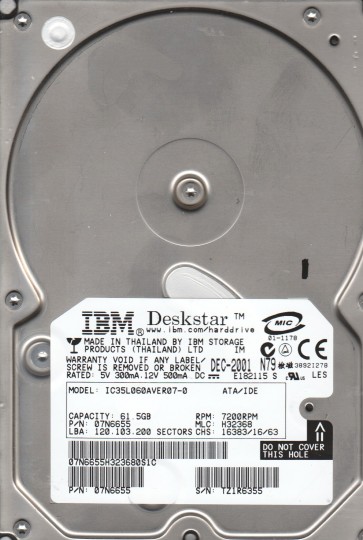
The Hitachi IC35L060AVER07 is a 3.5-inch desktop hard drive from the Deskstar series, manufactured by Hitachi Global Storage Technologies (now part of Western Digital). This model is part of the 60 GB family (60 GB capacity, 7200 RPM spindle speed, ATA/IDE interface). It utilizes a glass-based platter design and a traditional voice coil actuator. Key points: It is a relatively older drive (circa early 2000s) and is susceptible to common failure modes of that era, including stiction, firmware corruption, and head degradation. The drive uses a Marvell main controller chip and a fluid dynamic bearing (FDB) motor. Understanding its age and technology is critical for a correct recovery strategy.
Identifying Common Failure Types
1. Mechanical Failure – Stiction and Head Crash
The most common failure for this model is “stiction” (static friction causing the heads to stick to the platters) or a head crash. Symptoms: A repetitive clicking sound (click of death) or a drive that spins up but makes loud scratching noises. The drive may fail to spin at all if the spindle motor is seized. This is a hardware failure requiring cleanroom intervention.
2. Firmware Corruption (ATA Password or Module Failure)
The IC35L060AVER07 has a vulnerable firmware area stored on a system track. Symptoms: Drive spins up and is detected by BIOS but shows incorrect capacity (e.g., 0 MB, 32 GB, or LBA 0). The drive may report “Not Ready” or “No Media” in recovery software. This can be caused by a sudden power loss, ESD, or a weak PCB. It is a logical failure at the firmware level that can often be fixed with specialized tools (like PC-3000 or MRT) by rebuilding translator modules or clearing the ATA password.
3. Electronic Failure (PCB Damage)
The printed circuit board (PCB) on this model can fail due to blown TVS diodes, capacitor failure, or controller chip overheating. Symptoms: Drive does not spin at all, no activity LED, or emits a faint smoke smell. The motor may hum briefly. This is a hardware failure but often repairable by replacing the PCB or soldering a matched donor board (firmware adaptation may be required).
Potential Recovery Paths
Professional Data Recovery Service
For mechanical failures (head crash, stiction) or severe firmware corruption, the only reliable solution is a professional cleanroom service. A specialist will replace the read/write heads in a Class 10 cleanroom, or use a head stack assembly (HSA) donor. For PCB repair, a technician can transplant the ROM chip from the original PCB to a donor board. This is recommended for irreplaceable data. Expect a cost of $300 to $1500 USD depending on the complexity. Companies like DriveSavers or Ontrack are viable options, but specialized local labs are often more cost-effective for this older drive.
DIY Recovery Paths (For Experienced Users Only)
1. PCB Swap (Electronic Failure): If the drive shows no signs of life and you suspect a burned TVS diode, you can attempt a DIY PCB replacement. First, locate the three TVS diodes on the board (near the power connector). Use a multimeter to test for shorts. If one is shorted, you can remove it or replace the entire PCB. Critical: You must transfer the original 8-pin serial flash chip (often a 25P05 or similar) from the old board to the donor board. Without doing so, the donor PCB will not work or will cause bad sector mapping. Use a hot air station at 350¡ãC for this delicate operation. After PCB swap, the drive should spin up and be recognized.
2. Firmware Repair (Logical Failure): If the drive spins but is not recognized, you can use a hardware tool like a ZAR (Zero Assumption Recovery) or a more advanced tool like MRT Ultimate (requires an SATA-to-USB adapter with a COM port). Boot into a DOS environment, use the utility to read the firmware modules. Try to clear the SMART attributes or rebuild the translator. Warning: This process is risky; one wrong write command can permanently brick the drive. Only attempt if you have a full backup of the original firmware.
What Not to Do
- Never open the drive enclosure. The platters are extremely sensitive to dust and particles. A single speck can cause a head crash, making data unrecoverable even for a professional lab.
- Do not apply power to a clicking drive. Continuous power-on attempts can scrape the platters and destroy data beyond recovery. Immediately stop and seek professional help.
- Avoid software data recovery tools (e.g., Recuva, R-Studio) on a physically failing drive. These tools are designed for logical corruptions (deletion, formatting) and can cause the drive to work harder, worsening the mechanical failure.
- Do not attempt to freeze the drive. This old myth can cause condensation inside the drive, leading to short circuits and platter oxidation. It never helps modern drives.
- Do not replace the PCB without transferring the ROM. As noted, the firmware on the controller board is unique to each platter set. Using a donor PCB without a ROM swap will result in unstable access or wrong geometry.
Summary
The Hitachi IC35L060AVER07 is a 60 GB IDE drive from the early 2000s, prone to head stiction, firmware corruption, and PCB failure. For non-critical data, a cautious DIY approach (PCB swap with ROM transfer) can recover the drive if the electronics are the only issue. For any mechanical problems (clicking, grinding) or severe firmware issues, immediate professional intervention is mandatory to avoid permanent data loss. Always prioritize data integrity over cost savings. Irrespective of the path chosen, stop using the drive at the first sign of failure.