
Data recovery on vintage hard drives like the Samsung HE502HJ starts with identifying the failure type – electronic, firmware, or mechanical. Each requires a different approach, and misdiagnosis can make things worse. Here’s a quick guide to help you assess your situation and decide on the next step.
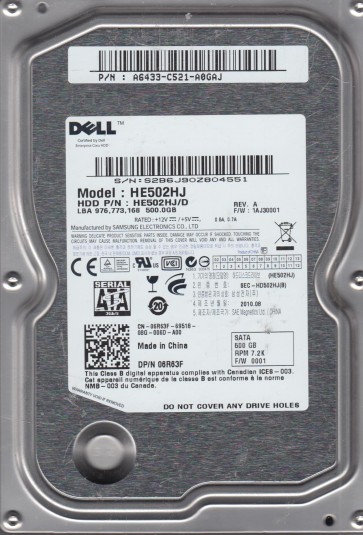
The Samsung HE502HJ is a 500GB 3.5-inch Hard Disk Drive (HDD) from Samsung’s Spinpoint F4 series. It operates at 7200 RPM and uses a 32MB cache buffer. This model is known for its SATA 3.0 Gb/s interface and is often found in desktop computers and external enclosures. Key hardware components include the platters (magnetic disks), read/write heads (actuator assembly), spindle motor, and the Printed Circuit Board (PCB) with its controller chip, motor controller, and firmware. Understanding that this is a conventional magnetic recording (CMR) drive is important, as it influences recovery complexity. The drive relies on a proprietary firmware architecture to manage bad sectors and performance, which can fail independently of the mechanical parts.
Identifying Common Failure Types
1. Mechanical Failure (Head Crash / Spindle Seizure)
This is the most critical failure type. Symptoms include a clicking, grinding, or scratching noise (head crash) where the read/write head physically contacts the platter surface. A whirring sound followed by a high-pitched squeal indicates a seized spindle motor. The drive will either not spin up, spin up and stop, or make abnormal noises. This is typically caused by a drop, physical shock, or manufacturing defect.
2. Electrical Failure (PCB / Firmware Corruption)
The HE502HJ is susceptible to PCB failure due to power surges or component age. Symptoms include a completely dead drive (no spin, no sound, not detected in BIOS) or a drive that spins but clicks a few times and then stops (often a firmware or preamp issue on the PCB). A burnt smell or visible damage to the TVS diodes or motor controller chip confirms an electrical fault. Firmware corruption can lead to the drive being detected with a wrong capacity (e.g., 0GB or 500MB) or a “SMART status bad” error.
3. Logical Failure (Bad Sectors / File System Corruption)
Logical failures occur without physical damage to the mechanical parts. Symptoms include a drive that spins normally, is detected in BIOS, but cannot be accessed in the operating system (e.g., “disk not formatted” or “file system error raw”). This can be caused by bad sectors developing on the platters, a corrupted Master Boot Record (MBR) or GPT, accidental formatting, or virus damage. The drive may show a high number of reallocated sectors in S.M.A.R.T. data.
4. Firmware Failure (Media/Servo Degradation)
A specific failure mode for this series involves firmware corruption related to the module that manages the translator table (P-list/G-list). Symptoms include the drive being detected with a model name but no capacity, or a “time out” error during initialization. The drive may also produce a series of short clicks (servo calibration failure) which sounds mechanical but is purely a firmware logic failure. This often requires specialized tools to re-flash or rebuild the firmware modules.
Potential Recovery Paths
Professional Data Recovery Services (Recommended for Mechanical, Electrical, Firmware)
- Service Method: In a certified Class 10 cleanroom, technicians open the drive. For head crashes, they replace the head stack assembly (HSA) with a donor from an identical HE502HJ. For spindle seizures, they replace the motor or platters into a donor chassis. For electrical failures, they repair the PCB or use a PC-3000 tool to access firmware. For severe bad sectors, they use a hardware imager like DeepSpar Disk Imager to clone the drive sector by sector.
- Cost: Typically $500 to $2000+ depending on failure severity and part availability.
- Success Rate: Very high (90-99%) for mechanical and electrical failures when donor parts are available.
DIY Recovery Paths (For Logical Failures Only)
Critical Warning: Attempting DIY recovery on a drive with mechanical or electrical issues can permanently destroy data. If you hear clicking, grinding, or the drive is not spinning, stop immediately.
- For File System Corruption: Use read-only software like DMDE or R-Studio. Do not format the drive. Create a full disk image using a tool like ddrescue on Linux (run as root: ddrescue /dev/sdX /mnt/usb/image.img /mnt/usb/logfile.log). This tool handles bad sectors without halting. Mount the image and recover files from it.
- For Simple Bad Sectors: If the drive is detected and slow, run ddrescue in advanced mode to retry slow sectors. Use a SATA to USB adapter with external power. Do not run chkdsk or fsck on a failing drive:it will kill the drive.
- For PCB Repair (if you have electronics skills): Identify and replace blown TVS diodes or capacitors on the PCB. Match donor PCB firmware version exactly. Do not swap a PCB without transferring the original 8-pin flash chip or reprogramming it, otherwise the drive will not work correctly.
What Not to Do
- NEVER open the drive enclosure yourself unless you are in a cleanroom environment. Dust and hair can destroy the platters.
- DO NOT run chkdsk (Windows) or fsck (Linux) on a drive that makes noise or is detected with unusual capacity.
- DO NOT apply power to a drive that has a burnt smell or visible damage:this can short circuit and damage the controller chip further.
- AVOID freezing the drive. This is an obsolete and damaging myth for modern drives; condensation causes platter damage.
- DO NOT use recovery software that writes back to the source drive. Always recover data to a different healthy drive.
- NEVER shake or tap the drive to try to “free” a stuck head:this creates scratches.
Summary
The Samsung HE502HJ is a reliable but mechanically sensitive drive. The most critical step is to correctly identify the failure type through careful listening and BIOS detection. Mechanical and electrical failures require immediate professional intervention with cleanroom tools and donor parts. Logical failures, such as file system corruption or bad sectors, can be attempted via DIY using ddrescue and read-only software, but only if the drive is detected normally and makes no abnormal noises. The absolute rule is: if the drive makes any clicking, grinding, or squealing sounds, or if you smell something burning, power it off and contact a professional data recovery lab immediately. For firmware failures, professional tools are essential. Remember, cost of professional recovery is far less than the value of irreplaceable data.