
Data recovery on vintage hard drives like the Toshiba HDWD105 starts with identifying the failure type – electronic, firmware, or mechanical. Each requires a different approach, and misdiagnosis can make things worse. Here’s a quick guide to help you assess your situation and decide on the next step.
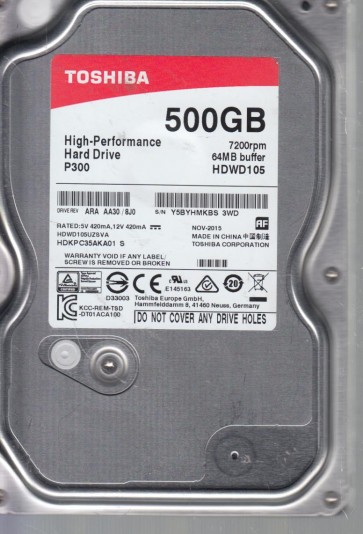
The Toshiba HDWD105 is a 3.5-inch desktop hard disk drive, typically part of the Toshiba P300 or X300 series. It operates at 7200 RPM and uses a conventional Perpendicular Magnetic Recording (PMR) technology with SATA 6.0 Gbps interface. Key components include a single or dual platter assembly, a voice coil motor (VCM) for head positioning, a spindle motor for platter rotation, and a main controller board (PCB). The drive firmware is stored on both the PCB and the system area on the platters. Common failure points involve the SATA connector, the preamp on the head stack assembly, the motor drivers, and the read/write heads. This model is known for moderate vibration sensitivity. Any unusual sounds like clicking, grinding, or high-pitched whines strongly indicate mechanical failure.
Identifying Common Failure Types
1. Mechanical Head Crash or Stiction
Symptoms: Loud clicking, repetitive ticking (head parking failure), or a stuck spindle motor (no spin-up). The drive may be detected by BIOS but with corrupted capacity (e.g. 0MB or 32GB) or not detected at all. This is due to physical contact between the read/write heads and the media surface, causing media damage or a failed VCM. DIY recovery is extremely risky as opening the drive requires a cleanroom. Any operation with a damaged head will further scratch the platters.
2. Firmware Corruption
Symptoms: Drive spins up correctly (you can feel gentle vibration when holding it), but the computer shows it as uninitialized, unrecognized, or prompts “Parameter is Incorrect”. Drive may be locked (ATA security lock, often caused by external enclosure failure) or has a corrupted translator (bad sector map). This is a software-level issue affecting embedded controller code. If no physical damage is present, specialized tools like PC-3000 or MRT can repair modules. DIY methods (like using HDAT2) may work only for basic security lock removal.
3. PCB (Printed Circuit Board) Failure
Symptoms: Drive does not spin at all (no vibration, no sound) or spins briefly then stops. The board may show visible burn marks, blown TVS diodes (Transient Voltage Suppression diodes protecting against power spikes), or damaged preamp voltage regulators. This is common on Toshiba HDWD105 due to SATA voltage surges from faulty PSU. A donor PCB from the exact same model and firmware version (verify the serial prefix and board revision number) can sometimes restore function. However, direct swap without transferring the ROM (original firmware file) will usually fail due to unique platter-specific calibrations. DIY success is possible if you have soldering skills to desolder the original flash.
4. Bad Sectors / Media Degradation
Symptoms: Slow read/write speeds, constant clicking during file access, system freezing when copying files, SMART attributes showing high “Reallocated Sector Count” or “Current Pending Sector Count”. The media has developed weak magnetic spots or physical defects (non-catastrophic). Do not attempt to force CHKDSK /F or data recovery software on a drive with many bad sectors, as it will cause the heads to retry repeatedly and may knock them off track. Imaging with hardware write-blocker and software (ddrescue) is the safest DIY, but professional tools can handle these considerably better.
Potential Recovery Paths
Professional Services
For any mechanical failure (head crash, stiction, spindle lock), immediate professional intervention is strongly advised. Professionals use class 10/ISO 5 cleanrooms to swap heads or platters, and specialized firmware tools to rebuild translator. For complex firmware corruption or severe bad sector clusters, services like Data Medics, Gillware, or Ontrack offer a clean examination, but costs start from $500 USD and can exceed $3000. Always ask for a no-data-no-fee evaluation. For PCB failures, a pro can hot-swap the original ROM or use a universal board adapter. This is the only option if the platters are scratched or if the drive has internal air contamination.
DIY Methods
Only attempt DIY if the failure is definitively non-mechanical (no abnormal sounds, drive spins up normally). For bad sectors: Use a Linux live CD with ddrescue: ddrescue -d -f -r3 /dev/sdb /mnt/recovery/backup.img /mnt/recovery/logfile.log. Always image to a healthy, larger drive; never recover files directly. For “LBA Uncorrectable” errors, try reducing read speed with the -c (chunk size) parameter. For firmware-based ATA lock: Use the tool “hdparm” with -I (identity) to check security state. Use “hdparm –security-unlock password /dev/sdb” (password often empty or “p30”) but beware that multiple wrong attempts will lock the drive permanently. For simple PCB replacement: Find an exact donor board (match main board P/N, model exactly). Move the original BIOS/ROM chip (usually an 8-pin SPI flash) from the old PCB to the donor using a hot air station. If not, the drive will likely show “unknown device” or wrong capacity. Never connect a PCB with a blown TVS diode directly to power without replacing the diode or bypassing it (only if you understand voltage paths). Use a multimeter to check for shorts across power pins before applying power.
What Not to Do
- NEVER open the Toshiba HDWD105 in a non-cleanroom environment. The internal platters are sealed with extreme precision; a single dust particle can cause a head crash during recovery. Any attempt to open the drive (e.g., to swap heads at home) will destroy data permanently.
- DO NOT run CHKDSK /F, format, or any ‘repair’ operation on a drive with clicking or bad sectors. This will cause the firmware to remap sectors destructively and overwrite critical pointers.
- DO NOT freeze the drive. This is an ancient myth that can cause internal condensation, rust on the platters, and seized spindle motors. It does not resolve firmware or head issues.
- DO NOT repeatedly power-cycle the drive if it fails to spin. This can damage the spindle motor driver chip or overheat the preamp. Instead, check the PCB for shorts or replace it properly.
- DO NOT use recovery software like Recuva or EaseUS on a physically degraded drive. They will attempt intensive scanning that can push the heads beyond failure. Always image first.
Summary
The Toshiba HDWD105 data recovery is highly dependent on accurate diagnosis. Mechanical failures (head crash, stiction, motor failure) require professional cleanroom intervention. Firmware errors and bad sector issues can sometimes be handled with correct DIY tools (ddrescue or proper PCB ROM swap) provided you carefully avoid physical damage. PCB failures are the most DIY-friendly due to easier component-level repair but demand exact matching and ROM transfer. Always prioritize preservation over recovery attempts; create a forensic image before any direct repair, and when in doubt, stop and seek professional help. Backup your data immediately after recovery to prevent future losses.