
Data recovery on vintage hard drives like the Seagate ST250LM004 starts with identifying the failure type – electronic, firmware, or mechanical. Each requires a different approach, and misdiagnosis can make things worse. Here’s a quick guide to help you assess your situation and decide on the next step.
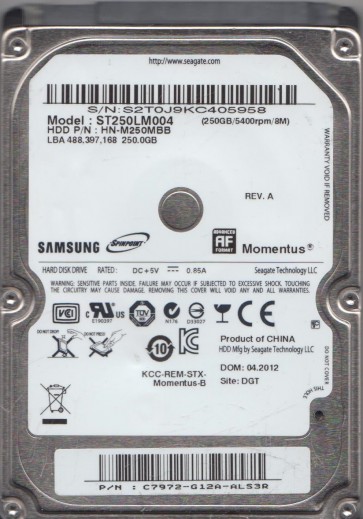
The Seagate ST250LM004 is a 2.5-inch SATA hard disk drive, part of the Momentus lineup, typically featuring a 250GB capacity and a 5400 RPM spindle speed. It utilizes perpendicular magnetic recording (PMR) technology. This drive is common in older laptops, external enclosures, and portable storage devices. Key components include the printed circuit board (PCB) located underneath the drive, a voice coil motor (VCM) that positions the read/write heads, a spindle motor that spins the platters, and the head stack assembly (HSA) containing the magnetic heads. The drive’s firmware, stored on the PCB and the platters’ service area, manages all operations. Understanding these physical and logical elements is crucial for diagnosing failures.
Identifying Common Failure Types
1. Logical / File System Corruption
Symptoms: The drive spins up and is detected in BIOS or Disk Management but shows as “RAW”, “Unallocated”, or prompts to format. Files may appear with incorrect names, sizes, or become inaccessible. The drive may produce no abnormal sounds. Cause: This is often due to improper ejection, power loss during write operations, virus attacks, or accidental formatting. The physical hardware is fully functional, but the master boot record (MBR), partition table, or file system metadata (e.g., NTFS Master File Table) has become damaged or erased.
2. Mechanical Head Crash / Stiction
Symptoms: The drive may emit a distinct clicking, scraping, or grinding noise. It may spin up but produce a repetitive “click of death” as the heads fail to land on the platters properly. In cases of stiction, the heads become stuck to the platter surface, preventing the motor from spinning up to speed. The drive is typically not recognized. Cause: Physical shock (dropping the drive), manufacturing defects, or gradual wear can cause the heads to physically contact the rapidly spinning platters. This physically damages the magnetic media and can grind away the head’s read/write element.
3. PCB / Electronic Failure
Symptoms: The drive does not spin up at all (no vibrations or sound). It may be detected by the computer but as a device with incorrect parameters (e.g., 0GB capacity). There may be visible burn marks or a burnt smell on the PCB. The drive might be detected in BIOS intermittently. Cause: Power surges, faulty USB cables, or component degradation can damage the drive’s controller chip, preamplifier, or SATA connector. A common failure on this generation of Seagate drives is a damaged TVS diode (Transient Voltage Suppression) which, when shorted, can block power to the spindle motor.
4. Bad Sectors / Media Degradation
Symptoms: The drive is detected but operates very slowly, freezes during file access, and produces high-pitched whining or repeated seeking sounds. Windows chkdsk may report numerous bad sectors. Cause: Over time, magnetic domains on the platters can weaken due to thermal decay, manufacturing imperfections, or proximity to strong magnetic fields. The drive’s firmware retries reading weak sectors, causing extreme slowness. A growing number of bad sectors often indicates a failing head or media defect.
Potential Recovery Paths
DIY (Software) Options
Important: Only attempt DIY recovery on logical failures (Type 1). For any mechanical or electronic failure, stop immediately to prevent permanent data loss. Step 1: Connect the ST250LM004 via a reliable USB-to-SATA adapter directly to a desktop PC’s SATA port (not through a hub). Step 2: Use a read-only disk imaging tool (e.g., DDRescue, R-Studio, or Clonezilla) to create a sector-by-sector clone of the entire drive to a healthy, larger destination drive. Step 3: Do not attempt to “fix” or format the source drive. Work exclusively on the image file. Step 4: Use file recovery software (e.g., Recuva, PhotoRec, R-Studio) on the clone to extract lost files by scanning for file signatures (carving) or reconstructing the file system.
Professional Service
For mechanical issues (Type 2), electronic failures (Type 3), or severe bad sectors (Type 4), a professional data recovery lab is required. Cleanroom Intervention: Technicians will open the drive in a Class 10 (or better) cleanroom to replace the read/write heads with a compatible donor set. For PCB failures, they will either repair the original board (e.g., replace the TVS diode or preamp) or transplant the drive’s original firmware ROM chip onto a donor PCB. For heavily degraded media, complex firmware tools (e.g., PC-3000, DeepSpar) are used to read weak sectors by adjusting head timing and skipping damaged areas. Cost: Professional recovery for a single ST250LM004 typically ranges from $300 to $1500+ USD depending on the severity of the damage and the required cleanroom time.
What Not to Do
- DO NOT power on the drive if it makes clicking or scraping noises. Continued operation will physically grind the platters, destroying data irreversibly.
- DO NOT attempt to open the drive’s cover. Hard drives are assembled in cleanrooms. A single dust particle can ruin the heads and platters.
- DO NOT use chkdsk /fsck or any “repair” tool on a failing drive. These tools write to the file system, potentially overwriting data and increasing bad sectors.
- DO NOT freeze the drive. This is a myth. Condensation from thawing can cause short circuits and internal corrosion, and thermal stress can damage the motor bearings.
- DO NOT shake or tap the drive. This can worsen a head crash or detach residual magnetic particles.
- DO NOT attempt to swap the PCB from another drive unless you are a trained technician. The firmware on the board is unique to each drive; a direct swap will usually fail to spin the platters and can lock the heads.
Summary
The Seagate ST250LM004 is a standard laptop hard drive susceptible to logical errors, mechanical crashes, electronic failure, and media degradation. The critical first step is identifying the failure type by listening to the drive and checking its detection status. Logical issues (drive spins, detects, but data is missing) have a high DIY success rate using imaging and file carving software. Mechanical or electronic issues require immediate shutdown and professional intervention to avoid permanent data loss. Never attempt to repair a physically damaged drive. The cost of professional recovery is justified by the value of irreplaceable data. Always back up critical data before any drive shows signs of failure.