
Data recovery on vintage hard drives like the Seagate ST250LT020 starts with identifying the failure type – electronic, firmware, or mechanical. Each requires a different approach, and misdiagnosis can make things worse. Here’s a quick guide to help you assess your situation and decide on the next step.
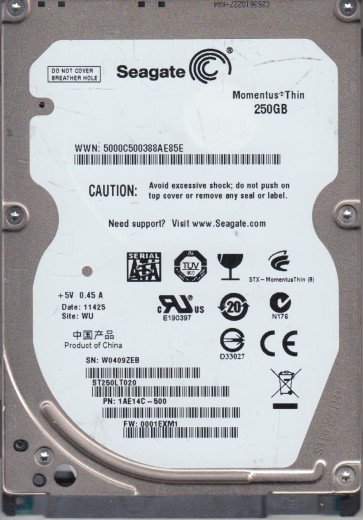
The Seagate ST250LT020 is a 2.5-inch, 250GB, 5400 RPM SATA hard disk drive, typically found in older laptops and external enclosures. It utilizes perpendicular magnetic recording technology and a traditional mechanical actuator arm with read/write heads. Understanding its internal architecture is critical for diagnosis. Key components include the platters (magnetic disks), the head stack assembly (HSA), the spindle motor, and the printed circuit board (PCB) which contains the firmware, motor controller, and data buffer. This drive is known for having a relatively high failure rate due to mechanical wear and firmware corruption, particularly after several years of use.
Identifying Common Failure Types
1. Mechanical Failure (Heads or Motor)
Symptoms: The drive is not detected in BIOS, and upon powering up, you hear a distinct clicking, scraping, or repetitive ticking sound (often referred to as “click of death”). In severe cases, the platters may screech or the spindle motor may fail to spin up. This indicates physical damage to the read/write heads or a seized motor. Data loss is usually total without professional intervention because the heads physically contact the platters, causing permanent surface damage each time the drive is powered on.
2. Firmware Corruption (Logical Failure)
Symptoms: The drive powers on and spins up normally (no abnormal sounds) but is not detected, detected with incorrect capacity (e.g., 0GB), or becomes very slow and unresponsive. This is common in Seagate 7200.11 series and similar generations, often caused by a firmware bug or bad sectors on the system area (SA). The drive’s internal microcode fails to load, preventing the computer from accessing user data. This is a logical failure, not mechanical, but requires specialized tools to reprogram the firmware.
3. Bad Sectors / Media Degradation
Symptoms: The drive is detected but appears very slow. The operating system may freeze during file access, report cyclic redundancy check (CRC) errors when copying files, or produce “Incorrect Function” errors. This indicates physical damage to the magnetic media (platters). While initially repairable via software reallocation, the underlying issue is physical degradation and the drive should be considered failing. Continued use will spread the damage and make recovery exponentially harder.
4. PCB / Electronic Failure
Symptoms: The drive produces no sound at all (no spin-up, no clicks) when powered on. There is no vibration. This points to a damaged printed circuit board, often caused by power surges, static discharge, or component failure (TVS diodes, motor controller). The platters and heads are usually still intact, but the drive cannot operate. Replacing the PCB with an identical donor board is a viable DIY step if the firmware can be transferred, but often the drive’s unique adaptive data is stored on the board’s ROM.
Potential Recovery Paths
Professional Data Recovery Services
For mechanical failure (clicking, scraping) or complex firmware issues, professional service is the only reliable option. Cleanroom level 100 work is required to replace heads without contaminating platters. Services like DriveSavers or Ontrack can handle the ST250LT020, with costs ranging from $300 to $2000+. Professionals use specialized tools (e.g., PC-3000, DeepSpar) to read damaged platters or restore firmware. Warranty: Typically no data, no charge policy, but ship the drive with extreme care. Expect turnaround times of 3-10 business days for advanced cases.
DIY Software Recovery (Only for Logical Failures)
If the drive is detected by BIOS and makes no abnormal sounds, logical recovery is possible. Step 1: Immediately create a sector-by-sector disk image using a tool like ddrescue (Linux) or R-Studio (Windows). Use an external hard drive with sufficient free space. Step 2: Set ddrescue to skip bad sectors quickly (e.g., -d -r3) to avoid stressing the head. Step 3: Once the image is created, scan the image file with data recovery software (e.g., Recuva, PhotoRec) to extract files. Warning: Do not write any data to the failing drive itself. Do not attempt to format, defrag, or run CHKDSK /f as this will overwrite data and may trigger the firmware to lock.
DIY PCB Replacement (For Electronic Failure)
If the drive is electrically dead (no spin), locate the exact PCB part number (e.g., 100535361 Rev A) printed on the board. Purchase an identical donor board from a reputable seller. The key step is transferring the original drive’s firmware ROM chip (often an 8-pin serial flash) from the old PCB to the donor board using a hot air station or soldering iron. Simply swapping the PCB without the ROM will result in immediate head chatter or “non-ready” status. After replacement, the drive should spin up, but logical recovery steps (imaging) are then recommended.
What Not to Do
- Do not open the drive cover. The platters are sealed in a cleanroom environment; any dust or fingerprint will destroy the heads and data beyond recovery.
- Do not attempt to freeze the drive. This is a myth and will cause condensation, leading to short circuits and platter corrosion.
- Do not use data recovery software that writes to the original drive (e.g., “repair” or “fix” functions). Always work from a sector-by-sector copy.
- Do not force the drive to spin if it is making unusual sounds. Power it off immediately to prevent further platter damage.
- Do not attempt to disassemble the actuator arm or platters. This requires specialized tools and training; doing so will make recovery impossible even for professionals.
- Do not repeatedly power cycle the drive in hopes of “waking it up.” Each power cycle can worsen head alignment or corrupt firmware.
Summary
The Seagate ST250LT020 is prone to mechanical head failures, firmware corruption, and bad sectors. For clicking or scraping sounds, turn off the drive immediately and seek professional cleanroom recovery. For electronic failure (no spin), a careful PCB replacement with ROM transfer may work, but logical recovery (freezing, software fixes) is dangerous. Always prioritize creating a raw disk image from any functional drive before attempting recovery. The most critical factor is time: every additional power-on or minute of operation with a failing drive reduces the probability of successful data recovery. If the data is irreplaceable, professional service is strongly recommended over any DIY attempt.