
Data recovery on vintage hard drives like the Seagate ST3500630SV starts with identifying the failure type – electronic, firmware, or mechanical. Each requires a different approach, and misdiagnosis can make things worse. Here’s a quick guide to help you assess your situation and decide on the next step.
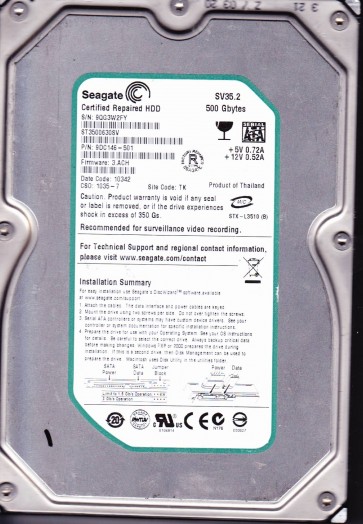
The Seagate ST3500630SV is a 500GB 3.5-inch SATA hard drive belonging to Seagate’s SV35 series, designed for video surveillance applications. This series typically features a 7200 RPM spindle speed, a 16MB cache, and a SATA 3Gb/s interface. The “SV” designation indicates firmware optimizations for 24/7 continuous operation in DVR or NVR environments, prioritizing write-heavy workloads and undervoltage tolerance. Key components include the motor, read/write heads, actuator arm, spindle bearing, platters (typically two 250GB platters), and a printed circuit board (PCB) housing the main controller (often a Marvell or LSI chip) and a flash memory chip storing the drive’s adaptive data (servo parameters and head maps). This model is known for its reliability under sustained load but, like all mechanical drives, is vulnerable to physical shock, age-related wear, and electrical surges. Understanding the specific failure mechanisms of this drive is critical before any recovery attempt, as the wrong step can render data unrecoverable with standard tools. The drive uses a “SmartAlign” technology to reduce performance degradation from long-term use, but this does not protect against physical failures.
Identifying Common Failure Types
1. Mechanical Failure (Head Crash or Stiction)
Symptoms: Clicking, grinding, or repetitive ticking sounds (audible “click of death”); drive is recognized but shows “busy” or “failed to spin up”; system hangs when attempting to access the drive; or the drive spins up and then immediately spins down. This is caused by physical contact between the read/write head and the platter surface (head crash) or the heads sticking to the platter due to lubricant degradation or debris (stiction). In the ST3500630SV, the 7200 RPM spindle increases kinetic energy, making it more prone to head damage if the drive is jolted while operating. The platter surface is aluminum coated with a magnetic layer; a crash creates a “failed” area that can spread. This is a hardware failure requiring cleanroom intervention.
2. Electronic Failure (PCB Degradation)
Symptoms: Drive is completely dead (no spin, no sound); drive is recognized but reports incorrect capacity (e.g., 0GB or 500GB but media error); or the drive fails to pass power-on self-test. This often results from a blown TVS diode (transient voltage suppression) or a damaged main controller chip due to power surges or lightning strikes. The ST3500630SV’s PCB is vulnerable to connector pin damage from improper cable insertion. The firmware on the flash chip (serial flash, often 8-pin) can also become corrupted, leading to a “no access” status. This is a hardware failure, but often repairable by replacing the PCB with a matched donor board (same model and firmware version) and transferring the original flash chip.
3. Firmware Corruption (Logical Failure)
Symptoms: Drive spins up, is detected in BIOS, but shows “Not Initialized”, “RAW”, or “Unallocated Space” in Disk Management; or drive is detected but access results in “Data error (cyclic redundancy check)” or “I/O device error”. This occurs when the firmware modules (including translator, defect lists, or SMART attributes) become corrupt due to a bad sector, software crash, or improper shutdown. The ST3500630SV uses a “Compatible” firmware architecture; corruption in the module responsible for translating logical block addresses (LBA) to physical locations can cause the drive to “breathe” (continuously recalibrate) or fail to initialize. This is a data corruption issue and can often be resolved with software tools without hardware replacement, provided the media has no physical damage.
4. Bad Sectors (Media Degradation)
Symptoms: Drive takes a long time to read/write certain files; file system errors appearing; frequent “delayed write failed” messages; or the drive passes diagnostics but has a high “Reallocated Sector Count” in SMART data. This is caused by physical wear on the platter surface from normal aging, heat, or head instability. The drive’s internal defect management reallocates bad sectors to spare areas, but excessive failure can exhaust the spare pool. The ST3500630SV’s surveillance application means it may have been written to continuously, accelerating media wear. This is a physical media failure that will worsen unless the drive is imaged sector-by-sector with a tool that can skip bad regions.
Potential Recovery Paths
Professional Recovery Services
Contact a data recovery laboratory specializing in Seagate drives for mechanical failures (head crash, stiction), severe electronic damage (burnt components, broken PCB), or firmware corruption that does not respond to DIY tools. Professionals use a class-100 cleanroom to open the drive, replace damaged heads with compatible donor heads (matching exact head firmware and model), and utilize specialized hardware/firmware tools (e.g., PC-3000, Atola Insight) to image platters directly. Expect costs between $300 to $3000+ depending on complexity. For the ST3500630SV, a cleanroom head swap is typically required for clicking sounds. A diagnosis is usually free. Provide the drive’s model, serial, and symptoms.
DIY Recovery (Software & Logical Issues Only)
WARNING: DIY should only be attempted for logical failures (bad sectors, file system issues, accidental deletion) and NOT for mechanical or severe electronic failures. For the ST3500630SV, if the drive is recognized but has bad sectors or a corrupted partition: Step 1: Download and install a disk imaging tool like ddrescue (Linux/Windows via WSL) or HDClone (free version). Step 2: Connect the drive via a direct SATA port (avoid USB adapters). Step 3: Create a sector-by-sector image to a healthy destination drive (e.g., another 500GB+ HDD). Use the source drive in read-only mode. Example command for ddrescue: ddrescue -d -f -r3 /dev/sdX /mnt/dest/image.img /mnt/dest/logfile.log. The logfile allows progress saving if the drive fails mid-copy. Step 4: After imaging, use file recovery software (e.g., TestDisk for partition repair, PhotoRec for file carving, or R-Studio) to recover data from the image file. Never write anything to the failing drive. If the drive has clicking or doesn’t spin, immediately stop and seek professional help.
What Not to Do
1. Do NOT open the drive’s internal chamber. The platters are sealed in a cleanroom environment; dust, smoke, or fingerprints destroy data. 2. Do NOT apply power if the drive makes clicking, scraping, or grinding noises ¨C this worsens head damage and platter scratches. 3. Do NOT use “freezer trick” or “impact tools” (e.g., banging the drive). These methods are myths; contraction can crack the platter, and shock destroys alignment. 4. Do NOT run CHKDSK or any file system repair tool (e.g., fsck) on the failing drive. These tools write to the drive, potentially overwriting data or triggering further bad sector growth. 5. Do NOT repeatedly power-cycle the drive. This stresses the spindle motor and heads. 6. Do NOT attempt to re-solder components on the PCB unless you have precise soldering skills and a schematic. A short can cause irreversible damage. 7. Do NOT use standard backup software (e.g., Windows Backup, Time Machine) on a failing drive ¨C they will stall or corrupt data. 8. Do NOT ignore signs of heat (drive is very hot to touch) ¨C this indicates impending catastrophic failure. 9. Do NOT attempt to update the firmware via the manufacturer’s tool if the drive has data ¨C this can make recovery impossible if the firmware version is incorrect. 10. Do NOT assume the drive is safe if it spins up normally ¨C logical errors can still be present.
Summary
The Seagate ST3500630SV is a robust surveillance-oriented hard drive with a known susceptibility to head crashes, electronic failure from power surges, and firmware corruption due to its 24/7 operation. Diagnosis is critical: listen for noises (mechanical), check for spin and detection (electronic), and test for file system errors (logical). For any mechanical or severe electronic failure, immediate professional intervention is required to prevent data loss; never open a failed drive. For logical issues (deleted files, minor corruption, few bad sectors), use ddrescue or similar tools to create a disk image before attempting file recovery. Always prioritize data safety over speed ¨C the cost of professional recovery is far lower than the value of irreplaceable data. The key steps: recognize symptoms, isolate the drive, image it, then recover from the image.