
Data recovery on vintage hard drives like the Seagate ST3500631NS starts with identifying the failure type – electronic, firmware, or mechanical. Each requires a different approach, and misdiagnosis can make things worse. Here’s a quick guide to help you assess your situation and decide on the next step.
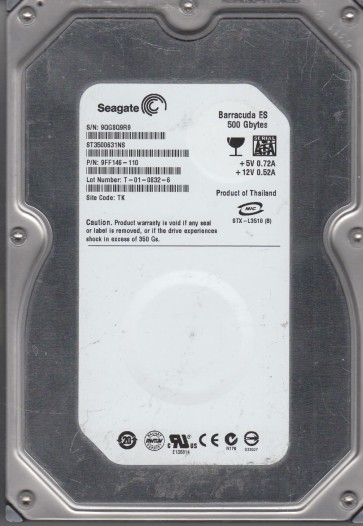
The Seagate ST3500631NS is a 500GB 7200RPM SATA hard drive from the Barracuda ES.2 enterprise-class series. It features a single 500GB platter and uses a perpendicular recording technology with a native 4K sector format (Advanced Format 512e emulation). This drive is designed for 24/7 operation in NAS or server environments, with a workload rate limit of 55TB/year. Key components include the main controller (commonly an Agere or LSI chip), a 16MB cache, and a fluid dynamic bearing motor. Understanding this architecture is critical because enterprise drives have different failure patterns compared to consumer models. The drive supports SATA 3Gb/s and has a typical operating temperature range of 0-60¡ãC. Its firmware is optimized for RAID environments, which means some recovery techniques differ from standard desktop drives. The PCB (printed circuit board) is easily removable, but the ROM contains drive-specific adaptive data that must be preserved for successful recovery.
Identifying Common Failure Types
1. Logic Board (PCB) Failure
This is the most common electrical failure. Symptoms: Drive appears dead (no spin, no sound, or no detection in BIOS with a possible faint high-pitched whine). Caused by voltage spikes, power surges, or component aging. The TVS diodes (Transient Voltage Suppression) on the 5V and 12V lines often fail short, blowing the internal fuse. The drive may also have a failed preamp on the PCB. A damaged controller chip (often a broken trace from the head interface) can also occur. This failure type does not involve the sealed HDA (head-disk assembly).
2. Bad Sectors / Degraded Media
Indicated by slow reads, clicking noises (not repetitive, but irregular), or the drive failing to boot with errors such as “SMART status bad”. The ST3500631NS is known for developing reallocation counts as platters age. The primary symptoms in Windows are file copy errors, blue screens, or the drive unmounting unexpectedly. Advanced S.M.A.R.T. attributes like “Current Pending Sector Count” and “Reallocated Sectors Count” will show values above zero. In severe cases, the drive’s firmware may lock itself into a “calibration loop,” causing the heads to repeatedly park and unpark. This is often a gradual failure and is not always caused by physical damage to the platters.
3. Head Crash / Mechanical Failure
Distinctive repetitive clicking or grinding sounds. The drive will not spin up correctly or will spin up and then stop. A head crash occurs when the read/write heads physically contact the platter surface, scraping away the magnetic coating. The ST3500631NS has two heads (one per platter surface). A crash in one head often leaves the other head functional, but the drive mechanism will still fail due to servo errors. This is a catastrophic failure. Environmental causes include physical shock, temperature extremes, or contaminants inside the HDA. Data recovery from a head crash is extremely complex.
4. Stiction (Sticktion) or Motor Failure
The platters become stuck to the heads due to prolonged inactivity, humidity, or lubricant breakdown. The drive may emit a faint hum but no spin. Alternatively, the spindle motor’s bearing may seize, causing a high-pitched whine or no movement at all. With stiction, you may hear the motor attempt to spin for 1-2 seconds then stop. This is relatively rare in this enterprise model but can occur in devices that have been powered off for years. Motor bearing failure can also be caused by physical contamination or normal wear in high-temperature environments.
5. Firmware Corruption
The ST3500631NS relies on firmware stored on both the PCB and the system area on the platters. Symptoms: Drive is detected with incorrect capacity, is recognized but inaccessible, or reports errors like “Invalid Media” or “Not Ready”. The drive may show up in Disk Management but ask to be initialized. Firmware issues can be caused by power loss during a write operation, bad translation tables (G-List corruption), or defective translator modules. In enterprise drives, RAID controller resets can also cause firmware misalignment. Unlike consumer drives, Seagate enterprise drives often have a more robust firmware recovery mode.
Potential Recovery Paths
Professional Recovery Services
For hardware failures (head crash, motor seizure, severe firmware damage, or stiction): Send the drive to a certified clean room. Companies like DriveSavers, Gillware, or Ontrack use Class 100 clean benches. They will replace the read/write heads with donor heads from an identical model (same date code and firmware version), recover the data with specialized tools like DeepSpar or PC-3000, and then image the drive sector by sector. Costs range from $500 to $2500+ depending on severity. For PCB failure, a professional can repair the board (replace TVS diodes, fuse, or even rework the controller) without opening the HDA. This is often cheaper (around $300-$500) for simple electrical repairs. Always choose a service that offers a no-data-no-fee policy and a secure facility if sensitive data is involved.
DIY Recovery (Low-Risk Scenarios)
For PCB failure only: If you are certain the drive has no internal damage (no clicks, no grinding), you can attempt a PCB swap. Buy a donor drive with exact model number and firmware revision (Seagate often uses different firmware versions: 3.AAB, 3.AAD, etc.). Remove the original PCB, transfer the ROM chip (usually an 8-pin SOIC EEPROM) from the original board to the donor board using a hot air station or soldering iron. Warning: Without transferring the ROM, the donor PCB will not match the heads and the drive will not work or will destroy data. If you lack soldering skills, a professional PCB repair service can do this for under $50. For logic board failure with blown TVS diode: Remove the diode or replace it with an identical part (e.g., a SMBJ5.0A for 5V line). This is a 5-minute job for someone with basic soldering. Test the drive with a multimeter first before powering on. For minor bad sectors: Use data recovery software like R-Studio or DMDE in read-only mode. Do not attempt to format, CHKDSK, or repair. Use a tool to create a sector-by-sector image to a healthy drive. Modern utilities can skip bad sectors and retry later. For firmware corruption: Seagate’s “F3” repair mode can be accessed via serial console (using a USB-to-TTL adapter). Commands like “m0,6,2,,,,,22” can sometimes repair translator errors, but this is advanced and risky. Do not attempt any DIY methods if you hear repetitive clicking or if the drive emits a burning smell.
What Not to Do
- Do not open the HDA (hard drive assembly). The platters in the ST3500631NS have nanometer-level precision. Opening the drive in a non-clean room environment will introduce dust that can scratch the platters and destroy data. One speck of dust can kill the drive.
- Do not apply power to a drive that smells burnt or has visible damage on the PCB. A shorted component can cascade and destroy the preamp, corrupting the data permanently.
- Do not use software like “CHKDSK /r” or “HDD Regenerator” on a failing drive. These tools attempt to write to the media, which can overwrite bad sectors and cause irreversible damage or trigger a firmware lock.
- Do not freeze the drive. This old myth can cause condensation inside the HDA, leading to corrosion and further damage. It does not repair bad sectors or head stiction.
- Do not swap PCBs without transferring the ROM. A direct PCB swap from an identical model without moving the unique ROM chip will likely cause the drive to beep or fail to calibrate, and may even damage the heads.
- Do not use the drive as a system disk or attempt to boot from it. Operating system writes (page files, logs) can overwrite data areas that are still recoverable.
- Do not ignore S.M.A.R.T. warnings. If the drive is reporting a high Reallocated Sector Count or a pending sector count, back up immediately. Continuing to use it will accelerate failure.
Summary
The Seagate ST3500631NS is a robust enterprise drive, but it is not immune to failure. The primary risk categories are electrical (PCB), logical (firmware/bad sectors), and mechanical (heads/motor). For any clicking or grinding sounds, stop all DIY attempts and contact a professional clean-room service. For PCB-only failures, a careful ROM swap or TVS diode replacement is viable for experienced technicians. For bad sectors, use read-only imaging software and never attempt repairs. The most critical rule: never open the HDA and never apply power if you suspect internal damage. Always prioritize data preservation over cost savings. If the data is valuable, professional recovery is the safest and often the only option. Document all symptoms and any steps taken to ensure the recovery technician has a clear picture of the drive’s condition.