
Data recovery on vintage hard drives like the HGST HUS724020ALS640 starts with identifying the failure type – electronic, firmware, or mechanical. Each requires a different approach, and misdiagnosis can make things worse. Here’s a quick guide to help you assess your situation and decide on the next step.
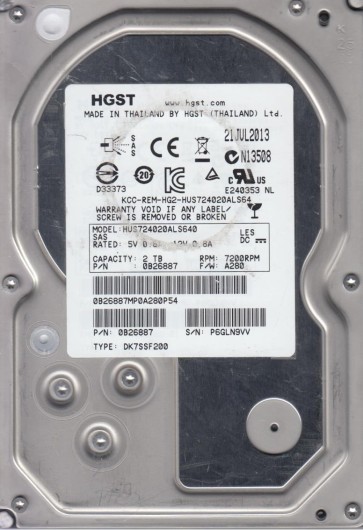
The HGST HUS724020ALS640 is a 2TB enterprise-class 3.5-inch SATA hard disk drive from the Ultrastar 7K4000 series. Designed for 24/7 operation in data centers and RAID arrays, it features a rotational speed of 7200 RPM, a 64MB cache, and a robust recording head technology known for reliability. This drive utilizes Advanced Format (4K sector emulation) and is built with a helium-filled or standard air-sealed enclosure depending on the specific build revision. Its failure modes often stem from its enterprise workload history, such as excessive vibration, thermal cycling, and prolonged power-on hours, leading to mechanical wear or electronic component fatigue. Understanding that these drives are built for high duty cycles helps frame the failure expectations: when they fail, it is often due to accumulated mechanical stress or sudden power events rather than consumer-grade physical shock.
Identifying Common Failure Types
1. Mechanical/Head Failure
Symptoms include clicking, grinding, or repetitive ticking sounds when powered. The drive may be recognized in BIOS but fails to read data with retries. This is often caused by a worn or crashed read/write head, damaged platter surface (head slap), or a seized spindle motor. Enterprise drives like this can fail due to actuator arm pivot wear after years of heavy use.
2. Electronic / PCB Failure
The drive is fully silent or spins up but is not detected by the system. Common causes include a blown TVS diode (from power surge), damaged preamplifier (preamp) chip, or failed motor controller. On this model, the PCB is located externally and is vulnerable to short circuits from conductive debris or moisture.
3. Firmware Corruption
The drive spins up normally but may make a uniform tapping sound or report a “SMART status bad” error. It may be detected as an incorrect model number or zero capacity. This often results from an incomplete firmware update, bad sector reallocation log corruption, or SATA interface translation issues. On HGST drives, this can manifest as a “spun-down” state where the drive appears offline.
4. Bad Sectors / Logical Damage
The drive operates but slows down, freezes during file access, or shows a “cyclic redundancy check” error. This is typically caused by degraded magnetic domains, excessive bad sector reallocation, or file system corruption after improper unmounting. While not a physical failure of the major components, it requires careful imaging to preserve data.
Potential Recovery Paths
DIY Recovery (Only for Logical and Limited Electronic Issues)
- Logical Recovery (bad sectors): Use a Linux-based tool like ddrescue or hddscan to create a sector-by-sector image to a healthy drive. Ensure the target drive is larger than the source (2TB). Power off the drive immediately if it begins clicking during imaging. Work in a clean, low-vibration environment.
- PCB Swap (if confirmed similar PCB): Only attempt if you have a donor drive of the exact same model (HUS724020ALS640) and firmware revision. Desolder and replace the BIOS ROM (an 8-pin EEPROM) from the original PCB to the donor board using a hot air station. This is advanced and requires measurement of TVS diode status first. Do not just swap boards without transferring ROM, as the drive will spin but not initialize.
- Firmware Repair: Using professional tools like MRT or PC-3000 is not recommended for novices. However, if the drive is detected with corrupted SMART, you can try a “Firmware Zone” access in a data recovery environment to rebuild translator modules. This is extremely risky and usually requires specialized hardware.
Professional Recovery (Recommended)
- Mechanical & Head Failure: Send to a cleanroom facility. The platters must be moved to a donor drive of the same series. Professional labs have dedicated firmware tools to adjust head maps and bypass damaged areas.
- Electronic & Preamp Failure: Professionals can replace the preamp IC on the head stack assembly (HSA) in a cleanroom, or replace the entire HSA from a donor, and then recover firmware to handle the new head geometry.
- Firmware Corruption: Using tools like PC-3000 or MRT Pro, a technician can read SA (Service Area) sectors, rebuild defect lists, and apply a virtual translator layer to extract data without physical disassembly.
What Not to Do
- Never open the drive: The HUS724020ALS640 is a cleanroom-sealed unit. Even a speck of dust can ruin the platters. Opening it outside a Class 10 cleanroom will almost certainly destroy all data.
- Do not apply power if you hear clicking: Continuing to power a mechanically failing drive can grind the heads across the platters, permanently scraping off the magnetic layer. Immediately power off and stop all attempts.
- Do not run chkdsk or fsck: These tools attempt to repair the file system but will stress the heads and can corrupt directory structures further. If the drive is struggling to read, these commands often cause more bad sectors.
- Do not freeze the drive: Freezing can cause condensation and thermal shock, cracking the platters or making heads stick. This myth applies only to some legacy drives and is dangerous for modern enterprise HDDs.
- Do not attempt head or platter swapping at home: The alignment on these high-density platters is sub-micron. Even a slightly misaligned head swap will cause immediate head crash.
Summary
The HGST HUS724020ALS640 is a robust enterprise drive that typically fails due to mechanical head wear, electronic component failure, or firmware corruption after extended usage. For DIY recovery, only attempt logical imaging (ddrescue) for bad sectors or a very careful PCB ROM swap if you have surface-mount soldering skills and an exact donor. For any clicking sounds, electronics burning smell, or SMART failures not resolved by a clean power supply, stop all DIY actions and immediately consult a professional data recovery lab. The cost of professional recovery (typically $300-$1500) is minor compared to the permanent loss of critical data. Prioritize a full sector-by-sector image to a healthy disk before any file-level recovery.