
Data recovery on vintage hard drives like the Toshiba MK1924FCV starts with identifying the failure type – electronic, firmware, or mechanical. Each requires a different approach, and misdiagnosis can make things worse. Here’s a quick guide to help you assess your situation and decide on the next step.
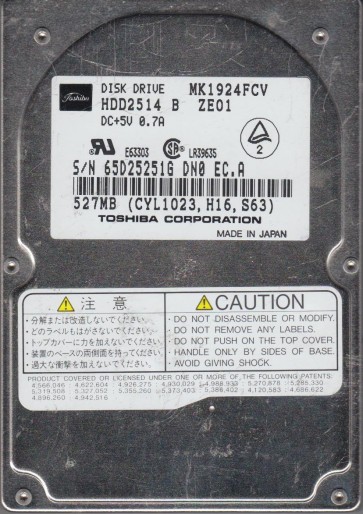
The Toshiba MK1924FCV is a 2.5-inch, 1920 MB (approximately 1.9 GB) parallel ATA (PATA/IDE) hard disk drive from the late 1990s to early 2000s era. It features a rotational speed of 4200 RPM and a 2 MB buffer. As a legacy drive, its internal components include a single glass or aluminum platter, a voice coil actuator, and a ceramic or thin-film head assembly. The PATA interface operates at UDMA/33 or lower modes. These drives are prone to specific age-related failures due to lubricant degradation, stiction, and electronic component fatigue. Power supply fluctuations common in older systems can also damage the drive’s logic board.
Identifying Common Failure Types
1. Mechanical Failure (Head Crash or Stiction)
This is the most critical failure. The drive may emit clicking, grinding, or whining noises. It may spin up but fail to be recognized, or be recognized with a very slow response. The cause is often degraded spindle motor lubricant causing the platters to stick (stiction) or a physical head crash where the read/write head makes contact with the platter surface, scraping the magnetic media. Data recovery requires a cleanroom environment to replace the head assembly or lubricate the spindle.
2. Electronic Failure (PCB/Logic Board Damage)
Common symptoms include the drive not spinning up at all, no power-on activity, or a burning smell. This is often due to a failed power transistor (e.g., a blown TVS diode), damaged preamplifier chip, or a cracked component from physical stress. Power surges from a failing PSU are a frequent cause. Unlike newer drives, the PATA interface is simpler, but a faulty PCB can still render the drive inoperable. A replacement PCB of the exact same model and firmware revision may work, but this requires transferring the original drive’s firmware chip (usually an 8-pin SOIC) to the donor board.
3. Firmware Corruption
The drive may spin up normally but not be detected by the BIOS or operating system, show incorrect capacity (e.g., 0 MB), or freeze during initialization. This is common in aging drives due to accumulated media defects or gradual degradation of the firmware area on the platters. The firmware modules (such as the translator and defect table) can become corrupted. Recovery often requires specialized tools like PC-3000 or similar, which can read the firmware area and rebuild tables.
4. Logical / File System Corruption
The drive appears healthy and is detected by the system but shows “RAW” file system, “unallocated”, or “disk not formatted” errors. This is a software-level failure. The file system structures (FAT, NTFS boot sector, MFT) have been damaged due to improper shutdown, virus, or power loss. Data still resides on the platters but the operating system cannot locate it. This is the most recoverable scenario with software tools.
Potential Recovery Paths
Professional Data Recovery Services
For any mechanical or complex electronic failure (clicking, no spin, grinding), a professional service is strongly recommended. These labs possess Class 100 cleanrooms, donor drives, and tools like the PC-3000, DeepSpar, or Atola Insight. They can perform head swaps, read firmware, and handle complex platter transfers. Expect costs from $300 to $2000+ depending on severity and turnaround. For the MK1924FCV, consider labs specializing in vintage/legacy drives as spare parts are scarce. A reputable lab will provide a free evaluation and quote before proceeding.
DIY Software Recovery (Logical Failures Only)
If the drive is detected by the BIOS with the correct capacity and makes no unusual noises, you can attempt software recovery. Use a write-blocker (hardware) to prevent any writes to the original drive. Tools like R-Studio, DMDE, or GetDataBack can scan the drive and recover files by rebuilding the file system structure. Never install the recovery software on the failing drive. Always copy the image or recovered files to a separate healthy drive. For a FAT16/32 formatted MK1924FCV, these tools are effective. If the drive is clicking or making odd noises, stop immediately and seek professional help.
DIY PCB Swap (Electronic Failure)
If the drive is completely dead with no spin, and you are technically skilled, you can attempt a PCB swap. This is risky. You must find an exact donor drive: same model (MK1924FCV), same firmware version (check the label), and same PCB revision number. Remove the original PCB (usually 4 screws), transfer the original firmware chip (often an 8-pin SOIC serial flash) to the donor board using a hot-air rework station. Do not just swap boards without moving the firmware chip, as the donor board’s firmware will not work with your drive’s mechanical components. This requires precise soldering and is only recommended for advanced users with proper tools. A failed swap can permanently damage the drive.
What Not to Do
- Do not power on a clicking or grinding drive. Every second of operation can scrape more data off the platters, making recovery impossible.
- Do not open the drive enclosure. A single speck of dust can damage the platters. The internal environment must be class 100 cleanroom. Opening it in a normal room will destroy the data.
- Do not freeze the drive. This is a dangerous myth for modern drives. While it may temporarily shrink components on older drives, the condensation will cause catastrophic corrosion and head sticktion.
- Do not use recovery software on a drive with mechanical symptoms. It will cause further damage by causing more head accesses on a failing surface.
- Do not attempt to disassemble the head assembly or platters yourself. This requires specialized tools and training.
- Do not connect the drive to a laptop or desktop via a cheap USB-to-IDE adapter that may provide unstable power. Use a quality adapter or a regulated power supply.
- Do not try to recover data by repeatedly restarting the computer. This is a common mistake that can convert a recoverable logical failure into an unrecoverable physical one.
Summary
The Toshiba MK1924FCV is a legacy drive prone to age-related mechanical, electronic, firmware, and logical failures. Always first diagnose the failure type: listen for noises (mechanical), check for detection (firmware/electronic), and check for strange smells (electronic). For any physical issue (clicking, no spin, grinding), immediately stop powering the drive and contact a professional data recovery service specializing in vintage drives. For purely logical issues (RAW file system, no format), a DIY approach with write-blocking and imaging software like R-Studio is viable. Never attempt platter opening, freezing, or repeated power-cycling. The key principle is: if the drive makes any abnormal noise, turn it off and seek professional help. Data recovery for this drive is possible with the right tools and expertise, but time is of the essence. Treat the drive as fragile and irreplaceable.