
Data recovery on vintage hard drives like the Toshiba MK3265GSX starts with identifying the failure type – electronic, firmware, or mechanical. Each requires a different approach, and misdiagnosis can make things worse. Here’s a quick guide to help you assess your situation and decide on the next step.
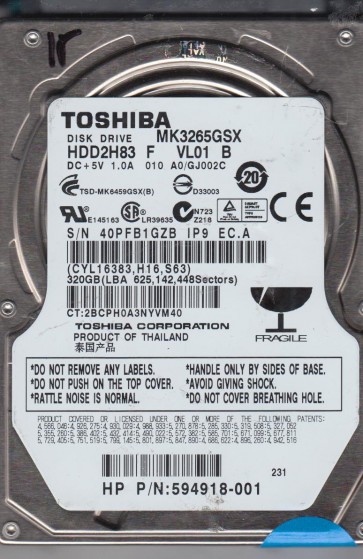
The Toshiba MK3265GSX is a 2.5-inch SATA hard disk drive with a 320GB capacity, a 5400 RPM spindle speed, and an 8MB cache. It utilizes perpendicular magnetic recording (PMR) technology and features a standard SATA 3.0 Gb/s interface. This model was commonly deployed in laptops, external enclosures, and portable storage devices from the late 2000s to early 2010s. It uses a Fluid Dynamic Bearing (FDB) motor, which is quieter than ball-bearing motors but can be susceptible to specific failure modes like stiction and bearing wear over time. The drive’s controller board typically includes a Marvell or similar integrated processor managing read/write channels and head positioning. Understanding that this is a mechanical device with moving parts is crucial; it is not immune to physical shock or gradual degradation.
Identifying Common Failure Types
1. Mechanical Failure (Head Crash or Stiction)
Symptoms: The drive emits a repetitive clicking, scratching, or grinding noise. It may spin up but fail to be recognized by the system, or it may power on and off repeatedly. A head crash occurs when the read/write head makes physical contact with the platter surface, damaging the magnetic media. Stiction (static friction) can cause the heads to stick to the platters after the drive has been idle for an extended period. In severe cases, the spindle motor may fail entirely, resulting in no spin-up sound at all (dead drive).
2. Electronic Failure (PCB or Firmware Corruption)
Symptoms: The drive is completely silent when powered on, no spin-up, no activity LEDs. Alternatively, the drive may spin up but the system detects it as an unknown device, with incorrect model number or capacity (e.g., showing 0MB or 10GB). This often points to a failed controller board component (such as a blown TVS diode or damaged preamp) or corrupted firmware modules. Power surges, static discharge, or age-related capacitor degradation are common causes. The MK3265GSX is known for certain firmware bugs that can cause the drive to hang during initialization.
3. Logical Failure (File System Corruption or Bad Sectors)
Symptoms: The drive is detected correctly by the BIOS and operating system but reports errors like “Drive not formatted”, “S.M.A.R.T. status bad”, or very slow performance with frequent read/write timeouts. The drive may make a normal operating sound but files become inaccessible. This is typically caused by accidental formatting, virus attacks, power loss during write operations, or the development of reallocated sectors due to media degradation. S.M.A.R.T. data may show increasing values for Reallocated Sector Count, Current Pending Sector Count, or Offline Uncorrectable sectors.
4. Firmware Corruption (Unstable State)
Symptoms: The drive powers on and spins up normally but the system is unable to communicate with it, often displaying “Device Request Failed” or “Unmountable Boot Volume”. The drive may repeatedly click or buzz in a rhythmic pattern as it tries and fails to load firmware. This can result from a failed firmware update, power loss during a firmware operation, or natural degradation of the firmware stored on the platter’s system area. The MK3265GSX has a known issue where the translator module can become damaged, causing the drive to report incorrect geometry.
Potential Recovery Paths
Professional Data Recovery Services
For mechanical or electronic failures, professional intervention is strongly recommended. Specialists operate in cleanroom environments (Class 10 or better) to open the drive without contaminating the platters. They can perform a head stack replacement with donor parts, transplant the controller board with firmware adaptation using specialized tools like PC-3000 or MRT, or repair damaged preamplifiers. For firmware issues, professionals use hardware tools to read directly from the platters or manipulate the ROM/NVRAM. Expect costs ranging from $300 to $3000+ depending on severity. Never attempt to open a drive at home if data is valuable.
DIY Options (For Logical Issues Only)
If the drive is mechanically sound and not physically damaged, logical recovery can be attempted. Use recovery software such as R-Studio, GetDataBack, or DMDE. First, create a byte-for-byte disk image to a healthy destination drive using tools like HDDSuperClone or DDRescue to prevent further damage from bad sectors. If the drive is making unusual noises, immediately stop all DIY attempts. For simple file deletion or formatting, recovery software scanning for lost partition tables and file signatures (JPEG, DOCX, ZIP) can work. Be aware that any writing to the failing drive (e.g., installing software or saving recovered files to it) can overwrite your data permanently.
What Not to Do
- DO NOT open the hard drive enclosure. Hard drive platters are extremely sensitive to dust, smoke, and fingerprints. Even a single particle can destroy the magnetic layer and make professional recovery impossible or extremely expensive.
- DO NOT power cycle the drive repeatedly if it makes unusual noises. Each spin-up can cause additional damage to the heads and platters.
- DO NOT apply freezer, heat, or tapping methods. These are myths from old drives (pre-2000) and will almost certainly damage modern drives like the MK3265GSX. Freezing can cause condensation and thermal stress.
- DO NOT attempt to reformat, reinitialize, or run chkdsk /f or fsck if you suspect logical damage. These operations can overwrite critical file system structures and make recovery harder.
- DO NOT use file recovery software that writes to the source drive. Always image the drive first. Writing to a failing drive can trigger bad sectors and corrupt adjacent data.
Summary
The Toshiba MK3265GSX is a reliable but aging 2.5-inch hard drive subject to mechanical, electronic, firmware, and logical failures. Key symptoms include clicking (head crash), silent operation (PCB failure), or file access errors (logical corruption). For physical or firmware issues, professional data recovery is mandatory; opening the drive or applying amateur fixes will likely cause permanent data loss. For logical issues like accidental deletion or formatting, immediate imaging and software-based recovery can be effective if the drive is healthy. The most critical rule is to cease all operations the moment the drive behaves abnormally:power it off and seek expert consultation if data is irreplaceable. Always prioritize preserving the current state over frantic attempts to access the data.