
Data recovery on vintage hard drives like the Toshiba MK5059GSX starts with identifying the failure type – electronic, firmware, or mechanical. Each requires a different approach, and misdiagnosis can make things worse. Here’s a quick guide to help you assess your situation and decide on the next step.
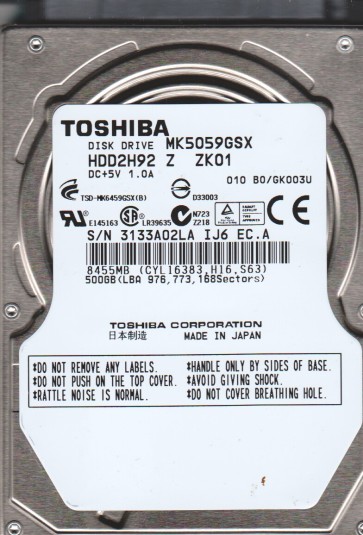
The Toshiba MK5059GSX is a 2.5-inch form factor hard disk drive with a 500GB capacity, typically found in older laptops and external enclosures. It operates at 5400 RPM and uses a SATA interface. This drive is known for its relatively low power consumption but can suffer from specific failure modes common to its generation. Understanding the drive’s physical construction is critical: it contains a single platter coated with a magnetic layer, a read/write head assembly on a rotary actuator, a spindle motor, and a printed circuit board (PCB) mounted underneath. The firmware on the PCB manages all operations, including bad sector management and servo control. Data loss on this model can stem from physical degradation, electronic component failure, or logical corruption of the file system.
Identifying Common Failure Types
1. Mechanical Head Crash or Stiction
Symptoms include a clicking, scratching, or whining noise, or the drive spinning up and then stopping repeatedly (click of death). This occurs when the read/write head physically contacts the platter surface or fails to lift off the parking ramp. For the MK5059GSX, this is often caused by shock damage (dropping the drive) or gradual degradation of the head’s air bearing. The drive may report as not detected, or show a very small capacity. This is a hardware failure requiring a cleanroom environment for head replacement.
2. PCB / Electronic Failure
The drive powers on but remains silent (no spin), or shows up as an unrecognized device with a specific error code. Common culprits on this model include a failed TVS diode (transient voltage suppression), a shorted capacitor, or a damaged preamplifier chip on the PCB. You might hear a faint chirp from the spindle motor but no sustained spin. In some cases, a blown fuse or damaged SATA connector can cause this. This is a hardware failure but often repairable by replacing the PCB with a matched donor board or performing component-level repair.
3. Logical / Firmware Corruption
The drive spins up normally, is detected by the BIOS, but shows an uninitialized, RAW, or inaccessible partition. The drive may be slow to respond, or file/folder names become garbled (e.g., showing Chinese characters for an English file system). This can result from a sudden power loss, virus attack, or file system corruption. The firmware modules (such as the translator or defect list) may be corrupted. This is a software or firmware issue, recoverable with specialized data recovery software or professional firmware tools.
4. Bad Sector Development / Media Degradation
The drive makes occasional repetitive scratching sounds (seeking to reallocate sectors) or becomes extremely slow when accessing certain files. Smart data will show a high Reallocated Sector Count (Raw value 05) or Current Pending Sector Count (C5). For the MK5059GSX, this often occurs after prolonged use or heat stress. The magnetic coating weakens, causing read errors. If not addressed, this can lead to an expanding bad sector cloud and eventual mechanical failure. Recovery requires imaging the drive sector by sector, skipping damaged areas with a tool like ddrescue.
Potential Recovery Paths
Professional Data Recovery Services
For mechanical failures (cases 1 and 2 with head crash), professional intervention is mandatory. These services use Class 100 cleanroom facilities to physically open the drive, replace the read/write heads with parts from a donor drive of identical model and firmware version, and then extract the raw data using specialized imaging tools like PC-3000 or DeepSpar Disk Imager. Costs typically range from $300 to $2000+ depending on severity. For PCB failures, a service can either perform micro-soldering to replace damaged components or swap the ROM chip to a donor PCB. For logical and firmware issues (cases 3 and 4), professional tools like PC-3000 or Atola can bypass corrupted firmware modules to expose the user data.
DIY Data Recovery Attempts (Risky – Low Success for Hardware Issues)
If you suspect a logical failure (e.g., accidentally deleted files, formatted partition) and the drive is mechanically healthy (no unusual noises), you can attempt DIY recovery. Use a write-blocker to prevent any writes to the drive. Tools like R-Studio, DMDE, or Recuva can scan the drive and recover files. For a failing drive with bad sectors (case 4), use a Linux tool like ddrescue. Boot from a live USB, and run: sudo ddrescue -d -r3 /dev/sdX /mnt/recovery/image.img /mnt/recovery/map.log. This creates a sector-by-sector image, retrying bad sectors up to 3 times. Do NOT attempt to open the drive enclosure or replace the PCB unless you have precise knowledge and a donor drive. Any opening of the drive’s sealed chamber will destroy it for professional recovery due to dust contamination.
What Not to Do
- Never disassemble the drive: The cleanroom environment is essential. Opening the drive to inspect the platters or heads will instantly contaminate it with dust, rendering recovery impossible or extremely expensive. Even a single dust particle can cause permanent head damage.
- Do not apply power repeatedly to a clicking drive: Each power-on cycle may cause the heads to scrape against the platters, gouging out more magnetic material and destroying data. If you hear clicking, stop immediately.
- Avoid running chkdsk / fsck: These tools repair file system errors by writing to the drive, which can overwrite deleted files or destabilize a failing drive. On a drive with bad sectors, chkdsk can cause further corruption. Never use Disk Utility First Aid or similar.
- Do not freeze the drive: The “freezer trick” is a myth that can cause condensation damage and is ineffective for modern drives. It may create temporary thermal contraction that allows a stuck spindle to move, but it almost always leads to catastrophic failure and water damage.
- Do not use high-level recovery software on a dying drive: Programs like Recuva or EaseUS are meant for healthy drives. Running them on a mechanically failing drive will stress it further, causing additional bad sectors and likely complete failure before the scan finishes.
- Do not replace the PCB without transferring the ROM chip: Swapping a PCB from an identical model will not work because the firmware on the PCB is unique to the drive (contains calibration data). The drive will either fail to spin or behave erratically. Correct PCB replacement requires desoldering the 8-pin serial flash ROM from the original board and re-soldering it to the donor board.
Summary
The Toshiba MK5059GSX is a reliable but aging drive susceptible to head crashes, PCB failures, firmware corruption, and bad sectors. Accurate diagnosis is the first critical step: listen for noises, check SMART data, and determine if the drive is detected. For any physical damage (clicking, no spin, scraping sounds), immediately power off and contact a professional data recovery service with cleanroom capabilities. Do not attempt any DIY hardware repairs. For logical data loss (accidental deletion with no physical symptoms), a careful DIY approach with write-blockers and tools like R-Studio or ddrescue is viable but requires patience. Remember the golden rule: the drive is most vulnerable when it is already failing. Any wrong move can turn a recoverable situation into a permanent loss. Prioritize professional evaluation for any sign of hardware distress.