
Data recovery on vintage hard drives like the Western Digital WD5000BMVU starts with identifying the failure type – electronic, firmware, or mechanical. Each requires a different approach, and misdiagnosis can make things worse. Here’s a quick guide to help you assess your situation and decide on the next step.
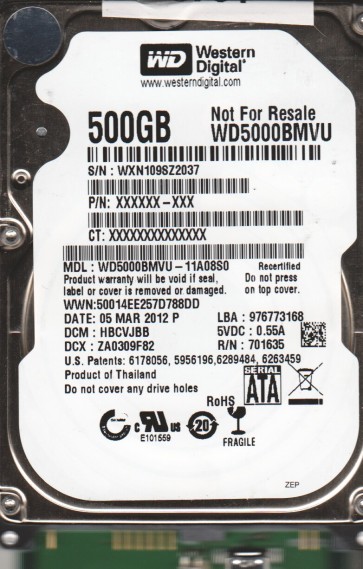
The Western Digital WD5000BMVU is a 2.5-inch SATA hard disk drive typically operating at 5400 RPM with a storage capacity of 500GB. It belongs to the Scorpio Blue family, designed for mainstream laptops and external enclosures. Key characteristics include an advanced format (4K sector) layout and a relatively high areal density for its generation. Understanding its specific architecture is crucial for recovery, as issues like head stiction, PCB failure, and bad sector growth are common due to its compact design and reliance on precise servo data.
Common Failure Types
1. Mechanical Head Failure (Head Crash)
Symptoms: Drive does not spin up, emits a clicking or scratching noise, or is detected inconsistently. The drive may spin but fail to initialize.
Cause: Physical contact between the read/write head and the platter surface, often due to shock, drop, or gradual wear. Debris from degraded internal components can also cause this.
2. PCB (Printed Circuit Board) Failure
Symptoms: Drive is completely dead (no power on, no sound), or shows as “0 bytes” or “unallocated” in disk management. The SATA connector may be physically damaged or have blown components.
Cause: Power surge, electrostatic discharge, or component aging. TVS diodes (transient voltage suppression) are common failure points.
3. Firmware Corruption / Translator Issues
Symptoms: Drive spins up, is detected by BIOS, but reports incorrect capacity (e.g., 0MB or 0.0GB) or hangs the system. The drive may show as “RAW” or “uninitialized”.
Cause: Bad sectors in the firmware zone, power loss during a firmware update, or physical damage to the system area (SA) on the platters. This is common in 4K drives.
4. Logical File System Damage / Bad Sectors
Symptoms: Drive is detected and sounds normal, but files are corrupted, folders are empty, or the drive chokes during file copy. CHKDSK may hang or freeze.
Cause: Gradual media degradation, software corruption from improper shutdowns, or virus attacks. Bad sectors that are not reallocated by the drive’s internal G-list cause logical errors.
5. Motor or Spindle Lock
Symptoms: Drive fails to spin up at all, or makes a faint hum but no rotation. The platters may be physically stuck.
Cause: Bearing seizure due to wear, contamination, or extreme temperature. Stiction (adhesion of heads to platters) is a related phenomenon.
Potential Recovery Paths
DIY Methods (For Logical/Simple Issues Only)
- For PCB Failure (if no visible damage): Attempt a PCB swap using a donor WD5000BMVU with the exact same model number and firmware revision (e.g., 701640). This requires transferring the original NVRAM chip from the dead board to the donor board. Caution: This is highly risky as the firmware must match.
- For Logical Corruption: Use data recovery software like R-Studio or DMDE. First, create a sector-by-sector disk image to a healthy drive using a tool like ddrescue (Linux) or HDDSuperClone. Then recover files from the image. Never work directly on the failing drive after imaging.
- For Bad Sectors: Use HDDSuperClone in “head-scan” mode to skip bad areas and recover as much data as possible. Do not use CHKDSK or Windows ScanDisk, as they can cause the drive to reallocate sectors and overwrite data.
Professional Services (For Mechanical/Firmware Issues)
- For Head Crash / Mechanical Failure: A certified cleanroom (Class 10 or better) is required. Technicians perform a head stack assembly (HSA) replacement using a donor drive. This involves opening the drive in a dust-free environment, swapping the head arm, and often recalibrating the heads.
- For Firmware Corruption: Advanced tools like PC-3000 or MRT can reprogram the firmware, rebuild the translator, or write utilities to the service area. This is not feasible via standard software.
- For Motor/Spindle Lock: Requires specialized tools to manually rotate the spindle or replace the motor assembly. This is extremely high-risk and often requires a donor drive of the same revision.
What Not to Do
- Do not open the drive. Even a single dust particle can cause permanent damage to the platters. This voids any warranty and makes professional recovery exponentially harder.
- Do not apply power repeatedly. If the drive is clicking or not spinning, repeated power cycling can cause further damage to the heads or the preamplifier chip.
- Do not run CHKDSK or any repair tool on a drive with bad sectors. This forces the drive to repeatedly read bad areas, potentially causing head crashes or more bad sectors.
- Do not attempt a PCB swap without transferring the NVRAM. A direct swap to a donor PCB will likely burn out the new board or cause firmware mismatch, making recovery impossible.
- Do not freeze the drive. The old “freezer trick” can cause condensation, leading to electrical shorts and platter corrosion. It rarely works on modern drives.
Summary
The Western Digital WD5000BMVU is a robust but vulnerable drive. For logical issues (file deletion, corruption), DIY imaging with software is viable. For physical or firmware problems, professional data recovery in a cleanroom with tools like PC-3000 is required. Never attempt to open the drive or run automated repair software. Prioritize creating a disk image and seek expert help for any mechanical sounds or detection failures.