
Data recovery on vintage hard drives like the Western Digital WD5003AZEX starts with identifying the failure type – electronic, firmware, or mechanical. Each requires a different approach, and misdiagnosis can make things worse. Here’s a quick guide to help you assess your situation and decide on the next step.
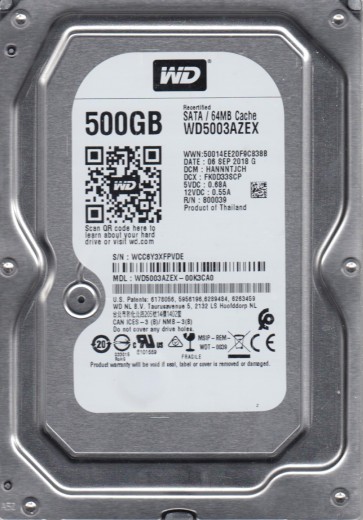
The Western Digital WD5003AZEX is a 500GB 3.5-inch SATA hard disk drive from the WD Blue series, known for its 7200 RPM spindle speed and Advanced Format (AF) 4KB sector technology. It utilizes perpendicular magnetic recording and is commonly used in desktop computers for general storage and operating system duties. Due to its age and mechanical nature, it is susceptible to a range of failures stemming from both hardware degradation and operational shocks.
Common Failure Types
1. Mechanical Head Crash
Symptoms: Loud clicking, scraping, or grinding noises. Drive is not recognized or reports a very small capacity. System freezes or hangs when attempting to access the drive. SMART attributes report high reallocated sector counts or pending sectors. Cause: Physical contact between the read/write heads and the platter surface, often due to shock, contamination, or wear. This damages the magnetic coating and can create debris.
2. Firmware Corruption
Symptoms: Drive spins up but is not detected by BIOS/OS, or is detected with a wrong model number/capacity (e.g., 0GB). Drive may click a few times then go silent. SMART data may be inaccessible or corrupt. Cause: A virus, power surge, failing electronic component, or internal logical error corrupts the drive’s internal operating software stored in the service area (SA).
3. Stiction (Stiction)
Symptoms: Drive spins up but fails to spin to full speed, or emits a high-pitched whine. Drive may click or buzz. Often occurs after a period of inactivity or a sudden power loss. Cause:The lubricant between the spinning platters and the read/write heads becomes sticky or viscous, preventing the heads from lifting off the platter surface.
4. Bad Sectors (Logical Damage)
Symptoms: File system errors, file corruption, slow data transfer rates, “cannot read from source file or disk” errors, frequent system crashes or blue screens. SMART data shows pending, reallocated, or uncorrectable sectors. Cause: Physical damage to a sector (e.g., from a head touch) or logical corruption of the data structure (e.g., from a power failure or virus). A failing drive can also generate bad sectors as it degrades.
5. Electronic Failure (PCB Failure)
Symptoms: Drive does not spin up at all. No sound, or a faint humming or buzzing from the motor controller. Drive may get very hot or smell of burnt electronics. Cause: A power surge, lightning strike, or component aging damages the printed circuit board (PCB), often the TVS diodes, preamplifier, or motor controller.
Potential Recovery Paths
DIY Methods (For Logical Issues Only – No Physical Damage)
Important: DIY recovery should only be attempted if you are certain the drive has no physical damage (no abnormal sounds, no SMART critical warnings). Using DIY on a physically failing drive can cause permanent data loss.
- Use Data Recovery Software: Tools like DMDE, R-Studio, or Recuva can recover data from drives with bad sectors or corrupted file systems. Always clone the drive first using tools like ddrescue (Linux) or HDDSuperClone to a healthy disk before attempting file recovery on the clone.
- Check and Repair File System: Run chkdsk /f on Windows (only if you are prepared to lose data from bad areas) or fsck on Linux. This can fix logical corruption but may cause further damage to a failing physical drive.
- Freeze the Drive (Stiction): A last-resort, risky method. Place the drive in a sealed anti-static bag inside a freezer for several hours. Connect it to power and try to read data quickly. This can sometimes temporarily free a stuck head but introduces condensation risk, often causing immediate permanent failure.
Professional Recovery Services (Mandatory for Physical/Firmware Issues)
For Mechanical/Firmware/Stiction/PCB failures: Immediate professional intervention is required. Do not power the drive on again.
- Clean Room Work: For head crashes, stiction, or platter damage, a professional lab uses a Class 100 clean room (or better) to open the drive, replace read/write heads, transplant platters to a donor drive, or repair the spindle motor.
- Firmware Repair: Specialized tools like PC-3000 or MRT allow technicians to read and rewrite the drive’s firmware from the service area, bypass corruption, and recover data.
- PCB Replacement & ROM Transfer: A technician can replace the damaged PCB with a compatible one, but must transfer the original drive’s unique ROM chip or firmware content to the new board for the drive to function properly.
What Not to Do
- Do not open the drive: Hard drives are sealed in a clean room. Opening the drive in a normal environment exposes the platters to dust, which will destroy the data surface. Any physical damage to the platters is permanent.
- Do not apply power repeatedly: A clicking or non-spinning drive can suffer fatal head or spindle damage from repeated power cycles. One or two attempts are enough; more will likely kill the drive.
- Do not use software on a physically failing drive: Running chkdsk, recovery software, or format commands on a drive with mechanical issues will often worsen the damage by forcing the heads to read over failing areas.
- Do not use a freezer: The freeze method is a desperate, last-resort technique that introduces condensation. It can provide a brief window of operation but almost always leads to total drive death and complicates professional recovery by causing corrosion and electrical shorts.
- Do not replace the PCB yourself: A simple PCB swap from an identical drive usually will not work because the drive’s unique adaptive data is stored on the ROM chip on the original board. Swapping without transferring the ROM will cause incompatibility and can damage the donor PCB.
Summary
The WD5003AZEX is a robust 7200 RPM drive but is prone to mechanical head crashes, firmware corruption, and electronic failures after extended use. For logical issues like bad sectors or file corruption, careful DIY cloning and software recovery may succeed. For any physical symptoms (noise, no spin, clicking) or suspected firmware problems, immediately stop attempting access and contact a professional data recovery lab. The cost of professional service is far lower than the cost of permanent data loss from improper DIY attempts. Do not open, freeze, or repeatedly power-cycle the drive if data is valuable.