Articles

3 Methods to burn an ISO Image onto a CD

Nero Burning ROM Just like the old boot floppy diskettes, CD or DVD-ROM discs can boot to a DOS or other operating systems.  Just copying files to the CD will not work because the CD will need a master boot record and other hidden Startup operating system files.  Instead, the preferred method is to create a single file, an image of a bootable CD, called an ISO image.  Most CD-ROM burning applications recognize this type of image file.  Once the ISO file is burned as an image, then the new CD is a clone of the original and bootable. Besides the bootable OS, the CD will also hold the various software applications that will be run from the CD.

Method 1: Nero – Burning ROM

Nero Burning ROM can be used to record a CD from a .iso file. This programs is available from Nero Software, or you may already have it on your computer.

Steps to create a CD if you have installed Nero – Burning ROM:

  1. Download the ISO CD image to a folder on your computer.
  2. Insert a blank CD in your CD-RW drive.
  3. Start Nero Burning.
  4. Follow the wizard steps to select Data CD creation.
  5. When the wizard closes, click Burn Image on the File menu.
  6. In the Open dialog box, select the ISO file, and then click Open.
  7. In the wizard, click Burn to write the image to the CD.

Method 2: EasyCD Creator

You can use Roxio/Sonic EasyCD Creator to create a CD from a .iso file. This program is available from Roxio/Sonic, or you may already have it installed on your computer. When the program is installed, it is automatically associated with the .iso file extension in Windows Explorer. Steps to create a CD if you have installed EasyCD Creator:

  1. Download the .iso CD image to a folder on your computer.
  2. Insert a blank CD in your CD-RW drive.
  3. Start the EasyCD Creator program.
  4. The Quick Start section may be available on your version; if so, click to open it.
  5. If not, choose Copy.
  6. Either way, choose Burn Image.
  7. Browse to the folder in which you saved the .iso image.
  8. Click the button for Burn Image.

Method 3: Alex Feinman’s ISO Recorder (Freeware)

This freeware can be found here.

You must simply install the software and reboot your computer if instructed. Once that is accomplished:

  1. Insert a blank CD in your CDROM drive.
  2. Find the .iso file that you have downloaded onto your computer, for example, onto your Desktop.
  3. Right-click on the .iso file.
  4. You will see a “Copy Image to CD” option on the dropdown menu. Select it.
  5. The CD Recording Wizard should appear. Simply choose Next and Finish. The CD will eject when completed.

This freeware should support Windows Vista and Windows XP/2000.

* MacOS Disk Utility

  1. Insert a blank disc.
  2. From the Desktop, click on Utilities (or in some cases, Applications, and then Utilities).
  3. Launch Disk Utility.
  4. From the File menu, choose Open Disk Image.
  5. Select the ISO image to be burned.
  6. In the list of volumes, you will now see an item representing the ISO file. Select it.
  7. Click the Burn button and follow the instructions.

3 Methods to burn an ISO Image onto a CD Read More »

Top 5 Must Have Tools for Data Recovery Business

Data Recovery Tools If you just want to start your data recovery business, hope this article will bring some inspiration to you. Here I recommend 5 useful tools to you. These tools can give big help to your recovery business:

1. In many cases, when we received the hard disks from our clients, we found the hard disks had damaged. Most of the performance is firmware corruption, so you should repair the firmware to recovery the data.  Now you need a professional tool. I recommend the most popular tool – PC3000 System.

2. Disk Imaging tool. When we receive the data recovery cases, we should first image the data and back-up to protect the data from further damage in data recovery process. Usually we receive some hard disks which have many bad sectors, so you should choose a powerful data image tool which can image the data from the hard disks which have the serious bad sectors. Such as DeepSpar Disk Imager

3. After the back-up the data, we should recover the data from the hard disk.  Most of the cases are logical problems, such as inexperienced & operation error, virus cause, software program malfunction, forget the password, etc. Towards these problems, you just need a data recovery software, as Recovery My files, Easy Recovery, etc.

4. We also have the experience with drive clicks or drive spin motor get stuck or burnt. Now we should replace some hard disk accessories, such as replace the platters, electrical motor, etc. If you are the non-experts, you should find the help from some useful tools. The best hard drive repair tool I recommend is HD HPE PRO.

5. Last, If your company have the interest in  Raid Recovery Business which can bring double profits to you. Be sure, the premise you should have the professional skill and a powerful raid recovery tool. The tools you can choose: Getway Raid Recovery, RAID Reconstructor, etc.

When you own the above tools, you will have the potential to be a top data recovery company in this field. However, the competition in this field is highly, so I believe the good faith and the high efficiency should be the tools you must have.

Top 5 Must Have Tools for Data Recovery Business Read More »

Hard Disk Drive Firmware Search Engineer

Hard Disk Drive Firmware Search Engineer As we know, firmware damage is the main reason which causes the hard disk data lose. When we encounter this problem, we should rebuild the firmware first. By this time, we need some professional tools, such as PC3000. (About the PC3000 tool). With the professional tools, we also need to find the matching firmware, so I made this searching tool as below:

You just need to input your firmware model number, for example: input ‘HitachiHTS541616J9AT00’, then you can find the firmware which you are looking for. Although this searching tool is not perfect, its accuracy rating is good.

These firmware data which are used for the searching tool are from http://files.hddguru.com and http://www.firmwarebase.com.

Firmware Search Engineer Code(Copy this code to your website):

<form action=”http://www.google.com/cse” id=”cse-search-box”>
<div>
<input type=”hidden” name=”cx” value=”016304681005895250528:a7qpcruki2s” />
<input type=”hidden” name=”ie” value=”UTF-8″ />
<input type=”text” name=”q” size=”31″ />
<input type=”submit” name=”sa” value=”Search” />
</div>
</form>
<script type=”text/javascript” src=”http://www.google.com/cse/brand?form=cse-search-box&lang=en”></script>

If you know any other hard drive firmware download websites, please do not hesitate to share them with me. With your helping, I can make this search tool better. Thanks!

Hard Disk Drive Firmware Search Engineer Read More »

WD Introduced Photos Photo Viewer App For Iphone and Ipod Touch

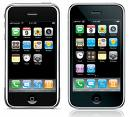
WD Photos Phone Viewer APP Apr. 21, 2010 – WD introduced WD Photos photo viewer, an iPhone/iPod Touch app for use with its My Book World Edition and WD ShareSpace network drives, that lets users access up to 250,000 of their favorite photos from anywhere in the world.

The WD Photos photo viewer app allows users to easily log in to their drive from anywhere so they can view their entire photo library.

Users’ photos remain private, safe and secure in full high-resolution format, on their network drive, eliminating the need for painstaking uploads to costly online photo services and the need to choose which pictures to sync to their iPhone – with WD Photos photo viewer, they’re all instantly and easily accessible. The app’s powerful search tools, thumbnail previews and viewing options make it easy to find that special picture to show a friend at a coffee shop or remember a special moment.

With more than 50 million iPhones sold as of Apr. 2010 (Apple®), the iPhone has become one of the fastest growing smart phones in the market and is used every day by consumers to access and share their photos.
According to research firm Parks Associates (Mar. 2010), the number of network storage drives worldwide is projected to increase from 2.6 million units sold in 2009 to more than 18 million units by year-end 2014 as consumers realize the value of having one central place to store and share all their media. In 2009, 56 percent of households rated remote access of their network storage an important feature. Combining the centralized storage and remote access benefits of the My Book World Edition network drive with the iPhone is a natural fit with this rapidly growing consumer behavior.
Users can view up to 250,000 pictures on their iPhone or iPod touch by simply copying their pictures into the “Shared Pictures” folder on their My Book World Edition network drive. A unique application that runs directly on these WD network drives automatically creates optimized versions of users’ photos ahead of time, enabling fast viewing on an iPhone or iPod touch without having to wait for the photos to load.

Available now at the Apple iTunes App Store, the WD Photos photo viewer app is free. Registration with MioNet, WD’s secure remote access service (included with My Book World Edition), is also free and required to use this app. WD Photos photo viewer also works with WD ShareSpace network storage systems.

Home networks are becoming prevalent in many parts of the world, and WD’s My Book World Edition network drives are the easiest way to create one place for all your photos that is accessible to everyone from within the home, and securely from outside the home,With the WD Photos photo viewer app and a WD My Book World Edition network drive, users can access all of the photos from their collection via their iPhone without syncing, without extra organizing and without paying a fee. Photos are available instantly making it easy to relive those great memories or share them with friends.

said Dale Pistilli, vice president of marketing for WD’s branded products group.

WD Photos Photo Features & Compatibility:

Features of the WD Photos photo viewer app for iPhone and iPod touch devices include:

  • Access to all the photos in the “Shared Pictures” folder of users’ My Book World Edition network drives and WD ShareSpace network storage systems;
  • Photos are automatically resized for perfect viewing on iPhone or iPod touch, leaving originals in full resolution;
  • Smart filtering to find the photos you want — view photos by album, folder or all images and search by date, folder name or file name;
  • Access previously viewed photos offline;
  • E-mail a photo to a friend;
  • Assign a photo to a contact;
  • Add a photo to the Camera Roll;
  • View a slideshow; and,
  • Set slideshow duration.

WD Photos photo viewer app is compatible with iPhone and iPod touch OS 3.1 or later and works with WD’s My Book World Edition network drives and WD ShareSpace network storage systems. Users must register with WD’s free MioNet remote access service to use the app.

WD Introduced Photos Photo Viewer App For Iphone and Ipod Touch Read More »

Join Data Recovery Union Free, Improve Your Data Recovery Business

Data Recovery Union With the rapid development of internet, the data storing market is growing fast. Data recovery industry as the ramification of data storage is also facing the golden opportunity. However, data recovery is a more competitive business. How to stand out in the thousands of data recovery companies?

Here is a good chance for you: join our Data Recovery Union. We will publish your company information on our website: www.datarecoveryunion.com to help your company be found easier by the clients. This is free of charge.

5 reasons to join Data Recovery Union:

  • Please try to type “data recovery company” in search engines, you will find our website in first pages.
  • Join in Data Recovery Union, your website will get a high quality backlink. You know the high quality backlinks are the important factor in the search ranking.
  • You will also get 3 subpages links beside the homepage link.
  • We spend hundreds of dollars to promote this website. No doubt you can get the benefit from it.
  • Join in Data Recovery Union, you will be able to communicate with the clients from all over the world and do business with them.

Please Note:

  • You site should be data recovery related.
  • The Info you provide should be reliable.
  • We have the rights to change your text if it is not suit to us.
  • We have the rights to reject your offer.

Whether you are the famous data recovery companies or the new established companies, join us now and get the benefit now.


Join Data Recovery Union Free, Improve Your Data Recovery Business Read More »

How To Purchase Super Talent Storage Device At The Lowest Price?

Super Talent Storage Device If you are the user of Super Talent Storage Device, or you want to know the products of Super Talent, please keep reading. If you have no idea of the product and don’t want to know it, please focus on my next blog article. I write this article just want to provide the valued information. If you purchased and used the Super Talent Products, do you want to kwon how to  get them cheaper?

After compared several electronic products’ B2C websites, I found the Super Talent Products on ewiz.com always had pleasant prices. You can try to browse on: ewiz.com which has the lower price than other B2C websites. And also it seems that this B2C has more kinds of Super Talent products than others. I think there is a value rule.

Who is Super Talent?

Super Talent Technology Corporation, headquartered in San Jose, California, designs and manufactures a full range of DDR, DDR2, and DDR3 memory modules and Flash based storage solutions for Enterprise Servers, Workstations, Personal Computers and Consumer Electronics.

Super Talent Products Including:

Flash Products: SSD,STT USB Drives,Custom USB Drives,Flash Media Cards
Memory Products: Over Clocking Memory, Desktop Memory, Laptop Memory, Server Memory.

What’s your opinion on Super Talent products? Please share your opinion here.

Super Talent Website: www.supertalent.com

How To Purchase Super Talent Storage Device At The Lowest Price? Read More »

Two Recommended Data Backup Utilities

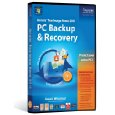
1. Acronis True Image Home 2010

Acronis True Image Home 2010Acronis True Image Home 2010 provides home users reliable and timeless backup and recovery of systems, applications, settings and personal files. From an intuitive graphical interface, users can easily define where, locally or online, and how often to backup a PC.

Key Features:

  • Support for Microsoft Windows 7 that delivers more comprehensive functionality over Microsoft Windows 7 backup capabilities.
  • Continuous data protection Acronis Nonstop Backup automatically creates incremental backups every five minutes allowing users to roll back their system, files, and folders to any point in time in the past.
  • Convert Acronis’ backup images (.tib) into Microsoft virtual hard disk files(.vhd) and vice versa, allowing users to run existing systems as virtual machines in Microsoft Virtual PC 2007. Windows 7 Ultimate users can also boot from .vhd images.
  • Acronis Online Backup capability Optional Acronis online storage services are available to automatically backup valuable data or files over the internet to a secure location.
  • One-Click Protection Create a backup strategy of the system and implement it with just one click.


Platform: Windows XP/Vista/7
Price: $49.99 Price on Amazon.com: $28.98

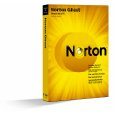
2. Symantec Norton Ghost 15.0

Symantec Norton Ghost 15.0Norton Ghost from Symantec protects your system with the advanced pc backup and restore software with system restore technology.

New Features:

  • Cold Imaging lets you back up files without installing Ghost.
  • Blu-ray Disc allows you to back up large amounts of data to high-capacity Blu-ray Disc — up to 25 GB per disc (50 GB dual-layer).
  • Windows® 7 support including support for Bitlocker™ provides enhanced data protection through drive encryption and integrity checking.
  • Symantec ThreatCon integration leverages intelligence from Symantec’s industry-leading security research organization to automatically backup files whenever ThreatCon reaches a specified threat level.

Platform: Windows XP/Vista/7
Price: $69.99 Price on Amazon.com: $39.99

Two Recommended Data Backup Utilities Read More »

Top 20 Most Popular Solid State Hard Drive on Amazon.com

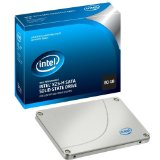
Solid State Hard Drive A solid-state hard drive (SSD) is a data storage device that uses solid-state memory to store persistent data. An SSD emulates a hard disk drive interface, thus easily replacing it in most applications. An SSD using SRAM or DRAM (instead of flash memory) is often called a RAM-drive, not to be confused with a RAM disk.

The original usage of the term solid-state (from solid-state physics) refers to the use of semiconductor devices rather than electron tubes, but in this context, has been adopted to distinguish solid-state electronics from electromechanical devices as well. With no moving parts, solid-state drives are less fragile than hard disks and are also silent (unless a cooling fan is used); as there are no mechanical delays, they usually enjoy low access time and latency.

See More: Solid-State Hard Drive

Popular Manufacturers: Intel, Super Talent, OCZ Technology

Top 20 Most Popular Solid State Hard Drive on Amazon.com Read More »

External Hard Drive

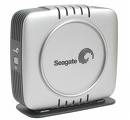
image An external hard drive is a type of hard drive which is connected to a computer by a USB cable or other means. Modern entries into the market consist of standard SATA, IDE, or SCSI hard drives in portable disk enclosures with SCSI, USB, IEEE 1394 Firewire, eSATA client interfaces to connect to the host computer.

Modern external hard drives are compatible with all operating systems supporting the relevant interface standards they operate with, such as USB MSC or IEEE1394. These standards are supported by all major modern server and desktop operating systems and many embedded devices. Obsolete systems such as Windows 98 (original edition), Windows NT (any version before Windows 2000) old versions of Linux (older than kernel 2.4), or Mac OS 8.5.1 or older do not support them out-of-the-box, but may depend on later updates or third party drivers.

How to add an External Hard Drive to you computer?

Adding an external hard drive to your computer is an easy way to increase your computer storage. You can use your external drive to back up files or transfer files from computer to computer.

  1. External hard drives connect to your computer via an USB, firewire or SATA cable. Check your computer to see which interface your computer supports. In general, firewire is the fastest, so if your top priority is transfer speeds you may choose to go with firewire. On the other hand, if you intend on using the drive with multiple computers you may prefer to get a USB 2.0 external hard drive since most computers have a USB interface port.
  2. Determine your storage needs. Computer storage is pretty cheap these days so it’s a good idea to get the most storage you can. 100GB may seem like a lot, but if you download music and movies it can add up quickly. Compare prices and find a compatible drive with sufficient space for your needs
  3. Once you have found the right drive for your computer, it’s time to attach it. External drives are very easy to add since they do not require you to open up your computer. Simply connect it to a power source and use the cable it came with to attach it to your USB, firewire, or SATA interface.
  4. Your pc will recognize the drive when you plug it in. After attaching your drive, your computer should recognize it immediately and assign it a letter and name, such as “Removable Drive F:”. At this point your drive is ready to use and you can click on it as you would any other drive to access its contents.

How to Partition an External Hard Drive?

When you add an external hard drive, you may do so for a number of reasons. But once you have that hard drive installed, creating different partitions for different purposes can expand your available options. Partitioning an external hard drive is just like partitioning an internal hard drive—just be sure that you are careful when you start your partitioning and make sure you are working with the external hard drive and not a drive that you want—partitioning a drive will immediately erase all information on the drive forever.

  1. Check your external hard drive to ensure that there is no data on the hard drive that you want. As soon as you start the partitioning process, all data on that drive will be completely and forever erased.
  2. Run the Microsoft Management Console. This can be started by typing “MMC” in a command prompt window, or just typing “MMC” in the “Start Search” box in the Windows Start menu.
  3. In MMC, add the Disk Management snap-in. This can be done through the File menu by selecting add snap-in. Select “Disk Management” from the list.
  4. Right-click on the disk in the list of disks at the bottom of the snap-in. From this short-cut menu, you will have various options related to the partitioning of the drive. You can expand the partition, delete the partition, or shrink the partition. You can also mark it as the primary partition if you like.
  5. Format the new partitions. Using the same shortcut menu, you should format all the partitions that you wish to use. You can also set their drive letters here if you like, so your operating system will know which drive is which letter.

Plan ahead how many partitions you want and what size they will be so you know how you will set this up when you get to that point. Partitioning completely erases all contents of a disk immediately.

Where to buy External Hard Drive?

  • Find the right external hard drive for you at Oyyy.co.uk
  • Top 20 Most Popular External Hard Drives on Amazon.com

External Hard Drive Read More »

WD VelociRaptor – The Only 10,000 RPM SATA Hard Drive On The Market

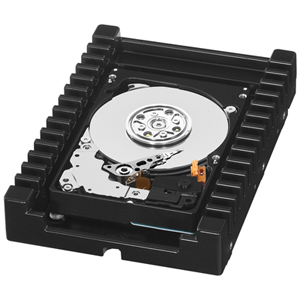
WD VelociRaptor WD® announced that it is now shipping WD VelociRaptor® 450 GB and 600 GB hard drives, the next generation of its 10,000 RPM SATA family of hard drives. The new WD VelociRaptor hard drive is designed for blade servers, high-performance PCs, Mac® computers, professional workstations, as well as 1U and 2U rack servers that require a balance of high performance and capacity. As the only 10,000 RPM SATA hard drive on the market today, and a favorite amongst enthusiast and enterprise groups, the WD VelociRaptor hard drive now comes packed with twice the capacity and up to 15% performance increase over the previous generation.

The most popular hard drive for high-performance enthusiasts who demand the ultimate SATA drive, the WD VelociRaptor hard drive is built with enterprise-class mechanics that provide 24×7 durability under high-performance demands and packs up to 600 GB of capacity into a 2.5-inch enterprise form factor. The WD VelociRaptor drive is also available in the IcePack™* enclosure, a 3.5-inch mounting frame with a built-in heat sink – a factory customization that fits the drive into a standard 3.5-inch system bay and keeps this powerful drive extra cool when installed in a high-performance desktop chassis and 3.5-inch HDD form factor enterprise chassis.

“WD is a leader in the performance and reliability of enterprise SATA hard drives, Demand for performance combined with an increase in capacity continues to rise and WD is the leader in this category. WD customers can rely on the new WD VelociRaptor to deliver high performance under the harshest conditions, while continuing to keep user data safe.”  – said Tom McDorman, vice president and general manager of WD’s enterprise business unit.

Features of WD VelociRaptor hard drives include:

  • Killer speed– SATA 6 Gb/s interface and 32 MB cache enhance the next generation 10,000 RPM WD VelociRaptor making it up to 15% faster than the award-winning previous generation.
  • Monstrous capacity – WD VelociRaptor SATA drives are available in capacities up to 600 GB, double the capacity of the previous generation.
  • Rock-solid reliability – Designed and manufactured to mission-critical enterprise-class standards to provide enterprise reliability in high duty cycle environments. With 1.4 million hours MTBF, these drives have the highest available reliability rating on a high capacity SATA drive.
  • Ultra-cool operation – Consumes no more power than the previous generation WD VelociRaptor while offering double the capacity and higher performance.
  • IcePack mounting frame – The 2.5-inch WD VelociRaptor is enclosed in a backplane-ready 3.5-inch enterprise-class mounting frame with a built-in heat sink that keeps this powerful little drive extra cool when installed in high-performance desktop chassis.
  • Rotary Acceleration Feed Forward (RAFF™) – Optimizes operation and performance when the drives are used in vibration-prone, multi-drive chassis.
  • NoTouch™ ramp load technology – The recording head never touches the disk media ensuring significantly less wear to the recording head and media as well as better drive protection in transit.
  • Environmentally conscious – In addition to being ROHS compliant, this generation of WD VelociRaptor is also a halogen-free design.

Price and Availability:

WD VelociRaptor (model WD4500HLHX and WD6000HLHX – 3.5-inch version with IcePack) hard drives are available now at select distributors and resellers. WD VelociRaptor 2.5-inch hard drives (model WD4500BLHX and WD6000BLHX) are under evaluation with OEM customers and will be available through select commercial distributors within this quarter. Manufacturer’s Suggested Retail Price (MSRP) for the WD VelociRaptor 450 GB (model WD4500HLHX) is $299 USD and the 600 GB (model WD6000HLHX) is $329 USD. WD VelociRaptor Online Stores

Related Links:

WD VelociRaptor – The Only 10,000 RPM SATA Hard Drive On The Market Read More »

Scroll to Top