Articles

Ultra ATA/100 FAQs

Ultra ATA/100ATA (Advanced Technology Attachment) refers to a common standard used to connect hard drives and other storage devices to a motherboard. It is also referred to as IDE (Integrated Drive Electronics), though the terms are not technically interchangeable. Ultra ATA is simply next generation ATA with improved transfer speed and architecture. There are several buzzwords surrounding Ultra ATA that can make it a little confusing for consumers, but each buzzword refers to an aspect of the standard that forms the overall architecture of Ultra ATA.

Ultra ATA/100 use the new Ultra DMA mode 5, supporting interface transfers at 100 MB/s.

1. What is required to run in Ultra ATA/100 Mode?
Similar to Ultra ATA/66, there are basically four requirements:

  • An Ultra ATA/100-capable system board and BIOS. (Ultra ATA/100 expansion cards are also available.).
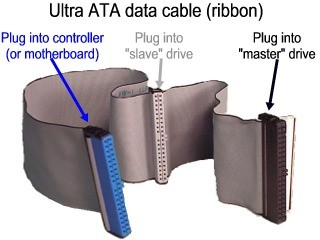
  • An Ultra ATA-capable 40 pin, 80 conductor cable with the blue (system board), black (master) and gray (slave) connectors.
  • An operating system capable of DMA transfers, such as a Windows OS.
  • An Ultra ATA/100-capable device.

2. Are the Ultra ATA/33, Ultra ATA/66 and Ultra ATA/100 interfaces backward compatible?
All Seagate Ultra ATA/100 drives are backward compatible with Ultra ATA/33, Ultra ATA/66, and legacy ATA interfaces.

3. How do I know if my system can support the new Ultra ATA/100 products?
Please check with your preferred motherboard manufacturer or system manufacturer for Ultra ATA/100 support information.

4. Will performance be affected if I have an Ultra ATA/100 disc drive on a slower ATA controller?
Using a slower transfer mode affects only the external transfer rate of the device. If an Ultra ATA/100 device is configured for a slower transfer mode, its maximum speed will of course be limited to the maximum burst transfer rate of that mode. However, the internal performance is not affected by the external transfer mode, therefore the sustained transfer rate will not be as drastically affected as the maximum (burst) transfer rate.

Ultra ATA/100 FAQs Read More »

How to Overcome GPT Protective Partition Issues

GPT Protective Partition Issues What is a GPT disk?
The GUID Partition Table (GPT) was introduced as part of the Extensible Firmware Interface (EFI) initiative. GPT provides a more flexible mechanism for partitioning disks than the older Master Boot Record (MBR) partitioning scheme that has been common to PCs.

A partition is a contiguous space of storage on a physical or logical disk that functions as though it were a physically separate disk. Partitions are visible to the system firmware and the installed operating systems. Access to a partition is controlled by the system firmware before the system boots the operating system, and then by the operating system after it starts.

Problem: When connecting an internal and/or and external hard drive to a Windows XP (or newer), 32-bit Operating System, the drive is inaccessible and Disk Management reports that the drive has a GPT Protective Partition on it. The drive cannot be repartitioned and formatted in this state.

Cause:The internal or external hard disk was previously prepared on either a Windows or Macintosh computer with a GPT partition.

Solution: Normal Disk Management facilities will not overcome this issue. To prepare this drive, you will need to use the Windows diskpart command-line utility. The following procedure provides the steps for cleaning a GPT Protective Partition from a hard disk drive connected to an existing Windows XP (or newer), 32-bit Operating System.

Note: This is a data destructive process. This procedure not only removes the drive’s partition, but also removes the Drive Signature. It is highly recommended that you backup any/all critical data on the drive before proceding. Secondly, you may wish to open Disk Management and document the Disk Number of the drive containing the GPT Protective partition…you will need this information later in the procedure.

1. Open a Command Window. From the command prompt, type diskpart and press enter. The diskpart prompt will open.

GPT Protective Partition

2. From the diskpart prompt, type list disk and press enter. A list of disks will appear in a text format. You will return to the diskpart prompt.

GPT Protective Partition

3. From the diskpart prompt, type select disk disknumber (for instance, if the disk containing the GPT Protective partion is Disk 4, you would type select disk 4)and press enter. A message appears saying that the disk is selected. You will return to the diskpart prompt.

GPT Protective Partition

4. From the diskpart prompt, type clean and press enter. At this point the drive’s partition and signature a removed. You will return to the diskpart prompt.

GPT Protective Partition

5. From the diskpart prompt, type exit and press enter. Type exit once more to close the Command Window.

At this point, the internal and/or external drive can be re-initialized, partitioned and formatted. Launch Disk Management…to initialize the disk:

  • Use the Initialize and Convert Disk Wizard-OR-
  • Close the Wizard, right-click on the disk in question and select Initialize Disk from the drop-down menu.

Once the drive is initialized, continue using Disk Management to partition and format the drive.

How to Overcome GPT Protective Partition Issues Read More »

Hard Drive Capacity Measurement Standards

Hard Drive Capacity Discrepancy Between Reported Capacity and Actual Capacity
Many users are confused when their operating system reports, for example, that their new ST31000340AS 1 Terabyte  (1000 GB) hard drive is reporting only about 909 Gbytes in “usable capacity“. Several factors may come into play when you see the reported capacity of a disc drive. Unfortunately there are two different number systems which are used to express units of storage capacity;

  • Binary – which says that a kilobyte is equal to 1024 bytes
  • Decimal – which says that a kilobyte is equal to 1000 bytes.

The storage industry standard is to display capacity in decimal. Even though in binary you have more bytes, the decimal representation of a Gbyte shows greater capacity. In order to accurately understand the true capacity of your disc drive, you need to know which base unit of measure (binary or decimal) is being used to represent capacity. Another factor that can cause misrepresentation of the size of a disc drive is BIOS limitations. Many older BIOS are limited in the number of cylinders they can support.

Motivation for Proposed Prefixes for Binary Multiples
Once upon a time, computer professionals noticed that 1024 or 2 10 (binary) was very nearly equal to 1000 or 10 3 (decimal) and started using the prefix “kilo” to mean 1024. That worked well enough for a decade or two because everybody who talked kilobytes knew that the term implied 1024 bytes. But almost overnight a much more numerous “everybody” bought computers, and the trade computer professionals needed to talk to physicists and engineers and even to ordinary people, most of whom know that a kilometer is 1000 meters and a kilogram is 1000 grams.

Two Different Measurements Systems

AbbreviationBinary PowerBinary Value (in Decimal)Decimal PowerDecimal
(Equivalent)
Kbyte2 101,02410 31,000
Mbyte2 201,048,57610 61,000,000
Gbyte2 301,073,741,82410 91,000,000,000
Tbyte

2 40

1,099,511,627,77610 121,000,000,000,000

Often when two or more people begin discussing storage capacity, some will refer to binary values and others will refer to decimal values without making distinction between the two. This has caused much confusion in the past. In an effort to dispatch this confusion, all major disc drive manufactures use decimal values when discussing storage capacity.

How Operating Systems Report Drive Capacity?
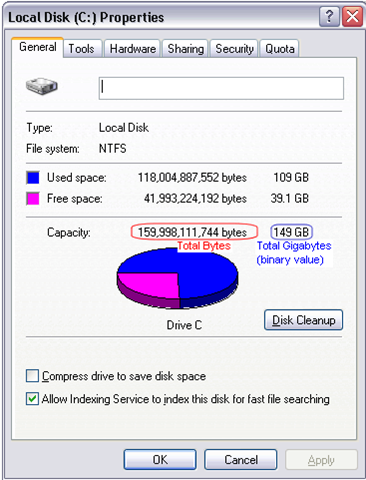
Hard Drive Capacity

Windows XP/2000/NT
From Windows Explorer, right click on a drive letter, then click on Properties. This shows capacities in bytes, Mbytes, and Gbytes.

Windows 98/Me
From Windows Explorer, right click on a drive letter, then click on Properties. This shows bytes, Mbytes, and Gbytes.
DOS Prompt ? CHKDSK shows bytes
DOS Prompt ? FDISK shows Mbytes

DOS/Windows 3.x
CHKDSK shows bytes
FDISK shows Mbytes
Hard Drive Capacity Measurement Standards Read More »

How to Low-Level Format a Hard Drive?

Low-Level Fromat What does “Low Level Formatting” mean?

Actually the term “low level” is a bit of a misnomer. The low-level process first used years ago in MFM hard drives bears little resemblance to what we now call a “low-level format” for today’s SATA and ATA (IDE) drives. The only safe method of initializing all the data on a Seagate device is the Zero Fill erase option in SeaTools for DOS. This is a simple process of writing all zeros (0’s) to the entire hard disk drive.

Why would I want to Zero Fill my drive?

The most common reasons to Zero Fill a SATA or ATA (IDE) hard drive are:

  • to remove a virus that cannot be removed without destroying the boot sector.
  • to change from one operating system to another and wish to remove everything from the drive.
  • to erase confidential information for privacy reasons.
  • to scan for bad sectors that can be detected and replaced with good spare sectors when writing to the sectors.

By design, modern disc drives maintain spare sectors for reallocation purposes. Usually, sectors become difficult to read long before they become impossible to read. In this situation the actual data bytes in the sector are preserved and transferred to the new spare during a sector reallocation. Similarly, when a disc drive writes data (like a zero fill erase procedure) and encounters a problem, the drive firmware retires the problem sector and activates a replacement before giving successful write status.

How to Zero Fill my hard drive?

  • Zero Filling a SATA or ATA (IDE) drive destroys 100% of the data on the drive. Make sure the drive is completely backed up before proceeding.
  • The Zero Fill erase option in SeaTools for DOS is the best method for use with Seagate hard drives. Some system BIOS may include a Low-Level Format option; these should be avoided, as they may produce undesirable results.

SeaTools for DOS can be downloaded from Here. It includes three Erase (Zero Fill) options. Zero Fill writes zeros in each data sector for the complete capacity of the drive and cleans up most defects.

The download routine for SeaTools for DOS creates a bootable CD or floppy diskette. Boot from the CD media or diskette to start SeaTools for DOS. After startup, it is a good idea to test your drive. The Basic Short Test takes less than a minute to complete. The Basic Long Test can take several hours to complete, depending on the capacity of the drive. When you are ready to erase the drive.

Select the drive you want to erase. Then select one of the three zero fill Erase functions.

Erase Track ZERO: Erases just the first 63 sectors on the drive which takes less than a second to complete. This procedure removes the Master Boot Record (MBR) and Partition Table. This will cause the drive to look “empty” to a new installation of the operating system.

Timed Erase: Erases sectors for various time limits up to 5 minutes. These options will overwrite the sectors at the beginning of the drive where the majority of the static operating system files reside.

Full Erase: Erases every data sector on the drive and takes a long time to complete. This procedure can easily take several hours to complete. The advantage of this option is to discover and reallocate any defective (hard to read) sectors to good spares. This option comes closest in concept to the original idea of a low level format.

When the process completes, reboot the system from the operating system install CD and follow the instructions to prepare (partition and format) the drive and install the operating system.

How to Low-Level Format a Hard Drive? Read More »

6 Reasons BIOS will not detect or recognize your drive

There are 6 main reasons why a system BIOS will not detect the presence of an internal hard drive.  Here is a list of them.  They are not in any particular order, but you can follow these steps one by one to troubleshoot this problem:

After verifying that your ATA or SATA port is set to Auto-Detect or is enabled, if you find that your disk drive is not being detected (auto-detected) by the system BIOS, try the above steps to try and isolate/troubleshoot the problem.

If you have completed the above checks and procedures and the drive is still not properly detected, please attempt to use Seatools for DOS (see the tutorial here) to test the drive.  If SeaTools does not detect the drive after the steps followed above, or an error code that signifies drive failure displays, you can begin a warranty replacement order.

6 Reasons BIOS will not detect or recognize your drive Read More »

6 Reasons BIOS will not detect or recognize your drive (2)

Reason 2: Incorrect jumper settings on the drive

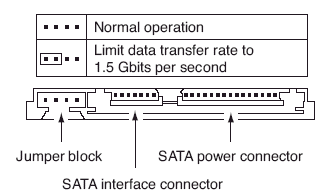
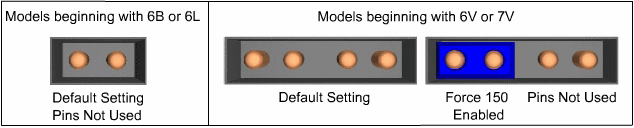
Serial ATA:  If you have a 3.0 Gbit/sec SATA drive that is not being detected by your 1.5 Gbit/sec SATA controller, or it causes your system to lock up when connected to a 1.5 Gbit/sec SATA controller, you may need to jumper your 3.0 Gbit/sec SATA drive to the slower speed of 1.5 Gbit/sec for the system to recognize it properly.

Jumper settings for Seagate SATA drives

Jumper settings for Seagate SATA drives

Jumper settings for Maxtor-brand SATA drives

Jumper settings for Maxtor-brand SATA drives

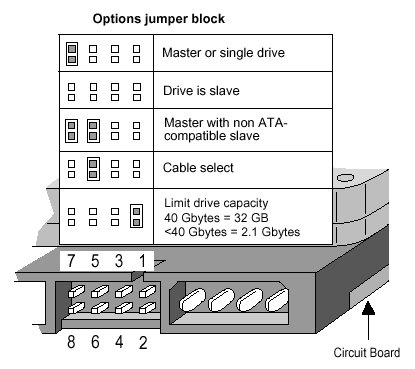
ATA:  It is recommended that all Seagate ATA hard discs supporting the Cable Select jumper option be configured as Cable Select. If your computer system was built prior to October 1998 and does not support UDMA 66 or greater you will be required to use the Master/Slave jumper settings.

Jumper settings for Seagate ATA drives

Jumper settings for Seagate ATA drives

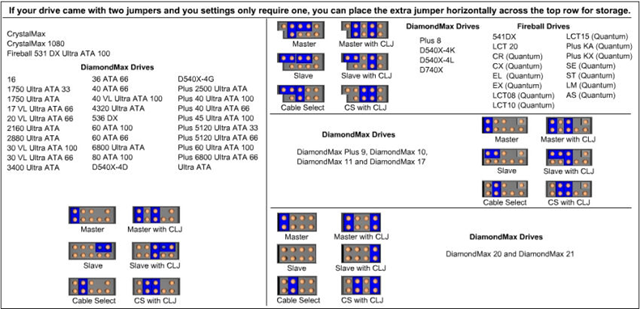
Jumper settings for Maxtor-brand ATA drives

Jumper settings for Maxtor-brand ATA drives

When using Cable Select jumper settings on your ATA drive, all devices connected to the UDMA cable must also use the Cable Select setting. The cable decides master/slave device detection when the cable select jumper settings are used.

6 Reasons BIOS will not detect or recognize your drive (2) Read More »

6 Reasons BIOS will not detect or recognize your drive (3)

Drive is not spinning up Reason 3: Drive is not spinning up
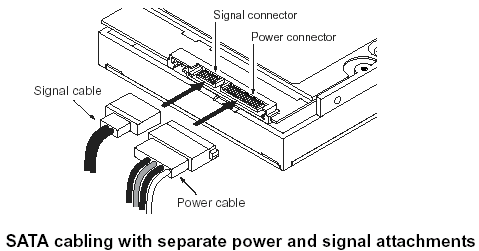
If the drive is not receiving power or receiving an incorrect level of power, it will not spin up. To check to see if this is the cause of the BIOS not detecting the hard drive, follow these steps:

  1. Power off the computer.
  2. Open the computer case and remove the data cable from the hard drive. This will stop any power saving commands from being sent.
  3. Turn on the system. Check to see if the hard drive is spinning. If you touch the side of the drive you should feel a slight vibration. If you do nothear or feel the hard drive spinning, the drive did not start.If you cannot determine whether the drive is spinning:
    1. Boot the computer and listen carefully.
    2. Shut the computer down.
    3. Disconnect the power cord from the computer itself.
    4. Disconnect the power cable from the hard drive in question.
    5. Reconnect the power cord to the computer itself.
    6. Boot the computer up to see if the drive sound was audible before. And,
    7. Then repeat, only reconnect the hard drive and listen for it to spin up.
  4. Switch power cables with a device like a CDROM or DVDROM drive, so that you are using a known-good power cable.
  5. Check the power supply on your computer to determine whether it is providing sufficient electrical power to operate the drives and devices you have in your computer.
  6. If the drive is still not spinning, connect it in another computer if possible.
  7. Connect the drive in a SATA-USB enclosure or something similar if possible.
  8. If the drive does not spin up after all of these steps, please visit the Warranty page to begin a warranty replacement order.

6 Reasons BIOS will not detect or recognize your drive (3) Read More »

6 Reasons BIOS will not detect or recognize your drive (4)

Reason 4: Faulty or Unplugged Data Cable

Always inspect the motherboard and hard disc connections for bent or misaligned pins. Folding, crimping, pinching, or creasing data cables can cause the wires to break inside the insulation, leaving the exterior of the cable looking normal. When in doubt of data cable condition, replace it.

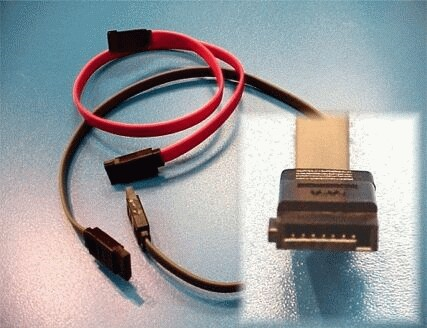
For SATA cables, Seagate recommends using cables shorter than 39.37 inches (1 meter).

Here are some images of Serial ATA cables.

Faulty or Unplugged Data Cable

Faulty or Unplugged Data Cable

The BIOS will not detect a hard disc if the data cable is damaged or the connection is incorrect.
Serial ATA cables, in particular, can sometimes fall out of their connection. Be sure to check your SATA cables are tightly connected to the SATA port connection.

The easiest way to test a cable is to replace it with another cable.  If the problem persists, then the cable was not the cause of the problem.

For ATA drives, Seagate recommends using UDMA cabling with a maximum length of 18 inches. UDMA cables have color coded connections which require proper orientation when connecting.

  • Blue connector – always connects to the motherboard.
  • Grey (middle) connector – is used for slave devices on the cable.
  • Black connector – is used for master device connection.

See this image:

Faulty or Unplugged Data Cable

6 Reasons BIOS will not detect or recognize your drive (4) Read More »

6 Reasons BIOS will not detect or recognize your drive (5)

Reason 5: The Serial ATA motherboard drivers are not properly loaded (especially in Windows XP/2000)

When you install Windows XP/2000 on a drive that will be the boot drive (ie, the C: drive), when it comes time to install Windows, the drive may not be detected.  Here is the proper procedure:

  1. Insert the Windows XP/2000 CD/DVD into the CD/DVD drive.
  2. Power down the computer.
  3. Mount and connect the Serial ATA hard drive.
  4. See here for an interactive flash tutorial illustrating this.
  5. Power up the computer.
  6. For some add-in SATA controller cards, you will need to press the F6 key to install drivers as the Windows setup screen launches.

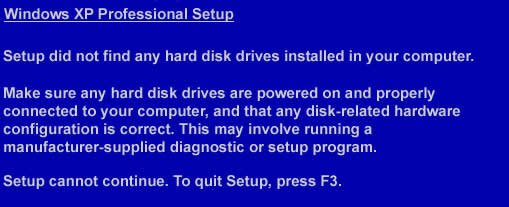
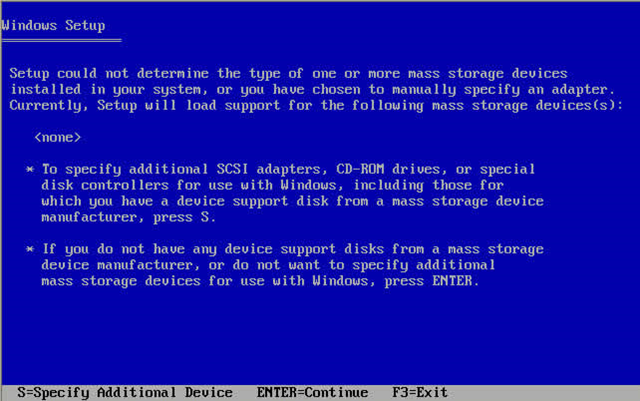
    -You may never have noticed the “F6” option before, since it happens at the bottom of the screen and is visible for only a few seconds during a standard install. What you most likely encountered during the setup process was a screen which came up informing you Setup could not find any drives installed on your computer, and it could not continue, much like the screen sample below:

    Serial ATA motherboard drivers are not properly loaded

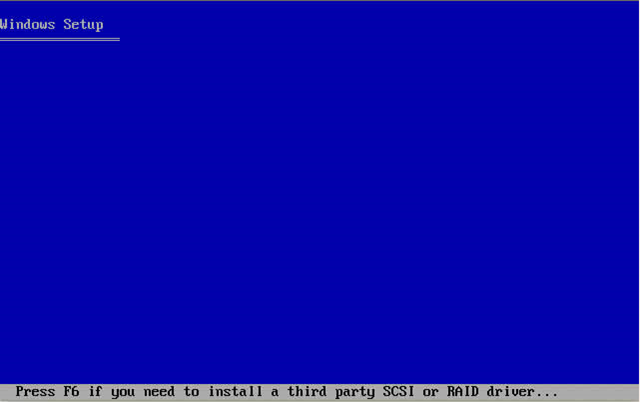
  7. To be able to hit the F6 button, you must restart the Setup process, and watch the bottom of the screen after pressing Enter on the “Welcome to Setup” screen. There will be some moments of files being loaded, and then you should see a message appear which says “Press F6 if you need to install a 3rd party SCSI or RAID driver”. This message will only stay on the screen for a couple of seconds, so press F6 as soon as you see it appear.

    Serial ATA motherboard drivers are not properly loaded

  8. After this is done, you will see other messages appear, and it will act as though nothing is happening, but eventually a screen will appear which will allow you to install the drivers for the add-in SATA controller. The screen will look like the sample below:

    Serial ATA motherboard drivers are not properly loaded

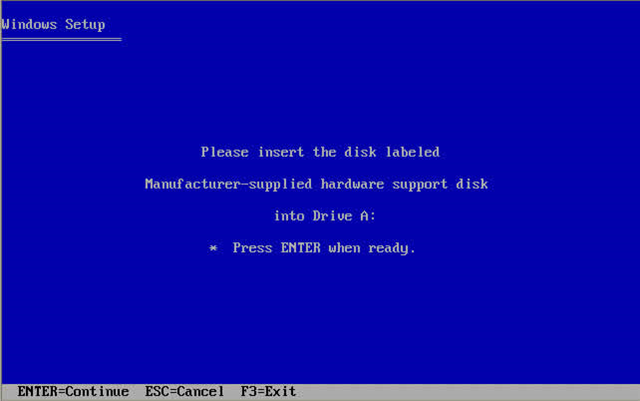
  9. After you press S, the driver install process will continue and the floppy diskettes will be needed. Further instructions will be furnished after the driver install process has ended.

    Serial ATA motherboard drivers are not properly loaded

  10. Insert the floppy diskette containing the drivers for the add-in Serial ATA controller.
  11. Once the drivers are loaded, proceed with the normal Windows XP/2000 installation.

A few further notes on the driver diskette:
For the hard drive to be detected in a new installation, the drivers for the add-in SATA controller/motherboard must be loaded at the beginning of installation.

The drivers for the controller/motherboard can probably be found either on the CD that came with it or on the manufacturer’s website. These drivers do not come from Seagate; they come from the motherboard manufacturer. Simply load the required drivers on the diskette and have it ready.

6 Reasons BIOS will not detect or recognize your drive (5) Read More »

6 Reasons BIOS will not detect or recognize your drive (6)

Hard disk drive not enabled in biosReason 6: Hard disk drive not enabled in the BIOS

Most personal computers display a brief message about entering System Setup soon after the power is turned on.  System Setup is also called the “System BIOS” or sometimes the “CMOS Setup” – each is a name for the same thing.

For example, on Dell systems you will see “F2=Setup” in the upper right hand corner during the computer boot-up.  This means to press the F2 key to enter Setup (the BIOS).   Different computer manufactures have different methods to enter Setup, so please check your system documentation for specifics. How to access/enter Motherboard BIOS

System setup is where the date and time are stored and where startup preferences like NumLock or Passwords are defined. In addition, many hardware settings are defined in System Setup.

In particular, hard disk drives are often controlled here. At the simplest level, hard drives are numbered in Setup as Drive 0, Drive 1, etc or sometimes as Primary Master, Primary Slave.  Which ever way these are named, they have a basic ON / OFF setting (sometimes AUTOMATIC or something similar).  If your drive is not detected it may be because it is turned OFF in System Setup.

In most cases, the boot drive is Drive 0 or Primary Master.  When you add a second drive to the system, it may be need to be enabled by turning it ON in System Setup.

6 Reasons BIOS will not detect or recognize your drive (6) Read More »

Scroll to Top