Articles

Top 20 Most Popular Optical Drives on Amazon.com

Optical Drives Optical drives retrieve and/or store data on optical discs like CDs, DVDs, and BDs (Blu-ray discs) which hold much more information than classic portable media options like the floppy disk.

Important Optical Disc Drive Facts:
Most optical drives can play and/or record onto a large number of different disc formats. Popular formats include CD-ROM, CD-R, CD-RW, DVD, DVD-RAM, DVD-R, DVD+R, DVD-RW, DVD+RW, DVD-R DL, DVD+R DL, BD-R, and BD-RE. Reference your optical drive’s manual before purchasing media for your drive to avoid incompatibility issues.

Popular Optical Disc Drive Manufacturers:
Lite-On IT
, Memorex, NEC

Top 20 Most Popular Optical Drives on Amazon.com Read More »

Tape Data Recovery Tips

Tape Data Recovery Server and Personal Computer Tape Backup systems using 4mm DAT, Travan, Exabyte 8mm, LTO and the various QIC formats are popular and necessary to safeguard your data.

However, when these tapes fail, the situation is normally catastrophic as these tapes were often the only remaining repository of the data. Popular backup software such as Legato’s Networker, Cheyenne ArcServe, Veritas BackupExec, Microsoft NTBackup, Dantz Retrospect plus the UNIX tar and cpio utilities (and many more) all use different internal formats.

Causes of Tape Failure and Data Loss

  • Corruption – operational error, mishandling of the tape or accidental overwrites caused by inserting or partially formatting the wrong tape
  • Physical damage – broken tapes, dirty drives, expired tapes and damage caused by fire, flood or other natural disaster
  • Software upgrades – inability for data on tape to be read by new application or servers

Tape Media Formats and Manufacturers

  • DLT III, DLT IV, DLT-1, VS80, VS160 & Super DLT tapes up to 320Gb capacity
  • LTO 1, 2 Ultrium tapes up to 400Gb capacity
  • 4mm DAT format DDS, DDS-2, DDS-3 & DDS-4 tapes up to 40Gb capacity
  • Exabyte 8mm 112m and 160m tapes & Mammoth 1 (Exabyte 8900), Mammoth 2 up to 150Gb capacity
  • Seagate AIT & AIT-2, AIT-3 tapes up to 260Gb capacity
  • Travan TR-1, TR-3, TR-4 & TR-5 tapes up to 20Gb capacity
  • Iomega Ditto 2Gb QIC tapes
  • QIC Mini-Cartridges DC2000-DC2120 with 40, 80Mb & 250Mb capacity

Tape Backup and File Formats

  • Microsoft Tape Format (MTF) applications such as NT Backup and Seagate/Veritas BackupExec for Windows NT/2000, Backup Exec for NetWare
  • System Independent Data Format (SIDF) applications such as Novell’s Sbackup and Palindrome’s Backup Director
  • Practically all legacy DOS and Windows backup formats, including Colorado/Cheyenne Backup for Windows, Arcada/Seagate Backup Exec for Windows 95 & 98
  • Cheyenne/Computer Associates ARCserve for NT & NetWare
  • Previos/Stac Replica Backup for NT, NetWare
  • Legato NetWorker (all platforms)
  • Dantz Retrospect for Macintosh unix tar, cpio, fbackup, fsdump & ufsdump archives
  • Compaq/DEC VMS Backup
  • Intelliguard/Legato Budtools for UNIX platforms
  • Sytron / Seagate / Veritas Sytos & Sytos Plus for DOS, NetWare & OS/2

Tape Recovery Process

  • Tape recoveries are performed in dust-free cleanroom environments
  • Tapes and tape drives are carefully dismounted, examined and processed
  • Proprietary tools “force” the drive to read around the bad area to recover your tape data successfully
  • Tapes are imaged, a copy of the disk is created, and recovered data is transferred to the new system

NOTICE: Attempting to recover tape data on your own, or through an inexperienced data recovery provider, may lead to further damage. Select a data recovery provider with resources, expertise and experience you can trust.

Tape Data Recovery Tips Read More »

Two Recommendation Tape Drives

A tape drive is a data storage device that reads and writes data stored on a magnetic tape. It is typically used for off-line, archival data storage. Tape media generally has a favorable unit cost and long archival stability.

A tape drive provides sequential access storage, unlike a disk drive, which provides random access storage. A disk drive can move its read/write head(s) to any random part of the disk in a very short amount of time, but a tape drive must spend a considerable amount of time winding tape between reels to read any one particular piece of data. As a result, tape drives have very slow average seek times. Despite the slow seek time, tape drives can stream data to and from tape very quickly. For example, modern LTO drives can reach continuous data transfer rates of up to 80 MB/s, which is as fast as most 10,000 RPM hard disks.

From Wikipedia: http://en.wikipedia.org/wiki/Tape_drive

1. Seagate Replica 500 GB Complete Multi-PC Backup System with Dock ST905004BDA101-RK (Silver)

Features

  • Effortless, automatic backup for everything on your PC, including the operating system, programs and settings.
  • Simply plug in a single USB cable, click OK, and you’re backed up no tedious installation, nothing to configure.
  • Drag-and-drop from your backup copy to effortlessly retrieve accidentally deleted files.
  • Easily recover from a PC crash by restoring your entire system.
  • Password protection ensures that only you have access to your computer’s backed up files.

Technical Details

  • Drive Type: External
  • Capacity: 500 GB
  • Interface: USB 2.0
  • Spindle Speed (RPM): 5400

Price: $149.99 Price on Amazon.com: $99.99

2. Seagate Replica 250 GB USB 2.0 Complete Single PC Backup System ST902504BDA101-RK (Silver)
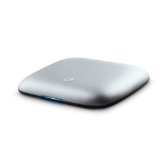
Seagate 250GB Tape Drive Features

  • Effortless, automatic backup for everything on your PC, including the operating system, programs and settings.
  • Simply plug in a single USB cable, click OK, and you’re backed up no tedious installation, nothing to configure.
  • Drag-and-drop from your backup copy to effortlessly retrieve accidentally deleted files.
  • Easily recover from a PC crash by restoring your entire system.
  • Password protection ensures that only you have access to your computer’s backed up files.

Technical Details

  • Drive Type: External
  • Capacity: 250 GB
  • Interface: USB 2.0
  • Spindle Speed (RPM): 5400

Price: $129.99 Price on Amazon.com: $69.99

Two Recommendation Tape Drives Read More »

Top 20 Most Popular Network Attached Storage on Amazon.com

Network-attached storage (NAS) is file-level computer data storage connected to a computer network providing data access to heterogeneous network clients.

A NAS unit is a computer connected to a network that only provides file-based data storage services to other devices on the network. Although it may technically be possible to run other software on a NAS unit, it is not designed to be a general purpose server. For example, NAS units usually do not have a keyboard or display, and are controlled and configured over the network, often using a browser.

A fully-featured operating system is not needed on a NAS device, so often a stripped-down operating system is used. For example, FreeNAS, an open source NAS solution designed for commodity PC hardware, is implemented as a stripped-down version of FreeBSD.

NAS systems contain one or more hard disks, often arranged into logical, redundant storage containers or RAID arrays (redundant arrays of inexpensive/independent disks). NAS removes the responsibility of file serving from other servers on the network.

NAS uses file-based protocols such as NFS (popular on UNIX systems), SMB/CIFS (Server Message Block/Common Internet File System) (used with MS Windows systems), or AFP (used with Apple Macintosh computers). NAS units rarely limit clients to a single protocol.

From Wikipedia: http://en.wikipedia.org/wiki/Network-attached_storage

  • Iomega Home Media 1 TB Network Attached Storage
    (Price: $188.99 Price on Amazon.com: $137.67)
  • Synology DiskStation 2-Bay (Diskless) Network Attached Storage (White)
    (Price: $229.99 Price on Amazon.com: $227.99)
  • Iomega StorCenter ix2-200 1 TB Network Attached Storage (Black)
    (Price: $231.99 Price on Amazon.com: $223.35)
  • Synology DiskStation 5-Bay (Diskless) Scalable Network Attached Storage (Black)
    (Price: $999.99 Price on Amazon.com: $998.55)
  • Seagate BlackArmor NAS 220 2-Bay 4 TB (2 x 2 TB) Network Attached Storage
    (Price: $449.99 Price on Amazon.com: $444.02)
  • Seagate BlackArmor NAS 110 1 TB Network Attached Storage
    (Price: $162.99 Price on Amazon.com: $149.00)
  • Synology DiskStation 4-Bay (Diskless) Network Attached Storage (White)
    (Price: $390.99 Price on Amazon.com: $373.29)
  • Seagate BlackArmor NAS 440 4-Bay 4 TB (4 x 1 TB) Network Attached Storage
    (Price: $835.99 Price on Amazon.com: $699.99)
  • Buffalo Technology DriveStation Combo 1 TB USB 2.0/FireWire 400 Desktop External Hard Drive (Black)
    (Price: $131.99 Price on Amazon.com: $115.99)
  • Seagate BlackArmor NAS 440 4-Bay 8 TB (4 x 2 TB) Network Attached Storage
    (Price: $1,597.99 Price on Amazon.com: $1,299.99)
  • Buffalo Technology LinkStation Quad 4 TB (4 X 1 TB) Network Attached Storage LS-Q4.0TL/R5(Black)
    (Price: $557.99 Price on Amazon.com: $545.67)
  • Buffalo Technology LinkStation Quad 2 TB (4 X 500 GB) Network Attached Storage LS-Q2.0TL/R5 (Black)
    (Price: $457.99 Price on Amazon.com: $392.99)
  • Seagate BlackArmor NAS 420 4- Bay 2 TB (2 x 1 TB and 2 Empty Bays) Network Attached Storage
    (Price: $591.99 Price on Amazon.com: $499.99)
  • Synology DiskStation 2-Bay (Diskless) Scalable Network Attached Storage (Black)
    (Price: $579.99 Price on Amazon.com: $529.99)
  • LaCie 301431U 3TB 2big Quadra 2-Disk RAID Hard Drive
    (Price: $469.99 Price on Amazon.com: $426.80)
  • Synology Disk Station 1-Bay 1 TB (1 x 1 TB) Network Attached Storage DS109 1100 (White)
    (Price: $407.99 Price on Amazon.com: $397.99)
  • Synology Disk Station 4-Bay 4 TB (4 x 1 TB) Network Attached Storage DS409 4100 (Black)
    (Price: $1054.99 Price on Amazon.com: $950.89)
  • Iomega Home Media 500 GB Network Attached Storage 34336
    (Price: $159.99 Price on Amazon.com: $133.81)
  • TRENDnet 1-Bay Diskless USB 2.0 IDE Network Attached Storage Enclosure TS-I300 (Blue)
    (Price: $159.99 Price on Amazon.com: $108.34)
  • Buffalo Technology LinkStation Quad 1 TB (4 X 250 GB) Network Attached Storage LS-Q1TL/R5 (Black)
    (Price: $382.99 Price on Amazon.com: $355.45)

Top 20 Most Popular Network Attached Storage on Amazon.com Read More »

How To Completely Clean Data From Your Hard Drives And SSDs? (Part I)

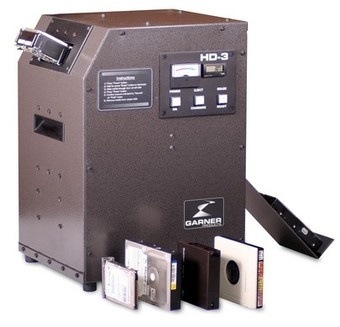
Clean Data From Hard Drive And SSD With stories abounding of identity theft aided by information lifted from discarded storage devices, you want devices you no longer plan to use to have no usable information when they head out the door. Here’s how to wipe them clean.

Why Erasing Files Is Not Enough

Sure, you could erase the contents of the drive, but keep this in mind: the act of erasing a file does not remove it from a storage device.

When you erase/delete a file from your computer, it’s not really gone until the areas of the disk it used are overwritten by new information. If you use the normal Windows delete function, the “deleted” file is sent to the Recycle Bin until the space it uses is required by other files. If you use Shift-Delete to bypass the Recycle Bin, the space occupied by the file is marked as available for other files. However, the file could be recovered days or even weeks later with third-party data recovery software. As long as the operating system does not reuse the space occupied by a file with another file, the “deleted” file can be recovered.

With SSDs, the erased file situation is even more complex. SSDs store data in blocks rather than in sectors as with magnetic storage. Overwriting a block was previously used involves copying the contents of the block to cache, wiping the block’s contents, delete the block to be overwritten from cache, writing the new data to cache, and rewriting the block with the new data. As an SSD is used with files that are deleted or changed frequently, the performance can drop unless the drive (and operating system) support a technology called TRIM that wipes out deleted data blocks as soon as the file using the blocks is deleted. TRIM is supported by Windows 7 and by some late model SSDs, but not by older Windows versions. So, disk wiping can be both a security feature and a performance improvement strategy.

Data Wiping Versus File Erasure

While erasing files simply marks file space as available for reuse, data wiping overwrites all data space on a storage device, replacing useful data with garbage data. Depending upon the method used, the overwrite data could be zeros (also known as “zero-fill”) or could be various random patterns.

Products that can be used for wiping hard disks might not be suitable for wiping other types of drives. In this article, we will look at methods for securely wiping hard disks, USB flash memory devices, flash memory cards, and SSDs.

Zero-Fill a Hard Disk

Time Needed: several hours (varies with size and speed of drive)
Software: Hard disk utility software from your drive vendor
Media: blank CD or floppy disk

Although writing zeroes across the entire hard disk surface (aka “zero-filling”) is not sufficient to meet government data sanitation (disk wiping) standards such as DoD 5220.22-M or the more comprehensive Standards and Technologies (NIST) Special Publication 800-88, overwriting the entire hard disk prevents most types of data recovery from being successful.

Here’s where to get zero-fill software from hard disk vendors:

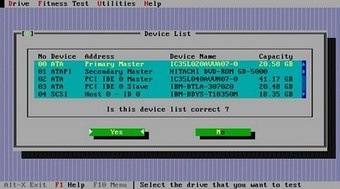
Hitachi

Drive Fitness Test
Select the Erase Drive feature to zero-fill your hard disk.

Drive Fitness Test

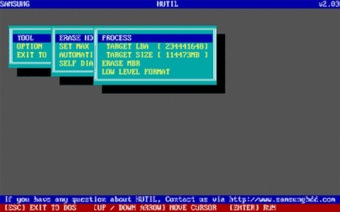
Samsung

HUtil
Use Tool, Erase HDD to zero-fill your hard disk.

Hutil

How To Completely Clean Data From Your Hard Drives And SSDs? (Part I) Read More »

How To Completely Clean Data From Your Hard Drives And SSDs? (Part II)

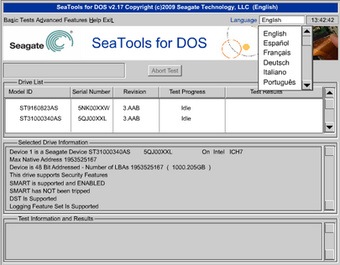
Seagate (including Maxtor)

SeaTools for DOS
Use Full Erase to zero-fill your hard disk.

Seatools for Dos

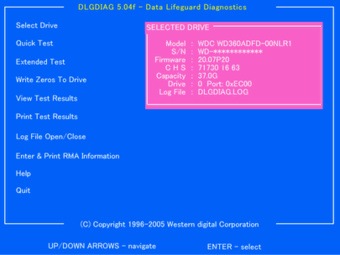
Western Digital

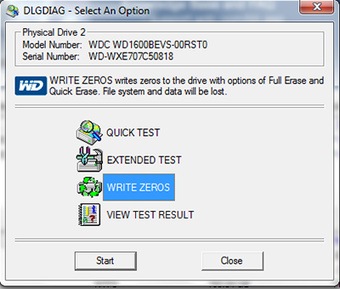
Data Lifeguard Diagnostics
Use Write Zeros to drive to zero-fill your hard disk

Data Lifeguard Diagnostics

1. Determine the brand and model of hard disk you want to overwrite.
2. Download a CD ISO image or a floppy disk image (depending upon your equipment) and use the image to create bootable media. The floppy disk image is self-contained: run it, insert a blank floppy disk when prompted, and the image is created on the disk. You will need to use a CD burning program that works with ISO images to convert the ISO image into a bootable CD.
3. Restart your computer with the bootable media you created in Step 2.
4. Select the hard disk to zero-fill when prompted.
5. Choose the option to zero-fill the hard disk.

Clean Data

6. When the program is finished, follow the on-screen instructions to shut down or restart your computer.
7. Remove the wiped hard disk; you can now reuse or recycle the hard disk.

Secure Wiping a Hard Disk

Secure wiping goes beyond zero-fill operations, and provides an extra level of security. Most secure wiping programs are designed to meet DoD 5220 standards, which require three passes of overwriting with a special numeric pattern and verification. More information about this and other secure standards are available from the DataErasure website.

(Note that the 2007 revision of the Defense Security Service, Updated DSS Clearing and Sanitization Matrix (June 28, 2007) (PDF) now recommends degaussing or drive destruction for maximum protection.

Clean Data

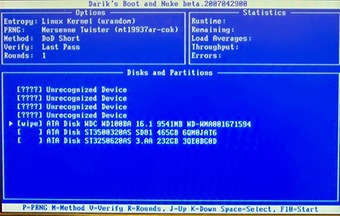
Stanford University’s Disk and Data Sanitization Policy and Guidelines, a must-read for understanding data wiping issues, recommends Darik’s Boot and Nuke (DBAN) for secure hard disk wiping.

Secure Wiping a Hard Disk with DBAN

Time Needed: several hours (varies with size and speed of drive)
Software: Darik’s Boot and Nuke (DBAN);
Available from http://www.dban.org/
Media: blank CD (all versions) or floppy disk (version 1.0.7 and older versions)

1. Download the DBAN boot image ZIP file (we used version 1.0.7 and beta version 2.0 for this article); we downloaded the ISO image for CD burning, but a floppy disk builder is also available
2. Extract the contents of the compressed file.
3. Burn the ISO image file extracted in Step 2 to CD; or use the built-in ISO CD image burning support in Windows 7. If you downloaded the floppy image builder, run the program to create a bootable floppy disk.
4. Restart the computer using the CD or floppy disk created in Step 3.
5. Press Enter to run DBAN in interactive mode.
6. Use up and down arrow keys to highlight the drive to wipe.
7. Press the space bar to select the drive.
8. Press M to select the wiping method.
9. Press F10 to begin the wipe process.

Wipe Data

10. At the end of the process, shut down the system. You can reuse or recycle the wiped hard disk.

Note: if DBAN is unable to recognize your SATA hard disks, configure your system BIOS to use IDE mode rather than AHCI mode.

Wiping Flash Memory Cards and USB Drives

Programs such as DBAN or vendor-supplied hard disk utilities are limited in the devices they support: they are designed to work with internal ATA/IDE or SATA hard disks only. Programs that work with flash memory cards and USB flash drives often support hard disks as well, enabling you to use a single program for all disk wiping processes. Roadkil’s DataWipe can be used with any hard disk, floppy disk, or flash drive that has a drive letter.

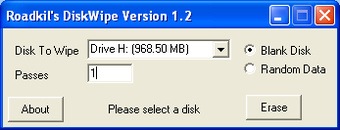
Wiping Flash Memory Cards with Roadkil’s DiskWipe

Time Needed: Varies; from a few minutes to several hours, depending upon size and speed of drive and computer
Software: Roadkil’s DiskWipe
Available from http://www.roadkil.net
Media: Can be run from Windows desktop

1. Download Roadkil’s DiskWipe.
2. Extract the contents of the compressed file.
3. Open DiskWipe. If you are running Windows Vista or Windows 7, right-click the program icon and select Run as Administrator.
4. Select the drive to wipe.
5. Select the type of wipe to perform; DiskWipe can zero-fill the disk or write random data.
6. Enter the number of passes.
7. Click Erase to start the process.

DiskWipe

8. At the end of the process, close the program. You can reuse the wiped disk.

Wiping SSDs

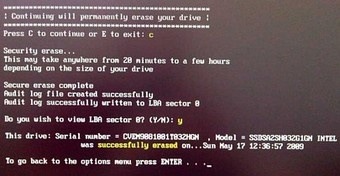
To solve write performance problems on drives that don’t support TRIM (check with your drive vendor for firmware upgrades) is to use wiper.exe (included with some SSDs) or to run the Secure Erase feature supported in most recent ATA/IDE and SATA drives. The Secure Erase feature can be activated on many systems by running Secure Erase 4.0 (HDDerase.exe), available from http://cmrr.ucsd.edu/people/Hughes/SecureErase.shtml. Version 4.0 works with most recent ATA/IDE and SATA hard disks and SSDs, but if you use an Intel X-25M, X-25E, or X-18M SSD, follow this link to download Secure Erase 3.3 http://www.iishacks.com/index.php/2009/06/30/how-to-secure-erase-reset-an-intel-solid-state-drive-ssd/ . Note that it is no longer being developed, and we were unable to use it on a system running an AMD 690 chipset.

Wipe SSD

How To Completely Clean Data From Your Hard Drives And SSDs? (Part II) Read More »

How To Completely Clean Data From Your Hard Drives And SSDs? (Part III)

Wiping Drives and Free Space with SDelete

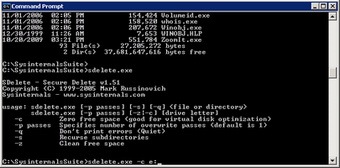
SDelete is a free program from Microsoft’s TechNet Sysinternals collection. It runs from the command line, and can be used to wipe drives, wipe files, or wipe free space.

Time Needed: Varies; from a few minutes to several hours, depending upon size and speed of drive and computer
Software: TechNet Sysinternal’s SDelete
Available from http://technet.microsoft.com

Media: Can be run from Windows desktop

1. Download SDelete.
2. Extract the contents of the compressed file.
3. Copy sdelete.exe to c:\windows\system32\ (this will enable you to run it from any location)
4. Open a command prompt session with Administrator rights.
5. To wipe all files on drive X: and its subdirectories and to wipe free space, enter Sdelete -p 2 –s -z X:\*.* (to see all command-line switches, enter Sdelete with no options)
6. Wait; the program displays status messages as it runs. When the program is finished, you can reuse or dispose of the drive.

Clean Data

Evaluating the Effectiveness of Disk Wiping Programs

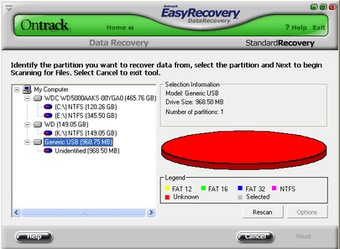
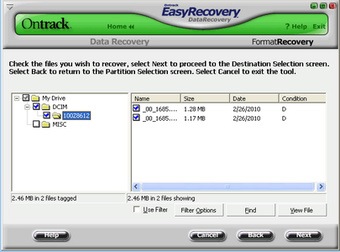
We used demo versions of two popular data recovery programs to evaluate some of the disk wiping programs discussed in this article. To determine whether a typical data recovery program could recover files on a SD card wipe with Roadkil’s DiskWipe, we first of all formatted the card using a card reader. Ontrack’s EasyRecovery Data Recovery (available from http://www.ontrack.com) had no difficulty finding folders and files to retrieve.

EasyRecovery

However, when we used DiskWipe to wipe the drive using a one-pass blank disk (zero fill) operation, EasyRecovery DataRecovery was unable to find the file system, let alone any files or folders.

After reformatting the card, taking a few photos, and deleting the photos, EasyRecovery Data Recovery was able to find the new photos, but the contents of the card before running WipeDisk were unrecoverable.

Easy Recovery

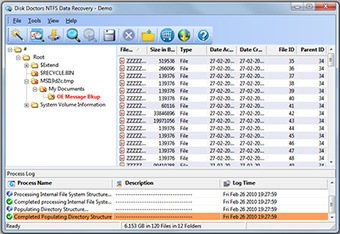
To evaluate SDelete, we used SDelete to wipe all of the files on a hard disk, but omitted the –z switch; when –z is not used, SDelete deletes files and renames them, but does not clear free space. To determine what might be visible, we used a demo version of Disk Doctors NTFS Data Recovery software, available from http://www.diskdoctors.net.

Disk Doctors were able to locate the deleted folder and Outlook Express message folders, but SDelete had renamed them from their original names and DBX extensions (Outlook Express message folders). If you use SDelete, it’s very important that you take time to use the –z switch to clear free space on the disk (once a file is deleted, the space it occupies is free space).

Disk Doctor

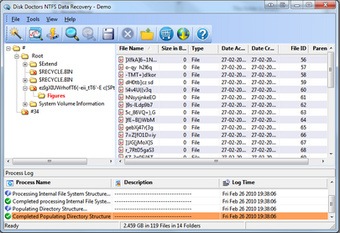
We also used Disk Doctors to evaluate the effectiveness of a freeware program called Eraser, which can delete and overwrite files and folders from the right-click menu. We created a documents folder with a subfolder called Figures and used Eraser to overwrite the folder and subfolder using its default settings.

Disk Doctors was able to locate the folders, but the contents are files with garbage names and are zero bytes in size – except for leftover word processing temporary files (files that begin with $). These filenames were not changed, which could enable a snooper to figure out the names of the files in the folder – although the files themselves were destroyed. By using more overwrites or different methods available with Eraser, a more thorough wiping may be possible.

Disk Doctor

Conclusion

We’ve highlighted a variety of free ways to protect data on castoff drives from being retrieved. As you can see, your best bet is to overwrite data directly, but you also might want to consider using a program such as SDelete to scramble filenames first and then use a disk wiper such as Eraser or WipeDisk to finish the job.

Use demo versions of data recovery programs such as Ontrack Easy Recovery Data Recovery, Disk Doctors Data Recovery (various editions for NTFS, FAT, and flash media), and others to evaluate the effectiveness of your data wiping procedures. Remember, the full versions of these and other data recovery programs can save your data if you accidentally format or partition a disk because, until the data is overwritten, it’s still there.

How To Completely Clean Data From Your Hard Drives And SSDs? (Part III) Read More »

WD Introduces 2.5-inch SATA Hard Drives for AV/DVR and Surveillance Markets

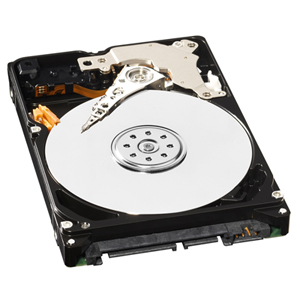
WD 2.5 Inch Sata Hard Drive For AV/DVR As demand has increased for digital video storage, including high-definition (HD) video, and as the variety of video-systems configurations increases, WD® expanded its line of hard drives for AV/DVR and surveillance applications to include small form factor, 2.5-inch SATA hard drives. WD AV-25 hard drives provide high reliability with a Mean Time Between Failure (MTBF) of 1 million hours and are engineered specifically for demanding, always-on multimedia streaming applications, while running at cool and quiet temperatures.

In addition to high reliability, WD AV-25 hard drives meet the demanding requirements of the AV/DVR and surveillance markets by offering customers universal compatibility, low power consumption and the ability to simultaneously record multiple audio and/or high-definition video streams. The new WD AV-25 hard drive is ideal for applications such as DVRs (digital video recorders), digital video surveillance and other small form factor environments where power consumption and 24×7 reliability are critical.

“Customers that market audio and video recording applications, such as DVRs, media centers and mainstream surveillance systems, often require 24×7 operation from hard drives, WD AV-25 hard drives are designed to withstand these demanding environments and offer consumers a small form factor solution that consumes less power, generates less heat, and operates quietly and, most importantly, reliably.”

– said Jim Welsh, senior vice president and general manager of WD’s branded products and consumer electronics groups.

Features of the WD AV-25 hard drive include:

  • 24×7 reliability – Designed to last in always-on streaming digital audio/video environments such as DVR/PVR, digital video surveillance and other demanding multimedia applications.
  • Advanced Format technology – Leading edge technology that delivers improved video quality and AV performance through enhanced error correction capability.
  • SilkStream™ technology – Optimized for smooth, continuous digital video playback of up to five simultaneous HD streams. SilkStream is compatible with the ATA streaming command set so AV customers can use standard streaming management and error recovery options.
  • Ultra-cool operation – A cool drive is a more reliable drive. WD continues to develop new and innovative ways to keep drives cool while they are operating.
  • Quiet – Noise levels have been minimized to less than one sone1 – virtually below the threshold of human hearing.
  • Low power consumption – The drive draws less than 2 Watts while operating and a mere 4.75 Watts during spin up.
  • 1 million hours MTTF (MTBF) – Best-in-class reliability for small form factor AV storage.2
  • Preemptive Wear Leveling (PWL) – The drive arm frequently sweeps across the disk to reduce uneven wear on the drive surface common to audio video streaming applications.

Price and Availability

The WD AV-25 hard drive is offered in capacities of 160 GB, 250 GB, 320 GB and 500 GB and has a 3-year limited warranty. The WD AV-25 160 GB, 250 GB and 320 GB hard drives are available now from select e-tailers and distributors. The WD AV-25 500 GB hard drive will be available next month. MSRP for the WD AV-25 hard drives range from $50.00 USD to $80.00 USD depending on capacity. More information about WD AV-25 drives may be found on the company’s Web site at http://www.wdc.com/en/products/Products.asp?DriveID=810

WD Introduces 2.5-inch SATA Hard Drives for AV/DVR and Surveillance Markets Read More »

Top 20 Most Popular USB Hard Drives on Amazon.com

Definition: USB flash drives are compact file storage devices to save your information externally. Flash drives are about the size of a disposable lighter and can be conveniently worn around your neck or attached to your keychain.

The end of the flash drive is inserted into the USB port on the computer. Once attached to the computer, they operate in much the same way as floppy drives, but have capacities currently in the range of up to 2 gigabytes.

Also Known As: USB memory stick, jump drive

From: http://presentationsoft.about.com/od/uvw/g/usb_flash.htm

A small, portable flash memory card that plugs into a computer’ USB port and functions as a portable hard drive. USB flash drives are touted as being easy-to-use as they are small enough to be carried in a pocket and can plug into any computer with a USB drive. USB flash drives have less storage capacity than an external hard drive, but they are smaller and more durable because they do not contain any internal moving parts.

USB flash drives also are called thumb drives, jump drives, pen drives, key drives, tokens, or simply USB drives.

From: http://www.webopedia.com/TERM/U/USB_flash_drive.html

A USB flash drive consists of flash memory data storage device integrated with a USB (Universal Serial Bus) 1.1 or 2.0 interface. USB flash drives are typically removable and rewritable, much smaller than a floppy disk, and most weigh less than 30 g (1 oz). Storage capacities in 2010 can be as large as 256 GB with steady improvements in size and price per capacity. Some allow 1 million write or erase cycles and have a 10-year data retention cycle.

From: http://en.wikipedia.org/wiki/USB_flash_drive

Top 20 Most Popular USB Hard Drives on Amazon.com Read More »

Top 20 Most Popular External Hard Drives on Amazon.com

External Hard Drives External hard drives are ideal for backing up your hard drive or storing additional media separately from your main hard drive. Photos, videos, and digital music have all become so popular in recent years that people need a place to put it all. CDs and DVDs do not have the capacity to hold PC backups and are not all that convenient. However, the prices of external hard drives have come down so much that they are perfect for backing up your important data.

The two most common interfaces for hooking up external drives to your computer are USB and FireWire with eSata now becoming popular also. USB has been around for years and are standard on just about all computers today while FireWire ports are newer and if you use a digital video camera with your computer you probably already have one. In terms of access speeds the latest eSata standard offers the fastest connection however that comes with a price. USB 2.0 and Firewire can cover most of your general needs without having to upgrade your system with a new eSata card. Any of the interfaces will do the job however be sure to purchase an external hard drive with the same type of port that your computer has.

WD Elements 640 GB USB 2.0 Portable External Hard Drive

        (Price: $149.99 Price on Amazon.com: $98.92)

Seagate FreeAgent Go 500 GB USB 2.0 Portable External Hard Drive

        (Price: $139.99 Price on Amazon.com: $89.00)

Iomega Prestige 1 TB USB 2.0 Desktop External Hard Drive

        (Price: $172.99 Price on Amazon.com: $99.99)

Toshiba 500 GB USB 2.0 Portable External Hard Drive

        (Price: $93.99 Price on Amazon.com: $82.44)

WD Elements 1.5 TB USB 2.0 Desktop External Hard Drive

        (Price: $169.99 Price on Amazon.com: $117.82)

Toshiba 320 GB USB 2.0 Portable External Hard Drive

        (Price: $99.99 Price on Amazon.com: $60.00)

WD Elements 1 TB USB 2.0 Desktop External Hard Drive

        (Price: $129.99 Price on Amazon.com: $97.95)

WD My Passport Essential SE 1 TB USB 2.0 Portable External Hard Drive

        (Price: $199.99 Price on Amazon.com: $149.00)

WD My DVR Expander 1 TB eSATA Desktop External Hard Drive

        (Price: $159.99 Price on Amazon.com: $129.00)

LaCie d2 Quadra Hard Disk 1 TB USB 2.0/FireWire 400/800/eSATA Desktop External Hard Drive

        (Price: $164.99 Price on Amazon.com: $154.99)

Seagate FreeAgent Go 500 GB USB 2.0 Portable External Hard Drive

        (Price: $139.99 Price on Amazon.com: $89.00)

Seagate Expansion 500 GB USB 2.0 Portable External Hard Drive

        (Price: $115.99 Price on Amazon.com: $79.99)

Iomega eGo Mac Edition 500 GB USB 2.0/FireWire 400/800 Portable External Hard Drive

        (Price: $140.99 Price on Amazon.com: $125.99)

Iomega Prestige 1.5 TB USB 2.0 Desktop External Hard Drive

        (Price: $147.99 Price on Amazon.com: $119.99)

Seagate Expansion 1 TB USB 2.0 Desktop External Hard Drive

        (Price: $115.99 Price on Amazon.com: $89.99)

Iomega Prestige 320 GB USB 2.0 Portable External Hard Drive

        (Price: $115.99 Price on Amazon.com: $79.30)

Iomega Prestige 500 GB USB 2.0 Desktop External Hard Drive

        (Price: $82.99 Price on Amazon.com: $74.44)

Seagate FreeAgent Go 250 GB USB 2.0 Portable External Hard Drive

        (Price: $89.99 Price on Amazon.com: $59.82)

Seagate Expansion 250 GB USB 2.0 Portable External Hard Drive

        (Price: $75.99 Price on Amazon.com: $58.99)

WD Elements 500 GB USB 2.0 Portable External Hard Drive

      (Price: $129.99 Price on Amazon.com: $89.99)

Note: Your backup drive should have a capacity at least as big as your computer’s largest hard drive. That will leave you with plenty of room to back up your important files or mirror/clone your current drive. You can also buy an external hard drive case and mount an internal hard drive inside it. This method will give you a choice of brands and models, and if anything goes wrong with your internal hard drive, you can simply install the external one inside your computer to replace it.

Top 20 Most Popular External Hard Drives on Amazon.com Read More »

Scroll to Top