
The DOS partition limitation is derived from the File Allocation Table (FAT). DOS uses the FAT to keep track of file addresses. The DOS FAT 16 is only capable of working with 32,768 bytes per cluster and no more than 65,536 clusters. If you multiply the two numbers together, you get the maximum partition size that DOS can use (2,147,483,648 bytes or 2048 MB {2,147,483,648 / 1024 2}).
Articles
Western Digital Backup Plan
 Computers can and do fail and you usually get no warning before it’s too late. Backing up your data is no longer the chore that it once was. Here are some tips from Western Digital to help make it easier.
Get organized
Put all the documents you create, the pictures you take, and the music you buy in a single master folder. Divide that master folder into sub folders to keep your files organized. Backing up your data becomes much easier if you only have one folder to back up. When all your personal files are in one place, you are less likely to forget a file when you back up. Organization is the secret.
Back up regularly
Get in the habit of backing up your files regularly. If you work on your computer daily, you should back up important files daily. Then, back up everything at least once a week. Better still, look for backup software that backs up your data automatically and instantly without manual or scheduled backups.
Be selective
You don’t have to back up your entire system. That’s a time consuming task that only duplicates all the issues you’ve built up over time on your hard drive. Save original copies of your software programs and reinstall your operating system and a clean copy of your software if your system crashes.
Back up what’s important to you
The most important things to protect are files you create yourself. Whether they are text documents, e-mail messages, pictures, music, videos, or game saves, if you made them, you want to save them and keep them nearby. It’s also helpful to back up the configuration settings for any programs you use, along with critical Windows data such as the registry. And don’t forget to make a duplicate copy of anything you have stored on external storage device.
Use backup software
Use backup software to automate your backup. You can make mistakes or omit something important if you back up manually. An easy-to-use backup program creates a backup of your data reliably and automatically, keeps logs, and notifies you in case of any problem. Most WD external hard drives come with backup software.
WD’s extensive line of external drives that include automatic backup software:
- My Book Home Edition
Preserve your precious memories with this ideal combination of elegant, reliable storage and automatic backup features. - My Book Office Edition
Protect your business assets and access them remotely with this easy-to-use combination of reliable storage and automatic backup features. Windows operating system required for remote access. - My Book Mirror Edition
Secure your vital data with WD’s My Book Mirror Edition dual-drive storage system with RAID Mirroring. With RAID-based continuous data protection, automatic data backup software, and user-serviceability, this is the perfect backup system for your irreplaceable data. - My Book Studio Edition
High-speed interfaces make this an ideal solution for creative professionals and video editors. - My Book Studio Edition II
Quad interface, RAID-enabled, about 30% less power consumption, formatted for Mac. The My Book Studio Edition II treads lightly on the earth and carries big performance for creative professionals. - My Book World Edition
Simplified set up and best-in-class performance make the My Book World Edition network drive the perfect choice for centralizing and backing up data on all the computers in your home. - WD ShareSpace
Plug this high-speed Gigabit Ethernet storage system into your small office or home network for centralized storage with plenty of capacity to go around. - My Passport Elite
These sleek little drives combine a luxurious, soft-touch finish with a clever capacity gauge, and backup, sync and encryption, and remote access software.
Where to backup
You can back up to CDs or DVDs, but this is a slow, manual process. And contrary to popular belief, most CDs and DVDs are not permanent. Low-priced CDRs may not be readable at all in as little as two years.
The best backup medium is an external hard drive. High capacity external drives are very fast and allow you to keep all your backed up data in one place. For extra safety, get a two-drive external storage system and dedicate half the capacity for mirroring to automatically and instantaneously back up your backup every time.
Should I update the BIOS on my SCSI controller?
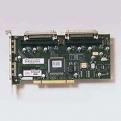 If you are not having any problems with your system, it is not necessary to update the BIOS for your SCSI controller or host adapter.
We recommend that you always contact the manufacturer of your SCSI controller for any available BIOS updates. SCSI controllers (and drives) reach development end-of-life. New updates may not be available. Some SCSI controllers require OEM specific versions to work with the specific chipset on the controller. This is especially true if your SCSI controller or host adapter was installed by an OEM manufacturer (such as Compaq, HP and Dell). BIOS utilities are typically updated with a manufacturer provided utility.
Before you proceed, identify your specific make, model of SCSI controller, the current BIOS revision numbers, and part number (typically printed on BIOS chip).
ATA Hard Disk Installation Troubleshooting Tips
 If your system hangs or locks up during the boot process after installing your new Maxtor Hard drive, either before or after setting the system BIOS, this indicates a jumper conflict with another device on the cable or a BIOS capacity barrier.
If this happens, please perform the following:
- Turn the system off.
- If the drive is on the cable with another device disconnect both devices from the cable. You will need to test the Maxtor drive as a “stand-alone unit” on the cable. Install a jumper on the cylinder limit / alternate capacity jumper, reconnect the ATA and power cables and restart the system.
- If the BIOS is set to AUTO-DETECT and the drive is now detecting without hanging the system, proceed with partitioning and formatting the drive with the MaxBlast software*. The device you removed from the cable in step 2 can now be reinstalled on the ATA cable. If the system continues to hang after reinstalling the second device, you will need to verify its jumper settings or place it as a stand-alone device on the secondary ATA port.
- If the system is still hanging after installation of the cylinder limit / alternate capacity jumper, you will need to try the user-definable option in the BIOS setup utility. Power the system off and disconnect the 40-pin ribbon cable from the drive (this will prevent the system from hanging while performing the next step).
- Restart the system and enter the BIOS setup utility, set the BIOS parameters to a User Definable Type with 1024 cylinders, 16 heads, 63 sectors, and set the LBA mode to normal or standard. Ignore the Write Pre Comp (WpCom) and Landing Zone (LZ) settings (they can be set to zero). Save settings, exit setup, and power system off.
- Reconnect the cables and power the system on. If the system no longer hangs, proceed with partitioning and formatting the drive with the MaxBlast software*.
- If you tried all the above steps and are still experiencing problems, the only options left are contacting your motherboard manufacturer for a BIOS Upgrade, or purchase an ATA controller card.
What is Logical Block Addressing (LBA)?
Logical Block Addressing (LBA) is a mathematical scheme for addressing sectors, beginning at cylinder 0, head 0 and sector 1, which is equal to LBA 1. This scheme linearly maps the drive until the final physical sector is reached. LBA is efficient because it reduces some system overhead by not having to convert the operating system’s LBA to the BIOS CHS and then back to drive LBA.
An Old IDE Drive May Not Work With A New IDE Drive?
Why is it that an Old IDE drive may not work with a New IDE drive?
The reason is the fact that many hard drive manufacturers were already making and selling drives before the IDE standard was clearly defined. Older IDE drives have problems functioning in dual-drive configurations. This scenario is more prevalent when the hard disk drives are from different manufacturers; in some cases, two drives may not function together at all. However, in rare circumstances even new drives will not work together.
Solution:
- Separate the drives and have them on their own cable. Designate one drive as the Primary Master and the other as the Secondary Master.
- Try not to jumper the drives as Cable Select. Have the drives jumpered as a “Master” drive.
MS-DOS Compatibility Mode Issues
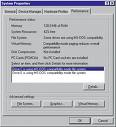 The Performance tab in System Properties shows that one or more of the hard disks in your computer is using “MS-DOS Compatibility mode“. MS-DOS compatibility mode may be in use for either the file system or for virtual memory. You may also receive the following message: “Compatibility Mode Paging reduces overall system performance”.
This is not an operating system issue and it is not a hard disk drive error. MS-DOS Compatibility mode may be in use for any of the following reasons:
- An ‘unsafe’ device driver, memory-resident program, or virus hooked the system interrupt (INT21h or INT13h) chain before Windows loaded.
- The hard disk controller in your computer was not detected by Windows.
- The hard disk controller was removed from the current configuration in Device Manager.
- There is a resource conflict between the hard disk controller and another hardware device. The Windows protected-mode driver is missing or damaged.
- The Windows 32-bit protected-mode disk drivers detected an unsupportable configuration or incompatible hardware.
Related Links:
- Troubleshooting MS-DOS Compatibility Mode On Hard Disks
- Large IDE Hard Disk May Run In Compatibility Mode
- MS-DOS Compatibility Mode When Booting from Removable Drives
- MS-DOS Compatibility Mode Problems with PCI-IDE Controllers
- Windows Support for Large IDE Hard Disks
- Packard Bell Legend Hard Disk Using MS-DOS Compatibility Mode
IDE/EIDE Interface Part I
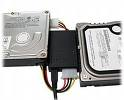 This is a general description of the most frequently asked questions about the IDE/EIDE Interface. This information is meant only to address basic troubleshooting of IDE/EIDE compatibility issues, and is not meant to be an in-depth discussion of all possible error issues. Our purpose is to aid you in solving basic IDE/EIDE difficulties that may arise.
Issues Covered:
- IDE/EIDE Definitions
- Compatibility Issues
1. What is IDE/ATA?
Integrated Drive Electronics (IDE) is a generic term applied to any drive with an integrated (built-in) disk controller. The first drives with integrated controller were Hardcards. In the IDE architecture, the disk controller is integrated into the drive. This combination drive/controller assembly usually plugs into an interface on the motherboard or an interface card plugged into an empty bus slot. The ATA Specification is simply a set of rules or guidelines that an IDE drive should conform to.
2. What does the IDE interface actually do?
The primary job of the IDE interface is to transmit/receive data to and from the drive.
3. Why place the Controller on the drive itself?
Placing the controller on the drive gives IDE drives built-in reliability because data encoding, from digital to analog is performed directly on the drive in a tight, noise-free environment. The timing-sensitive analog information does not have to travel along ribbon cables that may pick up noise and insert propagation delays into the signals. The integrated configuration allows for increases in the clock rate of the encoder, as well as the storage density of drive.
4. What is Enhanced-IDE (EIDE) and Fast-ATA?
Enhanced IDE (EIDE) was a marketing program first initiated by Western Digital. EIDE has two sides:
- Software – the Enhanced BIOS Specification that surpasses the 504 MB hard drive capacity limitation
- Hardware – hard drives that conform to the ATA-2 and ATA-PI Standards
Fast-ATA, EIDE’s counterpart, was a separate marketing program that was introduced by Seagate and Quantum. This program leaned conservatively toward the ATA-2 specification.
5. What are the main features of EIDE
These are the main features:
- Faster transfer modes- PIO modes 3-4, DMA mode 2 and UDMA.
- Multiple Read/Write commands
- LBA mode, translation for drives larger than 504 MB
- Four devices on the ATA controller (secondary port)
- CD ROM and Tape Drive support
6. Is ATA-5, 6 or 7 compatible with older IDE drives?
Older IDE peripherals will work with newer enhanced drives. However you will not be able to fully utilize the enhanced features of your ATA-5, 6 or 7 peripherals.
7. Is ATA-5, 6 or 7 compatible with older IDE controller cards?
EIDE drives are backward compatible with non-EIDE (standard) controller cards. However, an EIDE card will only perform at the capabilities of the controller; hence the EIDE drive will perform like a standard IDE drive.
8. What is ATA-PI
AT Attachment Packet Interface (ATA-PI) is a standard that implements SCSI like devices on the ATA bus. Devices like CD-ROM’s, tape drives and other removable media. The advantages of ATAPI are:
- It is inexpensive
- It is easy to implement in current systems.
ATAPI’s disadvantage is that it requires the use of software drivers for operability.
9. What is Cable Select (CSEL)?
Cable Select (CSEL) is an optional feature per the ANSI ATA specification. It is an alternative method of identifying the difference between device 0 and device 1 on an IDE interface cable. Hard drives configured in a multiple drive system are identified by CSEL’s value:
- If CSEL is grounded, then the drive address is 0.
- If CSEL is open, then the drive address is 1.
Additionally, CSEL requires a specialized (and more expensive) 40-pin 80-wire IDE interface cable, unlike the standard EIDE interface cable that is far more commonly used. We do not recommend using the CABLE SELECT feature unless your specific computer system documentation requires its use.
10. How does my computer know which drive is the Master and which is the Slave?
When only one drive is installed, the single drives controller responds to all commands from the system. When two drives (which means two drive controllers) are installed, both controllers receive all commands from the system. Each drives controller must then be configured to respond only to commands issued to it. In this situation, one controller must be designated as master and the other as slave. When the system sends a command to a specific drive, the other drive’s controller must remain silent. A special bit (the DRV bit) is used in the Drive/Head Register to distinguish between the controllers.
IDE/EIDE Interface Part II
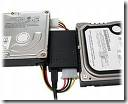 This is a general description of the most frequently asked questions about the IDE/EIDE Interface. This information is meant only to address basic troubleshooting of IDE/EIDE compatibility issues, and is not meant to be an in-depth discussion of all possible error issues. Our purpose is to aid you in solving basic IDE/EIDE difficulties that may arise.
Issues Covered:
- IDE/EIDE Definitions
- Compatibility Issues
11.Why is the 20th hole plugged on the Ribbon Connector?
It is a means of preventing the cable from being installed (plugged in) upside down. Users that inadvertently plug a cable in backwards can cause damage to both the hard drive and the motherboards interface. If your system does not have the corresponding missing pin, you may remove this plug by “teasing it out” with a straight pin.
12. Does the IDE interface cable influence data integrity, signal noise issues and drive recognition?
The answer is Yes! The ATA standard specifies that an IDE Interface cable should be no longer than 18 inches. The standard cable used today conforms to the ATA specifications. However, 40 pin interface cables do not always filter out noise when used with the Ultra DMA 33, 66, 100 and even 133 hard drives of today. Another option for reduction of cable noise would be to use an 40-pin 80-wire interface cable. These cables provide better grounding to maximize signal integrity.
13. Will adding an EIDE Interface increase disk performance?
Although most, if not all computers manufactured today have the fastest interface available, the answer really depends on the hard disk drive. Unless you’re working with legacy equipment, a new interface may not give you a performance increase. As an example, upgrading an ISA controller to a PCI controller would be the biggest improvement a user could make.
14. Why is the hard disk drive NOT as fast as advertised?
Advertised transfer rates are based on the fastest speed at which the drive can send data across the ribbon cable from the drive buffer, with the transfer stopping temporarily every time the buffer re-fills. This process continues until a command is complete. Data transfer rates will differ between system configurations, as a drive is not the single component that decides transfer rates. The one thing that designers have control of is the speed at which data transmits across the data ribbon cable from the drive’s buffer, but not how your other components interact with the drive.
15. Why is it that an old IDE drive may not work with a New IDE drive?
The reason is the fact that many hard drive manufacturers were already making and selling drives before the IDE standard was clearly defined. While this is now, for the most part, relegated to very old IDE drives that have problems functioning in dual-drive configurations. This scenario was more prevalent when the hard disk drives are from different manufacturers, however, in some cases, two drives may not function together at all. Even today though, in rare circumstances even new drives will not work together.
16. Why is my new IDE drive not recognized as a slave or a master?
Configuring IDE drives can be simple, as is the case with most single-drive installations, or troublesome, especially when mixing drives from different manufacturers on a single cable. Most IDE drives must be configured in one of the following ways:
- Single-drive (master)
- Master in a dual-drive system
- Slave in a dual-drive system
Because each IDE drive has its own controller, one drive must be jumped as a master and the other as the slave. There are no functional differences between the two, except that the drive that’s specified as the slave will assert the DASP (Drive Active/Slave Present) signal after a system reset to inform the master that a slave drive is present in the system. Daisy-chained hard disk drives that do not have their jumpers set correctly will not function. You should contact the disk drive manufacturer if you are unsure of proper jumper settings.
17. Two hard disk drives will not function even after verifying jumper settings. What could be wrong?
There may be a compatibility problem between the two drives. Use the following steps to verify the function of each drive:
- Test each drive by itself, making sure that each drive has been jumpered correctly. If both drives work by themselves, you may conclude that there is a compatibility problem.
- Try “swapping” (switching) the drive’s position, what was the master will be changed to a slave and the slave will become the master.
- Most motherboards have two IDE bus connectors. Place one drive on each IDE bus and test the system.
18. Why does an IDE CD-ROM and Tape Backup not work when attached to the Interface?
On occasion, attaching an IDE CD-ROM or tape backup drive to a bus that supports an IDE drive, can slow down and even compromise the drive’s data integrity. Although this is extremely rare today, make sure that your systems motherboard has an Enhanced IDE interface that is ATAPI compliant. If it is not, you can purchase and add-in card that has this interface, and they usually come with a secondary IDE interface built on the same card.
19. Even after switching roles, my hard drives still will not work. What else can I do?
First, see questions 16 and 17 above. We recommend that you separate the hard drives and connect them to the different interface ports (IDE buses) of the system. If the system does NOT have a Secondary IDE interface, we recommend that you install an EIDE interface card. By doing so, each of your drives would be able to communicate individually with the system. Enhanced EIDE cards also can add BIOS LBA support and enhanced performance for the drives.
20. Why are 80-wire, 40-pin ribbon cables required for certain hard drive configurations?
40-conductor cables support only up to 33MB/sec transfers (and should only be used for up to 16MB/sec or less in our opinion), while 80-conductor cables support up to 100MB/sec. Thus you can always replace a 40-conductor cable with an 80-conductor cable, but not the other way around without seriously hurting transfer speeds, and quite possibly damaging one or more of your systems components.
Hard Drive Crash
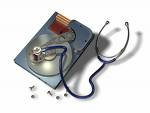 Sometimes a hard drive may experience failure or sudden crash without any warning, but many times there are warning signs that will let you know when to take action. Changes in performance, intermittent failures, or unexpected blue screens are major signs that the hard drive may be dying out permanently. The most obvious warning sign with a hard drive is unusual clicking, grinding, or scraping noises.
In practice, the term hard drive crash often refers to both mechanical or electrical failue and logical failure. The case of mechanical / electrical hard drive crash is the worst, it requires professional help of data recovery service, recovery programs won’t help.
Hard Drive Crash Signs
If your PC is experiencing any of the following signs of impeding doom then you must run (not walk) and grab CDs to burn backups of all your essential data.
Sign 1 – You hear high-pitched whining, loud clicking or grinding noises coming from the drive
A normally operating drive will make a smooth “whirling” sound as is spins up or down. But if a drive has a grinding or clicking sounds (the Read/Write heads scraping too close to the magnetic platters), then your drive is sick and is on the way out.
Sign 2 – You see the infamous “Blue Screen of Death“, repeatedly
BSODs (Blue Screens of Death) are actually called “Stop” errors and they only appear when your Windows system is experiencing severe software or hardware issues. Often BSODs can cured with a careful “Repair Install” of the Windows operating system or by removal of a bad device driver. But if these software fast fixes don’t seem stick, then your hard drive is usually on its last legs
Sign 3 – Your computer keeps re-booting on its own
I admit, I have only seen this problem a few times in my 18+ year career and in all instances it was due to hardware issues. Once it was a dust covered motherboard, and another time an overheating processor. But all the other times it was due to bad drives.
Sign 4 – Your system keeps having frequent freezes or hang ups
You are working along just fine, and then suddenly everything comes to a halt. The program freezes up on you. Your mouse and keyboard seem to stop responding. The only solution is to reboot.
Sign 5 – Error message: hard drive is not formatted
This a fun message that you will get when you start up your machine. You maybe able to restart and get it to boot into Windows a few more times but this error is “fur-sure” sign that you drive is very close to death. And by the way don’t try to format the drive! You will lose all your data.
Sign 6 – Error message: boot drive or device not found or drive cannot be accessed
This is another favorite of mine. You can check the CD/DVD trays or the floppy drive to make sure no stray disks are stuck inside. You can also check the BIOS to make sure the system is booting from the hard drive first. If all these tests are no-good, then the drive is a goner.
Sign 7 – Errors: Operating system not found or Missing Operating System
This is a bad one. Even the Microsoft technical support knowledgebase has only got a few causes for this error message. Basically your PC can no longer detect the hard drive or the drive is too severely damaged to read (DOA).
What to do if your drive has any of these signs?
1) First, listen up, if possible, BACKUP YOUR FILES NOW!
2) Create a boot disk and run Windows Scandisk and set it to automatically fix errors. If it finds more than a few bad sectors then see the point above
3) If possible download and use a hard drive diagnostic program. All the major hard drive manufacturers have free utilities on their websites.
WARNING:
You should never open the cover of a failed hard disk drive in attempt to repair, salvage or recover data. Today’s hard disk drives tolerances are very tight and the materials used inside are so technologically advanced that even the smallest speck of dust, contaminants or even gaseous can disrupt the delicate balance of the drives ecosystem. Any such disruption not only destroys the drive but all the data contained on it.