Articles

How To Change Password On Maxtor OneTouch 4 Drive

The following provides you with the steps necessary for changing your password.

maxtor onetouch 4 1. Double-click the “Maxtor Manager” icon on your Windows Desktop. The Maxtor Manager will open.
2. Click “Security”. The Security window opens.
3. Click “DrivePass”. The Manage DrivePass window opens.
4. Click on the “Change Password” button. The DrivePass: Change Password window opens.
5. In the field provided, enter your existing Password.
6. Click on the “Next” button. The DrivePass: Set Password window opens.
7. In the first field provided, enter a Password.

Note: Passwords must be minimum of six characters in length and must contain at least one (1) numeric character; for example

  • abcdef – is not a valid password
  • abcde1 – is a valid password

8. In the second field provided re-enter the Password.
9. Optional (but recommended) & for Added Security

  • Select the Security Question field and select a Security Question (e.g., Where were you born?).
  • Enter the Answer to the Security Question
  • Re-enter the Answer to the Security Question

10. Click on the “Apply’ button. The password confirmation window opens reminding you to store your password in a safe place.

Note: Password cannot be recovered.
11. Click on the “Confirm” button. A window opens notifying you that the password has been changed.
12. Click on the “OK” button to return to the Security window.

Related Links:

  • Video: Changing the Password for Windows Vista
  • Video: Changing the Password for Windows XP
  • Maxtor OneTouch 4 Lite Hard Drive Manual

NOTE: Viewing of Video Tutorial Requires the following:

  • A Screen resolution of at least 800×600
  • Javascript Enabled in your Browser
  • Adobe (Macromedia) Flash Player be installed on your system

How To Change Password On Maxtor OneTouch 4 Drive Read More »

Top Using For USB Flash Drives

usb flash drive USB flash drives are convenient little gadgets. I remember the days when we were using 1.44 MB floppy drives to move things around. What a pain those were! The capacity was pitiful, giving rise to utilities designed to split up a single file among multiple floppies. Then CDs became the norm. CDs offer much higher capacity, but they do not operate like a hard drive. They are also pretty slow. DVDs offer even higher capacity, but you are still dealing with all the restrictions (and annoyances) of optical media.

USB flash drives are so much better (The advantages of USB Flash Drive). Today, they offer respectable capacities. USB 2.0 makes them pretty fast. The BIOS of many motherboards even has the capability of booting from a USB drive. They are more dependable then optical media because they cannot be scratched. They are more dependable than even hard drives because they have no moving parts. So, there are a lot of possibilities for these little sticks.

Below, I will go over the most useful uses for your USB flash drive.

  • Personal data transport
  • Secure storage of data, application and software files
  • System administration
  • Application carriers
  • Computer forensics and law enforcement
  • Booting operating systems
  • Windows Vista and Windows 7 ReadyBoost
  • Audio players
  • Music storage and marketing
  • In arcades
  • Brand and product promotion
  • Backup

Top Using For USB Flash Drives Read More »

Harddisk Diagnostic & Harddrive repair tool: HRT 3.0

What is HRT 3.0?

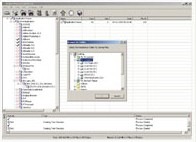
HDD Repair Tool (HRT) HDD Repair Tool (short for “HRT”) is designed for HDD repair and data recovery by BVG Group.

Harddisk Supported:

  • IBM families DPTA, DJNA, DTLA5, DTLA7, AVER and AVVA.
  • IBM/HITACHI families AVV2, HDS7-VLAT (AVV3).
  • FUJITSU families MPG AT and MPG AH.
  • FUJITSU 2,5′ families MHK2xxxAT, MHL2xxxAT, MHM2xxxAT, MHN2xxxAT, MHR2xxxAT, MHS2xxxAT.
  • WESTERN DIGITAL families AA, BA, AB, BB, EB, DA, JB, и PB, on Marvell processor.
  • SAMSUNG families Voyager10, Voyager11, Voyager11+ и Victor40.
  • SEAGATE families U4, U5, U6, U7, U8, V8, U10, UX, Barracuda 2,3,4,5,7,8,9.
  • MAXTOR families Fireball3 (Ares), 541DX (Athena), 540X-4K (Romulus), DiamondMax Plus8 (N40P), DiamondMax Plus9 (Calypso), DiamondMax Plus16 (Falcon).
  • QUANTUM families LA, LB, LC, LM, AS, LD.
  • HITACHI 2,5′ families DK23xx: AA, BA, CA, DA, EA, EB, FB.
  • TOSHIBA 2,5′ families MKxxxxGAP, MKxxxxGAS, MKxxxxGAX.

HRT Data Recovery Edition

HRT Data Recovery Edition tool has been designed for recovering data from damaged hard drives. Full functionality can be achieved by using special interface, but it is possible to use the application alone without full functionality.

Main features:

1. The utility enables data copying from bad HDD to both a destination disk and image file.
2. During coping section having bad sectors can be skipped.
3. The utility enables to copy only sectors chains concerning to files which you are interested in without accessing to other sections of bad HDD.
4. In case of unstable read HDD data copying by means of statistic method is possible.
5. Data copying is based on the map. In this map only sections having data which you are interested in are marked.
6. The utility enables to stop and to start data copying. It means you can start copying from the breakpoint.
7. By any attempt of data reading from bad HDD this data will be copied to the destination.
fterwards, this data will be taken from the destination only once.
8. It is possible to copy data on every head taken separately.
9. 32-bit mode is embedded in controller card. This mode speeds up copying twice as it was.
10. Bad HDD mounting is possible in the system.
11. The utility enables to take into account offset for data sectors because of translator destroying.
12. The utility supports file systems FAT16, FAT32, NTFS (DOS/Windows), EXT2FS, HFS, HFS+ (Apple MAC).
13. You can edit partition tables manually.
14. If case of damaged references it is possible to find directories.
15. The utility functions both in complex HRT and separately. In complex the utility has got more abilities.

Related Links:

  • The complex history of HRT
  • Basic data recovery operations of HRT
  • HDD Repair Tool 1.0 for IBM
  • HRT Data Recovery Edition User Manual

Harddisk Diagnostic & Harddrive repair tool: HRT 3.0 Read More »

HDD Repair Tools: PC3000 VS HRT

As we know, both PC3000 and HRT are professional hard drive repair tools. Before we decide to buy one of them, here are some useful views for us.

Hello Everyone, I am still new to the industry and have a question in regards to Software/Hardware complex products. I recently called Ace Labs and got a quote for the PC3000 pci. It was more then I expected! I know PC3000 is great to Re-flash Firmware, repair Firmware.I also know it can be used for ATA Master password recovery. But I was not able to find a manual, which references all of PC 3000’s functionality. I have also looked at HRT 3.0. I was able to download the English manual to look at the GUI and some of it’s functionality. I did not see anything mentioning that the HRT can repair Firmware corruption. Does it have this ability? I did notice that HRT 3.0 has the ability to read from each Head separately can PC3000 do this as well? I could not find a HRT 3.0 distributor outside of Russia, what would be the best place to purchase and how many $$$. What is the functional difference between PC3000 and HRT 3.0? What is the price difference? I have found HRT on EBay, is there a way to distinguish the real version from Chinese copy? What is your experience with either product?

Personally I wouldn’t recommend HRT to anyone (I believe it is crap and cannot be used in a DR business. You will have zero support, and you have to be rather a firmware engineer than a DR tech to operate it). As far as i know, there are indeed no distributors outside of Russia, and some people say they receive no reply when they even ask for a quote (not to mention the product support). Pc3000 isn’t perfect as well, but at least it is possible to use it.  Data extractor (an Acelab product) can read from each head separately (as far as I know).

thank you for your opinion. I guess then It’s PC3000 or the highway  Do you use PC3000? AceLabs stated that it is dificult to use PC3000 and they wanted to sell me additional training. Since I can’t seam to find a manual online, it’s hard for me to say if It is difficult to use or not, what is your opinion? I would say I have intermediate HD and DR knowledge as well as Expert IT knowledge and some knowledge in Programming. I belive I should be able to figure most of the stuff out myself, but again, I don’t know If PC3000 is all Windos GUI based program or if commandline and some sort of scripting is required.  Thanks again

PC3000 is a GUI program but coded pretty badly. It is very hard to use it. I’ve never used it (I am only using my own software ) but seen lots of people who are using it and struggling… In other words it does have a GUI but the problem is that AceLab did not understand clearly what the GUI should be used for  So yes, it is hard to use it. It does not matter what are your skills unless you have skills recovering the system area. Therefore some basic training would be useful…

The manuals that come with the PC3000 are actually quite good (translations aside) .. AceLAbs don’t presume to know everything about every hard drive ever manufactured and they’re not afraid to admit that. But this card works very well.The difficulty in using it is no different to using any other NEW APPLICATION for the first time. I’m still having trouble with MS Acess!The GUI is difficult the first few times but practice makes perfect – especially if you are working on similar HDD.

I use PC3000, and I use Data Extractor very very often. I have never used HRT but am considering the Data Recovery edition ( http://www.bvg-group.ru/eng/diagnostic/HRT_DRE.php). this does not seem to have any repair utilities just recovery and seems very similar to Data Extractor. It has a similar interface, and supports HFS and EXT filesystems has built in partition and translator editors, is able to mount a failing disk to use with standard software. I have got a quote for 3000 USD, but this seems a little expensive. Anybody have any experience with this at all?

If you have any other views, please feel free to share it with us.

HDD Repair Tools: PC3000 VS HRT Read More »

CD Data Recovery: CD Data Rescue

Software Name: CD Data Rescue®
Version: 2.6
cd data rescuePublisher: Naltech Software
Media Supported: CD-ROM, CD-R and CD-RW
Languages: English
OS: Windows 98, ME, NT , 2000 , XP or Vista
Price: $19.95 (Single User)

CD Data Rescue recovers files from damaged, scratched or defective CD-ROM, CD-R and CD-RW discs. Supporting also Mount Rainier / EasyWrite MRW discs even in not compilant drives. With this software you can easily Recover Files, folders, or deleted files from CD discs. It also can recover files from quick formated CD-RW discs.

Recovers unreadable and deleted files from CD discs recorded by common CD writing software in ISO and UDF formats, including Roxio Easy CD Creator and Ahead Nero. Features full real UDF recovery supported for UDF packet witting software (mode B): DirectCD (including old versions and compressed CDs) InCD, packetCD,etc. Also supports discs recorded by Sony digitalcameras.

Main Features:
– Simplified use, now the program sets automatically some settings.
-ExclusiveAccuRescue™ technology.
– New updated Recovery Wizard.
– Unnamed files automatically detected and renamed with the correct file type.
-Real fullUDFfile systemrecovery.

Download: http://www.naltech.com/download/cddr.exe
Buy: http://www.naltech.com/order.htm

CD Data Recovery: CD Data Rescue Read More »

CD Data Recovery: Stellar Phoenix CDRom Data Recovery Software

CD Data Recovery Software File Name: Stellar Phoenix CDRom Data Recovery Software
Version: 2.0
Publisher: Stellar Information Systems Ltd
Media Supported: CD-ROM, CD-R and CD-RW
Languages: English, French, Italian, German, Spanish
OS: Windows NT/2000/XP
Price: $49.00 (Single User)

Stellar Phoenix CDRom Data Recovery Software is a easy to use and powerful software avails CD data recovery from damaged or defective CDROM, CD-R and CD-RW. Provides recovery of data and file, lost due to unreadable, scratched, corrupt or defective CD media. Phoenix CD Data Recovery Software supports ISO9660 and Joliet file system.

Key Features:

  • CD data recovery after TOC or volume descriptor (primary or secondary) damage
  • Recovers data from the CD media created on Windows, Linux and UNIX operating systems
  • Data recovery even when the disk is indicting that it is full
  • If the computer freezes due to the CD insertion, CD data recovery is possible
  • Provides CD file recovery when disk has data but appears blank or displays as audio disk

Download: http://www.stellarinfo.com/phcdrom.exe
Buy: http://www.stellarinfo.com/disk-recovery-prices-cd.htm

CD Data Recovery: Stellar Phoenix CDRom Data Recovery Software Read More »

How To Fix Hard Drive with built-in Hard Drive Utility

Fix Hard DriveBefore you start to fix a hard drive, make sure you have an up-to-date backup. After that, let us do some simple diagnostics and repairs. Both Windows and Mac OS come with built-in hard-drive utility that scans your hard disk for errors and attempts to fix them.

Fix Bad Sectors on a Hard Drive

For Windows
1. Double-click on My Computer to open the My Computer window.
2. Select the Drive that you want to diagnose and repair.
3. Choose Properties from the File menu. You should see the Properties window for the drive that you selected.
4. Choose the Tools tab.
5. Click the Check Now button under Error Checking Status.
6. Depending on your version of Windows, choose either “Thorough” or “Scan for and Attempt Recovery of Bad Sectors.”
7. Click on Start

Fix Hard Drive Crash

Computer hard Drives may fail or crash. One of the common causes is a computer virus, it may have corrupted or broken your computer system.  Here is a way to fix a hard Drive that has crashed.

1. Look for tell-tale signs that your computer is about to crash or fail. Extreme slowness, repeated blue screen and noise or clicking are sometimes signs that your computer hard drive is about to crash. When you hear the sound of clicking, scraping or grinding, immediately turn off or shut down your computer. Doing so will prevent any loss of data.

2. Power down and then power up. Sometimes, hard drive crashes can be easily recovered by doing a power shutdown of the computer. Then, after waiting for a couple of minutes, power it back up again. The initial hard drive crash may not be too serious, but if it happens often, start performing a full system backup, if you haven’t been doing so, to be able to recover your data should the inevitable happen.

3. Ensure that your hard drive and other internal components are seated properly. If Steps 1 and 2 do not work, you may need to open your computer’s CPU to check on some of the drive connections. Sometimes connections get dislodged, especially if you move your computer box often. The symptom will manifest as if the hard drive has crashed, giving you a “Drive error” when you try to boot up your computer. First, turn off your computer and unplug it. Then remove the case of your computer box. Press on each connector to connect it properly. Put the cover back again, plug the computer and power it back up.

4. Insert your boot disc and try to boot up your computer using the disc. Once you are able to do so, you can reinstall your operating system. After installing your software, proceed to perform data recovery using your ghost CD or backup.

5. Use an emergency repair disc to get your computer to work again. Then restore from the last known good configuration.

6. Reinstall your operating system using the installation or system restore CD that came with your computer when you first purchased it. It will take you through a series of steps that include formatting your hard drive, which will then erase your data. Do this as a last resort.

7. Recover your data by using a restore and recovery software or using your most recent backup after you have reinstalled the operating system in the previous step.

8. Reinstall your applications that did not come with your computer when you bought it. Some examples would be Adobe Photoshop, anti-virus software and movie-making software.

Fix Locked Up Hard Drives

A hard Drive is a computer storage device that manages and organizes computer data from the actual CPU. The hard Drive also stores all critical system data required for a computer to startup. Without a hard Drive, a computer cannot function. Fixing a locked up hard drive that prevents a computer from functioning is an important aspect of computer maintenance and repair.

1. Check that the computer hardware is plugged into a reliable power source. Turn on the computer.

2. Hold down the “F2” key on your keyboard if you’re using the Microsoft Windows operating system. If using the Mac operating system, hold down “Option-Command-Shift-Delete” on your keyboard.

3. Use your keyboard’s arrow keys to select “BIOS Setup Menu” in the screen that appears (Windows OS). If using a Mac, wait for the startup bypass process to finish and use your keyboard’s arrow keys to select a primary startup volume.

4. Select “Hard Drive Priority” in your Windows BIOS system, or your main hard drive in the Mac operating system.

5. Check that your boot hard drive is listed on the top of the boot-up list (applicable in both PCs and Macs). In Windows, continue further by selecting the “Disable Hard Drive Auto-lock” option in the BIOS system screen.

6. Save and exit, allowing the operating system to boot-up. This will clear any system errors causing the wrong hard drive to lock up.

Fix an External Hard Drive

As with any piece of electronic equipment, plenty of things can go wrong with an external hard drive. There are two types of problems: hardware and software. Hardware problems are physical flaws that prevent the Drives from spinning and accessing data. Software problems are digital mixups that make retrieving data more difficult.

1. Figure out whether you need a hardware or software fix. Look for grinding sounds from your drive or humming that starts or stops. These are signs that the actuator arm and discs are no longer in alignment and your drive is timing out. If it seems as though nothing is wrong with your hard drive, it’s probably time for a software fix.

2. Run one of the many software fixes, if you think the problem is related to software. These programs feature on-screen directions, making it easy for you to progress through them. If this works, you don’t need to fix a physical problem.

3. Remove the many tiny screws that holds the drive together. Eventually, you’ll get to the innards of your drive. Be very careful not to bend or force a piece to go where it doesn’t want to.

4. Determine if you’ve set things straight. Look to see whether anything was loose inside your external hard drive. If you have recently dropped it or traveled with it, it is possible that something came loose. Also check that all the arms and platters are straight and do not appear bent in any way. If they are bent, straighten them with your hands or pliers.

5. Put everything back together and check that everything in your external hard drive is working properly.

6. Try using the external hard drive on another computer. Maybe your computer or USB port is the problem and needs replaced.

Fix a Physically Broken Hard Drive

Like cars, computer parts can give out when you need them most. The hard drive is one of the most important computer components. Luckily, it gives warning signs before a complete crash. “Bad Sector” or “Read/Write Errors” warn that the hard drive is failing. It is important to back up your important data at least once a week.

The hard Drive Makes No Noise, or Powers on and Makes a Grinding Noise
1. Open the computer and remove the hard drive. Find and remove the drive’s logic board. Inspect the area underneath the board. Look for signs of other damage.

2. Replace the board with the logic board from an identical working hard drive. If you find more damaged areas, just replace the entire hard drive.

3. Test the repaired drive.

The Hard Drive Powers on and Then Goes Silent
1. Separate the logic board from the hard drive. Ground the hard drive to an electrostatic point.

2. Replace the logic board and re-install the hard drive.

3. Boot the hard drive. If successful, immediately back up all data. Disk utilities, like ScanDisk, can move data from bad sectors to undamaged areas. This is only a temporary solution-the drive will fail again.

4. If the drive does not boot, you will need to make it a secondary drive in a different computer. Change the jumpers from “master” to “slave” position. Use Data Recovery Software to transfer your data.

Useful Tools:
1. Free Disk Image/Backup Software
2. Hard drive diagnostic software
3. Free file and disk Utilities
4. Disk Repair Tools
5. Data Recovery Softwares

How To Fix Hard Drive with built-in Hard Drive Utility Read More »

Disk Image Tool: DeepSpar Disk Imager

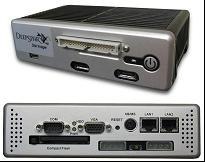
Deepspar Disk Imager What is DeepSpar Disk Imager?
DeepSpar
Disk Imager is a disk imaging tool built to solve disk-level problems and to recover bad sectors on a hard drive.

Main Features of DeepSpar Disk Imager:

  • DeepSpar Disk Imager is able to retrieve up to 90 percent of bad sectors that are partially corrupted and cannot be cloned/imaged by ordinary means.
  • While system software, such as BIOS or OS, tries to prevent you from retrieving and copying corrupted data, DeepSpar Disk Imager bypasses it to give you access to all available data, good and bad.
  • Special vendor-specific ATA commands are used that pre-configure the hard drive for imaging, reduce the number of read operations and the intensity of the operations, which causes disk degradation.
  • DeepSpar Disk Imager reduces the time it takes to image a disk with bad sectors, doing in hours what could take days or even weeks with ordinary clone/image tools.
  • Failing hard drives are imaged with care and intelligence, using as few passes as possible to get the most information.
  • Stop and continue imaging as needed – configuration information together with the map of good/bad/unprocessed sectors are saved on the destination drive, so whenever you stop you will have the read status of each imaged sector.
  • The imaging hardware automatically resets/reboots drives that become unresponsive to continue imaging process, so you don’t need to stand around watching and waiting for the entire system to be rebooted.
  • Real-time reporting gives you a window on the type and quality of data you’re imaging – while the process is still underway. You can even see the number and type of files or OS structure elements imaged so far.
  • You have total control over imaging parameters: single or multiple passes, read timeouts, retry attempts, bad sector retrieval (Error Correction Code (ECC) processing), selectable ATA read commands, and error-dependent imaging algorithm based on UNC/AMNF/IDNF/ABRT bad sectors or read/ready timeouts. This gives you ability to apply all possible methods to retrieve data from bad sectors of partially failed hard drives in multiple passes.
  • DeepSpar Disk Imager supports only selected ATA controllers, either add-on or onboard. This is required to bypass system software and work on a hardware-level to achieve maximum performance and reliability of the imaging process.

What is DeepSpar Disk Imager Forensic Edition?
DeepSpar Disk Imager Forensic Edition is a portable version of DeepSpar Disk Imager with addition of forensic-specific functionality.

Main Features of DeepSpar Disk Imager Forensic Edition?

  • Deepspar Disk Imager Forensic EditionDeepSpar Disk Imager makes an imaging process “visual”, so you see the read status of each retrieved sector (i.e. whether the sector is integral, partially corrupted or unreadable), what data is being imaged (i.e. whether you are imaging used or unused space of the drive), and what type of files you are imaging (i.e. Pictures, Microsoft Office files, executables, etc.)
  • Stop and continue imaging as needed – configuration information is saved on the destination drive, so you can just select “continue imaging” to continue from wherever you stopped.
  • The map of good/bad/unprocessed sectors is saved in HPA area of the destination drive, so you have integrity status of each sector of the image, which improves quality of the acquired data.
  • Special vendor-specific ATA commands are used to disable Auto-Relocation of bad sectors so that you retrieve data rather then lose it due to the fact that the drive modifies data by itself (remaps bad sectors). Read more about this process in our whitepaper “Disk Imaging: A Vital Step in Data Recovery”.

About DeepSpar:
DeepSpar is an Ottawa, Canada-based company dedicated to providing “serious gear for data recovery professionals”.

DeepSpar was founded on an exclusive partnership with ACE Laboratory Russia to market the PC-3000 family of products in North America.

Useful Links:

Disk Image Tool: DeepSpar Disk Imager Read More »

Low-level Hard Drive Diagnostics Freeware: MHDD

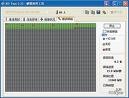
MHDD is the most popular freeware application for low-level HDD diagnostics.

MHDD Interfaces Supported:
MHDD supports these interfaces: IDE, Serial ATA, SCSI. Also there is a possibility to access an USB storage, there are drivers for emulation (USB->SCSI).

What can MHDD do?
This software can make precise diagnostic of the mechanical part of a drive, view SMART attributes, perform Low-level format, bad sector repair, different tests and tens of other functions.

Platform:

· Intel Pentium or higher CPU
· 4 megabytes of RAM
· DR-DOS, MSDOS version 6.22 and higher
· Any boot device (USB, CDROM, FDD, HDD)
· A keyboard

IDE/SATA Controllers:

· Any integrated into motherboard north bridge (addresses: 0x1Fx for primary channel, 0x17x for secondary channel)
· PCI UDMA boards (detected automatically): HPT, Silicon Image, Promise, ITE, ATI and so on. Even some RAID boards are supported. In this case MHDD works with each physical drive separately
· UDMA/RAID controllers integrated into motherboard as additional chip

Hard disk drives:

· Any IDE or Serial-ATA drive with size bigger than 600Mbytes, in other words, LBA mode is supported in full.
· Any IDE or Serial-ATA drive with size lower than 8388607 TBytes, in other words, LBA48 mode is supported in full
· Any SCSI drive with sector size 512-528 bytes
· Any SCSI removable media such as tape, CDROM. Maximum sector size for such devices is 4096 bytes

What’s New in MHDD v4.6?

· Fixed rare hangs when working with slave device
· Fixed TOF/ATOF problem with determining maximum file size when operating with SCSI devices
· Fixed displaying firmware version instead of serial number in SMART ATT
· Added PCI device ITE 8211 PCI IDE
· Added PCI device VIA VT6421 IDE RAID
· Fixed several issues with some modern BIOSes
· Jumps while scanning now logged properly
· Resets (“R” key) while scanning now logged properly
· ASPI drivers now have latest versions

Related Links:

· MHDD FAQ
· MHDD Documentation
· Change log
· Magic Boot Disk with MHDD

MHDD Free Download:
MHDD 4.5 (older version, but includes ATA/SCSI Terminal)
· MHDD 4.5, self-extracting floppy image

· MHDD 4.5, CDROM iso-image
· MHDD 4.5, just-an-archive (MS-DOS executables only, no SCSI support)
· MHDD 4.6

Low-level Hard Drive Diagnostics Freeware: MHDD Read More »

Top 25 Free Anti Spyware/Adware Software Download (Part II)

Eraser 5.86a
– secure file deletion
Eraser 5.86a Eraser is a secure file deletion tool that allows you to completely remove sensitive data from your hard drive by overwriting it several times with sophisticated patterns (Gutman, USDoD and others). You can simply drag and drop files and/or folders onto the on-demand eraser, use the convenient Windows Explorer right-click extension or use the built-in scheduler for automated wiping of unused disk space, browser cache files etc. Easy to use and secure!
Download: Eraser 5.86a

Startup Delayer 2.5.138
– delay the startup of programs
Startup Delayer allows you to configure which programs to start first and which ones to delay when your computer is rebooted. You can set a custom delay for each one, even drag the visual display graph which shows you exactly how your programs are starting and allows you to easily modify the order or adjust delay times.
Download: Startup Delayer 2.5.138

Avira AntiVir Personal 9.0.0.394
– anti-virus scanner
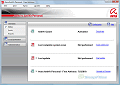
Avira AntiVir Personal 9.0.0.394 Avira AntiVir Personal offers the effective protection against computer viruses for the individual and private use on a single PC-workstation. It detects and removes more than 50,000 viruses and an Internet-Update Wizard for easy updating. The built in resident Virus Guard serves to monitor file movements automatically, for example when downloading files from the internet. Heuristic scanning protects Protection against previously unknown macro viruses. Note: This free version brings up a daily nag screen that advertises the Professional versions which are available from the company.
Download: Avira AntiVir Personal 9.0.0.394

TrendMicro HijackThis 2.0.2
– investigate browser add-ons
TrendMicro HijackThis 2.0.2 TrendMicro HijackThis is a tool, that lists all installed browser add-on, buttons, startup items and allows you to inspect, and optionally remove selected items. The program can create a backup of your original settings and also ignore selected items. Additional features include a startup list report, hosts file manager, uninstall manager and some other tools. Intended for advanced users.
Download: TrendMicro HijackThis 2.0.2

Access Manager 2.1.58
– password manager
Access Manager 2.1.58 Access Manager provides fast, easy and secure storage for all your passwords. You can organize passwords into types and categories for easy access and keep notes, web site links and e-mail addresses with each password. Email addresses or web site URLs can be automatically launched from within the program. The program is easy to use and uses a clean MS Outlook style interface and can be protected with a master password. Also included is an option to generate random passwords, search functions, printing of password lists and more. Free for personal use.
Download: Access Manager 2.1.58

Windows CleanUp! 4.5.2
– clean-up junk files
Windows CleanUp! 4.5.2 Windows CleanUp! is an easy to use privacy cleaner that can remove traces of your Internet activity as well as delete a variety of junk files that accumulate over time and litter your hard drive. It offers 4 levels of cleaning, the maximum level is designed for the case that you are selling your PC and want to thoroughly eliminate all personal references, including your IE Favorites. The program can also clean custom directory locations and optionally wipe the deleted files, so they cannot be recovered.
Download: Windows CleanUp! 4.5.2

The Vault 0.9.4.13
– store files in a secure vault
The Vault 0.9.4.13 The Vault enables you to store files and folders in a password protected and encrypted database (vault), out of sight and inaccessible by other users. You can create multiple vaults with virtual folders to organize your files, add new files via drag and drop, launch files from within the vault, and also extract or delete items as needed. The program and vault contents can optionally be transferred to a USB drive. Supports Blowfish, Rijndael, Serpent and Twofish encryption algorithms.
Download: The Vault 0.9.4.13

Norman Malware Cleaner 2009.06.16
– virus and malware removal tool
Norman Malware Cleaner 2009.06.16 Norman Malware Cleaner is a standalone virus and malware removal tool that can detect and remove specific malicious software (malware) from your PC. The program does not require installation and does not provide proactive protection from future infections. It is designed to clean a computer that has already been infected.
Download: Norman Malware Cleaner 2009.06.16

SpywareBlaster 4.2
– prevent installation of malware
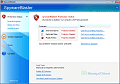
SpywareBlaster 4.2 SpywareBlaster prevents the installation of many so-called spyware, adware and malware programs by disabling the CLSIDs of popular spyware ActiveX controls, and also prevents the installation of any of them via a webpage. This allows you to run Internet Explorer with Active-X enabled, but it will never download or even prompt you for any of the known ActiveX controls. All other Active-X controls or plug-ins will work fine. The SpywareBlaster database contains information on these known spyware Active-X controls and can be updated with the click of a button. The application windows displays a list of all controls that it is able to detect (this is not a list of what was found on your computer). The program cannot detect if you have any of the known objects already installed, but if you do, they will be disabled. The program also allows you to take a snapshot of your computer (certain settings) in its clean state and later revert many changes made by spyware and browser hijackers.
Download: SpywareBlaster 4.2

RoboForm2Go 6.9.95
– portable password manager
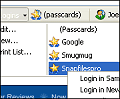
RoboForm2Go 6.9.95 RoboForm2Go is a secure password manager and form filler. It stores all your login information and can run directly from a USB drive. Once launched, it attaches itself to Internet Explorer (or other IE based browser) and allows you to login to your sites with a single click from the toolbar. When you remove the USB drive from the host computer, no traces of Pass2Go are left behind. The program can also store personal data for automatic form filling or reference (credit card numbers, social security, driver license numbers etc.). Pass2Go uses AES encryption and password protection to secure your data on the USB drive. The auto-login features work in Internet Explorer and IE-based browsers, however you can also access your stored data from the program interface on any computer, regardless of any browser. The free version allows you to store up to 10 logins.
Download: RoboForm2Go 6.9.95

RISING Antivirus Free Edition 2009 21.22.30
– antivirus program
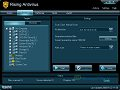
RISING Antivirus Free Edition 2009 21.22.30 RISING Antivirus Free Edition is a full-featured antivirus program that protects your computers against all types of viruses, Trojans, Worms, Rootkits and other malicious programs. It offers real-time protection, email scanning (POP3/SMTP), automatic updates, scheduled scans and all others standard features, as well as a set of advanced system protection tools that monitor for system changes, suspicious application behavior and other potential issues. The free version offers the same level of protection as the commercial version but does not include a firewall.
Download: RISING Antivirus Free Edition 2009 21.22.30

Comodo Internet Security 3.9.95478.509
– personal firewall and antivirus
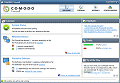
Comodo Internet Security 3.9.95478.509 Comodo Internet Security (formerly Comodo Firewall) combines Comodo AntiVirus with a personal firewall that filters ingoing and outgoing traffic on your computer. It alerts you of any applications that attempts to connect to the Internet and allows you to permanently or temporarily allow or block the connection. Advanced users can customize the application and TCP/IP rules based on IP address, protocol and destination port, however this is not required unless you have a reason to customize the rules. In addition to application behavior and network connections, Comodo Firewall also monitors components (dll files etc.) that initiate network connections, as well as parent processes and modifications to executables (checksum verification). Other features include attack prevention (port scanning, flooding), adjustable security levels, trusted networks, activity log and more. The firewall and antivirus features can be installed individually, you do not have to install both.
Download: Comodo Internet Security 3.9.95478.509

ZoneAlarm 8.0.298.000
– personal firewall
ZoneAlarm 8.0.298.000 ZoneAlarm provides essential protection for Internet users. Combining the safety of a dynamic firewall with total control over applications Internet use, ZoneAlarm gives rock-solid protection against thieves and vandals. ZoneAlarm makes ironclad Internet security easy-to-use. ZoneAlarm gives you control over the door to your computer. With Stealth Mode enabled, ZoneAlarm`s Firewall renders your computer invisible to the Internet and potential intruders. If you can t be seen, you can t be attacked. Because you tell ZoneAlarm how you use your computer, the firewall only allows traffic that you understand and initiate. ZoneAlarm s firewall provides the ultimate intrusion security for your personal computer. ZoneAlarm also introduces MailSafe which enables users of ZoneAlarm to detect and control Visual Basic Script attachments to emails they receive while ZoneAlarm is running. Free for personal and non-profit use.
Download: ZoneAlarm 8.0.298.000

Top 25 Free Anti Spyware/Adware Software Download (Part II) Read More »

Scroll to Top