Articles

How to use SeaTools for Windows

seatools for windows This post describes how to run SeaTools for Windows and provides some comprehensive advice about using the test to assist in troubleshooting.

First: Download and install SeaTools.

Launch SeaTools by following these steps once it is installed:

  1. Click on Start.
  2. Select Programs.
  3. Select Seagate.
  4. Select SeaTools for Windows.

A. Prepare the System

  • Isolate SeaTools – close all other applications before running a hard disc diagnostic. The main reason for this is to keep the drive focused on SeaTools as much as possible. Otherwise, Windows will continue to give the disc drive commands to access data for the needs of the other applications. When that happens, SeaTools will temporarily suspend its current progress while the drive is busy. This is harmless to the drive and a routine condition of use; however, it causes the SeaTools tests to take much longer time to complete.
  • SeaTools’ Drive Identification – External drives that connect to the system through USB, 1394 Firewire or eSATA do not have the same background activity as the Internal drive. Internal drives are identified as PATA (Parallel ATA or IDE), SATA (Serial ATA), SCSI or SAS (Serial-Attached SCSI). Most desktop and notebook systems have one SATA or PATA internal drive.
  • Keep the computer fully powered on – Power management controls may need to be suspended while doing very long tests. A complete drive scan may take a few hours to complete. The drive is working on its own at these times and the system may decide it should go into Stand By or Hibernate modes. Windows XP Control Panel Power Options has a setting “Turn off hard disks” and should be set to “Never” during the test.
  • Plug in your notebook computer – Notebook systems should not run the long tests using just battery power. These tests are disc-intensive and will draw more current than a typical usage profile. Be sure to connect the AC adapter to ensure adequate power during the tests.

B. Select the Drives to Test
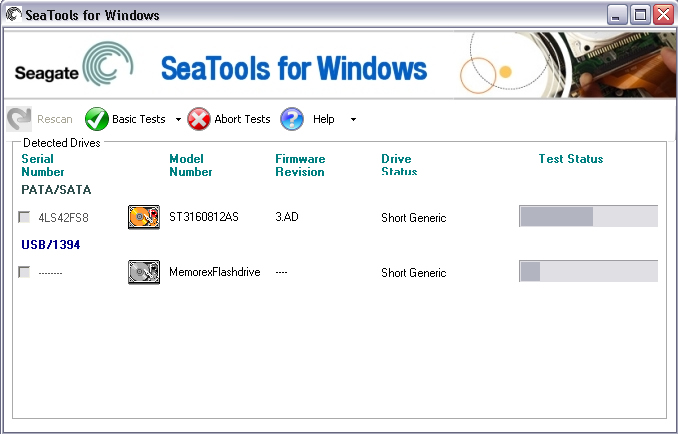
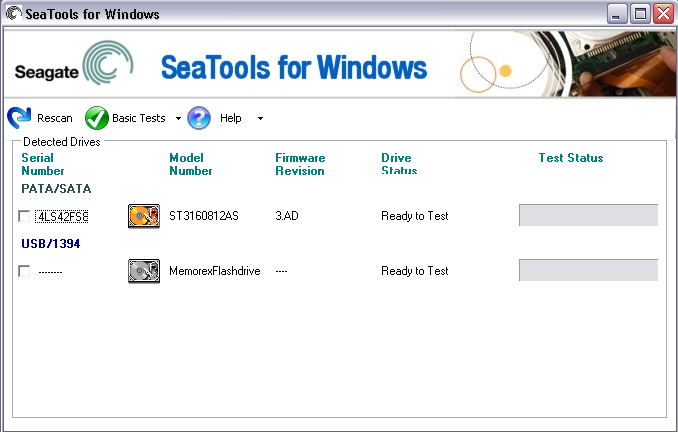
After SeaTools loads, the screen will list the different storage devices in your system. Select the drive you would like to test by making a check mark in the box next to the drive information. This screen also displays information about the drives such as the Model Number and Serial Number. Seagate model numbers begin with the letters “ST“. Seagate serial numbers are alphanumeric and eight characters long.

However, Seatools for Windows often displays the serial number and even the model number of the internal drive inside the external case, and these numbers do not correspond to the numbers that Seagate assigns to the external unit as a whole.

Seagate and Maxtor drives models are given a gold drive icon. Non-Seagate drives have a silver drive icon.

You may select more than one drive at a time to test them simultaneously.
seatools for windows

C. Select the Tests to Run

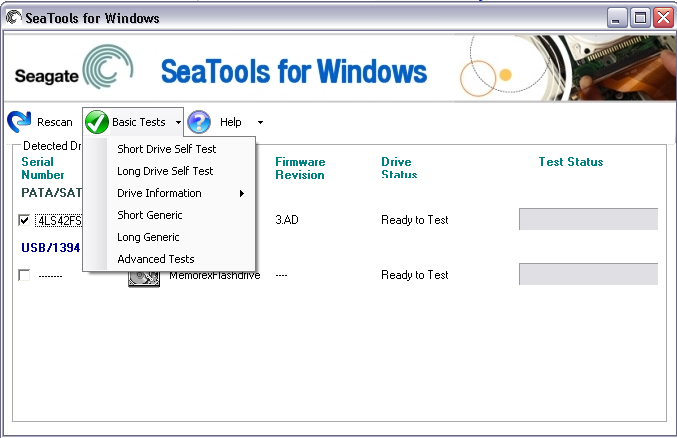
A menu of the possible diagnostic tests is shown. All Basic Tests are data safe, read-only tests. Select the tests that you would like to perform. The test will begin immediately.
These tests include:

  • Short Drive Self Test (20 to 90 seconds long)
  • Long Drive Self Test (may take up to 4 hours, progress in 10% increments)
  • Drive Information
  • Short Generic
  • Long Generic (progress in 1% increments)
seatools for windows

When you launch the “Short Drive Self Test” (DST) most drives will run a thorough diagnostic routine that is built in to the hard drive’s firmware. DST is completely data safe.
The “Short Drive Self Test” is adequate for most situations. Consider running the long Generic or long DST test, which reads each sector on the drive if you need a more comprehensive test.
The long tests will take time to complete. Because the long tests read every sector on the drive, the amount of time required will depend on the speed and capacity of the disc drive. The highest capacity drives often take 2 to 4 hours to complete. During the “Long Drive Self Test” progress is reported in 10% increments only. On large drives, 10% progress may take as much as 15 minutes. The apparent lack of activity often gives the impression that the drive or software has stopped responding. Please do not abort the Long Drive Self Test unless an adequate length of time has elapsed to complete the first 10%. Unfortunately, this 10% granularity is an industry standard.

D. Aborting the Diagnostics
The SeaTools performs a data-safe test of the selected hard disc drive or device for possible malfunctions. Long tests may be aborted at any time. Select the Abort Tests icon from the menu bar.
You can abort the test at any time without harming the drive, although the drive will not be fully tested if the test is aborted.

E. Summary of Results
Upon completion of running the diagnostics, a log for each drive is saved to the RAM drive.
The following conditions may apply:

  • Passed
  • Failed
  • Aborted

seatools for windows

More often than not, SeaTools for Windows will test with a PASS status. SeaTools for Windows is a useful testing tool to eliminate the hard disc drive as the source or physical cause of some system problem.

seatools for windows

A drive can be perfectly healthy but be holding corrupted data. If this is the case, you can attempt to repair the data. If it fails, then the data needs to be re-installed or re-saved.

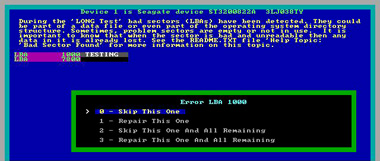
Bad sectors (LBAs) may be detected during the test. The test will halt with a Fail status. If you are testing an internal PATA (IDE) or SATA disc drive, in this case, we recommend that you run the Long Test in the bootable version, SeaTools for DOS, which has the ability to repair sectors in most cases. Checkdisk can repair bad sectors.

If this software indicates a FAIL test status and you are testing an external hard drive, which uses a USB or 1394 type of bus connection, you should consider checking the warranty status of your device. You can check the warranty status for Seagate products at the Seagate Warranty Services Page website. You will need to write down the serial number for the drive you intend to check.

Please remember that Seatools for Windows often displays the serial number and even the model number of the internal drive inside the external case, and these numbers do not correspond to the numbers that Seagate assigns to the external unit as a whole.  See the drive label for the serial number.
How to use SeaTools for Windows Read More »

Seatools For DOS Tutorial

Seatools For Dos SeaTools for DOS is a comprehensive, easy-to-use diagnostic tool that helps you quickly determine what is preventing you from accessing data on your desktop or notebook computer. It includes several tests that will examine the physical media on your Seagate or Maxtor disc drive and any non-Seagate disc drive. This is the walk-through for both the old (text) and new (GUI) version.

In order to use SeaTools for DOS choose to download the floppy diskette version or the bootable CD image version.

Creating a Diskette

For the floppy diskette version you will need one 1.44MB floppy diskette. Click the .EXE file downloaded from the Seagate web site and follow the on-screen instructions.

Creating a CD using the bootable CD image .ISO file.

Just copying the files to a CD will not work; the file must be burned as an image to the CD.

Once the bootable media has been created then boot the computer with the media in the drive. If it doesn’t boot from the media the boot order may need to be adjusted in the computer BIOS.

This document will cover a Graphical and a text version of Seatools for DOS. Find the guide to the graphical version immediately below.

SeaTools for Dos will not detect external drives. Please use SeaTools for Windows to test external drives.

SeaTools for DOS, Graphical version

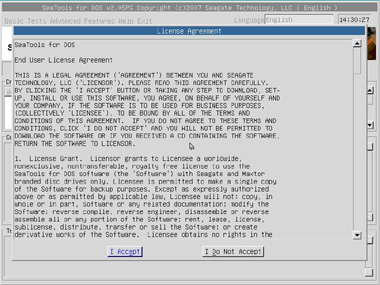
At bootup, you will see an End User License Agreement:

Image

Simply click “I Accept” to continue.
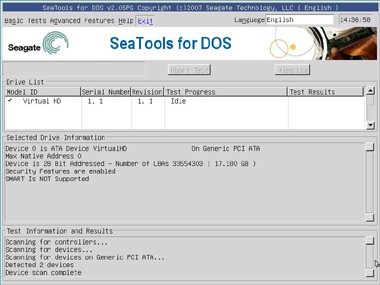
This will take you to the main menu page.

Image

Under the Basic menu:

  • Short test – Runs a DST test against Seagate drives. If DST is not supported by the drive, Seatools runs a read test. This test takes about 2 minutes.
  • Long test – Runs a full scan of the drive. This is usually used to find and repair bad sectors.
  • Acoustic test – Spins the drive down so you can determine if noise in a system is caused by the drive or by something else.

Image

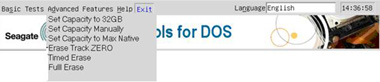
Advanced Features

  • Set Capacity to 32GB – Limits drive to 32GB for use on Pentium 3 or older systems.
  • Set Capacity manually – Limits drive to a specific number of Logical Block Addresses (LBAs), useful when replacing an unusual drive size in a RAID.
  • Set Capacity to MAX – Used to resize drive to full capacity (does not bypass the limit capacity jumper).
  • Erase Track Zero – Quick Zero fill to erase the data and partitions from a drive. This option requires one second to complete.
  • Timed Erase (10 second, 20 seconds, 1 minute, 5 minutes) – Handy for when quick zero fill just doesn’t get it all (ie, in case of boot loaders, etc).
  • Full Erase – Fills the entire drive with zeros. It can be used to recover bad sectors and erases all data.  This is not a Secure erase .

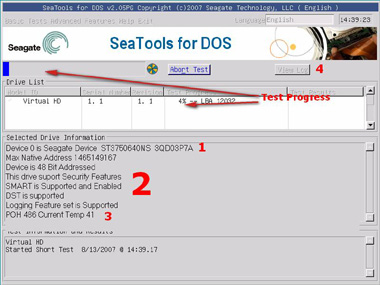
Below is the Results and Progress screen:

Image

  1. Model number and Serial number for drive selected.
  2. Drive status and supported features displayed.
  3. POH – Power on hours displayed; and Drive temperature in Celsius.

-Click View log to open the log file once the test is complete (won’t show much more than what is on the screen).

SeaTools for DOS, Text Version

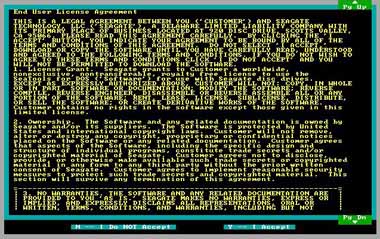
Once you have booted into SeaTools a license agreement will appear.

Image

Read the agreement and press “Y” to accept the terms and continue to the testing or press ‘”N” to exit the program. Use the Page Up and Page Down keys to scroll.

Once you agree to the license terms the testing screen will appear.

Image

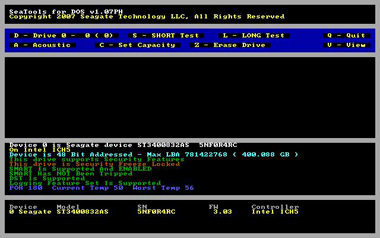
See here the varying elements of the old version’s testing screen.

  • D or 0-9 – Switches drives – Select which drive to perform actions on (see device area for correlating number).
  • S – Short test – Runs a Drive Self-Test (DST) test against Seagate drives. (If DST is not supported, Seatools runs a read test). Takes about 2 minutes.
  • L – Long test – Full scan of the drive. Usually used to find and repair bad sectors.
  • Z – Zero Fill – Wipes out the data on the drive. Good for erasing corrupted or unusual partitions. It will erase ALL partitions and data on the drive. Quick and Long options supported.
  • A – Spin down drive (for Acoustic test) – Spins the drive down so you can determine if noise in a system is caused by the drive or by something else.
  • C – Set Capacity – Used to set drive capacity to surpass the common 32GB and 137 GB limits. Also used for drives that get clipped to a lower capacity.
  • V – View log file – Pulls up the log file for review.

Image

The explanation for the multi-colored text near the bottom follows:
White text: The device (ie, Device 0) and its model and serial numbers.
Yellow text: The motherboard chipset.
Aqua text: Whether the motherboard supports 48-bit Logical Block Addressing, and the Maximum LBA for this drive along with its capacity.
Green text: SMART status. If SMART has been tripped, then there is no need to run a test. The drive should be replaced.
Green text: DST (Drive Self Test) support status – If DST is supported it will be used during testing.
Blue text: Operating temperature status – Current and Max registered temp – useful in determining if heat is a factor in drive trouble or drive failure. See Product manual for specified Operating temperature. The Worst Temp refers to the highest temp that the drive has ever experienced in its lifetime.
A common unusual reading displays 253 Celsius, which simply means that the drive does not support the temperature reading feature. It is nothing to worry about.
POH = Power on Hours – Tells how long the drive has been running in its total lifetime.

Acoustic Test

Image

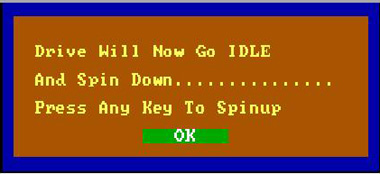
Once activated, the drive will spin down so you can tell if noise is coming from the drive or other components (like a computer fan). The drive will remain spun down until user presses a key.
The Pop-up window will remain open for several seconds until the drive spins back up.

Set Capacity

  • S  – Set 32 GB Capacity: Useful for ATA drives on older motherboards that will lock up if the drive is larger than 32 GB. This solution sets the drive to 32 GB.  If too much capacity is lost, you can consider an add-in ATA controller that can fully support >32 GB.
  • R – Reset to Drive Maximum: Useful for both ATA and SATA drives that have been clipped (either manually or spontaneously) back to its maximum capacity.
  • M – Set Manually: Often useful for ATA and SATA drives as an alternative to attempt if the Reset to Maximum fails. Sometimes used to make all drives in a RAID array have the exact same size (use a specific number of sectors on the drive to set the size).
  • Q – Back to Main Menu.

Zero Fill
Main menu options: Z-Erase Drive is the zero-fill option.

Image

Here is the Zero-fill submenu.

Image

On the Zero Fill sub menu you have the following options:

  • Z – Quick Zero Fill (first 63 sectors of the drive, instantaneous)
  • A – Full Zero Fill (every sector of the drive, may take many hours)
  • F – Timed Zero fill where T adjusts the time.

Drive Information
This is the yellow text seen on the bottom of the main menu screen.

Image

Shows hard drives detected

  • Device number – Used to select which drive to test.
  • Model number
  • SN – Serial Number
  • FW – Firmware revision – Useful on SCSI and SATA products and a few ATA products.
  • Controller – Chipset to which the drive is connected. Useful for some SATA and capacity issues. If it is an old chipset, the 28-bit LBA limit may apply, and so the chipset may only support SATA speeds of 1.5Gb/s.

If a drive does not show up in this area then power off the computer and confirm the drive is installed correctly.
View the installation assistance page for details on configuring various types of drives.

Log File
Log file is stored on boot media if writeable or in memory for the CD version. It is stored as: Serial#.LOG
Ex: 5NF0R4RC.LOG
To view log in software, press V.
To exit log viewer, press the Escape key.

Test Status (during a DST)

Image

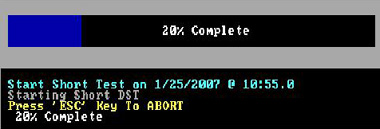
During a test the top part of the display shows a progress bar and the middle area shows the results.
After the test is complete, the middle area continues to show the result, and the top goes back to showing command options.

Bad Sector Repair (Long Test)

If bad blocks are found during a long test, a prompt will ask how to proceed.
The screen below appears at the end of the scan or if the user aborts the test if bad sectors have been discovered on the drive.

Example:

Image

Follow the instructions on the screen to proceed.
For further information about SeaTools for DOS view the SeaTools for DOS User Guide.txt file.

Seatools For DOS Tutorial Read More »

Rebuilding a Backup Catalog for Retrospect 5.x Windows

This post will walk you through the process of completely rebuilding your Retrospect catalog file. This may be required if you have lost your previous catalog file, or the file has become damaged due to a crash or disk problem.

Figure 1: The Retrospect Directory
To begin the catalog rebuild, launch the Retrospect program. The “Retrospect
Directory” will be displayed.

Click on the “Tools” tab followed by the “Repair” button (Figure 1).
catalog repair

Figure 2: Catalog Repair Selection
You will then be asked to select the catalog repair function.

You will need to select the catalog rebuild type that corresponds with the type of backup hardware you are currently using. In this example we are rebuilding the catalog from an Iomega Zip disk so we have chosen to “Recreate from removable disks.” This option is best if your backup is stored on a Zip, Jaz, SyQuest, Optical, MO, or DVD-RAM disk as well as several other types.

If you are using a tape drive like an OnStream drive, DAT, LTO, VXA, AIT, DLT or Travan drive (and several other types) you would choose “Recreate from tapes.” Users of CD-R or CD-RW devices should select “Recreate from CD-R discs.”

Once you have selected the repair type, click “OK” (Figure 2).

Update existing catalog file and Repair file backup set are not covered in this tutorial.
catalog repair

Figure 3: Media Selection
The next window will ask you to insert a member of your backup set (Figure 3). It is best to insert the Disk or Tape named 1-Your Backup Set Name (1-Backup Set A in our example). If that disk is unavailable, you should insert the next earliest member of the backup set.
catalog repair

Figure 3A: Member Selection
Once your disk has been inserted it should appear in the media request window. Select your inserted disk and click “OK” (Figure 3A).
catalog repair
Figure 3B: Forget
Note: Not all users will receive this dialog box.

For those that are asked, “There is already a known backup set named Backup Set A. Recreate a new catalog anyway, forgetting the existing one,” you must click “OK” to proceed with the catalog rebuild process.
catalog repair
Figure 4: Save Catalog Window
You will next be prompted to save your catalog file to the hard disk (Figure 4). The default location is “My Documents” or the “Retrospect” folder.
catalog repair
Figure 4A: Replace Catalog Window
If your hard disk already contains a file with a name identical to your catalog file name, you may be asked if it is safe to replace that file on the hard disk. You typically can replace the item you are saving, or choose a different location to keep the old file with this name, as well as begin the rebuild to a new file.
catalog repair
Figure 5: Building Catalog
Once the catalog file has been saved to the hard disk, Retrospect will begin the catalog rebuild process (Figure 5).

You should start to see the names of your files appear on the screen within a few minutes.

If the file names do not change, or if at any point in the process the text “Resynchronizing (Slow)” appears on the screen for more than a few minutes, please consult our Knowledgebase and other online technical resources.
catalog repair
Figure 6: More Members Window
When Retrospect reaches the end of the first disk or tape you will be prompted with this dialog box.

If you have additional tapes or disks (members) in this backup set that need to be recataloged, then click Yes. If you do not have any additional members to rebuild, click No.

If you select No, then you have completed the catalog rebuild process.

If you select Yes, then prepare to insert the disk or tape.
catalog repair
Figure 6A: Next Member Request
If you selected Yes to the previous dialog box, you will be prompted to insert the next member of your backup set (Figure 6A). You may need to manually eject the first disk or tape.

Once you insert the next member, Retrospect will automatically continue with the catalog rebuild process, displaying changes in file names. Over time the number of files and MB completed should change.
catalog repair
Figure 7: No More Members
When you have inserted all of the members that need rebuilding, click No (Figure 7).
catalog repair
Figure 8: Recatalog Finished
When the rebuild completes, you should have a dialog box similar to this one (Figure 8).

You should now be safe to perform future backup or restore operations with this backup set.
catalog repair

Rebuilding a Backup Catalog for Retrospect 5.x Windows Read More »

How to perform drive diagnostics on a Maxtor Shared Storage Drive?

To Run Diagnostics, Scan And Repair:

  1. Launch the Shared Storage Drive Web Interface.
  2. When prompted, type in the admin username and password to authenticate.
  3. From the Shared Storage Drive’s Home Page, click on Advanced Settings.
    drive diagnostics
  4. Click on System Maintenance

    drive diagnostics
  5. Click Diagnostics.
    Image
  6. A warning will appear notifying you that the Drive will be inaccessible to users while running.
    drive diagnostics
    Click Next.
  7. The scan and repair feature inspects and repairs your hard disk drive physical medium by re-mapping areas that can no longer be properly read. In most cases, data in these areas is unreadable and therefore irreparable. Data that can be properly read will be preserved. Click on Proceed to repair the areas as necessary during the scan process.
  8. Choose Proceed to begin diagnosis.
    drive diagnostics
  9. A status screen will appear showing the status of the scan.
    drive diagnostics
  10. If there are errors that are not repairable a screen will prompt you with a diagnostics code. Record this error code and contact please contact Seagate Support for further assistance, otherwise choose Done.
    drive diagnostics

How to perform drive diagnostics on a Maxtor Shared Storage Drive? Read More »

Disk Utility’s Repair Disk Permissions feature

Repair Disk Permissions Learn about Disk Utility’s Repair Disk Permissions feature. This document applies to Mac OS X 10.2, 10.3, and 10.4 or later.

Disk Utility lets you verify and repair disk and permissions issues. This document explains one of Disk Utility’s features for Mac OS X disks, Repair Disk Permissions.

How does Disk Utility check file permissions?

Many things you install in Mac OS X are installed from package files (whose filename extension is “.pkg”). Each time something is installed from a package file, a “Bill of Materials” file (whose filename extension is “.bom”) is stored in the package’s receipt file, which is kept in /Library/Receipts/. If you look in the Receipts folder, for example, you should see all kinds of files that end with .pkg, including some that were created when Mac OS X was installed (for example, BaseSystem.pkg). Don’t worry, these files don’t take up much disk space and you shouldn’t put them in the Trash.

Each of those “.bom” files contains a list of the files installed by that package, and the proper permissions for each file.

When you use Disk Utility to verify or repair disk permissions, it reviews each of the .bom files in /Library/Receipts/ and compares its list to the actual permissions on each file listed. If the permissions differ, Disk Utility reports the difference (and corrects them if you use the Repair feature).

Does Disk Utility check permissions on all files?

Files that aren’t installed as part of an Apple-originated installer package are not listed in a receipt and therefore are not checked. For example, if you install an application using a non-Apple installer application, or by copying it from a disk image, network volume, or other disk instead of installing it via Installer, a receipt file isn’t created. This is normal. Some applications are just designed to be installed like that.

Also, certain files whose permissions can be changed during normal usage without affecting their function are intentionally not checked.

Disk Utility’s Repair Disk Permissions feature Read More »

How to restore lost data from my Mirra to my newly rebuilt OS?

restore lost data My system has crashed. How do I restore lost data from my Mirra to my newly rebuilt Operating System?

Here’s the best way to restore your data after a system disk crash or the re-installation of your operating system onto your computer.

Note: In the context of these instructions, the term new computer can refer to a new computer that has replaced a failed or retired unit or to the same computer after you’ve replaced the disk drive or reinstalled an operating system. In both cases, Mirra will see it as a new and different computer.

Before you begin, consider how much data you intend to recover. If you’re planning to recover a significant amount of data (we consider more than 10GB or 20,000 files to be significant), remember that the Mirra has limits in terms of how many tasks it can perform can do at any one time. Therefore, since recovering your data is of highest importantance, you should temporarily disconnect any other computers from the Mirra so that it can devote its full resources to the restoration of your data.

  1. To temporarily disconnect a computer from the Mirra, turn it off, disconnect your Ethernet cable, or stop the Mirra service.To stop the Mirra service on a PC,
    • Go to Start > Run.
    • In the Run window, type net stop mirra.service.

    To stop the Mirra service on a Macintosh,

    • Go to Applications > Utilities > Activity Monitor.
    • In the pop-up menu at the top of the Activity Monitor window, select All Processes.
    • Select Mirra Service from the list of processes and click Quit Process in the menu bar.
    • In the Quit Process window, click Force Quit.
    • When prompted, enter your Administrator password.
  2. On the new computer, install the Mirra software but do not select any folders for backup. If you’re already backing up data from this computer, make sure all those backups have completed before you start to restore your data.
  3. Go to the Backup & Restorescreen. Listed are the computers previously backed up to the Mirra, each with the individual backups that came from that computer.
    • Select a backup from the old computer and click Save As… on the Restore Tasks menu.
    • In the Browse for Folder window, choose a location at which to save the selected backup.
      A new folder will be created at the selected destination with the same name as the original backup unless one already exists. If the destination folder already exists, any existing files with the same name will be overwritten with files restored from the backup. Wait for all the data for this backup to be copied to the computer before starting another operation.
    • When the selected backup has been copied to the new location, repeat the previous step until all your backups have been restored.
  4. Restored folders are not automatically backed up. After you’ve restored all your folders, select them for backup again from the new computer to the Mirra.
  5. If you’ve manually stopped the Mirra software on other computers connected to your Mirra, restart it by launching the Mirra application from either the desktop or the Start menu.

How to restore lost data from my Mirra to my newly rebuilt OS? Read More »

Which RAID Mode Should You Choose?

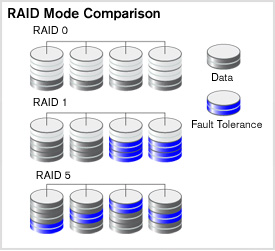
1. Speed (RAID 0)

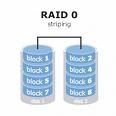
Set in high-performance mode (also called striped mode or RAID 0) the storage system gives you the power you need when you’re:raid 0

  • Designing huge graphics and need a lightning-fast Photoshop scratch space.
  • Recording large DV files while maintaining clean audio performance.
  • Editing DV or HD video and want a smooth work flow with no dropped frames.
  • Rendering complex 3D objects or special effects.
  • Performing disk-intensive database operations.
  • Driven to be the first geek on your block with a computer so fast it blows your
    socks off.
      Why is RAID 0 so fast? It’s a bit complicated, but suffice it to say that two or more heads, or in this case, drives, are better than one. Picture multiple hoses filling a bucket at the same time or several men bailing a boat and you can understand why two drives striped are

faster

      than one. Data is saved (striped) across both drives and accessed in parallel by all the drives so you get

higher data transfer rates

      on large data accesses and

higher input/output rates

      on small data accesses.

Raid Mode

2. Data protection (RAID 1)

Set the system to data protection mode (also known as mirrored mode or RAID 1) and the capacity is divided in half. Half of the capacity is used to store your data and half is used for a duplicate copy.

Why do I want that kind of redundancy? It’s your data, your family pictures, your movie of baby’s first steps, your first novel. Is it important? You decide. If it is, then RAID mirroring is for you.

3. Data protection and speed (RAID 5)

In systems with three or more drives. we recommend that you set the system to RAID 5. This gives you the best of both worlds: fast performance by striping data across all drives; data protection by dedicating a quarter of each drive to fault tolerance leaving three quarters of the system capacity available for data storage.

Which RAID Mode Should You Choose? Read More »

How to Restore Individual Files/Folders From Seagate DiscWizard backup?

How to restore individual files and folders from a backup you made with DiscWizard without restoring the whole system?

seagate discwizard

      The current version of

DiscWizard

    is supported in Microsoft Windows 2000, Windows XP, and Windows Vista. Previous version of Microsoft Windows, such as Microsft Windows 98SE and Microsft Windows Me are not supported.

From DiscWizard, you can browse through your backup image file to extract individual files and folders.  Before continuing, make sure the backup image is accessible.  For example, if you backed up to an external hard drive, make sure the drive is connected to your computer and recognized in My Computer.  If you backed up to removable media such as CDs or DVDs, insert the final CD or DVD that was backed up to.

  1. Open DiscWizard.
  2. In the “Pick a Task” menu, click “Image Restore”, or click on “Operations” in the menu bar and select “Image Restore”.Even though the “Image Restore” option states, “Recover the entire hard disc contents“, you will also be able to use this option to restore individual files and folders.
  3. In the “Welcome to the Image Data Restore Wizard!” window, click “Next”.
  4. In the “Archive Selection” window, browse to your image backup file in the list of drives and network connections on the left.

    In the example above, the file “MyImage.tib” contains a backup of the drive C: partition.

    Once you have selected the image backup file, click on “Next”.

  5. In the “Image Restoration Type Selection” window, click on the “Restore specified files or folders” radio button and click on “Next”.
  6. In the “Image Restore Destination Selection” window, you will select whether you want to restore your files and folders to their original location, or to a new folder.

    It is recommended that you restore your files to a new location, so that you do not accidentally overwrite any local files that you may want to preserve. To restore files to their original location, click on the “Original place” radio button.  To restore them to a different or new folder, click on the “Restore to a new place” radio button.  Click on “Next”.

    If you chose to restore files to their “Original place”, please skip the next step and proceed to Step 8.

  7. If you selected the option to “Restore to a new place” in the previous step, the “Image Restore Destination Selection” window will open. From here, you can browse to the local folder you want to restore your files to, or you can click on “Create new folder”to create a new folder to restore your files to.

    Once you have selected or created a folder to restore to, click on “Next”.

  8. In the “Contents Selection” window, you will be able to select the files and folders that you want restored.

    When this page is first opened, the entire partition is selected by default, as shown in the example above. It is recommended that you click on the check box next to the backup image file name in order to deselect everything. This will make it much easier to select the individual files and folders you want to restore.

    You can use the list of backed up partitions on the left to select the files and folders to restore. To expand a backed up partition or folder to see its contents, click on the plus sign (+) next to it. To select a file or folder to restore, click on the check box next to its name.

    Note that in the example above, when a folder is checked, all the files and subfolders contained within that folder are selected as well.

    Once you have selected the files or folders to restore, click on “Next”.

  9. In the “Choose Image Restore Options” screen, you may select to “Use default options” when restoring files, which will use DiscWizard’s default settings, or “Set the options manually”, to adjust settings as to how the file restore will be run.

    The default options when DiscWizard is first installed are normal restoration priority, preserve file security settings, and no additional settings.

    Once you have made your selection, click on “Next”. If you chose “Use default options”, please skip the next step and proceed to step 11.

  10. If you selected “Set the options manually” in the previous step, you will now see the “Image Restore operations options” screen.

    From here, you can adjust the following settings:

    • Image Restoration Priority – Adjust this setting to change how fast the restore will run, and how much it will interfere with other applications you have open.
    • File level security settings – With this option enabled, you will restore the same security settings (e.g. ownership, rights) of files and folders as when they were backed up
    • Additional settings – You can use this option to validate that the backup image was created without errors before files are restored to your computer

    Once you have selected the restore options, click on “Next”.

  11. In the “Image Restoration Mode“, you can select whether or not files that exist on the drive you are restoring to will be overwritten with restored files that have the same name.

    The options available are

    • Overwrite existing file – If a file with the same name as the restored file exists in the location you are restoring to, it will be overwritten.
    • Overwrite existing file if it is older – If a file with the same name as the restored file exists in the location you are restoring to, and it is older than the restored file, it will be overwritten.
    • Do not overwrite existing file – If a file with the same name as the restored file exists in the location are restoring to, it will not be overwritten.

    These options usually only come into play if you chose to restore files to their original location.  If you are restoring to a different location, you will not likely run into an issue of overwriting files, but it is still possible.  The safest, non-data destructive option to choose is Do not overwrite existing file.

    Once you have made your selection, click on “Next”.

  12. The next window shows the settings you have selected for restoring your files and folders.

    Once you have verified your selections are correct, click on “Proceed”.

  13. The “Operation Progress” window will open, displaying the restore process as it progresses.

    After a minute, the estimated time remaining will be calculated and displayed above the “Total progress” bar.

  14. Once the files have been restored, an “Information” window will open stating that the operation has completed succesfully.

    Click on “OK”. You may now close out of DiscWizard and use My Computer to browse to the location of your restored files.

For further information on DiscWizard’s features, please consult the Discwizard User’s Guide

How to Restore Individual Files/Folders From Seagate DiscWizard backup? Read More »

5 Ways To Speed Up Your PC

speed up your pc How to use the tools available in Windows XP Service Pack 3 (SP3) and Windows Vista to more efficiently maintain your computer and safeguard your privacy when you’re online? By following these guidelines, you can speed up your computer and keep it running smoothly.

1. Free up disk space

By freeing disk space, you can improve the performance of your computer. The Disk Cleanup tool helps you free up space on your hard disk. The tool identifies files that you can safely delete, and then enables you to choose whether you want to delete some or all of the identified files.

Use Disk Cleanup to:

  • Remove temporary Internet files.
  • Remove downloaded program files (such as Microsoft ActiveX controls and Java applets).
  • Empty the Recycle Bin.
  • Remove Windows temporary files.
  • Remove optional Windows components that you don’t use.
  • Remove installed programs that you no longer use.

Tip: Typically, temporary Internet files take the most amount of space because the browser caches each page you visit for faster access later.

To use Disk Cleanup

  1. Click “Start”, point to “All Programs”, point to “Accessories”, point to “System Tools”, and then click “Disk Cleanup”. If several drives are available, you might be prompted to specify which drive you want to clean.
  2. In the Disk Cleanup for dialog box, scroll through the content of the Files to delete list.Choose the files that you want to delete.
  3. Clear the check boxes for files that you don’t want to delete, and then click OK.
  4. When prompted to confirm that you want to delete the specified files, click Yes.

After a few minutes, the process completes and the Disk Cleanup dialog box closes, leaving your computer cleaner and performing better.

2. Speed up access to data

Disk fragmentation slows the overall performance of your system. When files are fragmented, the computer must search the hard disk when the file is opened to piece it back together. The response time can be significantly longer.

Disk Defragmenter is a Windows utility that consolidates fragmented files and folders on your computer’s hard disk so that each occupies a single space on the disk. With your files stored neatly end-to-end, without fragmentation, reading and writing to the disk speeds up.

When to run Disk Defragmenter
In addition to running Disk Defragmenter at regular intervals—monthly is optimal—there are other times you should run it too, such as when:

  • You add a large number of files.
  • Your free disk space totals 15 percent or less.
  • You install new programs or a new version of Windows. To use Disk Defragmenter:
  1. Click “Start”, point to “All Programs”, point to “Accessories”, point to “System Tools”, and then click “Disk Defragmenter”.Click Analyze to start the Disk Defragmenter.
  2. In the Disk Defragmenter dialog box, click the drives that you want to defragment, and then click the “Analyze” button. After the disk is analyzed, a dialog box appears, letting you know whether you should defragment the analyzed drives.Tip: You should analyze a volume before defragmenting it to get an estimate of how long the defragmentation process will take.
  3. To defragment the selected drive or drives, click the “Defragment” button. Note: In Windows Vista, there is no graphical user interface to demonstrate the progress—but your hard drive is still being defragmented.After the defragmentation is complete, Disk Defragmenter displays the results.
  4. To display detailed information about the defragmented disk or partition, click “View Report”.
  5. To close the “View Report” dialog box, click “Close”.
  6. To close the Disk Defragmenter utility, click the “Close” button on the title bar of the window.

3. Detect and repair disk errors

In addition to running Disk Cleanup and Disk Defragmenter to optimize the performance of your computer, you can check the integrity of the files stored on your hard disk by running the Error Checking utility.

As you use your hard drive, it can develop bad sectors. Bad sectors slow down hard disk performance and sometimes make data writing (such as file saving) difficult, or even impossible. The Error Checking utility scans the hard drive for bad sectors, and scans for file system errors to see whether certain files or folders are misplaced.

If you use your computer daily, you should run this utility once a week to help prevent data loss.

To run the Error Checking utility:

  1. Close all open files.
  2. Click “Start”, and then click “My Computer”.
  3. In the My Computer window, right-click the hard disk you want to search for bad sectors, and then click “Properties”.
  4. In the Properties dialog box, click the “Tools” tab.
  5. Click the “Check Now” button.
  6. In the Check Disk dialog box, select the “Scan for and attempt recovery of bad sectors” check box, and then click “Start”.
  7. If bad sectors are found, choose to fix them.

Tip: Only select the “Automatically fix file system errors” check box if you think that your disk contains bad sectors.

4. Protect your computer against spyware

Spyware collects personal information without letting you know and without asking for permission. From the Web sites you visit to usernames and passwords, spyware can put you and your confidential information at risk. In addition to privacy concerns, spyware can hamper your computer’s performance. To combat spyware, you might want to consider using Microsoft Windows Defender, which is included in Windows Vista, and is available as a free download for Microsoft XP SP2. Alternatively, there are other free anti-spyware software programs available.

5. Learn all about ReadyBoost

If you’re using Windows Vista, you can use ReadyBoost to speed up your system. A new concept in adding memory to a system, it allows you to use non-volatile flash memory—like a USB flash drive or a memory card—to improve performance without having to add additional memory.

5 Ways To Speed Up Your PC Read More »

Poorly Ventilated System Cases Shorten The Life Of Hard Drive

Ambient air temperatures of 95°F (35°C) or greater and poor ventilation from the smaller case designs of Shuttle boxes, LAN party boxes, racks, cabinets, and drawers, can shorten the life of your hard disk.

Hard Drive Life All Maxtor ATA, SATA, and SCSI drives can operate with or without a fan, providing the hard disk temperature does not exceed 131°F (55°C) as measured from the top cover of the drive. Reliability will be compromised when the drive is exposed to temperatures above 55°C or 131°F. When in doubt of your system’s ventilation capabilities, or ambient environment of your hard disk, add an extra cooling fan to the drive bay or system case to force air across the drive.

Guidelines for airflow in system cases and airflow produced by drive bay fans.

  1. The minimum specified airflow for all Maxtor hard disks is 150 LFM (Linear Feet per Minute). Most case designs and drive bay fans produce more than 150 LFM of airflow.
  2. A 2,500 RPM, 80mm case fan moves about 482 LFM of air.
  3. Fan flow ratings apply to ideal conditions. After mounting, typical fan flow is usually 20-30% less than the specified CFM (Cubic Feet Per Minute).
  4. Air cooling is not affected dramatically by elevation and the air density changes associated with increased elevation.
  5. Air cooling is directly affected by the temperature of the incoming air.
  6. Obstructions near a fan can decrease flow rate significantly.
  7. It’s better to over-pressurize rather than under-pressurize your system case
  8. Airflow overkill is your safest bet, since dust buildup over time reduces the systems cooling capabilities.
  9. There is no benefit to stacking fans.
  10. Choose the shortest path between air intake or exhaust, minimizing travel length of heated air from the hard disk, and other system components.
  11. Don’t mount your fans to push air against each other, cross flow through the case is best. (Fans pushing air in from the rear, and pulling air out the front or, vice versa) Newer case designs have provisions for mounting fans at the top of the case. This design allows the front and rear fans to pull air in, and the upper fan to push the heated air out through the roof.
  12. Airflow for fans are usually rated in CFM and airflow for drives are usually rated in LFM.

CFM to LFM Conversion Table
05 CFM = 73.0 LFM
10 CFM = 146 LFM
15 CFM = 219 LFM
20 CFM = 292 LFM
25 CFM = 365 LFM
30 CFM = 438 LFM
35 CFM = 511 LFM
40 CFM = 584 LFM
45 CFM = 657 LFM
50 CFM = 730 LFM

Poorly Ventilated System Cases Shorten The Life Of Hard Drive Read More »

Scroll to Top