Articles

Top 25 Free Anti Spyware/Adware Software Download (Part I)

whether you are concerned about your online privacy or have suspicions that someone may be spying on your PC activities! From here you’ll find a solution that you can download and try, use it for free! All softwares has been downloaded and tested.

These Anti Spyware/Adware softwares can detect serious spy activity like keyloggers, activity monitoring software, web site loggers and also common Adware, web bugs, tracking cookies and many other items that are frequently encountered on the web.

1. WinSock XP Fix 1.2
– fix XP internet connectivity
WinSock XP Fix 1.2 WinSock XP Fix offers a last resort if your Internet connectivity has been corrupted due to invalid or removed registry entries. It can often cure the problem of lost connections after the removal of Adware components or improper uninstall of firewall applications or other tools that modify the XP network and Winsock settings. If you encounter connection problems after removing network related software, Adware or after registry clean-up; and all other ways fail, then give WinSock XP Fix a try. It can create a registry backup of your current settings, so it is fairly safe to use. We actually tested it on a test machine that was having a Winsock problem due to some Adware removal, and after running the utility and rebooting, the connectivity was restored.
Download Now: WinSock xp Fix 1.2

2. Ad-Aware Free 8.0.3 AE
– remove adware components
Ad-Aware Free 8.0.3 AE Ad-Aware Free is an adware and spyware removal tool that scans your memory, registry, hard, removable and optical drives for known data-mining, aggressive advertising, and tracking components. It then lists the results and offers to remove or quarantine the components. The program detects a wide range of adware/spyware related issues and can be updated with the latest signatures via the built-in update utility. The free version has limited real-time protection, only processes are scanned.
Download Now: Ad-Aware Free 8.0.3 AE

3. avast! Home Edition 4.8.1335
– anti-virus scanner
avast! Home Edition 4.8.1335 avast! Home Edition is a complete anti-virus package, that is is free for registered home non-commercial users. It contains an on-demand scanner with two interfaces (simple for novices and advanced for experienced users), an on-access scanner with Standard Shield (which protects against execution and opening malware programs) and an embedded e-mail scanner which scans incoming and outgoing email messages. avast! Home integrates with the Windows Explorer right click menu and also includes a special screen saver which is able to scan your system while your computer is not in use. Updates are incremental and frequently made available for manual or scheduled download. You will download a 60 days demo, if you would like to continue free usage beyond that time, you`ll need to register from the home page to obtain a free activation key by email.
Download Now: avast! Home Edition 4.8.1335

4. SUPERAntiSpyware (Free Edition) 4.26.1006
– find and remove adware and spyware
SUPERAntiSpyware (Free Edition) 4.26.1006 SUPERAntiSpyware scans your computer for known Spyware, Adware, Malware, Trojans, Dialers, Worms, KeyLoggers, HiJackers and many other types of threats, and allows you to remove or quarantine them. It offers daily (manual) definition updates, as well as home page hijack protection and customizable scan options. Furthermore, the program includes a Repair feature that allows you to restore various settings which are often changed by malware programs, but usually not corrected by simply removing the parasite. The free version lacks real-time blocking and protection as well as several other advanced options. Download Now: SUPERAntiSpyware (Free Edition) 4.26.1006

5. Dr.Web CureIt 5.0
– on-demand virus scanner
Dr.Web CureIt 5.0 Dr.Web CureIt is a standalone anti-virus and anti-spyware scanner that scans your PC for viruses, trojans, adware, spyware, hack tools, rootkits, and other malware. The program does not require an installation and can be run from a USB drive. This is an on-demand scanner only, it can detect and remove virus infections but does not provide any real-time protection. Dr.Web CureIt is based on the ICSA certified Dr. Web scanning engine and should provide reliable detection.
Download Now: Dr.Web CureIt 5.0

6. Starter 5.6.2.8
– manage your startup programs
Starter 5.6.2.8 Starter is a startup manager, that allows you to view and manage all the programs that are starting automatically whenever Windows boots. It lists all the hidden registry entries, as well as the common Startup Folder items as well. You can choose to safely disable selected entries, edit them or delete them altogether (if you know what you re doing). Expert users can even add their own entries. Nice interface, easy to use, no documentation though (but hardly needed).
Download Now: Starter 5.6.2.8

7. CCleaner 2.19.901
– remove junk files and Internet traces
CCleaner 2.19.901 CCleaner is a tool to clean your system from temporary and unnecessary files that accumulate over time. This also includes rather thorough cleaning of Internet and PC usage tracks like browser cache, recently used files, web sites visited and more. You can select the items that you want cleaned and also specify cookies that should not be deleted. In addition, the program comes with a registry scanner that scans for invalid references (advanced users) and options to start cleaning automatically or from the command line. (Slim version, no toolbars)
Download Now: CCleaner 2.19.901

8. AVG Anti-Virus Free Edition 8.5
– anti-virus scanner
AVG Anti-Virus Free Edition 8.5 AVG Anti-Virus Free Edition is an anti-virus scanner that offers Resident Protection, e-mail Scanner, On-Demand Scanner, and Virus Vault for safe handling of infected files and automatic updates. The free version is limited in features, but includes all basic scanning functionality as well as real-time protection. It uses the same scanning engine as the commercial version, however updates are provided on a low priority basis.
Download Now: AVG Anti-Virus Free Edition 8.5

9. Spyware Terminator 2.5.7.140
– adware and spyware scanner
Spyware Terminator 2.5.7.140 Spyware Terminator is a feature packed adware and spyware scanner with real-time protection that can remove or quarantine spyware, adware, Trojans, keyloggers, home page hijackers and other malware threats. The scan behavior can be customized based on your level of experience, ranging from automatic interception to complete user control over how to handle any potential threats. Spyware Terminator offers manual and scheduled scans as well as real-time protection for your browser settings, HOSTS file, startup entries and other system areas. The program can optionally use ClamAV for additional virus protection. Other features include a file analysis tool, system restore, Locked File Removal, integrated spyware reporting, automatic updates and more.
Download Now: Spyware Terminator 2.5.7.140

10. Eraser 5.86a
– secure file deletion
Eraser 5.86a Eraser is a secure file deletion tool that allows you to completely remove sensitive data from your hard drive by overwriting it several times with sophisticated patterns (Gutman, USDoD and others). You can simply drag and drop files and/or folders onto the on-demand eraser, use the convenient Windows Explorer right-click extension or use the built-in scheduler for automated wiping of unused disk space, browser cache files etc. Easy to use and secure!
Download Now: Eraser 5.86a

11. avast! Virus Cleaner 1.0.211
– portable virus and worm removal tool
avast! Virus Cleaner 1.0.211 avast! Virus Cleaner is a free tool that will help you remove selected virus & worm infections from your computer and also performs necessary fixes to your system registry, Startup Folder etc. if needed. The program can also deactivate the virus present in memory. avast! Virus Cleaner is currently able to identify and remove the following worm families: MyDoom and Beagle/Bagle,Badtrans, BugBear including B variant, Nimda, Opas (aka Opasoft, Opaserv), Sircam, Sobig including B, C and D variants, Yaha (aka Lentin), and others.
Download Now: avast! Virus Cleaner 1.0.211

12. Spybot – S&D 1.60
– adware and spyware removal
Spybot - S&D 1.60 Spybot – S&D (Search and Destroy) is an adware and spyware detection and removal tool. This includes removal of certain advertising components, that may gather statistics as well as detection of various keylogging and other spy utilities. In addition, it also securely removes PC and Internet usage tracks, including browser history, temporary pages, cookies (with option to keep selected) and more. The program offers an attractive outlook-style interface that is easy to use and multi-lingual. Spybot – S&D allows you to exclude selected cookies, programs or extensions from being reported, allowing you to prevent false positive messages for items that you dont want to be alerted of every time. It can even scan your download directory for files that have been downloaded, but not yet installed, allowing you to detect unwanted programs before you even install them. SpyBot produces a detailed and easy to understand report before it deletes any files and allows you to deselect any item that you do not want to be processed. In addition, a recovery feature allows you to restore your settings if needed.
Download Now: Spybot – S&D 1.60

Top 25 Free Anti Spyware/Adware Software Download (Part I) Read More »

Samsung Develops SSD with SATA Mini-card Design for Netbooks

Samsung SATA SSD Samsung Announced that it is now sampling a SATA-interface mini-card solid state drive (SSD) with some of its customers, for use in the expanding netbook marketplace. The Samsung SATA mini-card SSD expands the use of SSDs from not only being a primary storage medium, but also as a complementary drive to boost the performance of PCs with dual drive capabilities.

Samsung’s new mini-card form factor, with a highly robust interface, makes an already rugged SSD even less susceptible to damage from jarring, jostling and dropping.

Featuring a mini-PCI Express (PCIe) form factor with a SATA 3.0Gb/s interface, the highly cost-efficient mini-card SSD is nearly 80 percent smaller than the conventional 2.5-inch hard disk drive, making it ideal for the tighter constraints of most netbooks. In addition, it can be used in printers and various handheld terminals including ruggedized mobile devices.

Moreover, the SATA mini-card SSD form factor can be used in a combination comprised of the SSD as main memory and HDD as supporting storage space. This new approach is expected to increase the adoption of SSDs in a broader range of applications.

Samsung is working to standardize the new mechanical form factor and its pin layout specifications at JEDEC (Joint Electron Device Engineering Council). With possible revisions by OEM manufacturers, standardization could be expected as early as the third quarter of this year.

Available in 16GB, 32GB and 64GB densities, the new SSD drive will be produced using 40-nanometer-class process technology. The SATA mini-card SSD provides strong performance levels with a sequential read rate of 200MB/s (megabytes per second) and writes data sequentially at 100MB/s.

Samsung’s mini-card SSD is only 30 millimeters (mm) wide and 51mm high. The drive weighs up to 8.5g and measures up to 3.75 millimeters thick. Also offering a high degree of energy efficiency, the new drive consumes 0.3 watts of power.

Samsung’s new netbook-targeted SSD is available with optional full disk encryption to thwart theft or any unwanted access to a netbook or other device.

“The market is beginning to embrace a smaller SSD for the nascent netbook sector, The cost-efficiency and reliability of lower-density, highly compact Samsung SSDs are perfectly suited as the storage medium for the rapidly growing netbook marketplace,” said Jim Elliott, vice president, memory marketing, Samsung Semiconductor, Inc.

Samsung Develops SSD with SATA Mini-card Design for Netbooks Read More »

Fix MBR in Windows XP and Vista By Yourself

What is the MBR?

fix mbr A master boot record (MBR), or partition sector, is the 512-byte boot sector that is the first sector (“LBA Sector 0”) of a partitioned data storage device such as a hard disk. (The boot sector of a non-partitioned device is a Volume Boot Record. These are usually different, although it is possible to create a record that acts as both; it is called a multi boot record.) The MBR may be used for one or more of the following:

  • Holding a disk’s primary partition table
  • Bootstrapping operating systems, after the computer’s BIOS passes execution to machine code instructions contained within the MBR
  • Uniquely identifying individual disk media, with a 32-bit disk signature; even though it may never be used by the machine the disk is running on

If, for any reason, the MBR becomes damaged or corrupt, then the operating system will be unable to load. You will normally see error messages like:

  • Error loading operating system
  • Missing operating system
  • Invalid partition table

These messages are definitely not fun, especially if you are not familiar with computers. Most people would automatically assume their computers are dead! However, that’s not true. Being in IT myself, these errors are actually preferably to other types of Windows errors. Why?

Well, it’s actually fairly easy to fix the Master Boot Record in XP and Vista. All you have to do is load up the Recovery Console and run a simple command. All of your data, applications, settings, etc are still intact on the drive and once the MBR is fixed, the computer will load normally.

So how can you repair your damaged MBR?


Here are the steps to follow:

1. First, restart your computer with the Windows XP setup disk in the CD drive. If you don’t have your original disk, borrow one or download a ISO image from a torrent site.

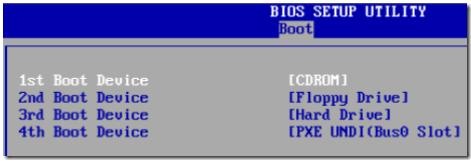
2. When prompted, boot from the CD drive by pressing any key. If Windows loads automatically, you will first have to enter the BIOS setup and change the order of the boot devices to start with the CD drive.
fix mbr

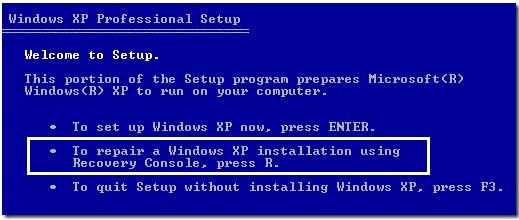
3. Once the setup loads, you will see the option to press R to repair a Windows installation.
fix mbr 02

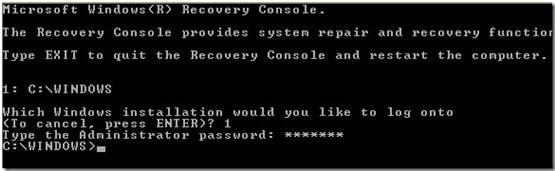
4. Once the Recovery Console loads up, you will have to type in a number that corresponds to your Windows installation. This is normally just 1. Press Enter and then type in the Administrator password.
fix mbr 03

5. Now at the prompt, type in fixmbr. Your damaged MBR will now be replaced with a new master boot record and your computer should now be able to boot properly. Note that you may also want to run the fixboot command to repair the boot sector with a new one.

Also, make sure you only use these commands on a system with one operating system installed. If you have more than one operating system installed, fixmbr and fixboot could mess up everything.

Fix MBR in Vista

In Vista, the procedure to fix the master boot record is a bit different. You have to start up Vista in the Recovery Environment and then run the bootrec command. Here’s how.

1. First, load up the Windows Vista disc in your drive and press any key to boot from the disc.

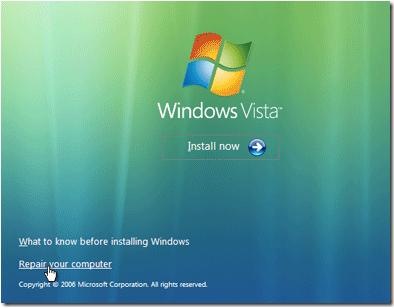
2. Choose the language, time, currency, etc and click Next. Now click on Repair Your Computer.
fix mbr 04

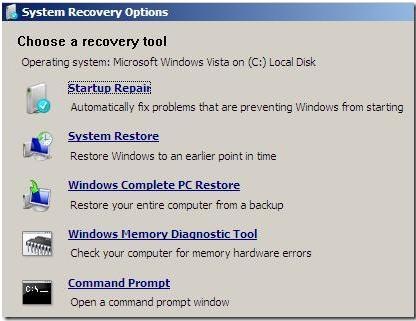
3. Choose the operating system to repair and click Next. When the System Recovery Options dialog comes up, choose the Command Prompt.
fix mbr 05

4. Now type bootrec.exe and press Enter. This will rebuild the boot configuration data and hopefully fix your problem. You can also run the command with switches to fix just the master boot record (/fixmbr), the boot sector (/fixboot), or rebuild the entire BCD (/rebuildbcd).

Fix MBR on Windows 7

1. Insert Win 7 installation DVD and boot from DVD drive. While in some older systems you may have to change boot order through system BIOS, most newer systems allow booting from DVD without changing boot order by simply clicking on any key when prompted to doing so.

2. Choose your default “Language”, “Time”, and “keyboard Input” on the first window and click next.

3. You’re now presented with 3 choices. Click on “Repair Your Computer” to gain access to the System Recovery window. Now choose “Command Prompt” in order to run the desired utility which is called “bootsect.exe”. Bootsect is located inside the boot folder so change your directory to boot. Now run “bootsect /nt60 C:\” if you had Win 7 initially installed in the C partition. Alternatively, you can run “bootsect /nt60 SYS” or “bootsect /nt60 ALL” to repair the system partition or all partitions. Eject the DVD, and restart computer. Your computer should now boot Win 7 again.
Fix MBR in Windows XP and Vista By Yourself Read More »

Flash Data Recovery Tool: PC-3000 Flash

The data recovery process from ssd and flash memory devices is much more complicated than usual data recovery. The next generation of flash based storage devices and ssd is coming… If you want to be prepared for it, the pc-3000 flash is the only professional flash memory data recovery solution with the best support and future development…

What is PC-3000 Flash?
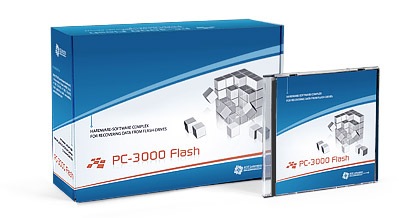
PC-3000 Flash PC-3000 Flash is a professional tool for recovering data from physically and logically damaged flash based storage devices. Based on hardware and working in conjunction with software, it creates a powerful algorithm to recreate data structure in automatic and manual modes.

What can pc-3000 flash do?
PC-3000 Flash recovers data from flash drives at:

  • serious mechanical damages
  • serious electrical damages of PCB
  • logical structure damages
  • damaged controller
  • accidentally deleted files

Logical damages of the drive, at which the drive is physically detected in the system at the usual connection, but it has the damages which prevent the access to the user data by the standard ways of the operation system. In this case, you can use all logical instruments of PC-3000 Flash suite or Data Extractor UDMA to recover data.

Physical damages of the drive or service area damages, which cause impossible access to the contents of flash-memory microchips. This type of damages is more popular than the first type. To recover data in such cases, They developed PC-3000 Flash suite.

Supported models:

  • It supports almost all popular memory cards (SD, SM ,MMC, USB Flash, MemoryStick, CompactFlash etc.), with damaged controller, or with serious physical PCB’s damage. Automatic and manual modes
  • Each controller has its own method of spreading the data, and this method is called “Data mix”. PC-3000 Flash has the database of widely spread controller “Data mixes“. Special mode analyses mix of your Raw data and helps you to select the most suitable solution for your flash storage device.
  • Moreover, if the controller is unknown, it is possible to try to restore the data order manually, with applying the operations to raw imaged data.

PC-3000 Flash SuitePC-3000 Flash Suite:

  • Device for reading NAND-based flash memory microchips (PC Flash Reader)
  • PC-3000 Flash software
  • USB cable
  • User manual for PC-3000 with data recovery methods.

Features are going to be added to the next versions:

  • Add fully automatic algorithms and modes enabling to make your participation minimal while working with PC-3000 Flash
  • Increase the number of the supported controllers and applied algorithms
  • Increase functionality of the tool, adding to support more operations with NAND flash-memory microchips
  • Add specialized modes enabling to make the full analysis of the task in the complicated cases
  • Make possible data recovery from flash drives which use data coding algorithms.

Free training video on PC-3000 Flash: http://www.pc-3000flash.com/eng/video.php
Buy:
http://www.pc-3000flash.com/eng/flashwork.php
Support: http://www.pc-3000flash.com/eng/flashwork.php

Flash Data Recovery Tool: PC-3000 Flash Read More »

Physical Storage Devices Overview

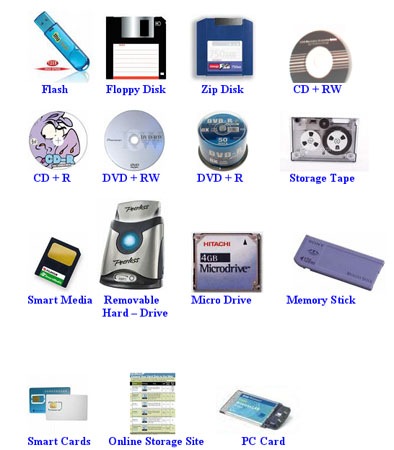
computer storage device 1. Several types of data storage exist in most computer systems. They vary in speed of access, cost per unit of data, and reliability.

* Cache: most costly and fastest form of storage. Usually very small, and managed by the operating system.

* Main Memory (MM): the storage area for data available to be operated on.

  • General-purpose machine instructions operate on main memory.
  • Contents of main memory are usually lost in a power failure or “crash”.
  • Usually too small (even with megabytes) and too expensive to store the entire database.

* Flash memory: EEPROM (electrically erasable programmable read-only memory).

  • Data in flash memory survive from power failure.
  • Reading data from flash memory takes about 10 nano-secs (roughly as fast as from main memory), and writing data into flash memory is more complicated: write-once takes about 4-10 microsecs.
  • To overwrite what has been written, one has to first erase the entire bank of the memory. It may support only a limited number of erase cycles ( tex2html_wrap_inline570 to tex2html_wrap_inline572 ).
  • It has found its popularity as a replacement for disks for storing small volumes of data (5-10 megabytes).

* Magnetic-disk storage: primary medium for long-term storage.

  • Typically the entire database is stored on disk.
  • Data must be moved from disk to main memory in order for the data to be operated on.
  • After operations are performed, data must be copied back to disk if any changes were made.
  • Disk storage is called direct access storage as it is possible to read data on the disk in any order (unlike sequential access).
  • Disk storage usually survives power failures and system crashes.

* Optical storage: CD-ROM (compact-disk read-only memory), WORM (write-once read-many) disk (for archival storage of data), and Juke box (containing a few drives and numerous disks loaded on demand).

* Tape Storage: used primarily for backup and archival data.

  • Cheaper, but much slower access, since tape must be read sequentially from the beginning.
  • Used as protection from disk failures!

2. The storage device hierarchy is presented in Figure 10.1, where the higher levels are expensive (cost per bit), fast (access time), but the capacity is smaller.

storagedevices

Figure 10.1:   Storage-device hierarchy

3. Another classification: Primary, secondary, and tertiary storage.
1. Primary storage: the fastest storage media, such as cash and main memory.
2. Secondary (or on-line) storage: the next level of the hierarchy, e.g., magnetic disks.
3. Tertiary (or off-line) storage: magnetic tapes and optical disk juke boxes.
4. Volatility of storage. Volatile storage loses its contents when the power is removed. Without power backup, data in the volatile storage (the part of the hierarchy from main memory up) must be written to nonvolatile storage for safekeeping.

Physical Storage Devices Overview Read More »

Intel RAID Controller Troubleshooting Guide: Overview

Intel Raid Controller In the unlikely event you encounter issues, this guide will help you troubleshoot and identify possible problem areas. If you are unable to resolve a problem using this guide, please follow these steps:

1. Visit http://support.intel.com/support/motherboards/server and choose the model of the
RAID controller you are using. This site will contain the latest information of known
issues and solutions.

2. If you are unable to resolve the issue, send an e-mail to Intel Customer Support using
this form: http://support.intel.com/support/motherboards/server/server_form.htm

3. Contact Intel Customer Support using one of the numbers listed here:
http://www.intel.com/support/9089.htm

This guide will help you collect the data we will need to help you resolve your issues. Each
issue includes suggestions that may help you, and a list of information we will need to know you if you need to call us. Please visit the Intel Support website for updated versions of this
document at http://support.intel.com/support/motherboards/server
Server boards, RAID controllers, and many other computer devices use programmable flash
memory parts to store BIOS or firmware code. Please visit the support site for your server
board and the RAID controller you are using and download and install the latest BIOS and
firmware for the server board and RAID card. Intel® server board and RAID card downloads
can be found at: http://support.intel.com/support/motherboards/server.

Your Intel® RAID Controller may include several LEDs that can aid in troubleshooting your
system. Please refer to your specific RAID controller’s documentation for location and purpose
of the LEDs. These LEDs may signal the following events:

• Indicate that the controller is online (i.e., installed correctly).
• Indicate that the controller is in Firmware Recovery Mode.
• Indicate activity on the SCSI Channel.
• Indicate Bus Master DMA transfers.

These LEDs may be referred to later in this document. In addition, the controller may emit a
series of beeps. Refer to your specific RAID controller’s documentation for definition of the
beep code. These beep codes may signal the following events:

• State of the controller upon boot-up.
• A change in the state of an array.
• A change in the controller’s environment status (during normal operation).
• A hardware failure.

A series of beep codes may be audible during POST or during RAID array event. Some RAID
controllers
emit a 1-3 beep code during POST, signifying normal operation. The server board
or other add-in peripherals may also emit beep codes. Refer to the documentation for your
RAID controller, server board, or add-in components for specific beep code information.

Troubleshooting Overview

Intel® RAID Controller Troubleshooting Guide
1. My server will not power on
2. Upon booting, my server starts beeping
3. My system appears to power on, however there is no video
4. Some of my hard drives show up during POST and some do not
5. My RAID controller has an issue not addressed above

Additional Questions and Answers
1. How do I update the firmware?
2. I am unable to complete the firmware update, I get a message that the firmware is intact or the system hangs during when entering StorCon
3. I do not see the zero channel RAID card / Modular RAID on Motherboard (MROMB) card during POST
4. How do I disable the integrated components

Intel RAID Controller Troubleshooting Guide: Overview Read More »

Intel RAID Controller: I do not see the zero channel RAID card/Modular RAID on Motherboard card during POST

Zero channel RAID cards are designed to work with the on-board hard drive controller built into the server board you are using. The zero channel RAID card must be inserted into a RAIDIOSenabled slot that is usually on the same bus as the on-board hard drive controller. Ensure that you have inserted the zero channel RAID card into the RAIDIOS enabled slot. Refer to your server board documentation to determine which slot is RAIDIOS enabled. This slot is sometimes labeled “Zero Channel“, “RAIDIOS“, or “MROMB“.

Intel RAID Controller: I do not see the zero channel RAID card/Modular RAID on Motherboard card during POST Read More »

Intel RAID Controller: unable to complete the firmware update

I am unable to complete the firmware update; I get a message that the
firmware is intact or the system hangs during when entering StorCon

As the BIOS on server boards and RAID controllers are updated, it is possible that some
combinations of RAID controller BIOS and server board BIOS do not work together so that
updating RAID controller firmware through the normal update process is not possible. A
firmware recovery process is described here with an override that makes it possible to force the firmware update.

To force a firmware update, complete the following steps:

a. Move the recovery jumper on the RAID card to Recovery position.

b. Download the firmware recovery utility and update code from the website, or make a
firmware recovery diskette from the CD and boot to it.

c. Choose option 2, recover firmware.

d. The system creates a RAM drive and begins copying files to it. Press <Ctrl> <C> when
you see the prompt, “press CNTL C to interrupt the recovery process”. You will be
brought to a C: prompt.

e. Type “FRU -O” to force overwriting the firmware. (Note: “O” is the letter O for Overwrite,
not the number zero)

f. Indicate agreement at the following two prompts.

g. Green text will display at the top of the screen indicating that the recovery has started.
This will be followed shortly by text that provides the version (flashing) that is being
forced. The first few digits of this text are the firmware version number followed by
digits that refer to the build number.

h. When complete, replace the jumper into the normal position and reboot.
Troubleshooting Guide

Intel RAID Controller: unable to complete the firmware update Read More »

Intel RAID Controller: How do I update the firmware?

Firmware can be updated through StorCon. StorCon can be activated a number of ways, including through XROM during POST by pressing <Ctrl> <G> when prompted. Complete instructions for each update method are included in the hardware guide for the RAID controller.

Refer to the resource CD that accompanied the product or to the support website listed above.

A short list of steps to update the firmware using the XROM method is included here:
Follow the procedure below to update the firmware via the XROM version of StorCon:

a. Download the firmware image, SRC_RXFW, that contains the latest programs and
drivers from the website.

b. Format a 3.5″ HD disk (1.44MB) and copy the SRC_RXFW file onto the disk.
c. With the adapter installed in the system, boot the computer and press <Ctrl> <G> when
prompted. This initiates the BIOS version of StorCon.

d. Select the applicable RAID controller and press <Enter>.

e. If the Express Setup menu is displayed, press <F4> to display the Advanced Setup
menu. Select the menu option “Configure Controller” and press <Enter>. Insert the
floppy containing the latest firmware file into the floppy disk drive.

f. From the “Configure Controller” submenu, select “Firmware Update” and press <Enter>.

g. StorCon automatically searches for the firmware file from the floppy drive, A:\. After
finding the file, StorCon displays the name, description and version of the firmware.
Press <Enter>.

h. StorCon reads and checks the firmware file, then displays a warning. Press <Y> to
confirm the firmware update.

i. StorCon programs the flash eprom.
Warning: Do not interrupt the update process. If interrupted the firmware image in the
Flash may be damaged. If the firmware is interrupted, follow the firmware recovery process
instructions in the next section.

Troubleshooting Guide
12 Revision 1.0

j. After StorCon indicates that the update is complete, press any key.

k. The focus returns to the Configure Controller submenu. Press <Esc> several times to
close the menus and press <Y> to quit StorCon.

l. StorCon detects the firmware update and requires a system reboot. Press any key to
reboot.

When the update process has completed, reboot the computer for the change to take effect.
During the boot, the system displays the updated firmware version. You can also relaunch
StorCon and select the applicable RAID controller to view its new firmware version at the
bottom of the console (for example, FW:2.34.yy-Rzzz).

You can also use the operating system version of StorCon to update the firmware. Refer to the
Storage Console chapter of the Software Guide for details.

Intel RAID Controller: How do I update the firmware? Read More »

Scroll to Top