
On Feb. 20, 2013, Seagate unveils its Seagate Korea Design Center, dedicated to developing advanced 2.5-inch hard drive solutions and small form-factor products for the mobile compute market. The new R&D Hub … Seagate Unveils New New R&D Hub In KoreaRead more
Articles
Solutions For Enterprise Flash Storage by Seagate & Virident
Seagate and Virident announced a strategic agreement to jointly deliver solutions for the growing enterprise flash storage market. Under the agreement, Seagate will immediately offer a complete line of flash-based PCIe solutions to its OEM and distribution partners. In addition, Seagate and Virident intend to leverage their mutual strengths to create next-generation hardware and software solutions for the solid-state storage market. In conjunction with the agreement, Seagate has made a strategic equity investment in Virident, and will appoint one member to the Virident Board of Directors.
“Seagate is thrilled to team with Virident, a technology leader in one of the fastest growing markets in enterprise and cloud computing, together, we are working to develop the next-generation hardware and software solutions in the PCIe space. Our solid-state strategy is founded on both in-house development and through strategic partnerships with innovative companies to deliver the broadest portfolio in the industry. We believe that this strategic agreement immediately strengthens our leading position in the enterprise storage market by adding a broad line of Seagate flash-based PCIe solutions powered by Virident to our portfolio. We look forward to a long, productive partnership with Virident.”said Gary Gentry, senior vice president and general manager, Solid State Drives at Seagate.
“We are extremely pleased to have Seagate as a strategic partner and investor, this partnership validates Virident’s vision of pervasive flash in the performance tier and accelerates our shared vision by bringing next-generation SCM solutions to the enterprise and web datacenters worldwide. The agreement also expands Virident’s routes to market today by making our best-in-class PCIe flash products available to Seagate’s world-class channels.” said Mike Gustafson, Chief Executive Officer of Virident.
About Virident Systems
Virident Systems is a leading provider of enterprise-class Storage Class Memory (SCM) solutions that deliver unconditional, consistent performance to data-intensive applications. The inherent advantage associated with this disruptive technology revolutionizes computing by speeding application response time and optimizing datacenter efficiency for new levels of ROI. Virident Systems is backed by strategic investors, Intel®, Cisco® Systems and a storage solution provider, as well as Hercules Technology Growth Capital and venture investors Globespan Capital Partners, Sequoia Capital, Mitsui Global Investments and Artiman Ventures. For more information, visit www.virident.com.
HDD TVS Diode FAQs
1/ What is a TVS diode and what does it do?
A TVS (Transient Voltage Suppression) diode works by clamping voltage spikes. It protects a sensitive circuit by diverting damaging overvoltages and spikes away from the load. If the overvoltages are of sufficiently short duration (< 8usec), then the diode will recover and continue working. However, if the diode is subjected to a sustained overvoltage, then it will sacrifice itself by going short circuit.
A TVS diode is rated according to its working or stand-off voltage, and its breakdown voltage. At its working voltage the diode is essentially an open circuit, ie it is “invisible”. However, at its breakdown voltage it clamps the spike by means of avalanche action.
TVS diodes in HDD applications are usually (always?) unidirectional, meaning that they behave like a forward biased diode in one direction, and a high speed zener clamp in the reverse direction.
2/ How can I identify a TVS diode?
A TVS diode will be connected directly across a supply rail (+5V or +12V), sometimes with a series inductor, fuse, polyswitch, or zero-ohm resistor. The anode of the diode goes to ground, while the cathode (striped end) connects to the positive supply rail. TVS diodes will usually be located near the power connector, but not always.
Since TVS diodes in HDD applications are surface mounted devices, they will be identified with an abbreviated marking code rather a full part number.
Some common marking codes for 12V diodes are LE, LEM, LEK, BUX, KVP, 13L.
Some common marking codes for 5V diodes are HE, QE, QA, AE, 5L.
The part number may reflect the working voltage of the diode (eg SMAJ12A), or its breakdown voltage (eg. TPSMB13A).
A diode test at the power inputs may be able to identify the existence of TVS diodes.
Note that not all diodes are TVS diodes, so don’t be tempted to snip a component without knowing what it is or what it does. For example, Schottky diodes are used in switchmode DC-DC converters that provide the negative supply rail for the preamp, and the Vcore supply for the MCU. Removing these diodes will probably result in the failure of the MOSFET chopper, which may in turn result in damage to the MCU or preamp.
3/ Where can I obtain a replacement TVS diode?
Suitable substitutes for the 12V and 5V TVS diodes in 3.5″ drives are SMBJ12A and SMAJ5.0A.
Depending on your locale, these can be purchased from …
Mouser Electronics – http://www.mouser.com
Digikey – http://www.digikey.com
Farnell – http://www.farnell.com
RS Components – http://www.rs-components.com
Newark – http://www.newark.com
Note that the above suppliers have world-wide networks and local offices in many countries.
Alternatively, you can use any 12V or 5V TVS diode from a spare HDD.
4/ What are the symptoms of a shorted TVS diode?
A shorted TVS diode that is connected directly across a +12V or +5V supply rail, without any series connected protection devices (eg fuse, polyswitch, inductor, zero-ohm resistor), will cause the external power supply (PSU) to go into overcurrent protection mode and shut down.
The usual symptom for a PC PSU is a single kick of the fan after pressing the on/off button, followed by immediate shutdown.
A typical symptom for an external hard drive may be a rapidly flashing LED.
If the drive has additional protection devices, then these may go open circuit as a consequence of diode failure. One example would be an open fuse, usually 2 amp or 4 amp. Other examples are burnt inductors in some Seagate models, and open zero-ohm resistors in Western Digital models. In such cases the drive will not shut down the PSU, but it will not spin up or be detected by BIOS.
5/ How do I test a TVS diode?
A TVS diode can be tested on the diode test range of a digital multimeter. It will have a low resistance in the forward direction, and a high resistance in the reverse direction.
However, an in-circuit test will be complicated by the fact that the diode is connected directly across a particular supply rail. This means that the meter will be measuring the resistance of everything connected to that supply. In reality, all we are interested in is whether the diode is shorted or not, so I would suggest that the 200 ohms range could be used in preference to the diode test. On this range the meter outputs a lower test current at a lower test voltage, which means that its reading is less likely to be affected by nearby devices (ie PN junctions).
If the meter reads close to 0.0 ohms, then the diode is most probably bad. There could be a shorted component elsewhere on the PCB, but you won’t know this until you eliminate the most likely suspect.
A digital multimeter can be purchased for as little as US$5 (see References). For usage instructions, see the user manual in the References section below. Otherwise here is a quick and dirty explanation.
To perform a resistance measurement, connect the black lead to the COMmon terminal of the meter, and the red lead to the Volt/Ohm terminal. Select the 200 ohms range. Now connect the probes to each end of the device under test.
A resistance of 0 ohms indicates a short circuited device.
If the meter displays OL or 1 (not 1.0), then this indicates that the meter has overranged on that scale.
If the resistance measures differently after reversing the probe connections, then this indicates that there is an active device such as a diode or transistor in the circuit.
A digital multimeter will also have a diode or continuity check function. The continuity check will give an audible beep when the resistance is below a certain threshold. The diode function will test devices such as diodes and transistors. The meter injects a current, typically 1mA, into the device and displays the voltage drop across it.
When performing a resistance measurement, the power must be disconnected from the circuit under test.
To measure the voltage between two points, usually between ground and somewhere else, select the DC voltage range most suitable for the voltage under test, eg 2VDC or 20VDC. Connect the black lead to the COMmon terminal, and the red lead to the Volt/Ohm terminal. Then connect the black probe to a ground point, eg the ground pins at the drive’s power connector, and the red probe to the component or circuit location under test.
When making live measurements, try to avoid “busy” areas, ie areas of the circuit where there are many pins in close proximity to each other. This will minimise the risk of shorting between adjacent signals or power traces.
It goes without saying that voltage measurements should be made with the circuit powered up.
6/ Which HDDs have TVS diodes?
TVS diodes started appearing in HDDs in the early to mid 2000s.
7/ What other protection devices does a HDD have?
Some drives (eg 2.5″ laptop HDDs) will have a 2A or 4A fuse, others will have a polyswitch, and still others (eg Western Digital) will have a zero-ohm resistor. Some Seagate models will have an inductor in series with the TVS diode, but their function is to filter out high frequency noise, not to provide protection. Unfortunately these inductors are not fusible, so they tend to burn up rather than fail gracefully, leaving a charred mess on the PCB.
8/ What are the likely reasons for a TVS diode “failure”?
TVS diodes fail when they are subjected to a sustained overvoltage. If the drive is an internal one, then one should always suspect the power supply.
If the drive is external, then its AC adapter should be suspect. However, in many cases the damage is a consequence of user error. A typical mistake is plugging a 19V laptop adapter into a 12V external drive. The result in most cases is a shorted 12V TVS diode on the drive itself, rather than on the USB-SATA/PATA bridge board. This is because the bridge is usually capable of tolerating the overvoltage, however it passes the incoming 19V supply directly to the drive’s 12V input. The drive’s 5V TVS diode survives unscathed because the incoming 12V (or 19V) supply is down-regulated to +5VDC on the bridge board.
9/ How do I repair my hard drive?
HDDs that have been subjected to a sustained overvoltage will have a shorted TVS diode on the affected input. If the diode has succeeded in containing the damage, then the drive’s function will be restored after removing the diode (just snip it with flush cutters or perhaps fingernail clippers). However, removing the diode will also remove the overvoltage protection on the affected supply. This means that you will have no second chances, so be absolutely sure your power supply is good. Should you wish to replace your diode, see Q3 for a list of suppliers and suitable part numbers.
If an additional protection device (see Q7) has been open circuited, then you can replace it with a wire link or a blob of solder. However, because you will effectively be replacing a fuse with a nail, this means that there is an element of risk. The level of such risk will depend on the nature of the overvoltage event.
Warning: Do NOT replace a TVS diode with a piece of wire. By doing so, you will be replacing a short circuit with another short circuit.
References
What is a Silicon Transient Voltage Suppressor and how does it work?
http://www.vishay.com/docs/88436/appnote.pdf
Datasheets for 5V TVS diodes:
http://www.diodes.com/datasheets/ds19005.pdf
http://www.onsemi.com/pub_link/Collateral/1SMA5.0AT3-D.PDF
http://www.st.com/stonline/products/literature/ds/5544/smaj.pdf
Datasheets for 12V TVS diodes:
http://www.vishay.com/docs/88406/88406.pdf
http://www.st.com/stonline/products/literature/ds/5616.pdf
http://www.diodes.com/datasheets/ds19002.pdf
Littelfuse Surface Mount Fuses, N = 2A, S = 4A:
http://www.farnell.com/datasheets/48294.pdf
miniSMDC125F/16, 1.25Amp, PolySwitch, Raychem Circuit Protection:
http://www1.futureelectronics.com/doc/RAYCHEM/MINISMDC125F__16-2.pdf
http://www.anglia.com/raychem/datasheets/187_216.pdf
Serial ATA (SATA) power connector pinout:
http://pinouts.ru/Power/sata-power_pinout.shtml
PC peripheral power connector pinout:
http://pinouts.ru/Power/BigPower_pinout.shtml
Cen-Tech 90899 7 Function Digital Multimeter (US$5):
http://www.harborfreight.com/7-function-digital-multimeter-90899.html
Cen-Tech 90899 7 Function Digital Multimeter User Manual:
http://manuals.harborfreight.com/manuals/90000-90999/90899.pdf
How To Swap Hard Drive PCB
As we know: HDD can’t spin; board/chip be burnt; interface broken; etc. These problems are caused by PCB malfunction. Swap PCB of your hard drives can resolve the problems.
Which HDD’s problems are not caused by PCB:
HDD has a buzzing voice or a sound like it is trying to spin.
HDD can spin. However, it makes a lower clicking noise. It spins for a moment and then slow down.
HDD will power up normally (no ticking noises, errors etc) but will not be recognized by the computer
HDD will power up normally and be recognized correctly but will report a size of 0 bytes
HDD will power up but report SMART errors on boot
Hard Drive PCB Circuit Boards:
1. Seagate HDD PCB
These hard drives have 2 architectures: Barracuda (older) and F3 (new generation).
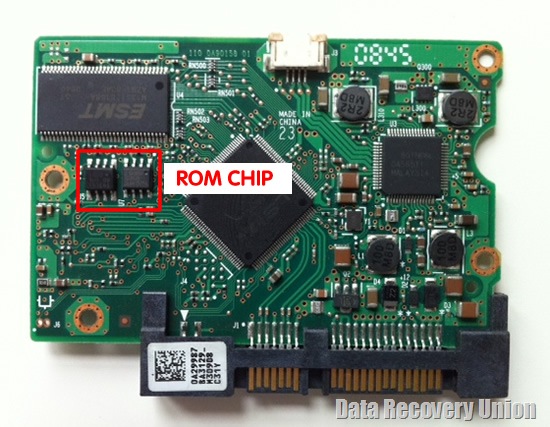
Barracuda Architecture. These hard drives have a dot (.) in the firmware version (“3.CDA”, “8.01”, “3.03”, etc.). Most PCB swaps are simple (~85%). In the other 15%, a ROM chip must be swapped.
F3 Architecture. Hard drives have no dot (.) in the firmware version (“CC44”, “0005HPM1”, “SD01”, etc.). The 8-legged firmware chip will have a number starting with 25, and must be transferred to a new circuit board.
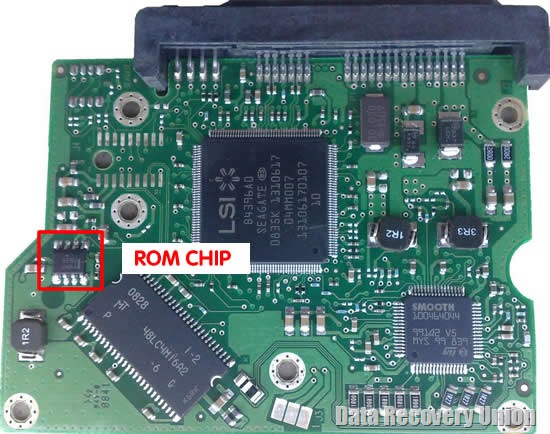
Note: If your hard drive has a new PCB recognized by incorrect parameters (such as wrong model, different SN, or incorrect firmware), you must swap the chip.
2. Western Digital HDD PCB
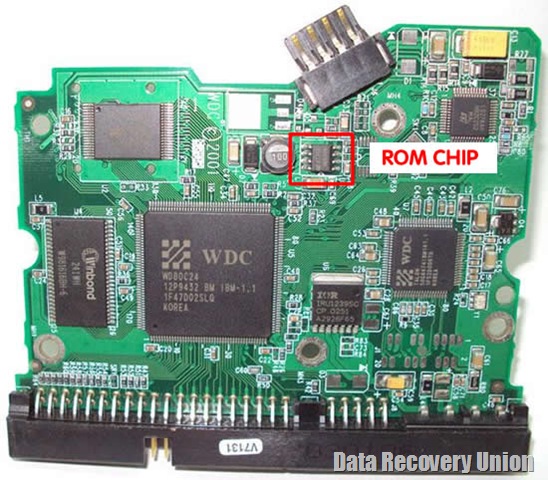
WD has 2 types of PCBs.
Type 1 has an 8-legged U12 ROM chip that must be swapped.
Type 2 has a missing U12 chip, and PCB firmware is stored in the big “M” Marvell Controller Chip. That chip can be transferred.
3. Samsung HDD PCB
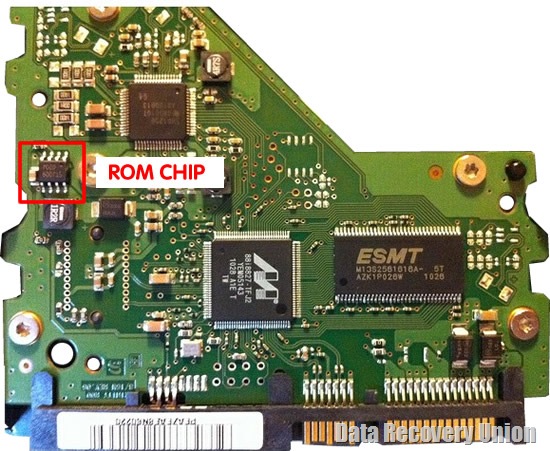
Most of the time there is no need for adaptation service, but in some cases an 8-legged firmware chip (with a number starting with 25) must be transferred.
4. Maxtor HDD PCB
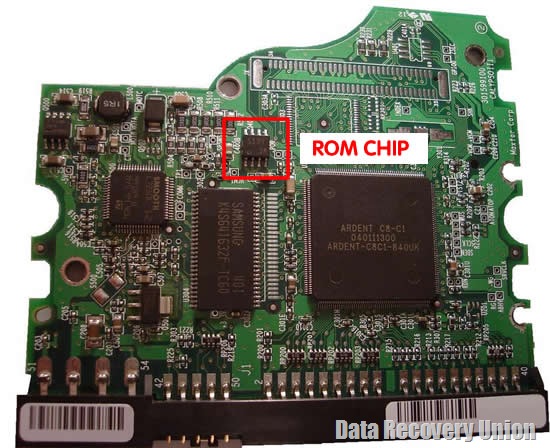
Adaptation service not required. A simple PCB replacement should work.
5. Toshiba HDD PCB
Most Toshiba boards have an 8-legged firmware chip that must be swapped. The chip will have a number starting with 25.
For some Toshiba families, the chip might be missing unique adaptive data stored in the large controller chip. That chip can be transferred.
6. Hitachi and IBM HDD PCB
All Hitachi and IBM circuit boards have an 8-legged firmware chip that has a number starting with 25.
7. Fujitsu HDD PCB
PCB adaptation is not required, but occasionally, a firmware chip transfer is required.
In most cases, swap PCB is not directly change the fault PCB with the donor PCB. Should confirm the donor PCB should be adapted for the HDD.
Most HDD boards have the BIOS (ROM or NVRAM chip) which includes the unique data to access the HDD system area. If the BIOS information is not compatible with your HDD, there is no way to read the HDD’s data. Because of this, we should use the original PCB’s BISO when we swap PCB.
BIOS is the 8pins (4 pins on each sides) with 25P05VP、25P10VP、25F512、25F1024、25F1024AN、SST25VF512、SST25VF010, etc.
How to change BIOS
You can move the BIOS from your original PCB by using hot-air gun, then solder it on the replacement board. Or you can find the electronics repair shop to help you.
If there is no BIOS on the PCB, it means the BIOS is integrated on the Main Controller IC
You should exchange the Main Controller IC to let the HDD be recognized. Move the Main Controller IC (the biggest chip on the board) is complex jobs which need you have certain technique. Some electronics repair shop can do it.
Online Backup for Small Business
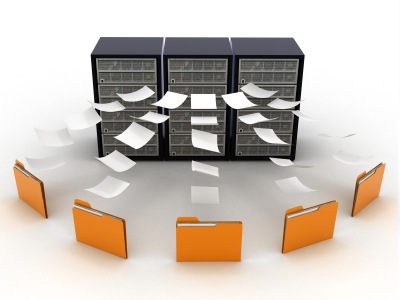
You’ve heard it thousands of times — backup your data. A good data backup strategy is to have two copies of your data – one local (it resides in your office or place of business) and one offsite (you pay an online data company to store it remotely on their secure servers).
Online backup is now a must have for all computer users, as we now live in a digital age where our whole digital life is store online. Our files, photos, music, video, financials and more are all stored on our computer hard drives. But what happens if your hard drives crash? All hard drives will fail eventually and they usually happen at random when you least expect them. We no longer have CD collections, or DVD racks with our films, or photo albums of our photos, they are all stored on our hard drives. Theft, Fire, Accidental deletion, hardware failure, all these can contribute to lost files. Files which are no longer just binary text, these files are irreplaceable memories which money cannot buy back.
Online Backup for Small Business
Tips For Buying Online Backup Services:
Below are some of the main factors to consider when selecting an online data backup providers:
1. The Kind of Backup User You Are:
A service designed for home users or small businesses is quite different than one designed for the enterprise. The latter requires complex features such as ability to backup operating system files, live database, historical backup, and extremely tight encryption, while the former would be happy with a relatively low priced service that provides common features such as scheduled backup, web access, ability to send files by CD/DVD, and share files with others.
2. In general, online backup users should ask the following questions:
- Does the service offer historical backup?
- Can the software recover from an interrupted backup process?
- Is there an option for a live and continuous backup? (As opposed to a scheduled backup)
- Does the software allow network backups?
- How about database and operating system backup? (Including registry files)
- Can I get copies of my data on a CD-ROM for an emergency data restoration?
- Can I edit or delete stored files?
- Can I select a whole folder without having to select each individual file to backup?
- Does the software allow multiple file sets to be scheduled on different times?
- Can I include / exclude filters to include / exclude certain file types?
- How long will my data be kept in the provider’s servers?
- Will my data be duplicated to at least two geographically different locations?
- Where is the data center of this company?
- How many different versions of my data will be kept?
- Will this company be around, say, 3 years from now?
- Is this company an original provider or is it a re-seller?
- What is the speed of uploading and restoring files? If this is important to me, shall I consider paying more for a fast service?
- Does this provider support my computer systems (E.g. Mac, Linux, etc.)?
3. Security
To ensure that your data is secure while it is being transferred from your computer to the provider’s data center, most providers offer the option of encryption and password protection. In this way, only someone with your password can access your data.
In most cases a 128-bit encryption is sufficient. For some businesses that want absolute privacy, security might require a much stronger encryption. Although not very common, some providers offer a 448-bit encryption. In addition, data has to remain secure once it reaches the destination server, which means providers have to have proper policies to ensure employees do not access client data for non-authorized reasons. Most providers take the issue of security very seriously, as it is one of the reasons why computer users are hesitant to backup online.
4. Speed, Reliability and Uptime
As backups are usually a last resort way of recovering data after a disaster or system failure, backup providers don’t have much of a margin of error. The data has to be there when needed. No amount of explanation on why the data is not available will calm a user that just lost an entire computer hard drive and is trying to restore from a backup.
To ensure the provider has taken sufficient steps to keep service reliable, you should ask the following questions:
Does the backup provider have a “backup†copy of all clients’ data somewhere on a secondary data center, away from the primary?
Is the backup center equipped with uninterruptible power supply, backup generator and is it located in a safe and secure location?
What is the uptime for the data center?
How many clicks does it take before the actual backup is started?
How fast is the data center?
How much CPU or disk resources does it chew up when the backup is running?
Where is the geographic location of the data center?
Is the backup continues?
How many years has this Online Backup Service Provider been in business or does the company have solid financial resources?
How fast can files be restored?
Who are the clients of this company?
How many paying customers does the company have?
5. Quality and Accessibility of Technical Support
Does the company have a toll free number?
Is technical support available 24/7?
Does this company reveal its email address in their site or does it force me to fill in a time consuming form?
Is there an emergency user support?
Does the company have a physical address listed in their site?
What is the turn around time for email queries?
Does the company have an international presence?
Does the company publish a customer support satisfaction survey stats?
What is the wait time for phone support?
6. Cost
How much does this Online Backup Service Provider charge per GB per month?
Is there a set-up fee?
Is the cost per account or per PC?
How often and how much data are allowed for backup per day or per month?
Is there a no obligation free trial period before I sign up?
Can I cancel at any time or am I tied in for a minimum period?
What is the cost for exceeding the allowable traffic and storage quota?
Is there extra cost for telephone technical support?
7. Some these Online Backup Service Providers:
mypcbackup.com
justcloud.com
backupgenie.com
sosonlinebackup.com
zipcloud.com
sugarsync.com
mozy.com
box.com
crashplan.com
carbonite.com
Online Backup is like insurance, for a small monthly fee (Less than the cost of a Cinema Ticket) you will never have to worry about your files again. If you get a new computer and you need to restore your files and documents its literally a click of a button.
RAID Data Recovery Service
RAID provides high performance to us, especially server users but it also brings us with much trouble. For example, we might be troubled to manage RAID partitions such as resizing or moving them. Luckily we could solve the problem quickly and easily with partition manager softwares or by adding hard disk. However, when we encounter data loss due to system crash, virus attack or power failure/surge, it will get serious because it causes greater loss if we recover data from raid at random, therefore, we should get help from professional raid recovery service, which is the first choice because of its quickness and safeness.
Types Of RAID failures:
To summarize, RAID server often fails as a result of the following situations and frequently, a combination of them :
- Malfunctioned Controller
- Raid rebuild error or volume reconstruction problem
- Missing RAID partition
- Multiple disk failure in off-line state resulting in loss of RAID volume
- Wrong replacement of good disk element belonging to a working raid volume
- Power Surge
- Data Deletion or reformat
- Virus Attack
- Loss of RAID configuration settings or system registry
- Inadvertent reconfiguration of RAID volume
- Loss of RAID disk access after system or application upgrade
With larger drive capacities the odds of a drive failure during rebuild are not negligible. In that event, the difficulty of extracting data from a failed array must be considered. Only a RAID 1 (mirror) stores all data on each drive in the array. Although it may depend on the controller, some individual drives in a RAID 1 can be read as a single conventional drive; this means a damaged RAID 1 can often be easily recovered if at least one component drive is in working condition. If the damage is more severe, some or all data can often be recovered by professional data recovery specialists. However, other RAID levels (like RAID level 5) present much more formidable obstacles to data recovery.
When looking for a RAID data recovery service, it’s essential to find one with the technical expertise and tools required to restore your data. It’s also important to consider the security measures the company employs to protect your data.
Features
One of the most important features to consider is the company’s clean room or clean benches (Make you own cleanbox cheap). Disks are sensitive. If a technician works on a hard disk in conditions below than the industry standard, it could cause further damage to the hardware. International Organization for Standardization ISO number that rates clean rooms based on the amount of contaminant particles per volume of air.
It’s important to find a data recovery service that has up-to-date software and tools for the best chance of data recovery. The best RAID data repair services will first evaluate your problem without charging you. The company should then supply you with a concrete estimate.
Security
Because your business or personal data is stored on the RAID, it’s important to find a recovery service that will maintain a secure and private environment. This includes a facility that has around-the-clock security monitoring, locked clean rooms and background-tested employees. The best RAID data recovery services also are SSAE 16 certified, which is a third-party standard to measure companies’ privacy and security.
Recovery Capabilities
Since your RAID contains your important data, who better to entrust it to than an expert with years of experience. We found services that have a high success rate at recovering data lost to a variety of calamities. We also looked at how quickly, on average, these companies can repair a RAID.
Help & Support
If you use your RAID in a business setting, having it inoperable for even a day can translate into a large amount of lost revenue. To resolve the problem quickly, it’s important to choose a RAID data recovery service with 24/7 customer support to help you get your RAID to a service location and start the recovery attempt as soon as possible. It’s also essential that the company keep you updated regarding the progress of the recovery.
RAID Data Recovery Service Providers:
- Secure Data Recovery
- SalvageData
- Gillware
- Data Recovery Services
- DTI Data
- DataTech Labs
- WeRecoverData
- Kroll Ontrack
Although your RAID may have some serious problems, RAID recovery services are confident that they can assist you in recovering your data. If you need your RAID restored immediately, all of these companies have emergency recovery services that prioritize working on your array until the process is complete. Don’t try to recover data from a RAID on your own. If you make a mistake, you could potentially lose the data you are working to save. Instead, contact a RAID recovery service to restore your invaluable information.
Recovering Hard Drive From Broken Computer
Q: My computer broke and I have pictures of my dog that passed away and I need to recover them… The problem is that the computer does not turn on… I recently bought a laptop. Do you know how I can recover the pictures? Please Help…
If you find yourself facing a data recovery job, then you have probably forgotten the cardinal rule of computing: All hard drives eventually fail. And you didn’t back up your data, did you? We’ve been there—hey, everybody has to learn this lesson once. Now what?
Panic!
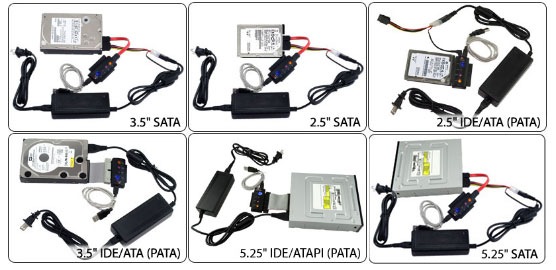
Just kidding. Actually, the first thing to do is determine if it really is a hard-drive failure you’re confronting, and not one of the countless other equipment glitches that can cause a boot failure. If you have access to another computer, remove the failed hard drive from your sick PC, and hook it up as a secondary drive to the alternate computer. The easiest way to do this is through a USB universal drive adapter(Computer Cables Overview):
USB Universal Drive Adapters
It costs about $30 and is a good device to have around for all sorts of hard-drive diagnostics.
On a Mac, the process is a bit simpler. Use a FireWire cable to hook your nonworking Mac to a working Mac, then, “target boot” the nonworking machine by holding down the T key as you power it on. With either method, it’s possible that your failed hard drive will show up on your healthy computer and reveal its files, in which case your hard drive is probably fine, but your operating system needs to be reinstalled. (Don’t forget to offload your files before you do that.)
If your files don’t show up on the secondary computer, then you are at one of those pivotal moments in life when you find out how much your hard work and treasured memories are really worth to you. Depending on how your drive is damaged, an attempt to salvage your data can cost anywhere from a hundred dollars to several thousand. What’s more, the process can take days—and there is no guarantee that the money and time you invest will produce any results whatsoever.
Now that we’ve gone through the depressing task of properly setting your expectations, here’s the good news: Very often, the data on failed drives is recoverable. In fact, it’s surprising how resilient that information can be—just ask any corporate embezzler who thought he had deleted all the evidence from his PC, only to have it show up later in court. The comparison is apt, since the very same computer forensic tools that uncover digital misdeeds are the ones that can find your treasured family photos.
There are two ways that drives crash: Logical failure and mechanical failure. In a logical failure, the drive’s components are physically undamaged, but because of either accidental formatting or a corrupt file system, the drive is not able to find and navigate its own data. However, unless it has been overwritten, that data still exists on your drive.
A mechanical failure means that your drive has broken parts that are preventing it from working—busted drives often make a telltale clicking sound as they futilely attempt to access their files. If you hear that, your data may still be there, but you’re not getting it back without calling in the experts. And those experts make good money. Data recovery services from Kroll Ontrack, Seagate’s i365(Info: Cost of Seagate Data Recovery Service) and Iomega charge between $500 and $2500 to attempt to salvage data from either logical or mechanical disasters, depending on the severity of the situation. But if you are just dealing with a logical failure, you can get your files back on your own for far less.
We recently attempted a data recovery from the crashed drive 120 GB MacBook drive had spontaneously given up the ghost. We removed the drive from her laptop, then used our USB drive adapter to hook it up to a desktop computer for diagnosis. We didn’t hear any sounds that indicated a truly dead drive, so our first step was to download the free demo diagnostic tool at Prosoft Engineering to check what might be salvageable. Many companies offer demos that will scan your drive and give you a pretty good idea of what’s recoverable before you lay down money to buy their software.
Once the assessment indicated we’d get good results, we used Prosoft’s Data Rescue II software ($99), which is tailored for the Mac OS and Mac-formatted drives. There are far more options for PC owners, including Prosoft’s Data Rescue PC ($99), as well as Ontrack EasyRecovery DataRecovery ($199) and RecoverMyFiles ($60) from GetData.
Most of these recovery products work in a similar way. Install the software, select the defective drive as your source and choose a destination folder to receive the data. (Make sure your recovery drive has enough space for the contents of your failed drive.) Then be prepared to wait, and wait. A full scan and recovery of our 120 GB drive took four days, and a larger drive could take longer.
Recovering a hard drive is a bit like getting back a stolen car—you’ll be happy to have your files back, but the results could be messy. No data recovery program will return your files to you in exactly the condition you originally kept them. These programs are designed to essentially do a data dump from your problem drive to a new drive. Files will be organized by type (JPEG images will be in one folder, Word documents in some other folder, MPEG movies in another) and your songs and photos will be mixed with random sound and image files from your computer’s system folder.
Additionally, the names of all your files will have been changed to various alphanumeric sequences, such as IMG1039.jpg or MOV2010.mov. So be prepared to settle in for a long weekend of sifting through and renaming your files. Oh, and while you’re at it, now’s a good time to buy that backup drive.
RAID Data Recovery Service in Los Angeles
 1. Secure Hard Drive RAID Data Recovery Services
Tel: (323) 944-0822
Address: 8271 Melrose Ave Ste 205, Los Angeles, CA
Website: www.securedatarecovery.com
Why Secure RAID Data Recovery Service:
- Free Data Recovery Diagnostics
- No Data No Recovery Fee
- 24/7 Emergency Expert Services
Secure Data Recovery Services professional team in Los Angeles, CA are hard drive data recovery experts in providing advanced disk data recovery solutions. Secure Data Recovery Services of Los Angeles, CA hard drive data recovery specialists provide: fast, friendly, accurate and reliable data recovery service and specialize in: Raid Recovery, Hard Drive Data Recovery, Apple Mac Data Recovery, SQL Data Recovery and Tape Recovery Services.
Customer Reviews:
I gratefully thank you. Secured Data Recovery Services used specialty tools, procedures and security measures at their phenomenal high tech facility to perform a RAID 1 Data Recovery for our firm with outstanding results. Our critical data vanished overnight when a major power surge zapped our RAID back up system and the technicians in the building could not get it working again. The next day it still was not working and we could not access our information. We called Secured Data Recovery Services who came to our rescue. By the end of the day, everything was working fine, all of our data had been returned, the RAID back up system was fixed and life was good again. I gratefully thank you and all the employees thank you also.
2. 24 Hour Data Los Angeles RAID Data Recovery
Tel: (310) 601-7373
Address: 445 South Figueroa, Suite 2700 Los Angeles, CA 90071
Website: www.24hourdata.com
3. SalvageData RAID Data Recovery
Tel: (213) 550-4427
Address: 355 South Grand Avenue, Suite 2450 Los Angeles, CA 90071
Website: www.salvagedata.com
Find more RAID data recovery service providers in Los Angeles:
Best Cheap Harddrive for Games
I’d like to know what the cheapest 7200 rpm hardrive is that’s good for games. Space isn’t really an issue, maybe 160gb minimum.
Needs to have at least 1t of space and make little noise and stay relatively cool and under about 80 dollars.
To pick the best hard drives for gaming PC, we need to look at the main criteria that will affect the performance of a hard disk.
Generally, desktop hard drives can be installed in either 2.5″ or 3.5″ internal drive bays. Usually desktop HDDs spin at three different speed, 5400, 5900 and 7200 RPM which can be connected to motherboard by IDE/SATA cable. Also there are 10,000 and 15,000 RPM enterprise hard drives for workstation/server computers which are more expensive and usually have Serial Attached SCSI (SAS) connector.
Go to amazon and newegg and search for what you want. A lot of people like WD black drives for their 5 year warranty.
iPhone Data Recovery
 1. About iPhone Data Recovery
iPhones can suffer from glitches, which can result in the phone crashing and needing to be restored. When this occurs, the restore process will wipe the device clean of any data. Data can be restored, however, and the process is simple through iTunes.
Function
Each time the user syncs his iPhone with iTunes, the device will back up unless the backup process is interrupted.
Significance
The backup process will create a disk image of all personal data on the device. When a restored iPhone is connected, iTunes will ask if the user wants to restore using this disk image.
Features
The following data will be backed up and ready to restore in the event of a crash: contacts, settings, applications, text messages, email messages, recent and missed call lists, any mobile Safari favorites, notes saved, set alarm and most preferences.
Misconceptions
Unlike failures in other phones, the iPhone’s syncing process (and the regular backup) prevents the loss of data.
Prevention/Solution
Prevent the need to restore by only installing applications through the App Store. Unauthorized applications through other means can cause the phone to fail or need to be restored in some cases.
Warning
Never interrupt the backup process. You never know when you may need the backup you just interrupted.
2. How to Recover iPhone Data
If you lose the data on your iPhone, all is not lost. Thanks to some free programs and Apple, there is a good chance you can recover your data. These steps walk you through the process.
- Refrain from copying more files onto your iPhone when you think you have lost files. You need to run a scan to see whether your files are still there so you can recover them.
- Download a program that is capable of searching the files on the hard drive of your iPhone. These programs are available for free on the Internet. Once such program is recover4All Pro.
- Allow the program to run so that it can scan and recover all of your files. This can take up to 3 hours because it scans the entire hard drive of the iPhone.
- Connect your iPhone to the computer you usually use to sync them if the above method does not work.
- Hit the Summery tab in iTunes, and click Restore.
- Select, when requested, the option that offers to restore your previous settings. Because your files will be backed up on your computer, your data should be restored.