
iBeesoft Data Recovery is a comprehensive data recovery software designed to retrieve lost, deleted, or inaccessible files from various storage devices, including hard drives, SSDs, USB flash drives, memory cards, and iPhones. Developed by iBeesoft, a company with over 10 years of experience in the software industry, this tool has gained attention for its user-friendly interface and all-in-one approach that combines data recovery, backup, and video repair capabilities.
Data recovery software is non-destructive and read-only, capable of providing safe and accurate retrieval of data from inaccessible, formatted, corrupted, or undetectable storage media. All data including photos, pictures, videos, audio files, music, documents, emails, archives, and other file types lost due to accidental deletion, virus damage, drive corruption, formatting, partition loss, software failure, or system crash can be effectively recovered from all types of storage devices such as internal/external HDDs, SSDs, USB flash drives, pen drives, thumb drives, SD cards, memory sticks, and digital cameras.
iBeesoft Data Recovery works with storage devices of all capacities and supports Windows and macOS operating systems, with versions available for both platforms. The software supports over 1,000 file types and works with APFS, HFS+, exFAT, NTFS, and FAT32 file systems. A dedicated iPhone data recovery version is also available for iOS devices.
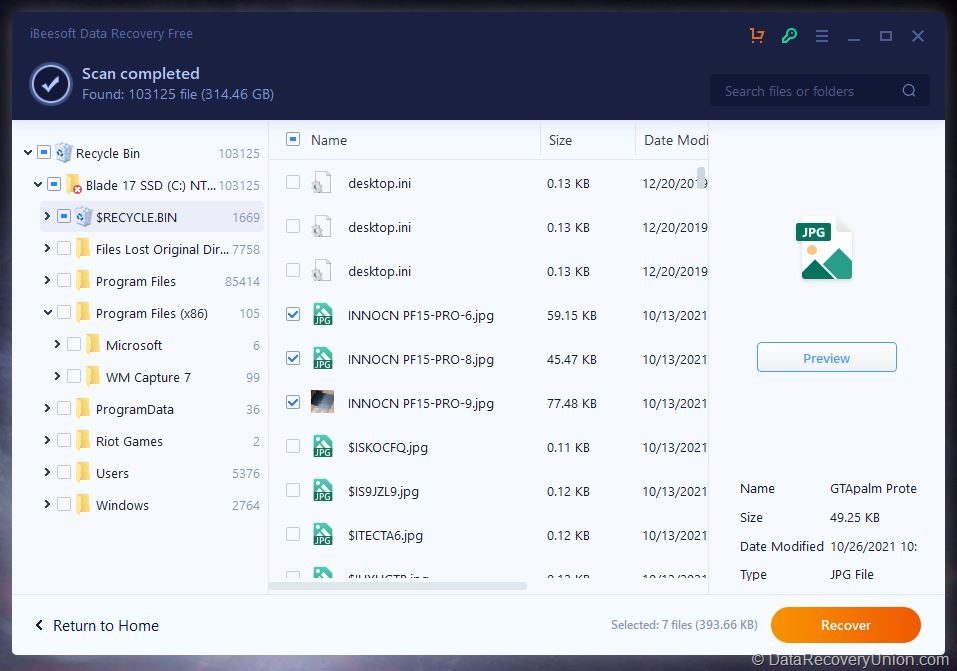
Key Features of iBeesoft Data Recovery
Here are the key features typically associated with iBeesoft Data Recovery:
Comprehensive Device Support
- Storage Devices: Supports HDD, SSD, USB flash drive, memory card (SD, microSD, CompactFlash), external hard drive, digital camera, and more.
- iPhone Recovery: Specialized version for recovering contacts, messages, photos, videos, notes, call logs, WhatsApp messages, and more from iOS devices, iTunes backups, and iCloud backups.
- Disk Interfaces: Compatible with SATA, IDE, USB, and FireWire interfaces.
- File Systems: Supports FAT, exFAT, NTFS, NTFS5, ext2, ext3, HFS+.
Multiple Data Loss Scenarios
- Accidental Deletion: Recovers files deleted from Recycle Bin (Windows) or Trash (Mac) or using Shift+Delete/permanent deletion commands.
- Formatting Recovery: Retrieves data from drives that have been quick-formatted or fully formatted.
- Partition Recovery: Restores lost or deleted partitions and rebuilds corrupted partition tables.
- Corrupted Drive Recovery: Extracts data from drives that appear as RAW or are inaccessible.
- System Crash Recovery: Includes a Crashed Mac Recovery module designed to recover data from unbootable systems.
- Virus Attack Recovery: Recovers files hidden, deleted, or encrypted by malware.
- Empty Recycle Bin/Trash: Recovers files after the Recycle Bin or Trash has been emptied.
Multi-Module Design
iBeesoft Data Recovery is built around several distinct modules:
- Storage Devices Module: The core data recovery module for scanning and recovering lost files from mounted drives.
- Crashed Mac Recovery Module: Designed to recover data from Macs that won’t boot normally.
- Video Repair Module: Allows you to drag and drop old video clips and upgrade their quality before exporting.
- File Backup Module: Enables backup of files, folders, or entire volumes as .dmg files for easy restoration.
- Search Records Module: Maintains logs of previous scans, allowing you to resume a previous search and recovery as needed.
- iPhone Recovery Module: Dedicated module for recovering data from iOS devices and backups.
Two Scan Modes
iBeesoft Data Recovery features multiple scan technologies for different recovery scenarios:
- Quick Scan: For recently deleted files and simple recovery scenarios. Fast and efficient for standard deletions.
- Deep Scan: For formatted, corrupted, or severely damaged drives. Uses advanced deep scanning technology to locate and restore lost files.
File Preview Functionality
Allows users to preview recoverable files before initiating the recovery process. The preview feature supports a wide range of file types including images, documents, videos, and audio files. This enables you to verify file integrity and content before committing to recovery, ensuring you only recover files that are intact and needed.
Selective Recovery with File Categorization
Provides the option to selectively recover specific files or folders rather than restoring the entire scan results. Files are organized into helpful categories:
- All Types
- Pictures
- Documents
- Audio
- Video
- Emails
- Archives
- Others
- Unsaved Documents
User-Friendly Interface
iBeesoft is known for its clean, intuitive interface that makes data recovery accessible to users without technical expertise. The software is designed to guide users through a simple three-step process: select the drive, scan for files, preview and recover.
Supported File Types
iBeesoft Data Recovery supports recovery of over 1,000 file types across all major categories:
| Category | Supported File Types |
|---|---|
| Documents | DOC, DOCX, XLS, XLSX, PPT, PPTX, PDF, RTF, TXT, HTML, and more |
| Images & Graphics | JPG, JPEG, PNG, BMP, GIF, TIFF, PSD, CR2, NEF, RAW, DNG, HEIC, and more |
| Audio | MP3, WAV, WMA, AAC, FLAC, M4A, OGG, and more |
| Video | AVI, MOV, MP4, MKV, WMV, FLV, 3GP, MTS, M4V, MPEG, and more |
| Archives | ZIP, RAR, 7Z, TAR, GZ, CAB, and more |
| PST, OST, DBX, EML, MSG, MBOX, and more |
iPhone Data Recovery File Types
For iOS devices, iBeesoft can recover:
- Contacts
- Messages (SMS, iMessage)
- Photos and Videos
- Notes
- Call Logs
- WhatsApp Messages
- Calendar Events
- Reminders
- Safari Bookmarks
- Voice Memos
How to Use iBeesoft Data Recovery
Follow these simple steps to recover your lost data using iBeesoft Data Recovery:
- Download and Install – Download iBeesoft Data Recovery from the official website. Choose the version for your operating system (Windows or macOS). Important: Do not install the software on the drive from which you want to recover data, as this may overwrite lost files. Install it on your local hard drive or another safe location.
- Launch and Select Recovery Module – Launch iBeesoft Data Recovery. The main screen offers various recovery modules:
- Storage Devices: For recovering from hard drives, SSDs, USB drives, and memory cards
- Crashed Mac Recovery: For recovering from unbootable Mac systems
- Video Repair: For repairing corrupted video files
- File Backup: For backing up important files
- iPhone Recovery: For recovering data from iOS devices
- Select the Target Drive – Choose the drive, partition, or storage device you want to scan. The software displays all connected drives and partitions for easy selection.
- Scan the Drive – Click “Scan” to begin the recovery process. The software performs a Quick Scan first. If the Quick Scan does not find your files, you can proceed to Deep Scan for a more thorough sector-by-sector search. Scan time depends on drive size and condition.
- Preview and Select Files – Browse the recoverable files. iBeesoft organizes files by category (Pictures, Documents, Audio, Video, Emails, Archives, Others) for easy browsing. Use the preview function to verify file integrity before recovery.
- Recover Files – Select the files or folders you wish to restore. Click the “Recover” button and choose a destination location on a different drive to avoid data overwriting.
iPhone Data Recovery Process
For recovering data from an iPhone:
- Choose between three recovery modes: Recover from iOS Device, Recover from iTunes Backup, or Recover from iCloud Backup
- Connect your iPhone to the computer (for device recovery) or sign into iCloud (for cloud recovery)
- Scan the device or backup for recoverable data
- Preview and select the files you want to recover
- Save the recovered files to your computer
Editions and Pricing
iBeesoft Data Recovery offers both free and paid versions to accommodate different user needs:
| Edition | Price | Description | |
|---|---|---|---|
| Free Version (Windows/Mac) | Free | Allows scanning and previewing of recoverable files. Recovery limited to 2GB of data. Includes free 24/7 tech support and free lifetime upgrades. | |
| Personal License (1-Year) | $59.95/year | For one Mac or Windows PC. Unlimited data recovery. Includes tech support and upgrades. | |
| Lifetime License | $129.95 (one-time) | Works on two Macs. Lifetime license with free lifetime upgrades and 24/7 tech support. | |
| iPhone Data Recovery (1-Year) | $39.95/year | For iPhone/iPad/iPod touch data recovery on Windows PC. One license for one computer. |
Note: The free version of iBeesoft allows recovery of up to 2GB of data, which is more generous than many competitors (e.g., Disk Drill offers 500MB, Wondershare Recoverit offers 100MB). However, user reports indicate that recovered files may sometimes be corrupted, and this can happen even with the paid version. The 60-day money-back guarantee has been described by some users as having vague terms.
System Requirements
Before installing iBeesoft Data Recovery, ensure your system meets the following requirements:
- Processor: 1GHz Intel/AMD processor or higher
- RAM: 512MB minimum (1GB or more recommended)
- Hard Disk Space: Approximately 50-100MB for software installation, plus additional space for recovered files
- Supported Operating Systems (Windows):
- Windows 11, 10, 8, 7, Vista, XP
- Supported Operating Systems (Mac):
- macOS Sonoma, Ventura, Monterey, Big Sur, Catalina, Mojave, High Sierra, Sierra, El Capitan, Yosemite (10.10 or later)
- Permissions: Full disk access required for Mac version
iPhone Data Recovery Requirements
For iPhone data recovery functionality:
- Windows PC running Windows 11/10/8/7/Vista/XP
- iTunes installed (for iTunes backup recovery)
- Apple ID and password (for iCloud backup recovery)
- USB cable to connect iPhone to computer
- Latest iOS version compatibility
Known Limitations and Issues
While iBeesoft Data Recovery offers a generous free tier and user-friendly interface, users should be aware of the following limitations and reported issues:
- Crashed Mac Module Reliability Concerns: In independent testing, the Crashed Mac Recovery module could not be tested because the host website hosting the bootable recovery file was down. This core feature was inaccessible, raising concerns about its reliability.
- Recovered Files May Be Corrupted: Multiple user reports indicate that while the software finds deleted files, the recovered files are sometimes corrupted or unreadable. One user reported that “the tool scanning and searching the data, but all the files it recovered NOT WORKING AT ALL”.
- Missing File Names: Even when files are recovered, original filenames may be lost. Users report recovering files with missing names, requiring manual identification.
- Auto-Renewal Subscription Complaints: Many users report unexpected auto-renewal charges with no prior warning. Cancellation can be difficult, with some users having to cancel credit cards to stop charges.
- Poor Customer Service: Multiple complaints about delayed or no responses from customer support. One user reported emailing support three times over a week with no reply.
- Refund Difficulties: Users report that obtaining refunds is challenging, with vague 60-day money-back guarantee terms. Some users report being ignored after requesting refunds.
- Vague Website Information: Conflicting information on the website has been noted, indicating poor attention to detail.
- No Traditional Trial Period: Unlike many competitors, iBeesoft does not offer a traditional trial period with full access before purchase.
- Potential Malware Concerns: One user reported finding iBeesoft files in system directories that were impossible to delete after uninstallation, describing it as “smells of malware”.
- iPhone Version Only Yearly Plan: The iPhone data recovery version is only available through a yearly subscription, not a one-time purchase option.
- SSD Recovery Limitations: Like all data recovery software, iBeesoft struggles with SSDs where TRIM has been enabled, as noted in the company’s own responses to user complaints.
- Overwritten Data Cannot Be Recovered: If lost files have been overwritten by new data, recovery becomes impossible regardless of software quality.
- Physical Damage Not Covered: Cannot recover data from physically damaged drives (broken connectors, burned circuit boards, water damage). Hardware repair is required first.
Comparison at a Glance
| Feature | iBeesoft Data Recovery | Typical Competitors |
|---|---|---|
| Free Tier | 2GB recovery limit | Often 500MB-1GB limit |
| Lifetime License | $129.95 one-time | Often $70-$150 one-time |
| Annual License | $59.95/year | Often $60-$100/year |
| iPhone Recovery | ✓ Separate version | Not typically available |
| Video Repair | ✓ Included | Not typically included |
| File Backup Module | ✓ Included (.dmg backup) | Not typically included |
| File Preview | ✓ Included | Standard feature |
| Crashed Mac Recovery | ✓ Module available | Often premium feature |
| Platforms | Windows, Mac, iOS | Often Windows only |
Common Data Loss Scenarios Where iBeesoft Excels
- Accidental Deletion: You emptied the Recycle Bin or Trash – iBeesoft can scan and recover recently deleted files.
- Formatting: Whether quick format or full format on a USB drive, hard drive, or memory card – the software can retrieve data through Deep Scan.
- iPhone Data Loss: Lost contacts, messages, or photos after an iOS update or accidental deletion – the iPhone version offers recovery from device, iTunes backup, and iCloud backup.
- Shift+Delete Mistakes: Files deleted without going to Recycle Bin can be recovered if not overwritten.
- USB Drive and Memory Card Recovery: Effective for recovering photos and videos from corrupted memory cards.
- System Crash on Mac: The Crashed Mac Recovery module is designed for this scenario, though its reliability has been questioned.
- Corrupted Video Files: The built-in video repair module can fix corrupted or damaged video files.
User Reviews and Reputation
iBeesoft has received mixed reviews across various platforms:
Positive feedback highlights:
- Many users report successful recoveries, with one user stating iBeesoft was “THE ONLY tool that found my file” after trying dozens of alternatives.
- The interface is praised as “simple, clear, and intuitive”.
- Some users report fast recovery speeds, with one user recovering files “in 2 minutes”.
- The software’s ability to preserve folder structure is noted as a time-saver.
Negative feedback highlights:
- Multiple users report that while files are found, recovered files are corrupted or unreadable.
- Complaints about auto-renewal and difficulty canceling subscriptions are common.
- Poor customer service response times and unhelpful replies.
- Refund difficulties despite the 60-day money-back guarantee.
- The Crashed Mac Recovery module was inaccessible during testing.
On Trustpilot, iBeesoft has an average rating of approximately 3.5 out of 5 stars based on user reviews.
Final Verdict: Is iBeesoft Data Recovery Right for You?
iBeesoft Data Recovery is a feature-rich, multi-module data recovery tool that stands out for its generous 2GB free tier, all-in-one approach combining recovery with backup and video repair, and cross-platform support for Windows, Mac, and iOS devices. The user-friendly interface makes it accessible to beginners.
However, the software has significant reliability concerns. Independent testing found a core feature (Crashed Mac Recovery) inaccessible. User reports indicate that recovered files are sometimes corrupted, even with the paid version. Poor customer service and difficulties with refunds and subscription cancellations are also frequently cited.
This software is ideal for:
- Budget-Conscious Users: The 2GB free tier is generous enough for many small recovery needs.
- iPhone Users: The dedicated iPhone recovery version offers flexibility with three recovery modes.
- Users Who Want All-in-One: If you need data recovery, backup, and video repair in one tool, iBeesoft offers this combination.
- Beginners: The clean, intuitive interface is designed for users without technical expertise.
Consider alternatives if:
- You need reliable, guaranteed recovery – user reports of corrupted recovered files are concerning.
- You want responsive customer support – many users report delayed or no responses.
- You need Crashed Mac Recovery – this feature could not be tested and may not work reliably.
- You want to avoid subscription auto-renewal issues – complaints about unexpected charges are common.
- You need professional-grade reliability – established alternatives like R-Studio or EaseUS have better track records.
Pro Tip: After data loss, stop using the affected drive immediately. Do not add new files, run disk repair tools, or attempt to format the drive. Use iBeesoft’s free version (2GB limit) first to scan and preview your files – this confirms whether your data can be recovered before you purchase a license. However, be aware that even if files are found during scanning, recovered files may still be corrupted. If you choose to purchase, carefully monitor subscription renewal dates to avoid unexpected charges. For critical data, consider using a more established recovery tool as a backup option.
Official website: www.ibeesoft.com
Disclaimer: Recovery success depends on multiple factors, including how long ago data was lost, whether the drive has been used since the loss, and the extent of corruption or physical damage. No data recovery software can guarantee 100% recovery in all situations. User-reported issues with corrupted recovered files and auto-renewal subscriptions should be considered before purchase. This article is for informational purposes only. All product names, logos, and brands are property of their respective owners.
“`