Articles

Seagate Barracuda 7200.10 PCB Buying Guide

As we know:  Seagate Barracuda 7200.10 HDD can’t spin; board/chip be burnt; interface broken; etc. These problems are caused by PCB malfunction. Swap PCB of your Seagate Barracuda 7200.11 hard drives can resolve the problems.

1. Seagate Barracuda 7200.10 Hard Drives PCB Buying Guide:

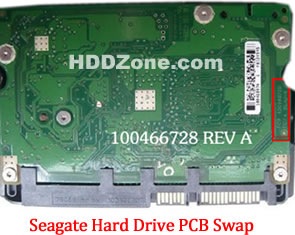
For Seagate HDD, just need the donor PCB has the same board number as yours.

seagate-hard-drive-pcb-swap

* Seagate Hard Drive PCB Swap

2. Before Seagate Barracuda 7200.10 HDD PCB Swap you should know:

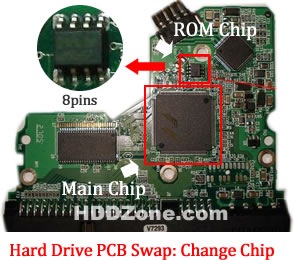
1. Most PCB’s BIOS chip(ROM Chip) store the unique information. We need change the BIOS form original PCB to replacement PCB, in order to make the replacement PCB compatible with the HDD.  The 8pins (4 pins on each sides) with 25P05VP、25P10VP、25F512、25F1024、25F1024AN、SST25VF512、SST25VF010, etc. are the BIOS Chip.

Tips: Most of the TV/Phone Repair Shop can offer these services for just $5-%20

hard-drive-pcb-swap-change-chip

* Hard Drive PCB Swap: Change BIOS Chip, Main Chip

2. Some PCB don’t have separate BIOS. The BIOS be integrated on the Main Controller IC(The biggest chip on the board, also named Main Chip). We should exchange the Main Controller IC to let the HDD be recognized.

3. Where to buy Seagate Barracuda 7200.10 PCB Circuit Boards?

Seagate 100468303 PCB
Seagate 100395316 PCB
Seagate 100422559 PCB
Seagate 100473090 PCB
Seagate 100470387 PCB
Seagate 100390920 PCB
Seagate 100428473 PCB
Seagate 100406538 PCB
Seagate 100428473 PCB
Seagate 100427286 PCB
Seagate 100406538 PCB
Seagate 100406533 PCB
Seagate 100431066 PCB
Seagate 100431065 REV C PCB
Seagate 100468303 PCB
Seagate 100435196 PCB

Note: Seagate Barracuda 7200.10 PCB sells on HDDZone.com are fully tested before shipment(worldwide free shipping now!); These are just PCB (Printed Circuit Boards), not the whole HDD (Hard Disk Drive).

More other pcb swap guide please refer to this post: hard Drive PCB Swap

Seagate Barracuda 7200.10 PCB Buying Guide Read More »

Seagate Barracuda 7200.11 PCB Buying Guide

As we know:  Seagate Barracuda 7200.11 HDD can’t spin; board/chip be burnt; interface broken; etc. These problems are caused by PCB malfunction. Swap PCB of your Seagate Barracuda 7200.11 hard drives can resolve the problems.

1. Seagate Barracuda 7200.11 Hard Drives PCB Buying Guide:

For Seagate HDD, just need the donor PCB has the same board number as yours.

seagate-hard-drive-pcb-swap

* Seagate Hard Drive PCB Swap

2. Before Seagate Barracuda 7200.11 HDD PCB Swap you should know:

1. Most PCB’s BIOS chip(ROM Chip) store the unique information. We need change the BIOS form original PCB to replacement PCB, in order to make the replacement PCB compatible with the HDD.  The 8pins (4 pins on each sides) with 25P05VP、25P10VP、25F512、25F1024、25F1024AN、SST25VF512、SST25VF010, etc. are the BIOS Chip.

Tips: Most of the TV/Phone Repair Shop can offer these services for just $5-%20

hard-drive-pcb-swap-change-chip

* Hard Drive PCB Swap: Change BIOS Chip, Main Chip

2. Some PCB don’t have separate BIOS. The BIOS be integrated on the Main Controller IC(The biggest chip on the board, also named Main Chip). We should exchange the Main Controller IC to let the HDD be recognized.

3. Where to buy Seagate Barracuda 7200.11 PCB Circuit Boards?

Seagate 100565308 PCB
Seagate 100512588 REV A PCB
Seagate 100466725 PCB
Seagate 100498535 PCB
Seagate 100475720 PCB
Seagate 100442000 REV A PCB
Seagate 100512588 REV A PCB
Seagate 100475720 PCB
Seagate 100466725 PCB
Seagate 100530756 REV A PCB
Seagate 100496208 PCB
Seagate 100466824 PCB
Seagate 100498535 PCB

Note: Seagate Barracuda 7200.11 PCB sells on HDDZone.com are fully tested before shipment(worldwide free shipping now!); These are just PCB (Printed Circuit Boards), not the whole HDD (Hard Disk Drive).

More other pcb swap guide please refer to this post: hard Drive PCB Swap

Seagate Barracuda 7200.11 PCB Buying Guide Read More »

Western Digital 2.5″ Laptop PCB Buying Guide

As we know:  Western Digital 2.5” Laptop HDD can’t spin; board/chip be burnt; interface broken; etc. These problems are caused by PCB malfunction. Swap PCB of your Western Digital 2.5” Laptop hard drives can resolve the problems.

1. Western Digital 2.5” Laptop Hard Drives PCB Buying Guide:

For Western Digital 2.5” Laptop HDD, just need the donor PCB has the same board number as yours.

western-digital-hard-drive-pcb-swap

2. Before Western Digital 2.5” Laptop PCB Swap you should know:

1. Most PCB’s BIOS chip(ROM Chip) store the unique information. We need change the BIOS form original PCB to replacement PCB, in order to make the replacement PCB compatible with the HDD.  The 8pins (4 pins on each sides) with 25P05VP、25P10VP、25F512、25F1024、25F1024AN、SST25VF512、SST25VF010, etc. are the BIOS Chip.

Tips: Most of the TV/Phone Repair Shop can offer these services for just $5-%20

2. Some PCB don’t have separate BIOS. The BIOS be integrated on the Main Controller IC(The biggest chip on the board, also named Main Chip). We should exchange the Main Controller IC to let the HDD be recognized.

3. Where to buy Western Digital 2.5” Laptop PCB Circuit Boards?

WD 2060-771692-002 PCB
WD 2060-771692-005 PCB
WD 2060-771737-000 PCB
WD 2060-771814-001 PCB
WD 2060-771820-000 PCB
WD 2060-771823-000 PCB
WD 2060-771714-002 PCB
WD 2060-771754-000 PCB
WD 2060-701675-004 PCB
WD 2060-701572-002 PCB
WD 2060-771672-004 PCB
WD 2060-771672-001 PCB
WD 2060-701675-001 PCB
WD 2060-701499-005 REV A PCB
WD 2060-701402-002 PCB
WD 2060-701401-002 PCB
WD 2060-701578-001 PCB
WD 2060-701499-000 REV A PCB
WD 2060-701450-011 REV A PCB
WD 2060-701424-007 REV A PCB
WD 2060-701510-000 PCB

Note: Western Digital 2.5″ Laptop PCB sells on HDDZone.com are fully tested before shipment(worldwide free shipping now!); These are just PCB (Printed Circuit Boards), not the whole HDD (Hard Disk Drive).

More other pcb swap guide please refer to this post: hard Drive PCB Swap

Western Digital 2.5″ Laptop PCB Buying Guide Read More »

WD Designs First Hard Drives for SOHO NAS Systems

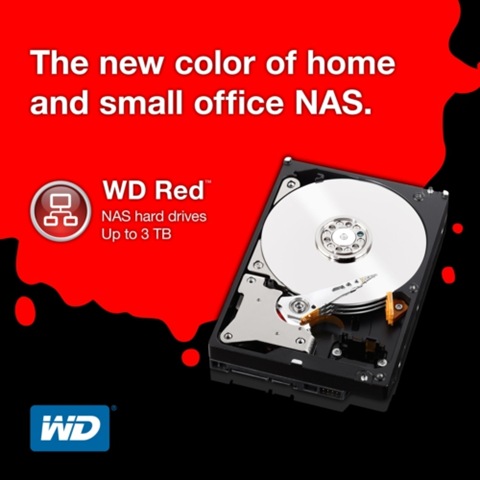
WESTERN DIGITAL TECHNOLOGIESNew WD Red™ Drives Optimized for Compatibility in Always-on 1- to 5-Bay NAS Systems; Provide Buyers More Choices Tailored to Their Needs.

WD®, a storage industry leader, today announced the debut of  WD Red™ NAS hard drives, an innovative line of SATA hard drives specifically designed for home and small office NAS (network attached storage) systems with one to five drive bays. Compatibility-tested with top NAS box manufacturers and optimized for power and performance, WD Red hard drives are now shipping in 3.5-inch 1 TB, 2 TB and 3 TB capacities.

The WD Red line features NASware™ technology, designed to improve reliability and system performance, reduce customer downtime and to simplify the integration process. This new product line addresses the unique environment of NAS and the growing demand for affordable, reliable and compatible storage that reduces customer total cost of ownership. WD Red hard drives also feature 3D Active Balance Plus, an enhanced balance control technology, which significantly improves the overall drive performance and reliability. In an exclusive for WD Red customers, WD is offering free premium 24×7 dedicated support and a three-year limited warranty.

The addition of WD Red expands WD’s “Power of Choice” client hard drive solutions. WD recognizes that customers and their applications are diverse and they should be empowered to choose the drives that best suit their specific storage needs. With distinguishable colors, the “Power of Choice” storage solutions are clear and easy to identify: WD Blue™ (solid performance and reliability for everyday computing) WD Green™ (cool, quiet, eco-friendly), WD Black™ (maximum performance for power computing), and WD Red (home and small office NAS). The four colors enable quick selection of the best WD drive for customers’ application or usage requirements.

The network attached entry level storage market is poised to grow at an 86.2 percent 2011-2016 CAGR1,” according to John Rydning, IDC’s research vice president for hard disk drives. “WD’s new WD Red hard disk drives offer a unique combination of product features and customer support for users seeking to expand the capacity of their entry-level network attached storage solutions.

Until now, customers had to choose between using desktop or high-end server drives for their home or small office NAS systems – neither of which were both cost effective for consumer solutions and fully NAS compatible, WD saw this challenge as a perfect opportunity to design a better solution so we developed WD Red drives, an optimized product for this rapidly growing segment. said Melyssa Banda, senior director of product marketing for WD.

WD Red hard drives integrate seamlessly with WD NAS solutions and are qualified to work with a wide array of WD OEM partners. An updated list of WD Red-qualified products and manufacturers is available on the WD website at: http://www.wdc.com/en/products/products.aspx?id=810

Availability and Pricing
WD Red hard drives are available now at select resellers and distributors. Manufacturer’s suggested retail price (MSRP) for the WD Red 1 TB drive (model #: WD10EFRX) is $109.00 USD, the 2 TB drive (model #: WD20EFRX) is $139.00 USD and the 3 TB drive (model #: WD30EFRX) is $189.00 USD. More information about WD Red hard drives including terms of the limited warranty may be found on the company website at: http://www.wdc.com/en/products/products.aspx?id=810

WD Red NAS Hard Drive Launch Partners

WD Branded Products
     “The My Book Live family has received strong reception from consumers and the WD Red drive offers attributes ideal for small NAS systems,” said Scott Vouri, vice president and general manager of WD’s connected home solutions group. “My Book Live customers will benefit from WD Red’s NASware features in the future.”

QNAP Systems, Inc.
     “The rapid growth of the global NAS market has led to hard drives optimized specifically for entry-level NAS use,” said Richard Lee, CEO of QNAP Systems, Inc. “The launch of WD Red NAS hard drives offer QNAP® four-bay NAS products a reliable solution for 24×7 operations. QNAP also provides a broad range of high-end business level NAS solutions well matched with WD RAID level hard drives.”

Synology Inc.
     “Synology® is thrilled to be teaming up with WD to offer customers a reliable storage solution featuring WD Red NAS hard drives, which are optimized for consumer NAS systems,” said Vic Hsu, CEO of Synology Inc. “The award-winning Synology DiskStation makes it easy for users to build secure private clouds that operate at maximum uptime. By delivering our unique technologies together, Synology and WD will provide users with greater reliability, cooler operation and a higher quality of user experience.”

Thecus Tech., Corp.
   “The compatibility of Thecus® NAS with the new and dynamic WD Red HDDs is excellent news for all,” said Florence Shih, general manager of Thecus. “To realize this vision, users can experience firsthand true power and performance. Ultimately, the congruency among WD Red hard drives with Thecus NAS brings great opportunities to the storage industry.”

WD Designs First Hard Drives for SOHO NAS Systems Read More »

The Risks of Using Portable Drives

Portable storage devices are pretty important in today’s day and age. You can hardly go anywhere without seeing someone or the other with a flashy hot pink one or sporting  a USB braided in between funky strings around their neck. Perhaps that’s going a bit too far but you might as well always have one in your wallet or your car dashboard. That is just how essential they have become for us that at any given time, we may feel the need for more storage.  But of course, like all things that give us some technological advantage, there are drawbacks.

Easy to Store, Easier to Lose
In the case, of portable drives, the major disadvantage comes with the concerns of privacy and security. In short, these drives are almost a sure fire way to get yourself upped with a keylogger app or some computer monitoring software or the other. And then what happens. Not only do you compromise your security with risks of losing data but also risk all your personal information falling into malicious hands.

So you should be aware of the risks that come with using these cheap and easy tools. Starting with the basics, they are pretty flimsy and can get damaged very easily. This means you need to be extra careful with them so you don’t damage them to the point of no return…which means you losing all your saved data which is usually comprised of your entire backup. But that is the obvious and physical aspect of it which you probably already know. The solution to that is to use the software backup option that most USBs come with. This way if the USB is damaged, you still have the information stored somewhere on cloud. And if not, opt for cloud data storage.

What Organizations Dread
Let us come to the more sinister side, the side that is susceptible to all sorts of dangers including malware, spyware such as computer monitoring software, bugs, Trojans and the never ending list of cyber calamities goes on. People have horror stories about free keyloggers, and even paid ones that were used to infiltrate their privacy. Just like other hard drives, CD ROMS, and floppy disks, USBs and other portable hard drives are just as targetable by virus and similar spyware risks. So for organizations, the fear that their workers can lose and mishandle information they store on portable drives in order to change work environments (for e.g, from work to home or to a remote system), is more real than any other malicious malware threat around.

To secure themselves from a nightmare scenario where things get ported out too fast and without warning, most organizations make sure they have complete virus and spyware protection solutions in place. But that’s the thing with these portable drives; threats can go completely and thoroughly undetected.   So again, what is the solution?

What Is Available
Well really no easy solution. At best, for organizations they can attempt to disable USB usage altogether. So instead of restricting USBs on premises (which is really a fallible plan), companies can use special computer monitoring software to block any one storing and transferring data via the portable device. Of course, for this, a lot of investment needs to be done on the part of the IT Department. But as the menace of data and security breach continues, it seems to be worth looking into. However, the question that raises itself is whether the future of technology can find a cheap and reasonable solution to this problem.

Author Bio
Jane Andrew is a writer and guest blogger of mobistealth with years of experience in tech industry. She loves to write about computer monitoring software and keylogger. You can also follow her on Twitter @janeandrew01 to get tip and news about cell phone.

The Risks of Using Portable Drives Read More »

Microsoft’s Surface – easier to repair than a MacBook Pro?

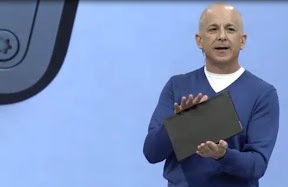
Microsoft’s forthcoming Surface tablet could be easier to repair and upgrade than its buttoned up rivals like the MacBook Pro.

Increasingly, iPads, Mac notebooks and high end smartphones are turning into sealed units with few or no user-serviceable parts (for example, iFixit called the MacBook Pro with retina display “the least repairable laptop we’ve ever taken apart”).

It’s nothing new; getting into the original Mac required a large gadget called the case-cracking tool to lever apart the seam of the case, as well as a set of Torx screwdrivers, although Apple’s new MacBook Pro takes this to extremes. There are reasons for sealed units that have to be professionally serviced, as well as good arguments against them.

Sleek, seamless, integrated devices need careful construction; it’s about fitting components together as much as it is about stopping you adding a different hardware component that might or might not perform well in the device.

But it’s nice if hardware design makes it easy to replace the battery or upgrade the storage; even the sleekest PC notebooks have removable panels to simplify that.

Even if you don’t want to tinker yourself, it means you can shop around if your device ever needs repairing. And if you don’t care about the on-going costs of keeping your device working, can I suggest a charity donation, because you obviously have spare cash in your pockets?

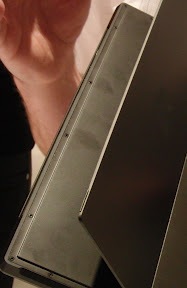
The back of the Microsoft Surface looks as sleek and seamless as you can get, until you snap up the kickstand hinge. As well as giving you a stable surface it also reveals ten or so screws holding down a removable panel under the hinge mechanism. They’re Torx screws (not even the Torx Plus or Torx Security screws) so you can get a screwdriver to open them easily. And that could mean the Surface will be cheaper to repair and easier to upgrade.

surface-screws

Screws neatly under the hinge

screw-detail

Close up of the Torx screws (top left)

Don’t expect to be able to change most of the components, especially not on the Surface for Windows RT; both that and the Surface for Windows 8 Pro have a tightly integrated CPU and GPU, in a System on Chip design.

And it wouldn’t be surprising if the memory was soldered in the same way it is in the iPad and the latest MacBook Pros – that would avoid errors from RAM chips working their way out of the socket and possibly save a small amount of space. But Microsoft doesn’t have the scale to have a custom connector on the SSD the way Apple does in its latest models, so you might well be able to upgrade the storage.

Being able to open the Surface yourself should make it easier to replace the battery when it stops taking a full charge (which all batteries do eventually), or take it to a third-party repairer instead of having to trek to a Microsoft Store.

I’ve often argued that tablets are appliances rather than general purpose computers, but that doesn’t mean they have to hard to upgrade or repair. I can order official spare parts for my oven and dishwasher and fit them myself for a fraction of the cost of an accredited repair (one oven handle, one oven door, one dishwasher handle and umpteen oven lightbulbs later, I’ve saved a fair amount).

If Microsoft can make an ultra-thin tablet that you can still open up to repair, that’s another tribute to its design skills.

Microsoft’s Surface – easier to repair than a MacBook Pro? Read More »

Best Web Hosting Service: Brain Host

brainhost-logoI have had the pleasure of being a Brian Host client for a couple months, and I love the customer service and interest in their clients. This is definitely a host that cares!

Why choose Brain Host Web Hosting Service?

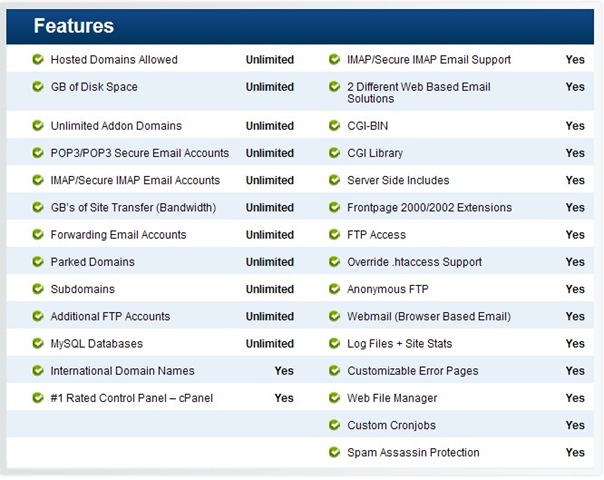
Unlimited data transfer, unlimited web space, and unlimited domain hosting. Brain Host web hosting packages also provides tons of free bonuses, like daily spam and spyware scans, free marketing credits, and their easy-to-use site builder. You’ll also get tons of convenient features and tools, like hassle-free FTP accounts, dozens of one-click install applications like WordPress, Drupal, and Joomla, and extensive programming language support. Dedicated support staff is available 24/7 via phone, email, and live chat to answer all of your web hosting questions, and they also provide online tutorials, videos, and an extensive Knowledge Base to teach you how to get the most out of your web space. With feature-rich web hosting packages starting at as little as $6.95 per month, they have got a plan for everyone!

Two types of web hosting services:

  • Shared Hosting – With shared hosting, many websites are stored on the same web server, with each site having its own section of the server.
  • Dedicated Hosting – With dedicated hosting you rent out the entire server. This is a great option for large sites that get a lot of traffic. Dedicated hosting also allows you to have more control over your hosting environment, since you’re in control of the server instead of your web hosting provider.

Brain Host Web Hosting Plans:

brainhost-web-hosting-service

Brain Host strives to provide a top of the line web hosting service. Each of their feature-rich hosting plans comes with everything you need to help you manage your web space.

Brain Host Web Hosting Features:

brainhost-features

brainhost-features-bonus

brainhost-features-guarantees

Best Web Hosting Service: Brain Host Read More »

Seagate Barracuda 7200.12 PCB Buying Guide

As we know:  Seagate Barracuda 7200.12 HDD can’t spin; board/chip be burnt; interface broken; etc. These problems are caused by PCB malfunction. Swap PCB of your Seagate Barracuda 7200.12 hard drives can resolve the problems.

1. Seagate Barracuda 7200.12 Hard Drives PCB Buying Guide:

For Seagate HDD, just need the donor PCB has the same board number as yours.

seagate-hard-drive-pcb-swap

* Seagate Hard Drive PCB Swap

2. Before Seagate Barracuda 7200.12 HDD PCB Swap you should know:

1. Most PCB’s BIOS chip(ROM Chip) store the unique information. We need change the BIOS form original PCB to replacement PCB, in order to make the replacement PCB compatible with the HDD.  The 8pins (4 pins on each sides) with 25P05VP、25P10VP、25F512、25F1024、25F1024AN、SST25VF512、SST25VF010, etc. are the BIOS Chip.

Tips: Most of the TV/Phone Repair Shop can offer these services for just $5-%20

hard-drive-pcb-swap-change-chip

* Hard Drive PCB Swap: Change BIOS Chip, Main Chip

2. Some PCB don’t have separate BIOS. The BIOS be integrated on the Main Controller IC(The biggest chip on the board, also named Main Chip). We should exchange the Main Controller IC to let the HDD be recognized.

3. Where to buy Seagate Barracuda 7200.12 PCB Circuit Boards?

Seagate 100517995 PCB
Seagate 100629241 PCB
Seagate 100611782 PCB
Seagate 100616260 PCB
Seagate 100617476 PCB
Seagate 100546571 PCB
Seagate 100608206 PCB
Seagate 100602819 PCB
Seagate 100656494 PCB
Seagate 100619454 PCB
Seagate 100589569 PCB
Seagate 100595933 PCB
Seagate 100611023 PCB
Seagate 100645422 PCB
Seagate 100653600 PCB
Seagate 100603470 PCB
Seagate 100513586 PCB
Seagate 100573971 PCB
Seagate 100603204 PCB
Seagate 100591286 PCB
Seagate 100583883 PCB
Seagate 100557583 PCB
Seagate 100533173 PCB
Seagate 100579470 PCB
Seagate 100536501 REV A PCB
Seagate 100535537 PCB
Seagate 100574451 PCB
Seagate 100550361 REV A PCB
Seagate 100535704 PCB
Seagate 100536501 REV A PCB
Seagate 100532367 PCB
Seagate 100535537 PCB

Note: Seagate Barracuda 7200.12 PCB sells on HDDZone.com are fully tested before shipment(worldwide free shipping now!); These are just PCB (Printed Circuit Boards), not the whole HDD (Hard Disk Drive).

More other pcb swap guide please refer to this post: hard Drive PCB Swap

Seagate Barracuda 7200.12 PCB Buying Guide Read More »

Western Digital PCB Buying Guide (SATA)

As we know:  Western Digital HDD can’t spin; board/chip be burnt; interface broken; etc. These problems are caused by PCB malfunction. Swap PCB of your Western Digital SATA hard drives can resolve the problems.

1. Western Digital Hard Drives PCB Buying Guide (SATA):

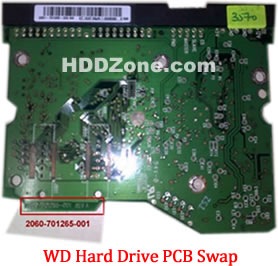
For Western Digital HDD pcb swap needs,  you just need the donor PCB has the same pcb board number(2060-701265-001) as yours.

western-digital-pcb-buying-guide

One thing you should know before this purchasing: Most PCB’s BIOS chip(ROM Chip) store the unique information. We need change the BIOS form original PCB to replacement PCB, in order to make the replacement PCB compatible with the HDD.  The 8pins (4 pins on each sides) with 25P05VP、25P10VP、25F512、25F1024、25F1024AN、SST25VF512、SST25VF010, etc. are the BIOS Chip. LocalTV/Phone Repair Shop can offer these services for $5-%20.

2. Where to buy these Western Digital PCB circuit boards?

Western Digital PCB 2060-771702-001
Western Digital PCB 2060-771590-001
Western Digital PCB 2060-701477-001
Western Digital PCB 2060-771640-002
Western Digital PCB 2060-771577-001
Western Digital PCB 2060-771698-002
Western Digital PCB 2060-701640-006
Western Digital PCB 2060-771640-003
Western Digital PCB 2060-701640-005
Western Digital PCB 2060-771668-000
Western Digital PCB 2060-771642-000
Western Digital PCB 2060-701640-007
Western Digital PCB 2060-701567-000
Western Digital PCB 2060-701640-000
Western Digital PCB 2060-701640-001
Western Digital PCB 2060-701640-002
Western Digital PCB 2060-771642-001
Western Digital PCB 2060-701590-001
Western Digital PCB 2060-701563-000
Western Digital PCB 2060-701520-000
Western Digital PCB 2060-701310-004
Western Digital PCB 2060-701537-004
Western Digital PCB 2060-701383-001
Western Digital PCB 2060-701384-002
Western Digital PCB 2060-701453-000
Western Digital PCB 2060-701293-001
Western Digital PCB 2060-701393-002
Western Digital PCB 2060-701444-003
Western Digital PCB 2060-701444-004
Western Digital PCB 2060-701477-002
Western Digital PCB 2060-701537-003
Western Digital PCB 2060-701552-003
Western Digital PCB 2060-701577-001
Western Digital PCB 2060-701590-000
Western Digital PCB 2060-701335-003
Western Digital PCB 2060-701335-005
Western Digital PCB 2060-701310-003
Western Digital PCB 2060-001293-000
Western Digital PCB 2060-001252-000
Western Digital PCB 2060-701537-002
Western Digital PCB 2060-001293-001
Western Digital PCB 2060-701335-002

Note: Western Digital PCB sells on HDDZone.com are fully tested before shipment(worldwide free shipping now!); These are just PCB (Printed Circuit Boards), not the whole HDD (Hard Disk Drive).

More other pcb swap guide please refer to this post: hard Drive PCB Swap

Western Digital PCB Buying Guide (SATA) Read More »

How to resolve NTFS Partitions Problems

ntfs-partitions The first sector of NTFS partitions is used as the partition boot sector. It contains the information which allows the OS to read the partition. Without it, the partition cannot be accessed.

NTFS has a backup copy of the boot sector on the last sector of the partition which can allow recovery programs to restore it. The FAT also has the boot sector, and resides on the first sector of this partition. The difference is that FAT does not have a backup copy of this information; Recovery is much more difficult than NTFS.

The first file stored on an NTFS partition is called the Master File Table (MFT) which is essentially a listing of the names, properties and locations of all the other files in this partition. This is referenced by the operating system to access individual files.

NTFS stores a backup copy of this file. Data restoration software can access or restore a copy of the MFT in order to access files on the partition.

FAT partitions with something similar, called predictably enough the File Allocation Table (FAT). The FAT is also backed up on the disk, and can be restored by software. The major disadvantage of the FAT as compared to the MFT is that it needs to be located on a specific area of the partition to function, so if that area of the disk is damaged, recovery will become more difficult.

When a file is deleted (removed from the recycle bin within Windows), both file systems simply mark the file as deleted. The data is not actually removed from the hard drive, but rather the space it takes up on the disk is now considered to be free. Consequently, if you delete a file accidentally, you have an excellent chance of being able to restore it provided you do not write more information to the disk.

For example, If you two NTFS partitions on the effected disk. When you ran FDISK, it wrote garbage information over certain areas of this disk, including areas of both partitions. As a result, the first partition (the one with your article on it) had lost its partition boot sector, meaning it could not be accessed normally by an operating system. The second partition had merely had crucial system files overwritten, and was unbootable, but still can accessible once you transferred the disk to another computer.

There is a way to fix all of this, and get the data back

One rule to remember when you have lost data, please don’t write anything more to the affected hard drive!

If you have deleted a partition by accident, do not create another partition, just leave it blank.
If you have deleted files from the recycling bin that you realize you need, do notsave anything to the drive. The reason is that hard drives do not actually erase anything, not data or partitions. When you erase a file from the operating system, it is just marked on the drive as having been deleted. When the system needs to store more data on the drive, it will consider files on the drive marked ‘deleted’ as being empty space, and cheerfully copy over them. If that happens then you’re in big trouble.

Another rule applies twice over for partitions; since partition information just presents the operating system with a way of addressing the space available on the drive. If you wipe out a partition everything from it will seem to be gone.

If there is no partition information, no data can be read by the operating system. This does not mean that your data it is not there however, only that means you can’t see it. Data-recovery programs have no such handicap.

What you need to do was to allow FDISK to test the integrity of the drive, which it does by writing a pattern of data to certain areas. Of course, in the case, many of these areas contained partition information and critical system files. The result was one missing partition, due to a destroyed boot sector, and one unbootable (but still readable) XP installation.

How.
First and best thing to do in a data-loss situation is to make sure no more data is written to the drive. Obviously, if you have just the one partition and it’s fried, you can’t boot normally to the operating system. The best option in this situation is to transfer the drive to another computer, preferably one using the same file-system as your damaged partition (such as, the same operating system, or a newer version). See the PCSTATS Beginners Guides sectionfor information on how to move your hard drive to another computer.

Transferring the HDD to another computer has the dual benefit of preventing the drive from being written to accidentally, and potentially allowing you to retrieve information from the disk just by using Windows Explorer to look through file structures.

If you have damaged or erased essential operating system files, but the partition information is still intact Windows will not boot. The HDD can still be read from a different operating system which is one way out of the doom and gloom.

All the processes described from here on are strictly for resolving software issues with your data, like accidentally deleting partitions or files. If your hard drive has a physical problem, if it is making strange noises, shaking, rattling or smoking, nothing here will apply. Turn off your computer, unplug the drive and call a data recovery service if your data are vital.

How to resolve NTFS Partitions Problems Read More »

Scroll to Top