Articles

Can a Regular Person Repair a Damaged Hard Drive?

This story was written to detail the options a user has when a hard drive with important data dies unexpectedly. Many of you have left comments advocating the freezer trick, stating that used as a Hail Mary, you’ve had good results. I do not dispute that the freezer trick *can* work. If you have a hard drive you don’t really care about, and you’re curious to see if you can get the data, by all means, freeze it.

If you do need your data back to the point that you’re considering paying someone to retrieve it, do not freeze the drive, even as a Hail Mary. You may very well make the problem worse and end up costing yourself money.

On June 22, 2012, my primary hard drive, a Samsung HD103SI, quietly passed away. There was no warning — no grinding, no clicks, clacks, or sudden bang. One moment, I was working on a story, the next, I wasn’t.

It quickly became clear that something more serious than a simple system lock had happened. Post-reboot, the HDD would spin up smoothly, beep 12 times, and then spin down. The drive was never recognized in BIOS, which nixed any chance of using disk recovery software to extract data.

This is a story of my efforts to repair the drive myself, my research into the question of whether or not users can repair modern hard drives, and the results of my efforts. If your drive is still detected in BIOS, you may be able to use software tools to retrieve your data. Here, we’re going to focus exclusively on hardware-related failures, and what your options are.

Part of the reason for writing this story is that data recovery is difficult to accurately research unless you’re fairly versed in it to start with. There are dozens of data recovery firms, all promising clean rooms, the latest tools, and highly trained professional staff. Many firms refuse to publish their prices online, which makes comparisons difficult, and it’s apparently common for small companies to farm tough jobs out to larger ones.

Step 1: Broadly identify the type of problem

There are two broad categories of problems that can nuke a drive: PCB issues and internal component failures. If the problem is inside the drive, skip down to Step 3. If the problem is on the PCB, there is a glimmer of hope.

damaged-hard-drive-pcb

The best kind of PCB problem to have is a blown Transient Voltage Supressor (TVS) diode, as shown above. According to Seagate’s FAQ, a TVS diode “protects a sensitive circuit by diverting damaging overvoltages and spikes away from the load.” When a spike occurs, the diode blows. Because the diode is no longer functional, the drive won’t power up. Snip the diode off, and the drive will function normally, albeit in an unprotected fashion. Copy your data over to a functional unit, toss the old one, and count yourself lucky.

My hard drive unfortunately didn’t die this way. There was no visible damage to the PCB but when I removed the board and flipped it over I found a burned-out contact point.

Step 2: Understand your options

From here, you’ve got two choices. You can opt for a replacement PCB, or you can buy an entire donor drive. It’s important to secure as close a match as possible between the original HDD and the donor drive/board. In my case, that meant finding an HD103SI PCB that matched my drive’s make/model number, PCB number, board revision, and drive family (Trinity, in this case).

hdd-pcb

The drive controller model number and PCB codes are outlined in red.

hard-drive-pcb

Understand this: Simply replacing the PCB almost certainly won’t fix a dead drive. If it does, you’ve gotten lucky. Each drive ROM contains parameters and data unique to that particular device — if the parameters for your dead drive are different from those contained on the donor PCB, it won’t function.

In my case, I opted for just a PCB. In retrospect, a full drive might have been the better option, but the purchase only set me back $22 and ~14 days while my part took the slowboat from China. Swapping out the PCB eliminated the 12 beeps, but accomplished nothing else. Beep-less, my drive sat mute — spinning, but unrecognized in BIOS.

Your options at this point depend on what sort of HDD you have. Some hard drives have an externally mounted ROM/NVRAM chip that can be removed and soldered on to a new PCB. Other drives, like mine, incorporate the ROM into the controller. The only way to find out is to go digging for information online, and you’ve got to apply a strong sort filter to estimate the value of what you’ll find. A number of dubious websites advertise a “PC3000 PCI” card, for example, but this is almost always a Chinese clone of the original product, and is far too old to handle modern drives in any case. The real PC3000 UDMA test kit runs over $4000 — far more than the typical cost of a data recovery.

After my simple PCB swap didn’t work, I decided to try to repair the burned contacts on the original board. Here, your options are to either buy a conductive ink pen or to use something a bit more humble. I took the humble option, trotted over to an auto parts store, and picked up a rear window defroster repair kit. I taped off the damaged contact, applied the conductive ink, gave it 12 hours of drying time, fired up the drive…

hdd-pcb-3

My repaired PCB. The burned contact is at the far lower right of the group

And nothing had changed. The drive still spun up, emitted twelve beeps, and spun back down.

That was my second major disappointment and it leads directly to the next step…

Step 3: Resist the urge to do something stupid

Surf the internet for more than two minutes, and you’ll find people who recommend you do one of the following things:

  • Stick your hard drive in the freezer
  • Pop your hard drive into the oven
  • Give it a few taps with a hammer or rubber mallet

People will swear by these options and promise you that they’ve revived 15 drives just this way. Don’t listen. I’m not claiming that no person ever brought a disk back to life by jamming in amongst the frozen peas, but this strategy is far more likely to cause irreparable damage than it is to miraculously affect repairs. Keeping the drive in a ziplock bag while in the freezer won’t help; condensation will form on the drive when you remove it from the bag prior to firing it up again.

drive-freezer

This is what happens when you take a drive out of a freezer — whether you bagged it or not

Leaving the drive in the bag until it’s returned to ambient air temperature might prevent condensation from forming on the platters or heads, but the point of the freezer trick is to run the drive at a lower temperature.

Every repair attempt you make should be balanced against the chance of doing additional damage. To that end, never open the enclosure. If putting your hard drive in the freezer is a bad idea, opening it is infinitely worse. You are not qualified to adjust the alignment of heads or platters that normally spin at 75 mph and are aligned to tolerances measured in micrometers.

Step 4: Hire a professional

This is where I ended up. I talked to a number of data retrieval companies, including Datacent and Secure Data Recovery Services. Datacent quoted me a $750 rate for drive head replacement; Secure Data Recovery was less certain of the cause, but believed repair would likely run between $1,200-$1,500. As of this writing, I haven’t decided what to do. Even after extensive research, my objective visibility on Datacent (or any other data recovery firm) is just about nil. If I opt for repair, I’ll certainly report back on my experience, but ultimately I have no way of knowing how difficult it will be for a properly equipped facility to recover my files, how long it will take, or what constitutes a fair market rate.

With all of that said, here’s a few tips on what to look for (and what to avoid).

  • No data, no fee: Avoid companies that insist on charging you for the privilege of failing to provide a useful service.
  • Low-cost evaluation + return fee: Many firms offer a free diagnosis but will charge relatively high postage to send the drive back. $25-$30 for an evaluation+postage seems fairly reasonable, we’d be cautious of companies charging $50 or more for the two services combined.
  • Avoid broad estimates: No firm can completely diagnose a hard drive by remote, but that doesn’t mean they can’t get an idea for what’s wrong. Beware of companies that offer estimates broad enough to buy a car with. At the very least, ask for estimates that fit the typical cost of specific problems
  • Check the price of parts: The quotes we received typically included the cost of replacement parts. Most companies also note, however, that difficult-to-find hardware may still add additional cost. It doesn’t hurt to see if you can self-source the part, particularly when the cost of a donor drive or PCB is a very small fraction of the total recovery fee.

Step 5: Get a (better) backup solution

I’ve learned two important lessons from this failure. The first is that different models of hard drive are more and less user-friendly; careful selection on my part when I bought the drive four years ago would’ve made it much easier to recover my data. The second is that a better backup strategy would’ve made the first point moot. Because I had a basic, episodic backup solution, much of my older data is safe. The only data I lost… was all the data related to ongoing projects that hadn’t been published yet.

That stung. The difficulty of recovering my information in the intervening month only made the situation that much more frustrating.

If you don’t have a backup solution and you actually care about your data, get one. There’s no guaranteed solution once the drive has failed and, unless you get lucky with a TVS burnout, no easy fixes. A burned out drive is your ticket to a whole lot of website surfing, information sifting, and one enormous headache from trying to separate “My cousin’s uncle’s friend’s neighbor’s dog knew a dude who threw his hard drive in a pool and it worked great” from real, reliable, data.

The forums and information at HDDGuru are a good place to start checking for information, but don’t be surprised if you have to check other places just to get an idea of what the problem might be. These waters are largely uncharted, and dragons lurk in the deep.

PS. Don’t do the freezer thing. Really.

Article By Joel Hruska.

Can a Regular Person Repair a Damaged Hard Drive? Read More »

Genie Backup Home 9.0

“Genie Backup Manager Professional has a clear simple interface which lets you manage the application without problems and in just a few minutes. As soon as you start working with it, you’ll see that behind it’s simple appearance lie some advanced options not found in higher-end products.” – Personal Computing World magazine

Genie Backup Manager Home 9.0

genie-backup-manager-home Genie Backup Home 9.0 is a powerful tool for backing up whatever files or folders you consider important.

If you just want to run a quick and simple backup then you’ll appreciate the program’s list of common “Backup Items”. These include your Outlook emails, desktop, Registry, Windows settings and more, and including these in your backup can be as simple as checking a box.

Most of the time you’ll have your own ideas, of course, but it’s almost as easy to choose your own files and folders. Just check the My Folders box, browse the Explorer-type window and check the box next to whatever files or folders you’d like to protect.

The program supports multiple backup types (Full, Incremental, Mirror); your archive can be compressed, or encrypted, then saved to local, removable or LAN folders, FTP servers, or burned to CD, DVD or Blu-ray discs.

And you can then restore individual files or an entire backup later, from within the program. Or, if your system won’t start at all, a bootable Disaster Recovery disc can help you restore normal working order.

The main new features this time are relatively limited (Outlook 2010 support, backups to secure FTP, Windows 8 support). But there are lots of incremental improvements: an enhanced interface, better Volume Shadow Copy support, reduced RAM requirements, improved performance and so on. And that all helps to make a very likeable backup tool, packed with features yet extremely easy to use.

If you need more, though, it might be worth considering Backup Manager Pro 9.0, which adds more powerful encryption; extra scheduling options; the ability to run commands before and after a backup; differential backup support, the ability to back up to an Amazon S3 account, and more.

What’s new in Genie Backup Manager Home 9

  • Enhanced FTP engine.
  • Secure FTP (FTPS) Support.
  • Added Outlook 2010 support
  • Added Windows 8 support.
  • New and enhanced interface.
  • Enhanced Volume Shadow Copy support.
  • Improved Disaster Recovery engine.
  • New CD/DVD/Blu-ray burner.
  • Enhanced Blu-ray support.
  • Enhanced performance.
  • Enhanced memory management; takes less memory resources
  • Updated Genie Agent notifications
  • Enhanced system schedule
  • Added social integration elements.

Platforms: Windows 7 (32 bit), Windows 7 (64 bit), Windows 8, Windows Vista (32 bit), Windows Vista (64 bit), Windows XP

Genie Backup Home 9.0 Read More »

Seagate Acquired Storage Company LaCie

seagate-lacie Following their press releases issued on May 23, 2012 and June 14, 2012, Seagate Technology plc and LaCie S.A. announced the completion of the purchase by Seagate of all of the shares of Philippe Spruch and his affiliate, representing 64.5% of the outstanding shares of LaCie for a provisional price of €4.05 per share. The price payable to Philippe Spruch and his affiliate may be increased by 3%, to €4.17 per share, in the event that within six months following today’s date, Seagate holds at least 95% of the share capital and voting rights of LaCie.

The completion of the transaction follows the required clearances from the French Ministry of Finance and the US and German Antitrust Authorities.

As a result of the completion of the transaction, Seagate intends to file in the coming weeks with the FrenchAutorité des marches financiers an all-cash simplified tender offer on the remaining LaCie shares.

As previously announced, Ricol Lasteyrie & Associés has been appointed as independent expert by the Board of Directors of LaCie on May 23, 2012.

Following discussions with the Board of Directors of LaCie, in particular with the independent members, Seagate has increased the proposed offer price at which it will file its tender offer to €4.50 per LaCie share (without an additional 3% price supplement in the event that a squeeze-out procedure is implemented). Seagate may carry out a squeeze-out procedure at the same price of €4.50 per LaCie share if it were to hold at least 95% of the shares and voting rights of LaCie.

The Board of Directors welcomes the revised offer price and intends to support the revised offer as long as the final report of the independent expert affirms the valuation.

About Seagate
Seagate is a world leader in hard disk drives and storage solutions. Learn more at www.seagate.com.

About LaCie
With operations in the Americas, Europe and Asia, LaCie is the leading manufacturer of storage devices for PC, Apple, and Linux. LaCie has differentiated itself through sleek design and remarkable technical performance. Find out more about our products at www.lacie.com.

Seagate Acquired Storage Company LaCie Read More »

Cables for FreeAgent GoFlex Drives

Seagate GoFlex drives are designed to be flexible; therefore the cable module is interchangeable with several interfaces. Below are examples of these cables.

Common questions about FreeAgent GoFlex cables:

Q: How many times can I plug and unplug my cable?
A: The design for the connector to the drive and the cables ends have been tested to 5,000 cycles similar to past USB products.

Q: Can I use more than one cable on a drive?
A: Cables can be changed after safely removing the drive from the computer; however you cannot use more than one cable at a time.

Q: Can I use a standard USB cable with my drive?
A: Yes, when a GoFlex drive is mated with a USB 2.0 adapter, you can use a standard USB mini-B cable to connect it to your computer. However, be careful when using longer cables as they may not transfer enough power to allow the drive to function.

Q: Can I use a normal internal drive SATA cables to run my FreeAgent GoFlex drive directly from the computer?
A: This would not be supported since it would require you to leave the drive loose inside the computer or leave the side of the computer open to plug in the power cable, both of which put your equipment at risk.

freeagent-goflex-cable-1USB 2.0 – This cable is the cable that ships in most GoFlex kits since USB 2.0 is still the most popular interface available today. The module and cable can be separated for even more flexibility with standard USB-Mini cables.
freeagent-goflex-cable-2The USB 2.0 cable is detachable allowing easier storage and the ability to use standard USB 2.0 mini-B cables when needed.
freeagent-goflex-cable-3The USB 2.0 cable and Smart module separate from the drive to allow for upgrade to other cables as the need arises.   Additional cartridges (drives) will also be available for purchase if you need higher capacity.
freeagent-goflex-cable-4USB 3.0 – This cable covers the newest version of USB offering much higher transfer rates.  This cable also works with USB 2.0 ports.  The cable does not separate from the Smart module since replacement USB 3.0 cables are not commonly available at this time.
freeagent-goflex-cable-5Firewire 800 – This cable is for users of Mac computers that want extra speed from the drives and have an available Firewire 800 port.
freeagent-goflex-cable-6eSATA – This cable offers higher performance than USB 2.0, but it does require a special eSATA combo port that combines the performance of eSATA and the power supplied by USB 2.0 into a single port.  These types of ports are usually found on newer laptop computers and identified with a symbol that looks like this: esata
freeagent-goflex-cable-7Powered eSATA – Powered eSATA provides high performance like eSATA, but like USB 2.0 it also provides electrical power to operate a drive without needing to use a separate power cable for the drive. This interface is even more rare than eSATA. One of the types of FreeAgent GoFlex upgrade cables, which is compatible with the FreeAgent GoFlex and GoFlex Pro, uses the Powered eSATA interface.
freeagent-goflex-cable-8Thunderbolt – Seagate’s Thunderbolt adapter for GoFlex drives allows any GoFlex, GoFlex Pro, GoFlex Slim, GoFlex Turbo, GoFlex for Mac, GoFlex Slim for Mac, or GoFlex Pro for Mac drive to connect via Apple’s newest interface.

Other cables and accessories available for the GoFlex and GoFlex Pro can be found at the Seagate Online Store under the accessories tab.

Cables for FreeAgent GoFlex Drives Read More »

Maxtor Calypso III PCB Replacement

For the following Maxtor hard drive models: Fireball 3, DiamondMax 16, DiamondMax Plus 8, DiamondMax Plus 9, Diamond Max 10 and all MaxLine products there is also a GTLA Number on the model (next to barcode on the bottom of the drive). Format 1Y222J2223322. 1, 2 and 3 stand for numbers, Y and J for letters.

The numbers 1 and 3 as well as the letter Y need to be identical to be able to replace the PCB on these drives.

This number can be found on the large sticker on the top of the drive.

Unfortunately we can not give you any more information than this. Any of your DiamondMax Plus 9 drives could possibly have a matching PCB, however it is most likely to be an older one as the drive in question is almost 3 years old.

This mean that the board and its firmware are disk size indipendent and so if you have a 120 / 160 and so on defective board, you can replace it with a 60 / 80 or what you want board.

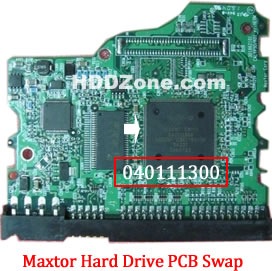
1. Maxtor PCB Replacement Guide:

For Maxtor PCB, just need the donor PCB has the same Main Controller IC as yours.

maxtor-hard-drive-pcb-swap

* Maxtor Hard Drive PCB Swap

2. Before Maxtor PCB Replacement you should know:

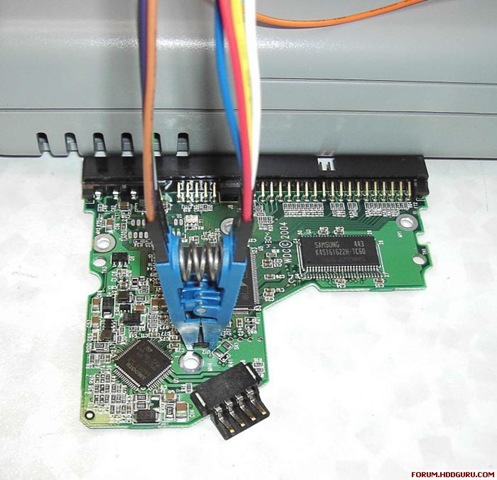
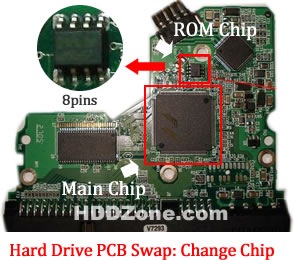
1. Most PCB’s BIOS chip(ROM Chip) store the unique information. We need change the BIOS form original PCB to replacement PCB, in order to make the replacement PCB compatible with the HDD.  The 8pins (4 pins on each sides) with 25P05VP、25P10VP、25F512、25F1024、25F1024AN、SST25VF512、SST25VF010, etc. are the BIOS Chip.

Tips: Most of the TV/Phone Repair Shop can offer these services for just $5-%20

3. Maxtor replacement PCB online supplier:

  • https://www.hddzone.com/maxtor-diamondmax-21-pcb-c-13.html
  • https://www.hddzone.com/maxtor-diamondmax-16-pcb-c-16.html
  • https://www.hddzone.com/maxtor-diamondmax-10-pcb-c-15.html
  • https://www.hddzone.com/maxtor-diamondmax-plus-9-pcb-c-14.html
  • https://www.hddzone.com/maxtor-pcb-others-c-23.html

Note: These are just the PCB circuit boards, not he whole hard drives.

Maxtor Calypso III PCB Replacement Read More »

WD Hard Drive Circuit Boards Swap Guide

As we know:  Western Digital HDD can’t spin; board/chip be burnt; interface broken; etc. These problems are caused by PCB malfunction. Swap PCB of your WD hard drives can resolve the problems. (See also Noise related to PCB in Western Digital hard Drives)

1. WD Hard Drives PCB Swap Guide:

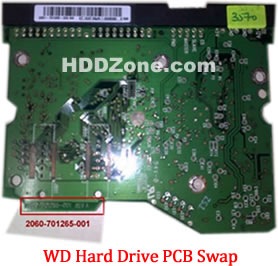
For Western Digital HDDs, just need the donor PCB has the same board number as yours.

western-digital-hard-drive-pcb-swap

2. Before WD PCB Swap you should know:

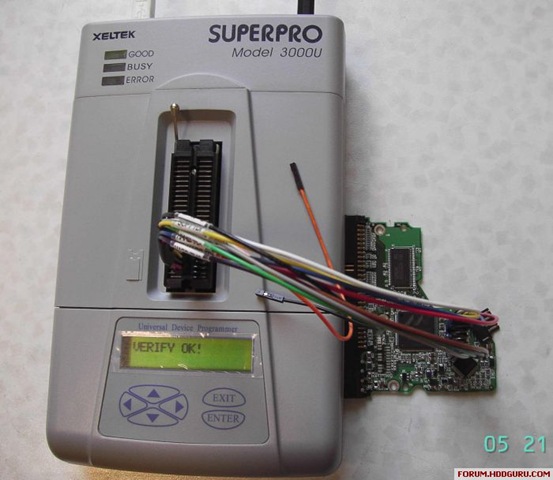
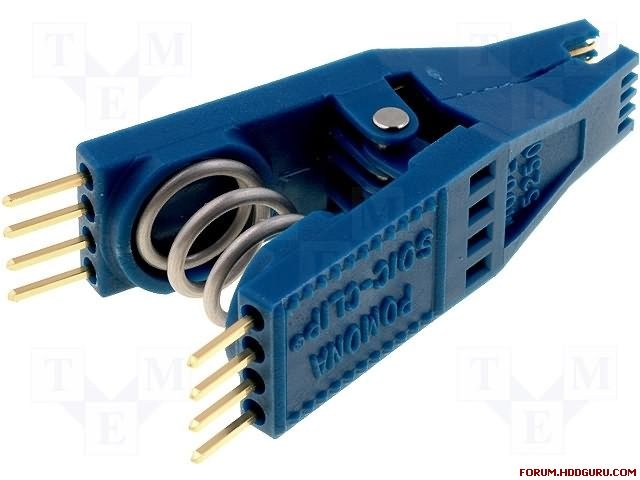
1. Most PCB’s BIOS chip(ROM Chip) store the unique information. We need change the BIOS form original PCB to replacement PCB, in order to make the replacement PCB compatible with the HDD.  The 8pins (4 pins on each sides) with 25P05VP、25P10VP、25F512、25F1024、25F1024AN、SST25VF512、SST25VF010, etc. are the BIOS Chip.

Tips: Most of the TV/Phone Repair Shop can offer these services for just $5-%20

2. Some PCB don’t have separate BIOS. The BIOS be integrated on the Main Controller IC(The biggest chip on the board, also named Main Chip). We should exchange the Main Controller IC to let the HDD be recognized.

3. Where to buy WD Hard Drive Circuit Boards?

WD 2.5″ Laptop Hard Drives PCB:

WD 2060-771692-002 PCB
WD 2060-771692-005 PCB
WD 2060-771737-000 PCB
WD 2060-771814-001 PCB
WD 2060-771820-000 PCB
WD 2060-771823-000 PCB
WD 2060-771714-002 PCB
WD 2060-771754-000 PCB
WD 2060-701675-004 PCB
WD 2060-701572-002 PCB
WD 2060-771672-004 PCB
WD 2060-771672-001 PCB
WD 2060-701675-001 PCB
WD 2060-701499-005 REV A PCB
WD 2060-701402-002 PCB
WD 2060-701401-002 PCB
WD 2060-701578-001 PCB
WD 2060-701499-000 REV A PCB
WD 2060-701450-011 REV A PCB
WD 2060-701424-007 REV A PCB
WD 2060-701510-000 PCB

WD Hard Drives PCB(SATA)

Western Digital PCB 2060-771702-001
Western Digital PCB 2060-771590-001
Western Digital PCB 2060-701477-001
Western Digital PCB 2060-771640-002
Western Digital PCB 2060-771577-001
Western Digital PCB 2060-771698-002
Western Digital PCB 2060-701640-006
Western Digital PCB 2060-771640-003
Western Digital PCB 2060-701640-005
Western Digital PCB 2060-771668-000
Western Digital PCB 2060-771642-000
Western Digital PCB 2060-701640-007
Western Digital PCB 2060-701567-000
Western Digital PCB 2060-701640-000
Western Digital PCB 2060-701640-001
Western Digital PCB 2060-701640-002
Western Digital PCB 2060-771642-001
Western Digital PCB 2060-701590-001
Western Digital PCB 2060-701563-000
Western Digital PCB 2060-701520-000
Western Digital PCB 2060-701310-004
Western Digital PCB 2060-701537-004
Western Digital PCB 2060-701383-001
Western Digital PCB 2060-701384-002
Western Digital PCB 2060-701453-000
Western Digital PCB 2060-701293-001
Western Digital PCB 2060-701393-002
Western Digital PCB 2060-701444-003
Western Digital PCB 2060-701444-004
Western Digital PCB 2060-701477-002
Western Digital PCB 2060-701537-003
Western Digital PCB 2060-701552-003
Western Digital PCB 2060-701577-001
Western Digital PCB 2060-701590-000
Western Digital PCB 2060-701335-003
Western Digital PCB 2060-701335-005
Western Digital PCB 2060-701310-003
Western Digital PCB 2060-001293-000
Western Digital PCB 2060-001252-000
Western Digital PCB 2060-701537-002
Western Digital PCB 2060-001293-001
Western Digital PCB 2060-701335-002

Western Digital Hard Drives PCB(IDE)

Western Digital PCB 2060-701596-001
Western Digital PCB 2060-001113-001
Western Digital PCB 2060-001092-007
Western Digital PCB 2060-001092-006
Western Digital PCB 2060-001127-003
Western Digital PCB 2060-001076-002
Western Digital PCB 2060-001062-004
Western Digital PCB 2060-001047-001
Western Digital PCB 2060-001100-003
Western Digital PCB 2060-701494-001
Western Digital PCB 2060-701552-002
Western Digital PCB 2060-001068-001
Western Digital PCB 2060-001092-006
Western Digital PCB 2060-001113-001
Western Digital PCB 2060-001129-001
Western Digital PCB 2060-001179-003
Western Digital PCB 2060-701265-001
Western Digital PCB 2060-701292-000
Western Digital PCB 2060-701292-001
Western Digital PCB 2060-701292-002
Western Digital PCB 2060-001130-012
Western Digital PCB 2060-701508-001
Western Digital PCB 2060-701494-002
Western Digital PCB 2060-001130-010
Western Digital PCB 2060-001128-005
Western Digital PCB 2060-001266-001
Western Digital PCB 2060-001266-000
Western Digital PCB 2060-001265-001
Western Digital PCB 2060-001189-003
Western Digital PCB 2060-001177-000
Western Digital PCB 2060-001175-000
Western Digital PCB 2060-001173-004
Western Digital PCB 2060-001159-006
Western Digital PCB 2060-001292-000

Note: These are just PCB (Printed Circuit Boards), not the whole HDD (Hard Disk Drive). More other pcb(Seagate, Maxtor, Samsung, Hitachi) swap guide please refer to this post: hard Drive PCB Swap

WD Hard Drive Circuit Boards Swap Guide Read More »

Western Digital HDDs’ Noise related to PCB

Causes & Solutions of Two Main types of Noise Which is occured in Western Digital HDDs (Especially Related To L-shape PCBs)

Clicking Noise and Continuous Noise

1- The Clicking Noise
when u power on the hard drive u will hear a noise like (click,click….click,click…click,click)
this noise may be related to the head stack or PCB, the first thing you have to do is to check the PCB By The following steps:

  1. first you have to clean the Whole PCB With a Solvent & Toothbruch then wipe it with a piece of smooth handkerchief to remove the dust & dirt from it.
    Caution: Cleaning of the PCB must be done carefully to avoid removal of any small electronic components.
  2. Check the Resistor (R120) , [ the right value of this Resistor is (0.12 Ohm) ] ,u may adjust ur multimeter to Resistor Measuring Mode to Determine its Value ,if it’s Damaged u have to replace it. but before that, u have to check Transistor Q3 , it’s a 6 pins transistor , for measuring this transistor u may adjust ur multimeter to Diode Mode,[ the right Value will be: (first two pins = 0.000 , second two pins =0.000 , Third two pins = nearly over 600)]
    if Q3 is Damaged it will burn ur R120 after u replace it , so be sure that Q3 is ok before replacing R120 & u may also Check Transistor Q6 by the previous method to be completely sure it’s safe to replace R120.
    Note: ( to be sure of The right values of these electronic components u may compare the values u have measured with the values of a working PCB’s Components)
  3. Check The Coils (such as L2 & L7) – adjust ur multimeter to diode mode then the right value must be ( 0.000 ) for any coil as u all know.
  4. inspect the whole PCB for any removed component ( such as small capacitors or Resistors ) … the removal of these small components may occured while forced cleaning of the PCB …. so becareful while cleaning it.
  5. in rare cases the firmware microchip may be damaged.

western-digital-pcb

Resolution image which shows all the Western Digital PCB Electronic Components I have mentioned above.

2- The Continuous Noise

sometimes there is a continuous noise come from WD HDDs mainly with L-shape PCBs
with motor ICs ( Smooth 1.3) , (L6278 1.7) & (L6278 1.2).
the noise is like : Trrrrrrrrrrrrrr or Trrrr….Trrrr…Trrrrr

so all we have to do for fixing this problem is:

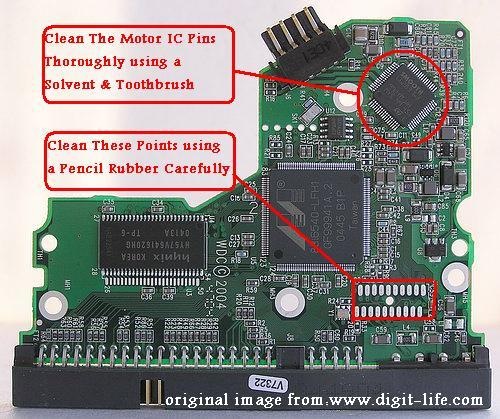
  1. 1- clean the connection points which connect the head stack pins with the PCB using a pencil Rubber …carefully.
  2. 2- clean the motor IC pins thoroughly using a solvent & Toothbrush then wipe it with a piece of smooth handkerchief to remove the dust & dirt from it.
    -Note- the two steps mentioned above solve the problem in few cases.
  3. 3- if the two steps mentioned above didn’t fix the problem , you have to replace the motor IC cause it’s damaged.

Note: in case of Motor ICs (L6278 1.7) & (L6278 1.2) first try to desolder them then resolder them again before u decide to replace them with a new ones … this sometimes work , but if it didn’t work … replace them directly.

In case of Motor IC (Smooth 1.3) you must replace it directly. Image below Shows you where to clean.

WD-PCB

Useful Resources:

Western Digital HDDs’ Noise related to PCB Read More »

General Data-Loss Prevention Tips

data-loss The cost of a data loss event is directly related to the value of the data and the length of time that it is needed, but unavailable. Consider:

  • The cost of continuing without the data
  • The cost of recreating the data
  • The cost of notifying users in the event of a compromise

General Data-Loss Prevention Tips

Software and Hardware

  • Document your systems and archive original copies of your software in a safe place.
  • Backup your files on a regular basis, then test and verify that your backup is a complete copy of the original. External drives are an excellent choice for this task.
  • Never upgrade software or hardware without a complete, verified backup available in case you need to restore data.
  • If you are using Microsoft Windows XP, establish System Restore Points before making any significant changes to your system.
  • Write a contingency plan and practice restoring your data in case of problems. Your contingency plan should require, as a minimum:
    • Locating all available backups, including dates and types of backup.
    • Listing and locating all original software packages, detailing updates since the original installation.
    • Locating and making ready an alternate computer.
  • Deploy firewalls and virus protection.
  • Delete unused files and applications. Use a disc defragmenter, which is a program that is usually part of the operating system utilities.

Environment

  1. Ensure proper environmental conditions (stable temperature, humidity and cleanliness) and proper handling to avoid static discharge and accidental dropping.
  2. Physically secure systems from intruders.
  3. Prepare for physical disasters, including use of off-site storage for backup.

The following sections describe types of data recovery and supported formats and manufacturers. RAID data recovery, digital photo recovery, and VMWare workstation data loss are covered in separate articles under “Related Links.”

Laptop Data Recovery

As they are often carried about and exposed to different environmental factors such as heat, water and dust, laptop and notebook computers are far more likely to experience data loss than their office desktop counterparts. Their portability makes these sophisticated and essential in-the-field devices prime candidates for data loss.

Mechanical and electrical failure, software corruption and human error all play a role in data loss. Here are some of the most often noted data loss symptoms and data accessibility problems:

  • Dropped notebook – no longer turns on
  • Inaccessible drives and partitions
  • Applications that are unable to run or load data
  • Corrupted data
  • Virus attacks
  • Hard disk component failure
  • Hard disk crashes
  • Damage due to fire or liquids
  • Media surface contamination and damage
  • Accidental reformatting of partitions
  • Accidental deletion of data

Laptop Disk Drives Supported
You may not know this, but the hard disk drive embedded in your laptop is not necessarily by the same manufacturer as the laptop. Seagate Recovery Services recovers data from all notebook and laptop brands, models and interfaces – that is, from all types of hard disk drives from all manufacturers including Western Digital, Seagate, Toshiba, Fujitsu, Hitachi and Samsung.

Database Recovery

Mission-critical data is often stored in SQL Server, Oracle, Sybase, Exchange Server, Access and other databases that are maintained on networked fileservers. Relational and object-oriented database management technologies are fundamental to modern IT systems, often underpinning the lifeblood applications run by the entire corporation.

Individual media in database servers suffer from the same failure points as disk drives in personal computers and workstations. Experienced system administrators and database administrators know that a relational or object-oriented database environment is fragile unless supported by a comprehensive and well-tested backup plan.

Unfortunately, it is all too common for devices to become corrupt beyond the scope of routine recovery methods:

  • Backup files not recognizable by database engine
  • Database locked as ‘suspect’ preventing access
  • Deleted or dropped tables
  • Accidentally deleted records
  • Corrupted database files and devices
  • Damaged individual data pages
  • Accidentally overwritten database files and devices

Seagate Recovery Services specializes in making inaccessible data accessible again, recovering data from the most complex database configurations.

Database Types Supported

  • Microsoft SQL Server 6.5, 7.0, 2000, 2005, 2008
  • Oracle Lite, 8.x & 9.x, 10x, 11x
  • Sybase SQL Server
  • Sybase SQL Anywhere
  • Interbase
  • MySQL
  • PostgreSQL Standard Databases
  • Microsoft Access

SRS can also make inaccessible data accessible again for all xbase products such as dBase, FoxPro Productivity Applications Microsoft Office (including all versions of Word, Excel and Powerpoint Mail Server and Client Applications), Microsoft Exchange and Outlook Applications, and email systems conforming to the UNIX mbox format, such as Eudora and Netscape.

Server Data Recovery

Fileservers, application servers, mail servers, web servers, NAS devices and custom-built servers form the backbone of corporations’ business records storage systems. Windows servers–the most popular operating systems for servers today–along with Apple OSX, Solaris, HPUX, IAX, and Linux servers, form a significant portion of servers in businesses.

Naturally, the individual media in servers suffer from the same failure points as do drives in personal computers and workstations. However, the increased complexity of many server operating systems results in additional data loss situations:

  • Server registry configuration lost
  • Intermittent drive failure resulting in configuration corruption
  • Multiple drive failure
  • Accidental replacement of media components

Because servers are often utilized for mission-critical operations, customers need to get their data back quickly and securely. SRS services includes options for on-site data recovery, critical 24/7 options, as well as remote data recovery and special options.

Operating Systems and Platforms Supported
SRS technicians are trained on platform-specific configurations, enabling us to recover data from server hardware spanning the most popular brands, such as IBM, Dell, Hewlett-Packard, Sun and others, including:

  • Intel-based platforms for UNIX Operating systems including
    • Solaris, Linux with ext 2,3,4, xfs, reiserfs & jfs filesystems on standalone & RAID volumes in LVM (Logic Volume Management) configuration or without it
    • BSD-based systems such as FreeBSD, OpenBSD and NetBSD, BSDI
    • Apple Mac OSX
    • Legacy OS like QNX, SCO OpenServer, Xenix, UnixWare, LynxOS and so on
  • Intel-based platforms for Non-Unix Operating systems including:
    • Windows NT, 2000, 2003, 2008 servers
  • UNIX and non-UNIX Platforms such as
    • Solaris on Sun/SPARC equipment, with ufs and Veritas VxFS .zfs filesystems
    • HPUX on Hewlett-Packard workstations with hfs and Veritas
    • VxFS file systems on standalone
    • IRIX on SGI workstations with efs and xfs filesystems
    • Legacy VMS & OpenVMS running on Compaq & DEC equipment using ODS file systems
    • AIX on IBM RS/6000 with jfs file systems on LVM volumes

Tape Data Recovery

Server and personal-computer tape backup systems utilizing mm DAT, Travan, Exabyte 8mm, LTO and the various QIC formats are popular and necessary to safeguard your data. However, when these tapes fail, the situation is normally catastrophic, as these tapes were often the only remaining repository of the data. Quite often customers may no longer posses original tape hardware or software to restore from legacy environments.

Fire, smoke, water and even dropping the tape cartridge may damage the media, resulting in data loss. Internal mechanism failure and exposure to extreme temperatures, as well as logical read/write errors on a tape’s file may also result in data loss. Due to the nature of the tape solution, they are designed to withstand time to store archives. Some media if stored incorrectly or stored longer than the life span of the media may degrade causing data loss.

Here are some typical causes of tape failure:

  • Tape drive failure has corrupted tape headers
  • Tape media stretched or snapped
  • Fire & water damage Media surface contamination and damage
  • Accidental reformatting or erasure of tape
  • Accidental overwriting of headers
  • Tape backup software corruption
  • Media degradation due to the age or improper storage
  • Legacy tapes where tape drive or software no longer available

Formats and Manufacturers Supported
Popular backup software–such as EMC, Networker, CA BrightStore (ArcServe) plus the UNIX tar and cpio utilities (and many more)–all use different internal formats. SRS programmers are expertly trained to understand and extract data any type of tape media, regardless of format. SRS recovers data from these tape media formats and manufacturers, among others:

  • DLT III, DLT IV, DLT-1, VS80, VS160 and Super DLT tape
  • LTO 1, 2 , 3, 4, 5
  • 4mm DAT format DDS, DDS-2, DDS-3 and DDS- DAT-72, DAT-160, DAT-320
  • Exabyte 8mm 112m and 160m tapes & Mammoth 1 (Exabyte 8900), Mammoth 2
  • Sony IT and AIT-2, AIT-3 AIT-4, AIT-5 and SAIT
  • Travan TR-1, TR-3, TR-4 and TR-5 tapes
  • QIC tapes
  • QIC Mini-Cartridges
  • Tandberg SLR tapes
  • ADR and ADR2 tapes
  • 9 track 800/1600/6250 bpi
  • Next track
  • IBM 3480/3490/3592 tapes

Tape Backup and File Formats

  • Microsoft Tape Format (MTF) applications such as NT Backup and Symantec (Seagate/Veritas), BackupExec for Window, Backup Exec for NetWare
  • System Independent Data Format (SIDF) applications such as Novell’s Sbackup and Palindrome’s Backup Director
  • IBM Tivoli TSM
  • Computer Associates, Brightstore (Arcserve)
  • Previos/Stac Replica Backup for NT, NetWare
  • EMC (Legato) NetWorker (all platforms)
  • Symantec (Veritas) NetBackup, unix tar, cpio, fbackup, fsdump and ufsdump archives
  • Compaq/DEC VMS Backup
  • Commvault Galaxy/Simpana

For more information, please go to Seagate Recovery Services

General Data-Loss Prevention Tips Read More »

What Is Data Loss?

Data loss is generally characterized by one or more of the following:

  • The inability to access any data from a previously functioning computer system or backup
  • The accidental deletion of files or the overwriting of data control structures
  • Corrupted or inaccessible files due to abnormal device operation or damage

Among other causes, data loss can be attributed to system or human error, adverse environmental conditions and device failure:

  • Human causes of data loss include intentional or accidental deletion or overwriting of files.
  • Virus damage, operating system or application software bugs, or failed upgrades may also cause data loss.
  • Common physical causes of data loss include power loss or power surge, overheating, electrostatic (“static”) discharge and any kind of physical damage to the storage device or medium.

What Is Data Loss? Read More »

Scroll to Top