Posted in

Difference Between WD Desktop Edition and RAID (Enterprise) Edition Hard Drives

Difference Between WD Desktop Edition and RAID (Enterprise) Edition Hard DrivesWestern Digital manufactures desktop edition hard drives and RAID Edition hard drives. Both of them are designed to work specifically as a stand-alone drive, or in a multi-drive RAID environment.

If you install and use a desktop edition hard drive connected to a RAID controller, the hard drive may not work correctly. This is caused by the normal error recovery procedure that a desktop edition hard drive uses.

When an error is found on a desktop edition hard drive, the drive will enter into a deep recovery cycle to attempt to repair the error, recover the data from the problematic area, and then reallocate a dedicated area to replace the problematic area. This process can take up to 2 minutes depending on the severity of the issue. Most RAID controllers allow a very short amount of time for a hard drive to recover from an error. If a hard drive takes too long to complete this process, the hard drive will be dropped from the RAID array. Most RAID controllers allow from 7 to 15 seconds for error recovery before dropping a hard drive from an array. So it is not recommend installing desktop edition hard drives in an enterprise environment (on a RAID controller).

Western Digital RAID edition hard drives have a feature called TLER (Time Limited Error Recovery) which stops the hard drive from entering into a deep recovery cycle. The hard drive will only spend 7 seconds to attempt to recover. This means that the hard drive will not be dropped from a RAID array. While TLER is designed for RAID environments, a drive with TLER enabled will work with no performance decrease when used in non-RAID environments.

Note: There are a few cases where the manufacturer of the RAID controller have designed their drives to work with specific model Desktop drives. If this is the case you would need to contact the manufacturer of that controller for any support on that drive while it is used in a RAID environment.

Posted in

SATA/EIDE Hard Drive is detected as a SCSI Device?

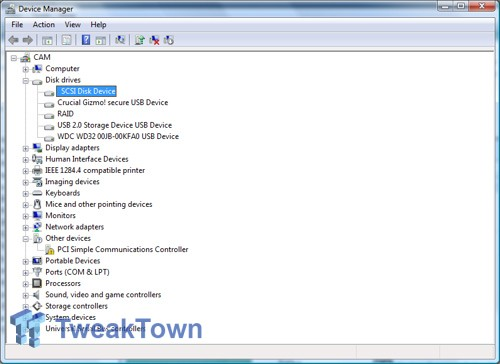
SATA/EIDE Hard Drive is detected as a SCSI Device?1. Why is my Serial ATA hard drive detected as a SCSI device in Windows?
A Serial ATA hard drive is detected as a SCSI device in Windows Device Manager.

This issue could have several causes:

  • The Serial ATA controller (on the motherboard or through a PCI controller card) is assigned default Windows drivers. If Windows is unable to determine exactly what type of device the Serial ATA controller is, it will attempt to assign the closest matching device drivers. Since Serial ATA works using the same principles as SCSI, Windows will assign a Serial ATA controller a SCSI designation.
  • The Serial ATA controller’s (on the motherboard or through a PCI controller card) bus architecture is taken from a SCSI HBA (Host Bus Adaptor). Many companies that produce Serial ATA controllers also produce SCSI controllers. These companies often use an altered version of a SCSI HBA on Serial ATA controllers.
  • The Serial ATA hard drive is connected to a Serial ATA RAID controller. RAID and SCSI controllers have the same device designation in Windows therefore a Serial ATA hard drive will be detected as a SCSI device.

Since this issue is “by design” of the Windows operating system, there is no resolution implied or necessary. Any Serial ATA hard drive designated as a SCSI device will work properly at full performance and capacity. There may be device drivers for the Serial ATA controller that will list the hard drive as a Serial ATA device. Please contact your computer, motherboard, or Serial ATA controller manufacturer for any driver or BIOS updates.

2. Why is my EIDE drive displayed as a SCSI drive in Device Manager in Windows 2000/XP?
An EIDE drive is displayed as a SCSI drive in Windows 2000/XP.

It is common for Windows 2000 and XP to list EIDE drives as SCSI devices in Device Manager when they are connected to non-standard IDE controllers such as a Promise or SIIG controller card. This also occurs when the drive is connected to a specialized ATA or RAID port that is integrated into the motherboard. As long as you have the proper drivers loaded for the controller and are not experiencing any issues while using the drive, there is no cause for concern.

Posted in

Seagate Hard Drive Families (Part I)

Seagate Hard Drive FamiliesSeagate Technology is one of the world’s largest hard drives and storage solutions manufacturer. Incorporated in 1978 as Shugart Technology, Seagate is currently incorporated in Dublin, Ireland and has its principal executive offices in Scotts Valley, California.

Barracuda® Family Hard Drives
Desktop Storage for Every Need. Whether you need low power, mainstream or extreme performance, we have a Barracuda drive for you.

  • Barracuda® XT Hard Drives
    The new Barracuda XT hard drives from Seagate deliver the industry’s first 2TB, 7200 RPM desktop drive with a massive 64MB cache and the fastest SATA interface – SATA 6G.
  • Barracuda® Hard Drives
    Barracuda hard drives from Seagate now deliver a whopping 500GB of space per disc. With capacities from 160GB to 1.5TB, affordable, reliable, high capacity drives are now available to everyone.
  • Barracuda® Green Hard Drives
    Barracuda Green drives save you time. Leading performance and Seagate SmartAlign™ technology deliver green power that won’t slow you down. Now available with SATA 6Gb/s interface and 64MB cache!

Seagate® 3.5-Inch Enterprise Hard Drives
The Seagate® 3.5-inch enterprise drive families offer the best combination of high capacities with proven enterprise reliability.

  • Cheetah® 15K Hard Drives
    High-capacity, compute-intensive requirements demanding high performance and availability.
  • Cheetah® NS 10K Hard Drives
    Mainstream data requiring high capacity, low power and high availability.
  • Constellation® ES Hard Drives
    Online data demands requiring the highest capacity, reliability and security.

FreeAgent® Desktop and Portable Drives
FreeAgent drives give you the fastest data transfer rates available and a sleek, stand-out design.

  • GoFlex™ Ultra–portable
    This ultra–versatile, ultra–portable drive makes it ultra–easy for you to store, backup and encrypt your files anytime, anywhere.
  • GoFlex™ Pro
    The GoFlex Ultra–portable drive plus the GoFlex Intelligent Dock and premium backup & encryption software.
  • FreeAgent Go™
    The ultimate portable storage solution for easy access to all your stuff.
  • GoFlex™ Desk
    The high–capacity desktop storage you need that’s easy to upgrade and easy to use.
  • FreeAgent Desk™
    A powerful yet convenient desktop storage solution.

BlackArmor® Network Attached Storage
Network storage for your small business.

  • BlackArmor® NAS 440
    Small business Network Attached Storage (NAS) solution provides optimum uptime, internal data back-up protection and data integrity for up to 50 workstations.
  • BlackArmor® NAS 420
    Small business NAS solution for up to 50 work stations. Comes with 2 hard drives preinstalled and 2 empty bays allowing for growth and scalability when you need it.
  • BlackArmor® NAS 400
    Get all of the benefits and features of the NAS 440 & 420 but without any pre-installed drives for maximum flexibility.
  • BlackArmor® NAS 220
    Entry-level small business NAS solution with internal data back-up protection for up to 20 PCs.
  • BlackArmor® NAS 110
    Desktop network storage with an easy USB interface for networks with up to 10 systems.
Posted in

Hard Disk Drive Resource Links (Linux System)

http://www.nyx.net/~sgjoen/disk.html
This document describes how best to use multiple discs and partitions for a Linux system. Although some of this text is Linux specific, the general approach outlined here can be applied to many other multi tasking operating systems.

http://tldp.org/HOWTO/Hard-Disk-Upgrade/index.html
This document describes how to copy a Linux system from one hard disc to another.

http://tldp.org/HOWTO/Partition-Rescue/index.html
This document describes how to rescue your Linux partition if MS-DOS deleted it.

http://tldp.org/HOWTO/Partition/index.html
This document explains how to plan and layout disc space for a Linux system. It talks about disk hardware, partitions, swap space sizing and positioning considerations, file systems, file system types, and related topics. The intent is to teach some background knowledge, not procedures.

http://tldp.org/HOWTO/Large-Disk-HOWTO.html
This document covers how to configure disc drives with more than 1024 cylinders for use with Linux.

http://tldp.org/HOWTO/Root-RAID-HOWTO.html
This document provides a cookbook for creating a root mounted RAID file system and companion fallback rescue system using Linux initrd. There are complete step-by-step instruction for both raid1 and raid5 md0 devices. Each step is accompanied by an explanation of its purpose. Included with this revision is a generic Linux initrd file which may be configured with a single three line /etc/raidboot.conf file for raid1 and raid5 configurations.

Posted in

Advanced Host Controller Interface (AHCI)

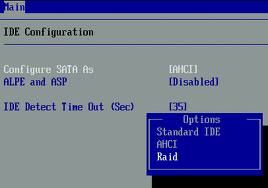
Advanced Host Controller InterfaceAHCI (Advanced Host Controller Interface) is present on newer Intel chipsets. AHCI mode is enabled in the BIOS where 3 settings are commonly available: IDE, AHCI, and RAID. The last two (AHCI and RAID) require a floppy disk with the driver that can be introduced into the operating system installation through F6. Otherwise, the hard disks won’t be detected.

AHCI mode has 3 main advantages:

  • Supports NCQ (Native Command Queuing) allowing SATA drives to accept more than one command at a time and dynamically reorder the commands for maximum efficiency.
  • Supports hot plugging of devices.
  • Supports staggered spin ups of multiple hard drives at boot time.

When it comes to performance, there really isn’t a big difference in using AHCI.

Note: If you installed Windows in IDE mode (which means that you didn’t use F6 and supply a driver disk), then simply changing the BIOS setting to AHCI mode and rebooting will cause Windows to fail and will require a repair install. Most people are advising to reinstall Windows if you want AHCI enabled. (More information on AHCI)

Posted in

Seagate Hard Drive Families (Part II)

Seagate Hard Drive FamiliesSeagate Technology is one of the world’s largest hard drives and storage solutions manufacturer. Incorporated in 1978 as Shugart Technology, Seagate is currently incorporated in Dublin, Ireland and has its principal executive offices in Scotts Valley, California.

The new FreeAgent ® GoFlex™ Family
Enjoy reliable, secure storage. Unique plug-and-play design allows easy upgrading of interfaces for faster transfer speeds on your PC or Mac ® computer. Access stored content on your network, on your TV–and everywhere you go.

    • GoFlex™ Ultra-portable Drive

This ultra-versatile, ultra-portable drive makes it ultra-easy for you to store, back up and encrypt your files anytime, anywhere


  • GoFlex™ Pro Ultra-portable Drive
    This ultra-portable drive includes the GoFlex Dock plus premium backup and encryption software
  • GoFlex™ Desk External Drive
    The high-capacity storage you need that’s easy to upgrade and easy to use


Momentus® Laptop Hard Drives
Seagate® Momentus® hard drives — rising to the call of a faster, safer, more reliable mobile computing world

  • Momentus® XT Solid State Hybrid Drives
    The Momentus XT drive offers hybrid storage with Adaptive Memory™ processing, enabling the drive to deliver capacities up to 500GB and SSD-like performance.
  • Momentus® Hard Drives
    The Momentus drive offers innovative options, capacities to 750GB, two performance speeds and significant feature options: self-encryption, G-Force Protection™ technology and FIPS 140-2 for government-approved security. (Options not available in all countries)
  • Momentus® Thin Hard Drives
    The Momentus Thin drive is the world’s first 7mm, 2.5-inch form factor drive. It is specifically created for slim computing. The Momentus Thin drive is designed to enable increased profitability and differentiate solutions for Seagate OEMs and integrators.

Seagate® Replica™
Never forget to back up your files ever again. Now it’s easy and automatic.

Seagate® 2.5-Inch Enterprise SSD and HDD Drives
The Seagate® 2.5-inch enterprise drive families offer the best combination of reliability, performance and business efficiency.

Posted in

Tips For Replacing A Hard Drive From A Failed RAID

Tips For Replacing A Hard Drive From A Failed RAIDThere are some items to consider when replacing a hard drive from a failed RAID. If you are building a new RAID, then all hard drives in the array should be the identical model if at all possible. However, if you must replace a failed hard drive, it can sometimes be difficult to find the same model if that model is out of production.

Below are some tips to follow when selecting a replacement:

Keep in mind that the controller may or may not allow different models in a RAID, so check the RAID controller documentation.

Product life: What is the expected life of the remaining drives? If the other drives are approaching the end of their useful life, then it may be time to replace the entire RAID.

Capacity: The replacement drive should be the same or higher capacity than the original drive. Do not just look at the capacity on the box, since a few megabytes could make the difference between whether the drive will work or not.

(You should check the number of LBAs (or sectors) on the hard drive. Some RAID controllers will allow you to substitute larger drives if the exact capacity is not available, while other controllers require an exact match. Check with the controller manufacturer if the documentation doesn’t make it clear!)

Performance: The replacement drive should match the performance of the remaining drives as closely as possible. If your failed drive was 15,000 RPM, avoid replacing it with a 10,000 RPM drive. RAID arrays depend on the timing between drives to write data. Thus, if one drive doesn’t keep up, it may cause the entire array to fail or at least experience irritating problems.

Interface: Make sure the replacement drive uses the same type of interface connection as the failed drive. If the failed drive used a SCSI SCA (80-Pin) interface then don’t try to replace it with a 68-pin SCSI interface. With Seagate products the last two digits of the model number indicate the interface. For example: LW = 68-Pin, LC = 80-Pin.

The 80-pin LC drives are hot-swappable with backplane connections.

Cache Buffer: It is recommended that the cache buffer for each drive be the same value.  Most RAID controllers will consider drives with mismatching cache buffers to be ineligible for addition to a striped or parity array.

Posted in

Tips for selecting Hard Drives for use in a SCSI/SATA RAID Configuration

Tips for selecting Hard Drives for use in a SCSI/SATA RAID ConfigurationMost SCSI and SATA RAID controllers will accept different kinds of hard drives. The hard drives should match in capacity points and rotational (RPM) speed. At best, all drives in an array will be identical–at the same firmware revision level.

RAID can be used with any size hard drive. The smallest capacity drive will determine the largest logical volume size for all drives in the array.

Whenever possible, select drives from an approved vendor drive compatibility list. This ensures that the hard drive is tested, and should function reliably with your SCSI or SATA RAID controller. Untested configurations can possibly work as well. But for best results, select only tested and compatible drives for your SCSI or SATA RAID controller. Most SCSI or SATA controller vendors publish a hard drive compatibility matrix on their web site.

Looking for legacy hard drives? CUE Technologies Inc

Pricewatch.com is a service to allow retailers to advertise their prices in real time, for locating and supplying most any type and brand of computer product, including hard-to-find items.

Posted in

RAID Controllers

RAID Controllers What is a RAID Controller?

A disk array controller is a device which manages the physical disk drives and presents them to the computer as logical units. It almost always implements hardware RAID, thus it is sometimes referred to as RAID controller. It also often provides additional disk cache.

A disk array controller name is often improperly shortened to a disk controller. The two should not be confused as they provide very different functionality.

RAID Controller History:

While hardware RAID controllers were available for a long time, they always required expensive SCSI hard drives and aimed at the server and high-end computing market. SCSI technology advantages include allowing up to 15 devices on one bus, independent data transfers, hot-swapping, much higher MTBF.

Around 1997, with the introduction of ATAPI-4 (and thus the Ultra-DMA-Mode 0, which enabled fast data transfers with less CPU utilization) the first ATA RAID controllers were introduced as PCI expansion cards. Those RAID systems made their way to the consumer market, where the users wanted the fault-tolerance of RAID without investing in expensive SCSI drives.

ATA drives make it possible to build RAID systems at lower cost than with SCSI, but most ATA RAID controllers lack a dedicated buffer or high-performance XOR hardware for parity calculation. As a result, ATA RAID performs relatively poorly compared to most SCSI RAID controllers. Additionally, data safety suffers if there is no battery backup to finish writes interrupted by a power outage.

How to Choose a RAID Controller?

New RAID levels, technologies and interfaces make choosing a RAID controller more than just a choice between price and performance. These top tips provide valuable insight to help ensure that you get exactly the right controller to suit your specific data protection needs.

1. Choose the correct bus interface for your needs — forward- or backward-compatibility.

PCI-X has the advantage of being backwardly compatible with the older PCI interface. But it is parallel and half-duplex bidirectional, and the bus runs only as fast as the slowest device. PCIe is the new forward-looking standard, and is intended to cope with the performance and scalability demands for at least the next decade. PCIe has the advantages of being serial, full-duplex bidirectional, and devices are able to independently negotiate the bus speed.

2. Find an easy-to-use Management Interface.
3. Which RAID level?
Considering the factors: Cost of disk storage, Data protection or data availability required, Performance requirements

4. RAID level migration
Consider how complex the process is to migrate your data from your current RAID to your new one and consider whether RAID level migration is something you need.

5. How much more data capacity will you need.

6. A limitation of SATA
The SATA infrastructure allows for Port Multipliers, but they have drawbacks – they can’t be daisychained, limiting their flexibility and expandability; they only support one active host connection at a time, significantly degrading effective throughput and allowing for potential
misidentification of drives.

7. Getting locked in to your Operating System
Your choice of RAID controller shouldn’t restrict either your choice of OS, or restrict the speed at which you can obtain an OS upgrade.

8. Reliability of the RAID code

9. Hardware or software RAID?
The difference between hardware and software RAID isn’t just the price.With hardware RAID, the calculations are carried out by the RAID controller, with software RAID they take place on the server’s CPU. So, if the RAID calculations are fairly simple, say RAID 1 or RAID 10, and the server is fairly powerful, using software RAID shouldn’t be much of a problem. But with more
complex RAID level calculations (RAID 5EE or RAID 6 for example), using hardware RAID can be beneficial because the RAID performance is not compromised by the server’s workload, nor are applications on the server compromised by the RAID workload.With hardware RAID, the RAID functionality is also independent of the OS, and the simple HBA drivers required for a hardware RAID controller are usually available as part of the OS distribution. Also, if it has a battery, hardware RAID can run in write-back mode, adding another level of data protection.

10. Ensure the products you purchase have the support you need