Articles

Tips for selecting Hard Drives for use in a SCSI/SATA RAID Configuration

Tips for selecting Hard Drives for use in a SCSI/SATA RAID ConfigurationMost SCSI and SATA RAID controllers will accept different kinds of hard drives. The hard drives should match in capacity points and rotational (RPM) speed. At best, all drives in an array will be identical–at the same firmware revision level.

RAID can be used with any size hard drive. The smallest capacity drive will determine the largest logical volume size for all drives in the array.

Whenever possible, select drives from an approved vendor drive compatibility list. This ensures that the hard drive is tested, and should function reliably with your SCSI or SATA RAID controller. Untested configurations can possibly work as well. But for best results, select only tested and compatible drives for your SCSI or SATA RAID controller. Most SCSI or SATA controller vendors publish a hard drive compatibility matrix on their web site.

Looking for legacy hard drives? CUE Technologies Inc

Pricewatch.com is a service to allow retailers to advertise their prices in real time, for locating and supplying most any type and brand of computer product, including hard-to-find items.

Tips for selecting Hard Drives for use in a SCSI/SATA RAID Configuration Read More »

RAID Controllers

RAID Controllers What is a RAID Controller?

A disk array controller is a device which manages the physical disk drives and presents them to the computer as logical units. It almost always implements hardware RAID, thus it is sometimes referred to as RAID controller. It also often provides additional disk cache.

A disk array controller name is often improperly shortened to a disk controller. The two should not be confused as they provide very different functionality.

RAID Controller History:

While hardware RAID controllers were available for a long time, they always required expensive SCSI hard drives and aimed at the server and high-end computing market. SCSI technology advantages include allowing up to 15 devices on one bus, independent data transfers, hot-swapping, much higher MTBF.

Around 1997, with the introduction of ATAPI-4 (and thus the Ultra-DMA-Mode 0, which enabled fast data transfers with less CPU utilization) the first ATA RAID controllers were introduced as PCI expansion cards. Those RAID systems made their way to the consumer market, where the users wanted the fault-tolerance of RAID without investing in expensive SCSI drives.

ATA drives make it possible to build RAID systems at lower cost than with SCSI, but most ATA RAID controllers lack a dedicated buffer or high-performance XOR hardware for parity calculation. As a result, ATA RAID performs relatively poorly compared to most SCSI RAID controllers. Additionally, data safety suffers if there is no battery backup to finish writes interrupted by a power outage.

How to Choose a RAID Controller?

New RAID levels, technologies and interfaces make choosing a RAID controller more than just a choice between price and performance. These top tips provide valuable insight to help ensure that you get exactly the right controller to suit your specific data protection needs.

1. Choose the correct bus interface for your needs — forward- or backward-compatibility.

PCI-X has the advantage of being backwardly compatible with the older PCI interface. But it is parallel and half-duplex bidirectional, and the bus runs only as fast as the slowest device. PCIe is the new forward-looking standard, and is intended to cope with the performance and scalability demands for at least the next decade. PCIe has the advantages of being serial, full-duplex bidirectional, and devices are able to independently negotiate the bus speed.

2. Find an easy-to-use Management Interface.
3. Which RAID level?
Considering the factors: Cost of disk storage, Data protection or data availability required, Performance requirements

4. RAID level migration
Consider how complex the process is to migrate your data from your current RAID to your new one and consider whether RAID level migration is something you need.

5. How much more data capacity will you need.

6. A limitation of SATA
The SATA infrastructure allows for Port Multipliers, but they have drawbacks – they can’t be daisychained, limiting their flexibility and expandability; they only support one active host connection at a time, significantly degrading effective throughput and allowing for potential
misidentification of drives.

7. Getting locked in to your Operating System
Your choice of RAID controller shouldn’t restrict either your choice of OS, or restrict the speed at which you can obtain an OS upgrade.

8. Reliability of the RAID code

9. Hardware or software RAID?
The difference between hardware and software RAID isn’t just the price.With hardware RAID, the calculations are carried out by the RAID controller, with software RAID they take place on the server’s CPU. So, if the RAID calculations are fairly simple, say RAID 1 or RAID 10, and the server is fairly powerful, using software RAID shouldn’t be much of a problem. But with more
complex RAID level calculations (RAID 5EE or RAID 6 for example), using hardware RAID can be beneficial because the RAID performance is not compromised by the server’s workload, nor are applications on the server compromised by the RAID workload.With hardware RAID, the RAID functionality is also independent of the OS, and the simple HBA drivers required for a hardware RAID controller are usually available as part of the OS distribution. Also, if it has a battery, hardware RAID can run in write-back mode, adding another level of data protection.

10. Ensure the products you purchase have the support you need

RAID Controllers Read More »

Top 10 Most Popular Flash Memory Cards on Amazon.com

Top 10 Most Popular Flash Memory Cards on Amazon.com A flash memory card is an electronic flash memory data storage device used for storing digital information. They are commonly used in many electronic devices, including digital cameras, mobile phones, laptop computers, MP3 players, and video game consoles. They are small, re-recordable, and they can retain data without power.

Flash memory cards types: Secure Digital (SD), MiniSD Card, CompactFlash (CF), Memory Stick (MS), MultiMediaCard (MMC) xD-Picture Card (xD) and SmartMedia (SM).

SD cards are now the most popular flash media type and getting bigger (up to 32GB) and faster (up to 150x speed and beyond) all the time!

4GB Flash Memory Cards:

Transcend 4 GB Class 6 SDHC Flash Memory Card (TS4GSDHC6E)
(Price on Amazon.com: $6.75)

Kingston 4GB Class 4 SDHC Flash Memory Card (SD4/4GBET)
(Price on Amazon.com: $6.88)

Sony 4GB Memory Stick PRO Duo Flash Memory Card (MSMT4G)
(Price on Amazon.com: $10.58)

Sandisk 4GB Secure Digital SDHC Flash Memory Card (SDSDB-4096)
(Price on Amazon.com: $7.08)

8GB Flash Memory Cards:

Transcend 8GB Class 6 SDHC Flash Memory Card (TS8GSDHC6)
(Price on Amazon.com: $13.50)

SanDisk 8GB Class 2 SDHC Flash Memory Card (SDSDB-8192)
(Price on Amazon.com: $7.16)

Kingston 8GB microSDHC Class 4 Flash Memory Card (SDC4/8GB)
(Price on Amazon.com: $9.55)

16GB Flash Memory Cards:

Transcend 16GB Class 10 SDHC Card (TS16GSDHC10)
(Price on Amazon.com: $27.84)

SanDisk 16GB microSDHC Flash Memory Card (SDSDQ-016G)
(Price on Amazon.com: $23.99)

32GB Flash Memory Cards:

Transcend 32GB Ultimate Speed SDHC Class 10 Flash Memory Card (TS32GSDHC10)
(Price on Amazon.com: $49.59)

These are the ratings of some currently available cards:

  • Class 0 cards do not specify performance, which includes all legacy cards prior to class specifications.
  • Class 2, 2 MB/s, slowest for SDHC cards
  • Class 4, 4 MB/s
  • Class 6, 6 MB/s
  • Class 10, 10 MB/s

The Speed Class Rating is the official unit of speed measurement for SD Cards, defined by the SD Association. The Class number represents a multiple of 8 Mb/s (1 MB/s), and meets the least sustained write speeds for a card in a fragmented state.

Top 10 Most Popular Flash Memory Cards on Amazon.com Read More »

Compact Flash FAQs

Compact Flash What is Compact Flash?

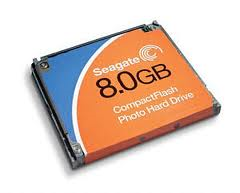
CompactFlash is the world’s smallest removable mass storage device. First introduced in 1994 by SanDisk Corporation, CF TM cards weigh a half ounce and are the size of a matchbook. They provide complete PCMCIA-ATA functionality and compatibility. Compact Flash is a small, removable mass storage commonly used in digital cameras.

Where will CompactFlash be used?
Several leading consumer electronics companies, including the CFA’s roster of founding members, are designing CF technology into next-generation products being developed for mass markets. The CFA expects CF technology will be widely used in such products as portable and desktop computers, digital cameras, handheld data collection scanners, cellular phones, PCS phones, PDAs, handy terminals, personal communicators, advanced two-way pagers, audio recorders, monitoring devices and set-top boxes. CF technology offers all of these applications new and expanded functionality while enabling smaller and lighter designs.

What is the difference between Type I and Type II?
Type I is 3.3mm thick, while Type II is 5mm thick. A CF Type II device will not fit in a Type I slot.

How do I format my Compact Flash drive?
Formatting a Compact Flash drive can be accomplished several ways. The most common method of formatting a Compact Flash drive is within the device in which the Compact Flash drive will be used. This will ensure a device compatible format and the best overall performance.

How do I interface the CF drive with my PC or Mac?
Compact Flash drives are connected to desktop/laptops computers through flash memory card readers. A typical card reader will contain multiple flash memory slots to accommodate the different types of memory. The card readers are most commonly attached to the computer via a USB or IEEE 1394 (FireWire) interface cable.

Do I need drivers for my OS?
Compact Flash drives do not require drivers. However, when the drive is attached through a card reader, the proper drivers for the card reader must be installed before the drive can be accessed.

Can I use this in my PDA? Does this drive require drivers?
The Compact Flash drive can be used in any PDA that will support Compact Flash Type II drives with high capacity. This is not a supported hardware environment.

While many PDA operating systems do not require drivers, some of the older operating systems, such as Windows CE, will require a driver before the drive can be accessed.

Can I install an OS onto this drive?
Depending on the operating system in use, it may be possible to install an OS onto the Compact Flash drive. Since this is not the intended purpose of the drive, the performance may be less than desired and no support will be provided.

What is the speed of my Compact Flash card?
Solid state CF memory cards are differentiated by a speed number:

Compact Flash Speeds
Speed
Kbytes/s
Mbytes/s
1
150
0.15
4
600
0.6
12
1800
1.8
24
3600
3.6
40
6000
6
60
9000
9
80
12000
12

What is the difference between FAT16 and FAT32, why do cards greater than 2GB require FAT32?
File Allocation Tables (FAT) are like a table of contents to your data. Prior to Windows 98, 16-bit FATs limited partitions to 2.1 Gbytes. The newer 32-bit FAT is capable of huge partitions up to two Tbytes (terabytes). Many digital cameras only support 16-bit FAT (FAT), newer cameras and high-end professional cameras usually support 32-bit FAT (FAT32). Check your camera’s manual or support information to determine if your camera supports FAT32 (memory larger than 2.1Gbytes).

Compact Flash FAQs Read More »

What risks do viruses pose to the data on a hard drive?

What risks do viruses pose to the data on a hard drive? When it comes to data storage, viruses can be divided into two basic categories:

  • Viruses that delete data
  • Viruses that corrupt data

Viruses that delete data will tell the operating system (such as Windows) to flag files as being deleted. The data itself becomes unavailable but it still exists on the platters until it’s overwritten. This data is recoverable using Data Recovery Softwares designed to perform data recovery which will scan the platters and mark recognizable files as not deleted, effectively restoring them to the directory structure.

Viruses that corrupt data are the most dangerous because they overwrite files with garbage data and then possibly flag them as deleted. This makes the data unrecoverable.

In either case, it is very important to have antivirus software running on any machine whether it’s connected to the internet or not (viruses can be propagated from CDs, floppies, and other storage mediums) and keep a backup of any critical data on a removable storage device which will help prevent viruses from propagating to your backup.

What risks do viruses pose to the data on a hard drive? Read More »

Data Recovery Companies in United Kingdom (UK)

Data Recovery UK A list of professional data recovery companies in United Kingdom.

1. ABC Data Recovery
ABC Data Recovery Ltd have launched R3Cover Data Recovery Software the UK data recovery services industry by storm in 2010 bringing highest standards to cost effective data recovery and repairs to clicking hard drives and siezed hard drive motors and of course their now famous student dscount scheme for memory stick and hard drive recovery.

Address: “Security House”, Royds Mill, Windsor Street, Sheffield S4 7WB
Telephone: 0845 2002 845
Website: www.abc-data-recovery.co.uk

2. Data Clinic Data Recovery
We provide you with a professional, cost effective and prompt data retrieval and recovery service from crashed hard disks and other computer based media. Data Clinic perform data recovery from RAID servers, desktop / laptop / notebook computers, external hard disk drives, DVDs, CDs, USB sticks & flash memory. We are specialists in data recovery from all versions of Windows, Macintosh (Mac OS) and Linux operating systems.

Address: The Pavilions, Bridge Hall Lane, Bury, Gtr Manchester BL9 7NX
Telephone: 0871 977 2525
Website: www.dataclinic.co.uk

3. Fields Data Recovery
Data Recovery from hard disk drives and RAID servers from Fields Data Recovery -experts in salvaging data from damaged digital media using ISO 9001 recovery procedures.

Address: Crown House, 72 Hammersmith Road, Hammersmith, London W14 8TH
Telephone: 0207 3108022
Website: www.fields-data-recovery.co.uk

4. MjM Data Recovery
We have developed expert knowledge to recover data from computer based hard disks, including desktop, solid state drives (SSD), laptop, servers, RAID arrays and external hard disks.

Address: The Somerset Barn, Old Redhouse Farm, Stratton-on-the-Fosse, Somerset BA3 4QE
Telephone: 0800 072 3282
Website: www.mjmdatarecovery.co.uk

5. Geeksnerds Data Recovery
Geeksnerds Limited is providing the facility of recovering data from all storage devices in case of disaster. We offer specialized data recovery service for Hard Disk Drive, RAID, Laptop and all types of secondary storage devices.

Address: The City Business Centre, 2 London Wall Buildings, London, EC2M 5UU
Telephone: 0800 023 2301
Website: www.datarecoveryuk.co.uk

6. Data Recovery London
Data Recovery London is the most experienced and advanced company which is providing data recovery services to its customers for years. In case of any data loss case, Data Recovery London is ready to help you. We have a wide range of service levels ranging from standard to emergency 24/7. Our highly skilled engineers are committed to provide our customers the fast and cost effective service using latest technology and techniques. Read customer reviews for more information.

Address: The City Business Centre, 2 London Wall Buildings, London, EC2M 5UU
Telephone: 020 7448 5068
Website: www.datarecoverylondon.co.uk

7. DRS Data Recovery
Disaster Recovery Solutions Ltd. (DRS) specialise in Business Continuity services to the SME market. Using ‘best of breed’ products and services, we are able to provide access to Data, Voice and Space in the event of a disruption to your normal business operations.

Address: Disaster Recovery Solutions Ltd 30 Finsbury Square London EC2 1AG
Telephone: 0844 585 6060
Website: www.disasterrecoverysolutions.co.uk

8. Xytron Data Recovery Limited
Professional & competitive UK based data recovery services, experts in recovering RAID, Laptop and Desktop hard disks. Contact us for a free quotation for your disk recovery.

Address: 449 Twyford Road, Rotherwas Industrial Estate, Hereford, HR2 6JR
Telephone: 0800 881 8900
Website: www.xytron.co.uk


Data Recovery Companies in United Kingdom (UK) Read More »

Cables for Ultra ATA/66 to Ultra ATA/133 Hard Drives

This FAQ applies to all Seagate, Maxtor, Quantum ATA 66, ATA 100, and ATA 133 drives.

The faster timing requirements of Ultra ATA/66 and above require the use of an 80-conductor cable. This is necessary for proper operation of UDMA modes 3 and greater. The 80-conductor cable is used with the same connector configuration as the standard 40-conductor cable. The 40 additional conductors are used as ground paths and are all connected to the 7 original ground conductors. These additional ground conductors serve to improve the overall signal quality (signal-to-noise ratio) of the ATA cable. 80-conductor Ultra ATA cables are also limited to a maximum cable length of 18 inches.

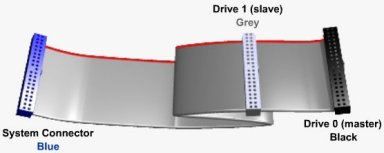
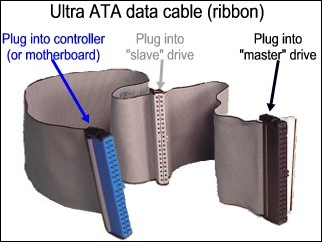
If the drive was purchased in a retail kit and not as a “bare” drive, the kit includes an Ultra ATA cable as described here. If not Ultra ATA cables can be purchased from your system vendor or reseller and are fully backward compatible for operation on all standard/legacy ATA devices and hosts. However, these cables will typically utilize the cable select (CS) configuration on ATA drives for defining a master or slave device (drive 0 or drive 1). The drive placement convention used on an 80-conductor cable is also different from the previous generation of cable select type cables. The 80-conductor Ultra ATA cables require the master drive (drive 0) to be installed at the end of the cable and the slave drive (drive 1) to be installed on the middle connector.

The connectors on 80-conductor cables are also color-coded to help ensure proper drive placement and attachment to the host (system). Typical color-coding is as follows: blue for attachment to the host (system), black is for device 0 (master), and gray is for device 1 (slave).

Cables for Ultra ATA/66 to Ultra ATA/133 Users

Cables for Ultra ATA/66 to Ultra ATA/133 Hard Drives Read More »

Special Requirements to use an Ultra DMA Hard Drive

Special Requirements to use an Ultra DMA Hard Drive Are there any special system or software requirements to use an Ultra DMA 33/66/100/133 ATA hard drive? Yes as follows:

  • To utilize the Ultra DMA (UDMA) capability of a hard drive, the system that the drive is being installed into must contain the appropriate hardware chipset and have the necessary software drivers installed. The system’s motherboard must be designed with a core logic chipset that provides the desired UDMA support. Also, it is the motherboard or system manufacturer’s responsibility to provide any additional software drivers that may be necessary to implement UDMA (Ultra ATA) operation.
  • Pentium II and newer motherboards and systems will typically contain some level of hardware support for UDMA operation (this could be UDMA 33, 66, 100, or 133 depending on the age of your system). It will be necessary to consult the system or motherboard manufacturer’s documentation to determine the level of UDMA supported by your particular hardware. For example if you install a new Maxtor hard drive capable of Ultra DMA/100 (UDMA mode 5), but your system is only capable of supporting Ultra DMA/33 (UDMA mode 2), you will only be able to achieve the Ultra DMA/33 performance. In this case you may want to consider upgrading your motherboard or purchasing an add-on PCI adapter, such as Maxtor’s Ultra ATA card, that is capable of supporting the latest Ultra DMA transfers. This is an inexpensive alternative to replacing your entire system or motherboard.

All Maxtor UDMA drives are fully backward compatible to earlier, non-UDMA systems. Just keep in mind that the transfer rate (performance) of your drive will be limited by the system’s capabilities and not necessarily by the hard drive.

  • Windows 95 (all versions), Windows 98 (all versions), and Windows NT 4.0 all have limited “bundled” driver support for UDMA operation. If you are attempting to use a hard drive capable of UDMA/66 or greater with one of these operating systems, you will more than likely need to obtain updated drivers for your system. It is best to always check with your system or motherboard manufacturer for UDMA driver requirements and availability. In some cases updated drivers may be available directly from Microsoft or from Intel if an Intel chipset is being used by your motherboard. Maxtor Corp. does not provide software drivers for UDMA operation since any required drivers are specific to the chipset and not the hard drive.
  • Windows ME, Windows 2000, and Windows XP all have expanded “bundled” driver support for UDMA operation and may already contain the necessary driver support. Updated drivers may or may not be required depending on your motherboard’s chipset. Once again, it is always best to check with the system or motherboard manufacturer for driver requirements. A good resource for Ultra ATA drivers for systems with Intel based chipsets is at the following site: support.intel.com/support/chipsets/storagedrivers/ultraATA.
  • For systems and hard drives which have all of the prerequisites for UDMA mode 3 and greater (UDMA/66 and faster), a special 80 conductor, 40-pin interface Ultra ATA interface cable is required. The 80 conductor cable reduces cross talk and improves signal integrity by providing additional ground lines between the 40-pin ATA signal and ground lines. Due to the higher transfer rates and shorter cycle times of UDMA data transfers, this cable is required for UDMA/66, UDMA/100, and UDMA/133 operation. It is also highly recommended for UDMA/33 operation as well to help prevent any possible noise related issues.

All Maxtor Retail Kits that contain a UDMA/66 or greater hard drive will also include the 80-conductor Ultra ATA interface cable. This Ultra ATA Interface Cable conforms to the ANSI Specifications.

Special Requirements to use an Ultra DMA Hard Drive Read More »

Seagate FreeAgent GoFlex for Mac Storage System FAQs

1. What is special about GoFlex™ for Mac family?
The FreeAgent® GoFlex™ for Mac storage family delivers an easy-to-use, plug-and-play external hard drive experience while offering the flexibility and upgradability that many people are now demanding due to the evolving nature of how mobile and active people’s lives are becoming. With different options of external drives, cables, desktop adapters, and edge devices, the entire family of GoFlex drives can be customized to fit your lifestyle needs – whether with your PC, on your TV, over your network, or on-the-go. GoFlex interface cables are about providing the speed, performance and connectivity that consumers are demanding today. With the explosive growth of video-on-demand, multimedia streaming and growing personal digital libraries, consumers are now moving multi-GB-sized files at a time. These trends are driving demand for high-capacity, high performance storage. USB 2.0 is still adequate for most people, but as more and more video content is stored and moved around, USB 3.0 will become more attractive for consumers. As the world’s most upgradable external drive, the GoFlex ultra-portable drive can be paired with any GoFlex upgrade cable to enhance the transfer speeds or can be used with a GoFlex device to gain access to your digital life from your TV or over your network.

In addition to offering the option of changing the speed and performance to move and read files more quickly, each GoFlex drive is part of the GoFlex Storage System, which allows it to work with any other product within a broader ecosystem. Products within the GoFlex Storage System include:

  • GoFlex™ ultra-portable drive (14.5mm and 23mm versions)
  • GoFlex™ Pro ultra-portable drive
  • GoFlex™ ultra-portable drive (drive-only version)
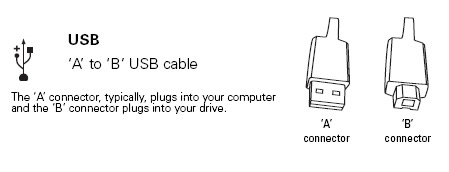
  • GoFlex™ Cable – USB 2.0
  • GoFlex™ Upgrade cable – USB 3.0
  • GoFlex™ Upgrade Kit – USB 3.0 kit
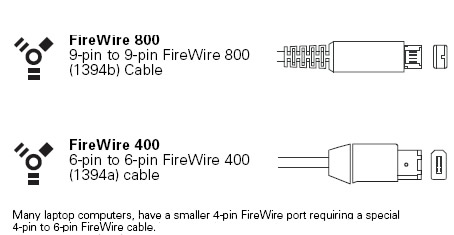
  • GoFlex™ Upgrade cable – FireWire® 800
  • GoFlex™ Upgrade cable – Auto Backup
  • GoFlex™ Intelligent dock
  • GoFlex™ TV HD media player
  • GoFlex™ Net media sharing device

2. Why is GoFlex for Mac unique?
Aside from the GoFlex eco system and the ability to take advantage of all the tools available from the Mac OS, the GoFlex for Mac drives can also be used interchangeably with PCs without reformatting the drive. Simply install the HFS+ driver, available for download, on the PC and use the drive on both platforms. There are no file size restrictions or performance hits.

3. Is GoFlex for Mac compatible w/ Time Machine?
Yes, all of the external hard drives in the GoFlex for Mac family are formatted to HFS+ out of the box, which is fully compatible with Time Machine software.

4. What is the difference between GoFlex for Mac and GoFlex Pro for Mac?
The GoFlex Pro for Mac features a faster 7200RPM drive. Since this drive has a faster spin speed, it takes further advantage of the faster FireWire 800 interface.

5. If the activity lights are distracting, can I turn the LEDs on/off?
Yes, via the downloadable program from Seagate’s support website. This program will also allow users to perform drive tests to assure the drive is working properly.

6. How is the GoFlex series of products different from other available external hard drive solutions?
The GoFlex family of drives is different from other standard hard drives available today in that it provides more than just a way to store, backup and protect your digital content. FreeAgent GoFlex drives deliver:

  • Flexibility: You can use one drive in many different ways within the GoFlex family, including on your computer, on your TV, over your network, or on-the-go.
  • Interoperability: Use the same drive on both Mac and PC interchangeably.
  • Upgradable: Use the included plug-and-play FireWire 800 or USB 2.0 interface now and have the option to upgrade to either USB 3.0 or powered eSATA (portables only) later.

7. Is USB 3.0 backward compatible with USB 2.0?
Yes, USB 3.0 is fully backwards compatible with USB 2.0. It is however limited to USB 2.0 speeds.

8. Can I interchange cables and adapters between GoFlex for Mac, GoFlex Pro for Mac and GoFlex Desk for Mac?
It is possible to interchange all cables and adapters between the portable solutions – GoFlex for Mac and GoFlex Pro for Mac – however, you cannot use a portable solution cable with the GoFlex Desk for Mac because the power requirements of the GoFlex Desk for Mac exceed what can be supplied through a USB, eSATA or FireWire port. Therefore it is necessary to use GoFlex Desk for Mac power adapters that are designed to draw power from a standard AC power outlet.

9. Can I plug any bare drive into Seagate’s GoFlex cables? Will they function properly?
While the GoFlex cables are capable of plugging directly into our Seagate Barracuda and Momentus drives and used with a laptop or desktop, we do not recommend or support their use with an exposed drive. The added benefit of the GoFlex solutions is to have a durable enclosure that allows for portability, use with other products in the ecosystem and delivers all the added physical protection you would want to keep your most precious data safe and secure.

10. What does upgradeable mean? Can I increase the capacity of my drive?
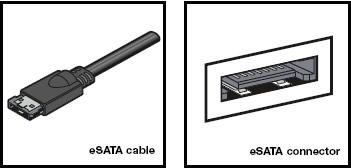
While it is not possible to increase the capacity of your GoFlex drive, the unique and seamless GoFlex cable system transforms the GoFlex and GoFlex Pro for Mac ultra-portable drives into truly upgradable solutions in that you can access the content on your drive with any interface you would like, all by simply selecting the cable that matches your interface of choice. Each GF for Mac drive comes standard with FireWire 800 and USB 2.0 adapters and cables for a complete out-of-the-box experience. However, by simply changing the cable, you can upgrade the speed and performance of your interface to faster powered eSATA (portable models only), or USB 3.0.

11. Why is there no power button on GoFlex Desk for Mac?
There is no need for an on/off button on the drive since the option to put the drive to sleep when not in use can be managed through the system preferences of the computer.

12. What are the model numbers of GoFlex accessories?
This table provides the various GoFlex accessory model numbers.

Family
Model Number
GoFlex Upgrade CableUSB 2.0 STAE100
GoFlex Upgrade Cable KitUSB 3.0 STAE101
GoFlex Upgrade CableFireWire 800 STAE102
GoFlex Upgrade CableUSB 3.0 STAE104
GoFlex Desk Desktop AdapterFireWire 800/USB 2.0 STAE105
GoFlex Desk Desktop AdapterUSB 3.0 STAE106
GoFlex Desk Desktop Adapter KitUSB 3.0 STAE107

13. Can the USB 3.0 adapter be used with a Mac computer?
Yes, it will work in USB 2.0 mode. Mac computers do not currently offer USB 3.0 support. However, the USB 3.0 connector will work with a USB 2.0 port.

Note: The optional USB 3.0 PCI Express or PC Express cards will not work with Mac OS since a driver is not available.

14. Can the FreeAgent GoFlex Net be used with Mac OS?
Yes, the GoFlex Net works with 10.5 (Leopard) and 10.6 (Snow Leopard). There was an issue with Mac OS 10.6.3 when using the WFS (Windows File Sharing) feature, but an update to Mac OS 10.6.4 resolves that issue.

Seagate FreeAgent GoFlex for Mac Storage System FAQs Read More »

Seagate Introduces GoFlex For Mac External Hard Drives

Seagate GoFlex For Mac External Hard Drives – New Collection of FreeAgent GoFlex for Mac External Drives Are Designed for Mac Enthusiasts While Maintaining Cross-Platform Compatibility

January 4, 2011 – Addressing the personal preferences of the Mac community, Seagate today introduced a new collection of GoFlex™ for Mac external hard drives designed to make it easy for those who use Mac OS X and Time Machine to backup, shuttle, or share their digital content.

These new portable and desktop solutions are HFS+ formatted out-of-the-box, making them fully compatible with Apple Time Machine ® backup software, while maintaining the ability to work across both Microsoft ® Windows ® and Mac OS X computers. A truly unique feature, GoFlex for Mac drives can also be used with computers running Windows by simply downloading an HFS+ driver for Windows from Seagate.com , which will provide full read-write access to the drive from a Windows computer.

Each GoFlex for Mac product comes bundled with FireWire ® 800 and USB 2.0 adapters and cables—the most popular interfaces for Apple computers—but also delivers the flexibility to change the drive’s interface to USB 3.0 or powered eSATA for use with Windows computers. The GoFlex™ interface cables help deliver the speed, performance and connectivity people need, as well as to help safe guard their investments against changing technology. To deliver a fresh look that fits seamlessly with today’s Apple product line, each 2.5-inch, ultra-portable drive in the family features a durable, soft-touch, metallic finish, which is also designed to withstand scratches, fingerprints or other marks incurred from travel. (Comptuer Cables Overview)

The new line-up of GoFlex™ for Mac external drives include:

  • GoFlex TM for Mac ultra-portable drive — This 2.5-inch portable drive is now designed specifically for use with Apple’s Time Machine right out-of-the-box, easily go back in time to access changes or file updates were before they were made. MSRP $199.99 for 1TB, and $249.99 for 1.5TB.
  • GoFlex TM for Mac Limited Edition ultra-portable drive —The GoFlex™ for Mac Limited Edition ultra-portable drive packs 1TB of storage into the standardized 2.5-inch form factor, making it the slimmest high-cap drive available on the market today. With a depth of 12.5mm and shorter in length than an iPhone , the GoFlex TM for Mac Limited Edition is perfect for use with GoFlex TV or GoFlex Net. MSRP $199.95 for 1TB.
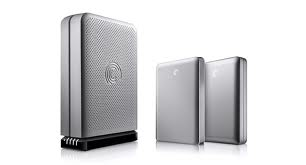
  • GoFlex TM Pro for Mac ultra portable —This 7200RPM, 2.5-inch drive delivers advanced performance for those professionals who place high demands on their storage, such as graphic artists, musicians, videographers or photographers. Using the included FireWire 800 cable to achieve transfer speeds up to three times faster than USB 2.0. MSRP $149.99 for 500GB; $179.99 for 750GB.
  • GoFlex TM Desk for Mac drive — This 3.5-inch high-capacity external drive includes a flexible design that can sit horizontally or vertically to fit your workspace. Back up files using Apple’s Time Machine. Optional software displays the drive’s real-time capacity with lights on the dock and includes other useful tools. MSRP $219.99 for 2TB; $279.99 for 3TB.

In addition, each GoFlex for Mac drive can be used with other devices in the GoFlex™ Storage System such as the GoFlex™ Net media sharing device and the GoFlex™ TV HD media player¹. These solutions provide the flexibility to enjoy content on a TV or a mobile device, such as an iPad or smart phone. There is also an option to download additional software for use with all GoFlex for Mac drives that will provide helpful utilities such as a control to turn the activity lights off and a tool to verify that the drive is functioning properly. Each drive in the family also comes backed by a Seagate three-year warranty, helping to protect your investment and providing peace of mind.

“With over 10 billion songs downloaded from the iTunes ® store and Apple’s market share continuing to grow year-over-year, the growing audience for Mac OS X will need external storage to backup all their digital content, Today’s product introduction addresses these current market trends and underscores Seagate’s commitment to delivering flexible, easy-to-use solutions that meet varying customer needs.” – said Darcy Clarkson, vice president of Global Retail Sales and Marketing for Seagate.

Seagate Introduces GoFlex For Mac External Hard Drives Read More »

Scroll to Top