Articles

Computer Cables Overview

1. External Drives Cables:
USB, FireWire 400, FireWire 800, eSATA, Powered eSATA

a) USB Cable
USB is the most common connection type for external devices, whether external hard drive, thumb drives, flash drives, printers, cameras, all kinds of other devices.  It is extremely easy to use. Whether the computer is powered on or powered off, simply connect the cable to your device and it should be ready to be used less than 30 seconds later (depending on your computer’s speed).

The USB cable has two ends – one to connect into the drive, and one to connect into the computer. Sometimes these ports are found both on the front and the rear of your computer.

USB Cable

b) FireWire 400 and 800 Cable
FireWire is a similar connection to USB, in that it is plug-and-play.  Simply connect your device to the computer and it will usually be ready to be used within 30 seconds.  FireWire is much more common in Mac computers than in Windows computers.

FireWire comes in two speeds at this time – FireWire 400 and FireWire 800.  FireWire 400 (also known as 1394a) usually gives performance similar to USB.  FireWire 800 (1394b) is significantly faster, giving performance similar to an internal Serial ATA drive, but is less common than FireWire 400, and is almost exclusively available in Mac computers.

FireWire 400 and 800 Cable

c) eSATA Cable
eSATA (external Serial ATA) is a high-performance interface most commonly found in Windows PCs, but is fairly rare.

The eSATA cable’s connector and the port look similar to that of a normal Serial ATA connector and port, but they are not intercompatible due to small physical differences.

eSATA Cable


d) Powered eSATA Cable
Powered eSATA provides high performance like eSATA, but like USB 2.0 it also provides electrical power to operate a drive without needing to use a separate power cable for the drive. This interface is even more rare than eSATA.

2. Internal Drives Cables:
Serial ATA (SATA), (Parallel) ATA (PATA)

a) Serial ATA (SATA) Cable
Serial ATA is the most common connection for internal drives in modern PCs and Macs (including all G5s).  There can be multiple SATA ports on any one motherboard or controller card.  One cable connects one hard drive to one port on the motherboard (as opposed to Parallel ATA).

SATA drives include a small power adapter that plugs in to the normal power cable inside your PC or Mac so that it will fit the SATA drive.

Serial ATA (SATA) Cable

b) (Parallel) ATA Cable
ATA is a very common connection for internal drives in older PCs and older desktop Macs (before G5), and for devices like CD and DVD drives in modern PCs and Macs.  It is a connector about 2 inches (5 cm) wide and has 40 small gold pins that will fit into the corresponding 40 small holes on its corresponding connector. There can be two or four ATA ports on any one motherboard.  One cable can connect to two devices at the same time.

(Parallel) ATA Cable

Blue connector – always connects to the motherboard.
Grey (middle) connector – is used for slave devices on the cable.
Black connector – is used for master device connection.

Note: An ATA hard drive will also have different jumper settings depending on whether it is connected as slave or master. An ATA hard drive that is connected to the same cable as a CD or DVD drive must be connected to the master position, with the CD or DVD drive in the slave position.

Computer Cables Overview Read More »

Western Digital PCB (IDE Full Model)

Buy Western Digital PCB(Printed Circuit Board) on HDDZone.com with low price, fast shipping and top-rated customer service! All kinds of Western Digital PCB for your Data Recovery Needs!

WD IDE full board PCB 2060-001003-001
Board Number: 2060-001003-001
Main Controller IC: WD70C20-SW
HDD Motor Combo IC: L6262 2.6
WD IDE full board PCB 2060-001102-003
Board Number: 2060-001102-003
Main Controller IC: WD70C23-GP
WD IDE full board PCB 2060-001128-005
Board Number: 2060-001128-005
Main Controller IC: WD70C22 GP ST1.3
HDD Motor Combo IC: L6278 1.2(E)
WD IDE full board PCB 2060-001159-006
Board Number: 2060-001159-006
Main Controller IC: WD70C22-GP ST2.0/WD70C22-GP ST1.3 HDD Motor Combo IC: L6278 1.7E
WD IDE full board PCB 2060-001173-004
Board Number: 2060-001173-004
Main Controller IC: WD70C22-GP ST2.0/WD70C22-GP ST1.3 HDD Motor Combo IC: L6282 3.2E
WD IDE full board PCB 2060-001175-000
Board Number: 2060-001175-000
Main Controller IC: WD70C23-GP ST2.3
HDD Motor Combo IC: L6278AC
WD IDE full board PCB 2060-001177-000
Board Number: 2060-001177-000
Main Controller IC: WD70C23-GP ST2.3
HDD Motor Combo IC: L6278AC
WD IDE full board PCB 2060-001189-003
Board Number: 2060-001189-003
Main Controller IC: WD70C22-GP ST2.0/WD70C22-GP ST1.3 HDD Motor Combo IC: L6278 1.7E
WD IDE full board PCB 2060-001265-001
Board Number: 2060-001265-001
Main Controller IC: WD70C26-GP ST2.1
HDD Motor Combo IC: L6283 1.3
WD IDE full board PCB 2060-001266-000
Board Number: 2060-001266-000
Main Controller IC: WD70C26 ST2.1
HDD Motor Combo IC: L6283 1.3

Note: Hard drive failures are NOT always caused by circuit board failure. In most cases, you should exchange the BIOS chip before you swap the PCB. You should have certain technique.

Western Digital PCB (IDE Full Model) Read More »

How to use Disk Management to set up a Hard Drive

How to use Disk Management to set up a Hard Drive To start Disk Management:

  1. Log on as administrator or as a member of the Administrators group.
  2. Click Start -> Run -> type compmgmt.msc -> click OK. Alternatively, right-click on the My Computer icon and select ‘Manage’.
  3. In the console tree, click Disk Management. The Disk Management window appears. Your disks and volumes appear in a graphical view and list view. To customize how you view your disks and volumes in the upper and lower panes of the window, point to Top or Bottom on the View menu, and then click the view that you want to use.

How to create a new partition or a new logical drive:

To create a new partition or logical drive on a basic disk:

  1. In the Disk Management window, complete one of the following procedures, and then continue to step 2:
    1. To create a new partition, right-click on the Unallocated space on the Basic disk where you want to create the partition, and then click New Partition.
    2. To create a new logical drive in an Extended partition, right-click on the free space on an Extended partition where you want to create the logical drive, and then click New Logical Drive.
  2. In the New Partition Wizard, then click Next.
  3. Click the type of partition that you want to create (either Primary partition, Extended partition, or Logical drive), and then click Next.
  4. Specify the size of the partition in the Partition size in MB box, and then click Next.
  5. Decide whether to manually assign a drive letter, let the system automatically enumerate the drive, or not assign a drive letter to the new partition or logical drive, and then click Next.
  6. Specify the formatting options you want to use (such as setting a drive label name) by using one of the following procedures:
    1. If you do not want to format the partition, click Do not format this partition, and then click Next.
    2. If you want to format the partition, click Format this partition with the following settings, and then complete the fields in the Format dialog box.
  7. Confirm that the options selected are correct, and then click Finish.
  8. You should be able to see the new drive listed under My Computer with the new drive letter assignment and the drive label name.
How to use Disk Management to set up a Hard Drive Read More »

Free MAC Data Reovery Program: Disk Drill

Recovery damaged, corrupted and deleted data from HFS, HFS+, FAT, NTFS & other file systems.

Version: Disk Drill 1.0.66
Publisher: www.cleverfiles.com
Operating system: Mac OS X 10.5+

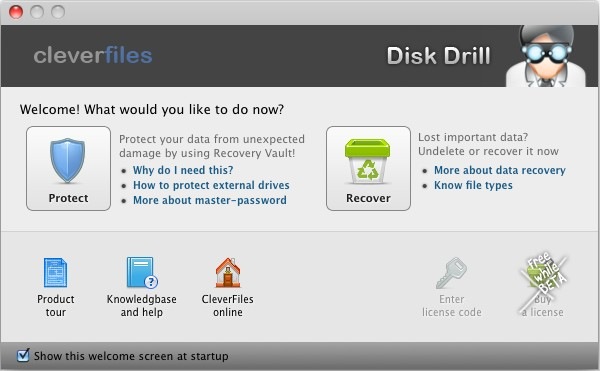
Disk Drill is a free data recovery program designed and created exclusively for Mac OS. Extremely clear wizard-like user interface guides you through the data recovery process and offers several options for successful MAC data recovery. Was your hard drive formatted? Is your external volume not accessible any more? CleverFiles will help you recover what is still available on a binary level.

* Note: It is free while beta!

Disk Drill Main Features:

  • File systems supported: HFS/HFS+, FAT, NTFS, etc.
  • Media supported: Memory cards, external and internal hard drives, iPod and iPhone, camera and so on.
  • Recovery in Seconds: You can use Quick Scan or Recover from Vault modes to quickly analyze existing file system catalog and recover deleted files unexpectedly fast.
  • Partition Recovery: Accidental repartitioning lead to data loss? Recover data from partitioned or formatted disk drives right on your Mac.

Disk Drill Main Screenshot:

Free MAC Data Reovery Program: Disk Drill

Disk Drill Free Mac Data Recovery Program Customer Reviews:

Disk Drill is the only true Mac-style software for data recovery and data protection. And it’s exactly what I was looking for”

Bravo! I just did the high level scan. Unbelievable! You are the only one capable of recovering from a CF 16GB. Every program I tried so far failed miserably. My hat to you.”

Disk Drill Free Download:

Free MAC Data Reovery Program: Disk Drill

Free MAC Data Reovery Program: Disk Drill Read More »

Hard Drive Data Recovery Services(Seagate, Western Digital, Samsung)

Hard Drive Data Recovery Services(Seagate, Western Digital, Samsung) Hard disk failures are so common that data recovery is a multi-billion dollar industry. If you need to recover deleted photos, have a hard drive repair, or retrieve data for a business, a data recovery service can help to deal with the panic of losing files and information.

If you select the data recovery services offered by the service providers named below, they will not void the warranty associated with the disk drive you purchased from a Seagate, Western Digital and Samsung resellers or distributors.

Hard Drive Data Recovery Service Provides will not void the warranty:

Seagate Hard Drive Data Recovery Services

Seagate Data Recovery Services are a pay-per-use service and not covered by a hard drive’s warranty.

If your drive is still under warranty and you intend to pursue data recovery, you must do the data recovery before exchanging the drive.  Once a drive has been returned for warranty exchange, any data on the drive is forfeited and lost.

Seagate Data Recovery Service

Western Digital Hard Drive Data Recovery Services:

Western Digital will not void the warranty associated with the disk drive you purchased from a Western Digital reseller or distributor.

Western Digital Data Recovery Services

Samsung Hard Drive Data Recovery Services:

For your reference, below is a list of data recovery service providers that can open your Samsung HDD product and (if connected through the link below) provide a seal or proof of data recovery that will not void your Samsung HDD limited warranty.

Samsung Data Recovery Services

Note: To retain the warranty status of your drive, you should ensure that the service provider you select provides you with written verification, on its company letterhead, that it has performed data recovery or other services on your hard drive.

Hard Drive Data Recovery Services(Seagate, Western Digital, Samsung) Read More »

Seagate Barracuda 7200.7 Hard Drive PCB

Buy Seagate Barracuda 7200.8 hard drive PCB(Printed Circuit Board) on HDDZone.com with low price, fast shipping and top-rated customer service! All kinds of Seagate Barracuda 7200.8 HDD PCB for your Data Recovery Needs!

Seagate Barracuda 7 PCB ST3160023AS 100328754
Name: ST3160023AS
Main Controller IC: 100328754
HDD Motor Combo IC: SH6950D
Seagate Barracuda 7 PCB ST3160023AS 100367025
Name: ST3160023AS
Main Controller IC: 100367025
HDD Motor Combo IC: SH6950D
Seagate Barracuda 7 PCB 100274360
Main Controller IC: 100274360
HDD Motor Combo IC: SH6950D/100244097
Seagate Barracuda 7 PCB 100277704 100252820
Board Number: 100277704
Main Controller IC: 100252820
Motor Combo IC: 100244097
Seagate Barracuda 7 PCB 100291893 REV A
Board Number: 100291893 REV A
Main Controller IC: 100319396
HDD Motor Combo IC: 100244097
Seagate Barracuda 7 PCB 100328755
Main Controller IC: 100328755
HDD Motor Combo IC: SH6950D
Seagate Barracuda 7 PCB 4490D6/100274360-74
Main Controller IC: 4490D6/100274360-74
HDD Motor Combo IC: 100244097
Seagate Barracuda 7 PCB 4490D6/100274360-74/100300639-83
Main Controller IC: 4490D6/100274360-74/100300639-83 HDD Motor Combo IC: SH6950D
Seagate Barracuda 7 PCB L4490D8/100342861-74
Main Controller IC: L4490D8/100342861-74
HDD Motor Combo IC: SH6950D/100343137
Seagate Barracuda 7 PCB ST3160023AS 100336321 REV A
Board Number: 100336321 REV A
Main Controller IC: 100328756
HDD Motor Combo IC: SH6950D
Seagate Barracuda 7 PCB ST3160023AS 100367024
Name: ST3160023AS
Main Controller IC: 100367024
HDD Motor Combo IC: SH6950D

Note: Hard drive failures are NOT always caused by circuit board failure. In most cases, you should exchange the BIOS chip before you swap the PCB. You should have certain technique.

Seagate Barracuda 7200.7 Hard Drive PCB Read More »

Solutions for Seagate Barracuda 7200.11 HDD Common Errors(Part I)

There are two common errors on Seagate Barracuda 7200.11 HDDs (caused by bugs on firmware):

  • 0 LBA error: it happens when your BIOS can recognize your HDD at POST moment, but as an 0MB drive.
  • BSY error: it happens when your HDD enter on a halt state, or Busy state. In this condition, your HDD will not be recognized by BIOS at POST moment.

Solutions: You’ll need: TTL adapter

Attention: This guide might not be to every case. No responsible for any damage or data loss it can happen.

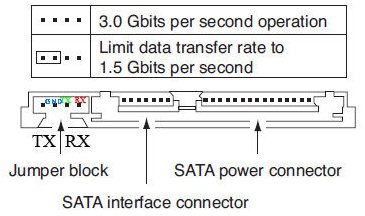
TX and RX connections from a SATA Seagate 3.5″:


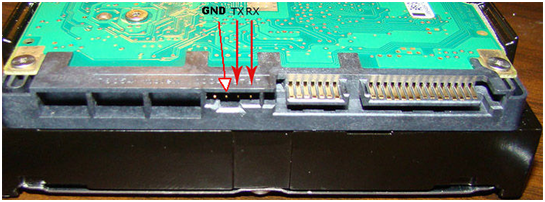
TX and RX connections from a SATA Seagate 3.5"Photo with the real drive:

TX and RX connections from a SATA Seagate 3.5"

Connect TX and RX ports with RS232 to TLL adapter, you’ll need something like jumpers in order to do that, or soldering directly to the PCB board. Connect GND and +5V to PC power supply, or similar. Keep in mind those are direct from Seagate sides, so you’ll need to connect in this way:

– From PC (TX) to >>> RX (on Seagate)
– From PC (RX) to >>> TX (on Seagate)

You can use RED wire (+5V) from PC power supply. Blacks are GNDs (yellow is +12V so don’t use it).

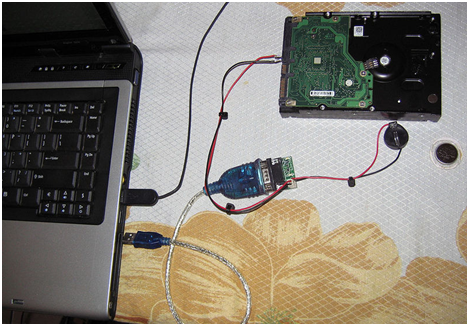
If you don’t want to mess with power supply, just use a CR2032 (3V) battery:
https://www.isaleproducts.com/p-7709-3v-lit…ll-battery.aspx

An idea of whole setup (I used an USB to RS232 too):

Solutions for Seagate Barracuda 7200.11 HDDs Firmware Problem

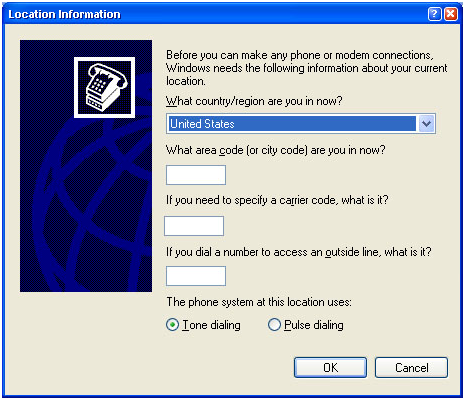
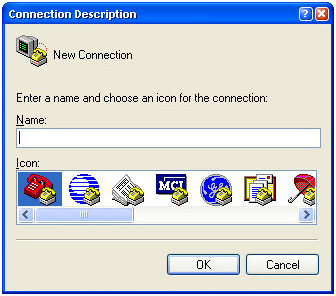
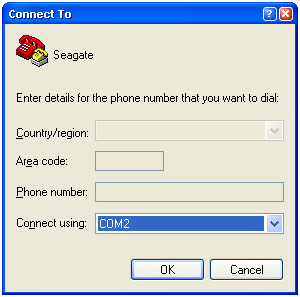
Run HyperTerminal (or your favourite terminal software).

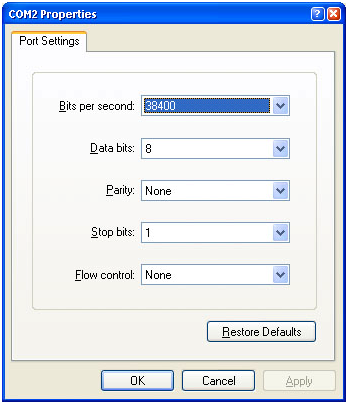
Configure the RS232 port to: 38400 8 N 1 (like this one):

Solutions for Seagate Barracuda 7200.11 HDDs Firmware Problem

Solutions for Seagate Barracuda 7200.11 HDDs Firmware Problem

Solutions for Seagate Barracuda 7200.11 HDDs Firmware Problem

Solutions for Seagate Barracuda 7200.11 HDDs Firmware Problem

Solutions for Seagate Barracuda 7200.11 HDD Common Errors(Part I) Read More »

Solutions for Seagate Barracuda 7200.11 HDD Common Errors(Part II)

1. Fixing Seagate Barracuda 7200.11 HDD 0 LBA error:

Note: All commands are case sensitive!

To correct 0 LBA error, you’ll need to do a quick format in order to regenerate the partition, just with m0,2,2 and the rest can be left blank by putting only commas or filling out with zeros. At the end you need to use a “ValidKey” code, or 22.

Attention: The commands must be used 100% equal as showed here, wrong cmds could lead to data loss or HD loss! Double or triple check the cmd before to press enter!
So we’ll have to enter:

F3 T>m0,2,2,0,0,0,0,22 (enter)

For reference: F3 T>m does:

Level T ‘m’: Rev 0001.0000, Flash, FormatPartition, m[Partition],[FormatOpts],[DefectListOpts],[MaxWrRetryCnt],[MaxRdRetryCnt],[MaxEccTLevel],[MaxCertif

yTrkRewrites],[ValidKey]

Now wait 15~30 seconds until something like this appears (it will vary a bit):

Max Wr Retries = 00, Max Rd Retries = 00, Max ECC T-Level = 00, Max Certify Rewrite Retries = 0000    User Partition Format 5% complete, Zone 00, Pass 00, LBA 00008DED, ErrCode 00000080, Elapsed Time 0 mins 05 secs    User Partition Format Successful - Elapsed Time 0 mins 05 secs

ONLY after the message like above you can turn off everything.

Solutions for Seagate Barracuda 7200.11 HDD Common Errors(Part II) Read More »

Solutions for Seagate Barracuda 7200.11 HDD Common Errors(Part III)

2. Fixing Seagate BSY or CC errors aka BUSY (I recommend some practice before trying this):

Note: All commands are case sensitive !

  1. First, make sure you have your hard drive accessible; on a table with open access to the drive is best.
  2. Second, you need to remove the PCB (Printed Circuit Board) from HDA case using a Mini Torx 6 screw driver.
  3. Third, connect RX & TX cables from your RS-232 adapter, verify that all is correct, and then connect the power supply to Hard drive circuit board.

Explanation: The problem with the drive is that the drive is stuck/halt in a BUSY state. This basically locks up the SATA port, causing the BIOS problem (cannot detect the drive at POST). In the terminal, you will see this sort of error (LED: 000000CC FAddr: 0024A051). Once you see this in the terminal, the terminal session to the drive is completely blocked and will not accept any more commands. In order to circumvent this, we’ll need to disconnect the PCB (circuit board) from the hard drive case so that the LED: 000000CC FAddr: 0024A051 command cannot be sent from the firmware of the terminal session.

After you have connected the power to the circuit board, press CTRL+Z in your HyperTerminal session. You should now see a prompt like this:

F3 T>

If you do not see this prompt, check your RS-232 connections to the drive. (you may have the TX and RX flipped).

Now we’ll need to access the Level 2, type:

F3 T>/2 (enter)
F3 2>

And type (to spind down the motor):

F3 2>Z (enter)    Spin Down Complete  Elapsed Time 0.147 msecs (the time will vary here)  F3 2>

Now the tricky part. Pratice a lot without any power before even trying this. You need to make sure that the screws don’t touch the PCB board where they aren’t suppose to or you will fry your PCB board. If you have been practicing and the power is not connected, start at STEP ONE.

With the POWER CONNECTED to the PCB board, as well as your TX/RX terminal wires, mount the board back on the HDA case. You must have the power connected when you do this.

Now type (to start the motor):

F3 2>U (enter)

You should get something like this:

Spin Up Complete

Elapsed Time 7.093 secs

F3 2>

Then go to Level 1 (by typing /1):

F3 2>/1 (enter)

Now lets do a S.M.A.R.T. erase (create S.M.A.R.T. sector):

F3 1>N1 (enter)

————————————————————————————-

G-List step is optional:

Skip G-List step first, if after proceeding the whole BSY fix and the drive still remains under BSY error, then you’ll need to repeat BSY process with G-List command below.

G-List Erase (Fix Defect List):

F3 1>/T (enter)
F3 T>i4,1,22 (enter)

For reference:

Level T ‘i’: Rev 0001.0000, Overlay, InitDefectList, i[DefectListSelect],[SaveListOpt],[ValidKey]

————————————————————————————-

Power OFF/ON the drive (very important!)

Wait 10 seconds and now Power ON your drive.

Press CTRL+Z on terminal and type:

Partition regeneration:

F3 T>m0,2,2,,,,,22 (enter)

For reference:

Level T ‘m’: Rev 0001.0000, Flash, FormatPartition, m[Partition],[FormatOpts],[DefectListOpts],[MaxWrRetryCnt],[MaxRdRetryCnt],[MaxEccTLevel],[MaxCertif

yTrkRewrites],[ValidKey]

You should get something like (in around 15~30 seconds):

Max Wr Retries = 00, Max Rd Retries = 00, Max ECC T-Level = 14, Max Certify Rewrite Retries = 00C8    User Partition Format 10% complete, Zone 00, Pass 00, LBA 00004339, ErrCode 00000080, Elapsed Time 0 mins 05 secs    User Partition Format Successful - Elapsed Time 0 mins 05 secs

If you didn’t get the msg above, then you skipped something important, and turning off your drive now will render an unreadable drive, so be careful.

ONLY after the message like above you can turn off everything.

Solutions for Seagate Barracuda 7200.11 HDD Common Errors(Part III) Read More »

Free Backup Software: Macrium Reflect Free Edition

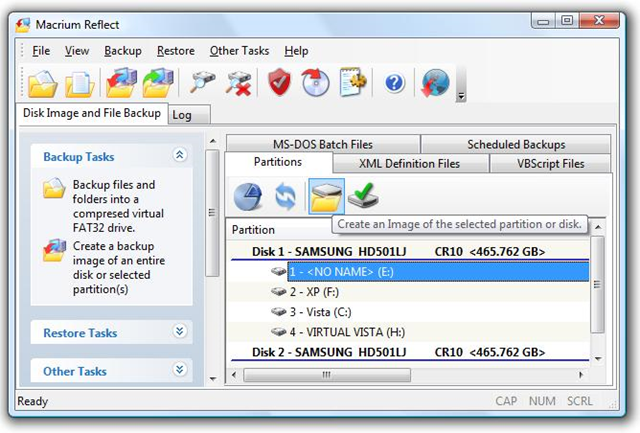
Free Backup Software: Macrium Reflect Free Edition Macrium Reflect – Create, burn, and back up disk images.

Software Name: Macrium Reflect Free 4.2 build 2952
Version: Publisher: www.macrium.com
Operating system: Windows XP/2003/Vista/7/2008

Macrium Reflect lets you backup your computer files or create complete images(Using this image you can easily restore data to an existing hard drive or put all your data on a new hard drive.) of your hard drive. Macrium is the best hard disk imaging and recovery solution for Windows XP/Vista/7, Server 2003 and Server 2008. Macrium Reflect supports backup to local, network and USB drives as well as burning to all DVD formats.

Macrium Reflect Free Edition Main Features:

  • Simple step by step operation
    Image and Restore using intuitive wizards and interfaces. Macrium Reflect integrates fully with Windows Explorer, a partition image can be created with a simple right click.
  • Automate the process
    With Macrium Reflect you can schedule Images to run at any time.
  • Integrated VBScript generator
    For ultimate backup control Macrium Reflect integrates with VBScript and WScript, enabling complete control of the backup process.
  • XML Backup definitions
    Save your backup definitions as industry standard XML files
  • Restore individual files and folders
    Create a ‘Virtual’ drive in Windows Explorer and recover selected files and directories using simple copy and paste operations.
  • Optimize
    You can create full, differential or incremental images to optimize backup speed and disk space requirements.
  • Windowless recovery
    If Windows no-longer boots, simply start your computer with the Macrium Rescue CD. This CD starts a compact version of the Linux operating system with a familiar mouse and graphical interface. You can then recover partitions and entire diskimages with just a few clicks of your mouse.

Macrium Reflect Free Edition Customer Reviews:

I just wanted to let you know how great your product is. I got a new SATA hard drive for my laptop and I tried to use ghost but it failed. I used your product with the Bart PE plugin and it was terrific. Very easy interface and worked perfectly. Thanks so much.

its fast easy to understand and works every time the interface is nice alot nicer than most back-up software of this type and it lets you see it working instead of guessing.

Macrium Reflect Free Edition Download:

Free Download: Macrium Reflect Free Edition

Note: Macrium Reflect Free Edition is for non-commercial home use.

Free Backup Software: Macrium Reflect Free Edition Read More »

Scroll to Top