Articles

3 Steps to Successful Data Backup

Data Backup Data protection is crucial for protecting your business’s continuity. If your only data backup is on a computer, and the hard disk fails or is damaged by a power surge, your business data is gone. And having paper copies of business data isn’t adequate data protection; what if your business premises burn to the ground or experience severe flooding? Once again the data you need to carry on your business could be irretrievably lost.

For adequate data protection, you need to establish a data backup system that follows these three steps:

  • archive business data regularly;
  • create data backups on reliable media;
  • keep updated data backups in a secure, off-site location.

The basic rule for business data protection is that if losing the data will interfere with doing business, back it up. You can reinstall software programs if you need to, but recovering the details of transactions or business correspondence is impossible if those files are lost or damaged beyond repair. The rest of this article outlines each of the steps listed above so you can establish a data backup system that will effectively protect your critical business data from disaster.

1) Archiving Critical Business Data

Archiving business data is more than a matter of good housekeeping; it could be a matter of your business’s survival. There are two steps to archiving business data for successful data backup;

  • identifying the critical data that needs to be archived
  • and using a data archiving method on a regular schedule.

What needs to be archived in a data backup? Executables, such as software programs, don’t need to be. You don’t create new versions of executable programs and, as I’ve said, if a software program was lost or corrupted, you could reinstall it fairly easily.

However, all of the files that you’ve created and/or modified should be regularly backed up. For many businesses, this includes everything from accounting files through email.

You can simplify your backup archiving by keeping all the files that will need to be archived on a single drive on your computer. For instance, suppose I need to back up accounting files, word-processing documents, spreadsheets, photo and email. Putting Simply Accounting, Microsoft Office (including Outlook) and Paintshop Pro all on the D:/ drive makes it easier for me to archive all the files I’ve created or modifed using those programs. All I have to do is back up the drive. While I don’t have to back up executables, it doesn’t hurt them if I do.

Once you’ve selected the critical data to be archived, it’s a simple matter to install and use a backup software program to archive your business data on a regular schedule.

I recommend backing up your data nightly. There are many backup software programs available that allow you to set a schedule that will archive your data automatically. Look for backup software that zips and encrypts files to save disk space and increase data security.

If possible, backup over your computer network, keeping your data backup files on a separate hard drive from the original files. If this isn’t possible because you have a stand-alone computer, put your data backup files in a separate directory, and increase your schedule for creating physical backups.

The second step of data protection is creating data backups – not just once, but on a regular schedule. But before you do this, you need to be aware of the different backup systems available and the limitations of some backup media.

2) Creating Physical Data Backups

Physical data backups are necessary because of the possibility of computer failure or damage. Even a minor accident such as spilling a cup of coffee onto your laptop could destroy all your data, if that’s the only place your data resides. You should create physical data backups of your business data at least once a week, or even more often if your business generates large amounts of new data daily. There are several methods of transferring your backup files to another media, but some data backup systems are more reliable than others.

Which backup media should you use?

Using CD-Roms as data backups
Using CD-Roms as data backups is popular. Blank CDs are inexpensive, and copying data onto CDs is easy. However, this is the most unreliable method of all the data backup methods listed here. Who hasn’t had the experience of putting a CD into a drive only to find that the data is unreadable and the disk “doesn’t work”? CDs, like the floppy disks they’ve replaced, have a limited shelf life. I don’t recommend this method of data backup for any small business. If you are writing your data backup files onto CDs, make sure that you make (and keep) multiple copies over time.

Using tapes as data backups
Tape backups are ten thousand times as reliable as CD-Roms, but tape drives and their associated media are much more expensive than CD-Rom writers and CDs. A good tape drive can still cost over $1000, and individual tapes for the drive can cost up to $40 each. If you can afford the equipment, however, tape backup is far and away the best backup method.

Using external hard drives for data backups

For small businesses, buying and using an external hard drive for data backups is the method I recommend. External hard drives are cheap compared to tape drive systems ; you can get one for several hundred dollars. They’re also easy to use; in many cases, all you have to do is plug the hard drive into your computer’s USB port. And while hard drives do fail, their failure rate is much lower than that of backup media such as CDs.

Using Online backup services as data backups
There are many companies offering online backup services, but I can’t recommend this method. Besides the potential of bandwidth problems, there are just too many security issues that have yet to be dealt with. Firstly, the method is only as reliable as the company offering the online backup service, and Internet service companies have been coming and going faster than the common cold lately. Secondly, if your business data is sensitive, (and whose isn’t?), why would you want to put it on the ‘Net?

3) Off-Site Data Backup

The only businesses that should be keeping their data backups on-site are those with fire-proof, indestructible safes. Investing in a tape drive or external hard drive and meticulously adhering to a regular data backup schedule won’t help if all your data backup copies are in one place and that place is struck by disaster. You must store copies of your backups off-site if your business data is to be truly secure.

Many businesses keep their data backup copies in security boxes at banks. (The fee for a security box is tax-deductible, if you need further incentive.) Some small business owners keep multiple data backup copies of their records at the homes of different friends or family members. It doesn’t really matter where you choose to keep them, as long as the site you choose for off-site data backup is secure and you have regular access to it.

Don’t run the risk of losing your business data. The best defense against such a disaster is proper data protection. By creating a backup system that includes archiving and backing up your business data regularly and properly, you’ll ensure that your business will be able to weather whatever storm it faces and carry on.

3 Steps to Successful Data Backup Read More »

4 Steps To Create Your Disaster Recovery Plan

Disaster Recovery Plan When disasters strike unprepared companies the consequences range from prolonged system downtime and the resulting revenue loss to the companies going out of business completely,  yet many IT shops are not prepared to deal with such scenarios. How would you recover your data and keep the business running after an unforeseen disaster?

The key to surviving such an event is a business continuity strategy, a set of policies and procedures for reacting to and recovering from an IT-disabling disaster, and the main component of a business continuity strategy is a disaster recovery plan (DRP).

Step 1: Risk Analysis
The first step in drafting a disaster recovery plan is conducting a thorough risk analysis of your computer systems. List all the possible risks that threaten system uptime and evaluate how imminent they are in your particular IT shop. Anything that can cause a system outage is a threat, from relatively common manmade threats like virus attacks and accidental data deletions to more rare natural threats like floods and fires. Determine which of your threats are the most likely to occur and prioritize them using a simple system: rank each threat in two important categories, probability and impact. In each category, rate the risks as low, medium, or high.

For example, a small Internet company (less than 50 employees) located in California could rate an earthquake threat as medium probability and high impact, while the threat of utility failure due to a power outage could rate high probability and high impact. So in this company’s risk analysis, a power outage would be a higher risk than an earthquake and would therefore be a higher priority in the disaster recovery plan.

Step 2: Establish the Budget
Once you’ve figured out your risks, ask ‘what can we do to suppress them, and how much will it cost?’ Can I detect a threat before it hits? How do I reduce the potential of it occurring? How do I minimize its impact to the business? For example, our small California Internet company could employ an emergency power supply to mitigate its power outage threat and have all its data backed up daily on RAID tapes, which are stored at a remote site in case of an earthquake. The more preventative measures you establish upfront the better. Emerson says, “dollars spent in prevention are worth more than dollars spent in recovery.”

The results of Step 1 should be a comprehensive list of possible threats, each with its corresponding solution and cost. It is imperative that IT presents all of these threats to the business operations units, so they can make an informed decision regarding the size of the disaster recovery budget (i.e., which risks the company can afford to tolerate and which it must pay to mitigate). Emerson believes IT “falls down” in its failure to communicate the real risks for system downtime to the business operations units of their companies. He says, “It’s okay for operations to say no; it’s not okay for IT not to let them know the risks.”

A good place to begin is by presenting the cost of downtime to the business. How long can your business afford to be without its computer systems should one of your threats occur?

Ultimately, the business operations unit decides which threats the business can tolerate. According to Emerson, when developing a DRP, IT departments are “shooting in the dark without those business indications.” Both IT and the business units must agree on which data and applications are most critical to the business and need to be recovered most quickly in a disaster. The management of our small Internet company, for example, may decide they can supply the budget only for the emergency generators and the company will have to assume the risk of an earthquake.

Disaster recovery budgets vary from company to company but they typically run between 2 and 8 percent of the overall IT budget. Companies for which system availability is crucial usually are on the higher end of the scale, while companies that can function without it are on the lower end. However, these percentages may be too small. For a large IT shop 15 percent is a best practice rule of thumb according to Emerson.

Step 3: Develop your Disaster Recovery Plan
The feedback from the business units will begin to shape your disaster recovery plan procedures. If, for example, they determine that the company must be up within 48 hours of an incident to stay viable, then you can calculate the amount of time it would take to execute the recovery plan and have the business back up in that timeframe. Emerson suggests that you have the recovery systems tested, configured, and retested 24 hours prior to launching them. He says the set up takes anywhere from 40 hours to days to complete.

The recovery procedure should be written in a detailed plan or “script.” Establish a Recovery Team from among the IT staff and assign specific recovery duties to each member. The manner in which your team conducts its recovery probably will be no different than its regular production procedures: the chain of command likely won’t change and neither will the aspects of the network for which each member is responsible.

Define how to deal with the loss of various aspects of the network (databases, servers, bridges/routers, communications links, etc.) and specify who arranges for repairs or reconstruction and how the data recovery process occurs. The script will also outline priorities for the recovery: What needs to be recovered first? What is the communication procedure for the initial respondents? To complement the script, create a checklist or test procedure to verify that everything is back to normal once repairs and data recovery have taken place.

Step 4: Test, Test, Test
Once your Disaster Recovery Plan is set, test it frequently. Eventually you’ll need to perform a component-level restoration of your largest databases to get a realistic assessment of your recovery procedure, but a periodic walk-through of the procedure with the Recovery Team will assure that everyone knows their roles. Test the systems you’re going to use in recovery regularly to validate that all the pieces work. Always record your test results and update the DRP to address any shortcomings.

As your business environment changes, so should your Disaster Recovery Plan. Reexamine the plan every year on a high level: Do you still need every part of the plan? Do you need to add to it? Will the budget need to be adjusted to accommodate changes to the plan? As applications, hardware, and software are added to your network, they must be brought into the plan. New employees must be trained on recovery procedures. New threats to business seem to pop up every week and a sound DRP takes all of them into account.

4 Steps To Create Your Disaster Recovery Plan Read More »

Why Does Data Use More Space On Larger Drives Than Smaller Drives?

The reason the data takes up more space has to do with the cluster sizes used to store data. Microsoft operating systems using the FAT32 file system use varying cluster sizes depending on the size of the partition.

The following chart gives a breakdown of the partition/cluster size relationship using FAT32

Partition SizeCluster Size
512 MB – 8192 MB (8 GB)4 KB
8193 MB – 16384 MB8 KB
16385 MB – 32769 MB16 KB
Greater than 32769 MB32 KB

A cluster is the smallest unit used by the operating system to store data. Each piece of data, regardless of how small, uses at least one full cluster. For example, if you have a 6 GB partition in FAT32, it will have 4K clusters. If a file stored to that cluster is 3K, the entire 4K cluster will be used. On the other hand, with an 80 GB partition using 32K clusters, that same 3K file still uses one full cluster (32K). You can see that with larger cluster sizes there is the potential for more wasted space. In most cases, this is not a problem as most files will not be that small. If multiple clusters are used to accommodate a file’s size, the system will use as many clusters as necessary for the file, leaving wasted space on the last cluster used.

Clusters are sized in this way to balance speed and efficiency. If the larger partitions still used the smaller 4K clusters, utilities like ScanDisk, Defrag, etc. would take hours to complete.

Why Does Data Use More Space On Larger Drives Than Smaller Drives? Read More »

Top 10 Data Recovery Softwares (7): EASEUS Data Recovery Wizard

Data Recovery Wizard Recover your lost data from various storage devices and file systems.

Price: Free to try (Recovery-disabled); $69.95 to buy
Operating system: Windows 2000/XP/Vista;
Version: 4.3.6

Publisher’s description:
EASEUS Data Recovery Wizard
is an Advanced data recovery software to do format recovery and recover deleted files emptied from Recycle Bin or lost data due to partition loss or damage, software crash, virus infection, unexpected shutdown or any other unknown reasons. It will do an amazing job when the data loss disaster strikes, especially when you want to recover data from formatted drive. Data Recovery Wizard supports hardware RAID and hard drive, USB drive, SD card, memory card, etc. It provides the comprehensive data recovery solution for computer users to recover lost data.

User Reviews:

1. I had two harddrives, a Seagate and a Western Digital. The seagate crashed, corrupting the data. The Western Digital had a run in with a virus. I was able to get back a 100% recovery of the Western Digital and near that for the seagate…

2. I had an external USB 15GB HD that got detached while in use. After I plugged it back in all it showed in Disk Manager is unalocated space. I installed Data Recovery Wizard and it found all my data immediately and allowed me to back it up.

3. my hdd suddenly crashed, so i needed to get the maximum number of files back. i tryied getdataback, stellar, easyrecovery, rstudio and even winhex. they found about 10,000+ files. the only one that was able to find 40,000+ files was easeus data recovery wizard.
i dont know about recovering partition or whatever but at file recovering, this one is a good one.it even recovered files i deleted one year ago lol (yes it’s a big hdd).
works good on vista sp1

Useful Links:

  • Web site: http://www.easeus.com
  • Free download EASEUS Data Recovery Wizard now!
  • Buy EASEUS Data Recovery Wizard online.

Publisher profile:
Chengdu Yiwo Tech Development, established on August 12th, 2004, is a professional Data Recovery, Backup and Data Security company. Ever since its foundation, Chengdu Yiwo Tech Development has provided well-received service for a host number of customers home and abroad.

Top 10 Data Recovery Softwares (7): EASEUS Data Recovery Wizard Read More »

Top 6 Free Hard Drive Diagnostic Softwares

Free hard drive diagnostic software There are many free hard drive diagnostic softwares available to help you determine what, if anything, is wrong when you suspect there may be a problem with a hard drive.

Some of these diagnostics tools may be built in to your operating system already while others are available from hard drive manufacturers.

1. Seagate SeaTools
Seagate SeaTools is free hard drive testing software that comes in two forms for home users:

  • SeaTools for DOS supports Seagate or Maxtor drives and runs independent from your operating system on its own CD or disk, making it highly reliable.
  • SeaTools for Windows is a program that installs on your Windows system. You can do basic and advanced testing of any kind of drive – internal or external – from any manufacturer.

Note: You do not need to own a Seagate or Maxtor hard drive to use SeaTools.

2. Hitachi Drive Fitness Test
Hitachi Drive Fitness Test is free hard drive diagnostic software available for use on most drives available today.

The Hitachi Drive Fitness Test software is available as an ISO file which can be burned to a CD and then used to boot the computer.

Note: You do not need to own a Hitachi hard drive to use Drive Fitness Test (DFT).

3. Microsoft Windows Built-In Error Checking
Error Checking, sometimes referred to as scandisk, is a hard drive testing tool that comes with Microsoft Windows that can scan your hard drive in search of a wide range of errors.

This tool can also attempt to correct a number of hard drive problems.

4. Samsung HUTIL
Samsung HUTIL is a free hard drive diagnostic utility for Samsung hard drives. HUTIL is sometimes called ES-Tool.

Samsung’s HUTIL tool is available as an ISO image for burning to a CD. This makes HUTIL operating system independent and a better testing tool, in general, than those designed for use within Windows. It’s also possible to run HUTIL from a bootable floppy disk.

Note: HUTIL will only test Samsung hard drives. HUTIL will load and find your non-Samsung drive you will not be able to run any diagnostics on the drive.

5. Western Digital Data Lifeguard Diagnostic
Western Digital Data Lifeguard Diagnostic is free hard drive diagnostic software designed for Western Digital branded hard drives only.

The Western Digital Data Lifeguard Diagnostic software is available in a bootable, ISO format and allows for a number of hard drive tests. See the installation instructions from Western Digital in the link below for details.

Note: Data Lifeguard Diagnostic will also run diagnostics on hard drives from other manufacturers but the primary drive in the computer must be a Western Digital drive.

6. Fujitsu Diagnostic Tool
Fujitsu Diagnostic Tool is a free hard drive testing tool designed for Fujitsu hard drives.

The Fujitsu Diagnostic Tool (FJDT) is available in both a Windows version and an operating system independent, bootable DOS version. Unfortunately, the bootable version is designed for floppy disks – a CD image is not available.

Two tests are available with Fujitsu Diagnostic Tool, a “Quick Test” (about 3 minutes) and a “Comprehensive Test” (time will vary based on hard drive size).

Note: Fujitsu Diagnostic Tool will perform hard drive tests on Fujitsu drives only. If you have any other make of hard drive, try one of the manufacturer independent tests listed toward the beginning of this list.

Important: Replace your hard drive if it fails any of your tests.

Top 6 Free Hard Drive Diagnostic Softwares Read More »

Boot Sector Viruses

Boot Sector Viruses Before discussing what a boot sector virus does, let’s first take a look at what a boot sector is. A floppy disk or hard drive is comprised of many segments and clusters of segments, which (in the case of a hard drive) may be separate by partitions. There has to be a way to find all the data spread across these segments, hence the boot sector operates as a virtual rendition of a library’s Dewey Decimal system. Each disk also has a Master Boot Record or (MBR) that locates and runs the first of any necessary operating system files needed to facilitate operation of the disk. When a disk is read, it first seeks the MBR, which then passes control to the boot sector, which in turn provides pertinent information regarding what is located on the disk and where it is located. The boot sector also maintains the information that identifies the type and version of the operating system the disk was formatted with.

This is a highly simplistic overview of the boot sector function, but it serves our purpose well as it underscores the critical nature of the MBR and boot sector.

Obviously, a boot sector or MBR virus that invades this space on the disk puts the entire operation of that disk at risk.

A boot sector virus is spread via infected floppy disks. This typically occurs when users inadvertently leave a floppy disk in drive A. When the system is next started, the PC will attempt to boot from the floppy. If the disk is infected with a boot sector virus, that virus will infect the boot sector of the user’s local drive (C). Unless the floppy disk happens to be a bootable system disk, the user will simply see a standard warning that the drive contains a “non-system disk or disk error” and the user will be prompted to “replace the disk and press any key when ready”.

This is a standard error message and is not in and of itself indicative of a boot sector infection. All it means is that a non-bootable disk is contained in the drive the computer is first trying to boot from.

Most users will realize a floppy has been left in the drive, remove it, and reboot the system, unaware they may have just infected their system with a boot sector virus. Of course, if the disk was bootable, they would not receive the error noted above, but will simply be booted to a DOS screen.

Care should be taken to ensure that any bootable floppies have been checked for the presence of boot sector viruses and these disks should be write-protected to ensure no future infection takes place.

Even non-bootable disks can spread a boot sector infection when they are accessed. Further, a boot sector infected hard drive will also infect any floppies used in the system. Where applicable, use write-protected floppies to protect against this.

To write-protect a floppy disk, hold it so that the metal plate is facing downwards. Along the top edge there may be an “open” square. Look closely and you will find a small cover that can be pushed back and forth over the open square. If the cover is closed, i.e. the square is covered, the disk can be written to. If the cover is open, i.e. the square is not covered, the disk cannot be written to and is considered write-protected.

Of course, you would not want to write-protect floppies you use to copy files to, as you would receive a write protection error the next time you attempted the copy.

Most of today’s PCs no longer seek out the floppy drive during bootup, instead using the CD-ROM drive as the first boot device. This can be configured via the system CMOS screen to change the boot sequence to check the hard drive first, the CD-ROM drive second, and the floppy drive third, if at all.

Changing settings in CMOS incorrectly can result in system failure and should not be attempted by inexperienced users. Instructions for accessing the CMOS configuration screen for your PC can generally be found in the motherboard manual.

The first boot sector virus was discovered in 1986. Dubbed Brain, the virus originated in Pakistan and operated in full-stealth mode, infecting 360Kb floppies.

Perhaps the most infamous of this class of viruses was the Michelangelo virus discovered in March 1991. Michelangelo was a MBR and boot sector infector with a March 6th payload overwriting critical drive sectors. Michelangelo was the first virus to attract a large amount of media focus.

Boot Sector Viruses Read More »

Data Storage Solutions: USB vs. FireWire

Data Storage Solutions What is USB 2.0?
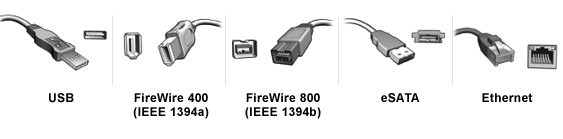
USB 2.0 is the industry standard peripheral connection type for most x86 computers (Windows based). This specification is rated with maximum transfer rate of 480Mb/s (60MB/s). Sustained transfer rate of USB 2.0 depends on many factors including type of device in use, data being transferred, and speed of the computer system. A normal sustained data transfer rate for USB 2.0 ranges from 10-30 MB/s. Only burst data transfers can reach the 480Mb/s rate.

What are the benefits of USB 2.0?

  • USB 2.0 (and earlier 1.1 version ) is “hot swappable,” eliminating the need to reboot or restart your computer when attaching a device.
  • There’s no need for terminators, memory addresses or ID numbers with USB devices.
  • Various sorts of devices can plug into a USB port: external hard drives, digital cameras, printers, Zip drives, SuperDisk drives, floppy drives, mice, keyboards, etc.

What is FireWire?
FireWire is a high-performance connection standard for personal computers and consumer electronics. Originally developed for Apple computers, this connection has been implemented by x86 computers for some time now. FireWire can move large amounts of data between computers and peripheral devices at transfer rates of up to 400 Mb/s (50 MB/s). A new FireWire specification, FireWire 800 (or FireWire B) has entered the computer market with transfer rates of up to 800 Mb/s (100MB/s).

What are the benefits of FireWire?

  • FireWire is “hot swappable,” eliminating the need to reboot or restart your computer when attaching a device.
  • There is no need for terminators, memory addresses of ID numbers with FireWire devices.
  • The FireWire market is growing at a tremendous rate and device types previously supported only by USB are now supported by FireWire. Most devices include Imaging and external storage devices.
  • Though USB 2.0 is rated at a higher throughput speed (480Mb/s related to FireWire’s 400Mb/s), FireWire delivers faster performance for sustained transfer rates on external hard drives. This is because FireWire has lower overhead (less instructions that the CPU has to interpret related to USB 2.0).

Which connection type is better? USB 2.0 or FireWire?

  • If you plan on transferring large amounts of data often, then FireWire would be the best connection type for you. Most Audio/Video programs recommend FireWire over USB 2.0 devices.
  • If you want the versatility of connecting the hard drive to many different computer systems quickly and easily, and transfer rates are not that important, then USB 2.0 would be the preferred connection type.

Data Storage Solutions: USB vs. FireWire Read More »

Quick Format vs. Full Format

Quick Format vs. Full Format during Windows installation or in Windows Disk management

When you choose to run a Full Format on a volume (or partition), files are removed from the volume that you are formatting and the hard disk is scanned for bad sectors. The scan for bad sectors is responsible for the majority of the time that it takes to format a volume.

When you choose to run a Quick Format on a volume (or partition), format removes files from the partition, but does not scan the disk for bad sectors. Only use this option if your hard disk has been previously formatted and you are sure that your hard disk is not damaged.

If you installed Windows on a partition that was formatted by using the Quick format option, you can also check your disk by using the chkdsk /r command after the installation of Windows is completed.

Quick Format vs. Full Format Read More »

Two Useful Tools For Online/Remote Troubleshooting

Remote Troubleshooting Sometimes our customers need a online data recovery or remote PC troubleshooting. Here are two useful tools may help you, with a few simple steps, you’ll learn how to troubleshoot someone else’s computer remotely.

TeamViewer

Step 1. Visit the TeamViewer home page to begin troubleshooting. Once the page has opened, click the “Start Full Version-It’s Free” button to start the download. Click the “Save File” button located in the pop-up window. Open the TeamViewer application by double clicking the downloaded file. You’ll have two options to choose from when setting up the TeamViewer application. The first option will fully install the program on your computer system. If you’d rather not do this, select the second option that will allow you to use the TeamViewer program without installing it.

Step 2. Click “Next” to move forward. You’ll also be prompted to enter information about how TeamViewer will be used. If you’ve decided to install the application, choose between a normal installation or for it to start with Windows. With the non-installation of TeamViewer, just click “Run.” You’ll still be able to troubleshoot a computer remotely. Start your troubleshooting session by opening the TeamViewer application. Pick one of two options to connect to someone. The first requires you to advise the other person of your TeamViewer ID and password. The other allows you to initiate a troubleshooting session by entering their assigned ID and selecting a command. A few commands to choose from include “Remote Support,” “Presentation,” “File Transfer” and “VPN.”

Step 3. Advise the other computer user to navigate to the TeamViewer homepage and click on the “Join Session” button. A pop-up window will appear for them to save the file to their computer system. After this has been done, the TeamViewer application will automatically open with their personal ID and password for the session. This information will be needed for both of your computers to communicate with each other. Ask the other person for their TeamViewer ID and password.

Step 4. Enter the information into the “Create Session” section of the TeamViewer window. Choose “Remote Support” to start controlling and troubleshooting their computer. Click “Connect to Partner” to begin. When prompted, enter the session password and click “LogOn.” Within a few seconds, a pop-up window will appear and allow you to control all computer functions. Inform the other person to sit back and let you perform the necessary troubleshooting steps to fix their computer system.

Step 5. Press the “Extras” link and choose from available options. Keep track of the entire troubleshooting session by clicking “Record.” If you’d like to communicate with the other person, select “Chat” to begin talking. Choose “Actions” to perform a remote rebooting of the computer system or even to switch sides with the other person. Add necessary computer files from your computer to the other computer by picking “File Transfer.” A window will appear that represents your computer and theirs. Click the “X” when you’ve completely finished. The session will immediately end.

SkyFex

Step 1. Navigate to the SkyFex homepage to sign up for a new account. Click “Registration” located at the top of the page. Enter details such as an email address, name, contact information and answer a few other questions. After registering for your account, you’ll receive an email confirming your registration. Click the activation link included in the email to gain full access to your SkyFex account.

Step 2. Log into your SkyFex account from the home page by entering your registered email address and password. Click the purple “Provide Assistance” button when finished. You’ll be instantly prompted to install the “SkyFex Remote Assistant Expert” add-on for your Internet Explorer browser.

Step 3. Advise the person you’re helping to visit skyfex.com to get a specific “Client ID” for the troubleshooting session (see link in Resources). You’ll need this in order to troubleshoot the problems with their computer system. After you’ve received the “Client ID,” enter it in the appropriate location at the top of your SkyFex window and click “Connect Client” next to it. You’ll be able to instantly see the other person’s computer desktop.

Step 4. Request control over the other person’s computer by clicking “Remote Control.” A request will be sent to them, and they’ll need to accept it. The free version of SkyFex has a limit of time to provide assistance. If you’d like unlimited time sessions, purchase the pro version. Choose “Start Chat” at the top of the page, if you’d like to have an open line of communication. Exchange files from your computer system to theirs by clicking “Send File.” An automatic prompt will be sent to the other person for them to click “Yes.”

Step 5. Make the necessary changes to the other computer system by launching applications, removing them or changing settings. When you’ve finished troubleshooting, click “Disconnect Client” and then “End Session.” Enter your personal feedback about the session in the available space and submit it to SkyFex.

Two Useful Tools For Online/Remote Troubleshooting Read More »

How To Tell If The Noisy Hard Drive Is Normal?

Noisy Hard Drive Current hard drive technology dictates that some noise will occur during drive operation. The type of noise and the volume of the noise can change depending on the current function that the drive is involved in. It is important to recognize which noises indicate trouble and which are simply normal drive sounds.

Normal drive sounds include:

  • Whining noise during drive spin-up
  • Occasional clicks during data access
  • Hard clicks during a head park operation (shutdown or sleep mode)

Abnormal drive sounds include:

  • High-pitched whining sound
  • Vibration sounds due to either vibration in the mounting hardware or in rare cases, a drive failure
  • Clicking or clunking sounds that occur repeatedly
  • Grinding sounds

Solutions:

Step1: Make sure it is not a case fan or another device
Turn off the system. Remove both the power and data cables from the drive. Turn on the system to see if the noise continues. If the noise is still present, the drive is not the cause. Search for another device such as a case fan, which is causing the noise. If the noise is no longer present, continue with Step 2.

Step 2: Determine if the problem is the hard drive or its data cable
Turn off the system. Connect only the power cable to the drive, and turn on the system. If the noise occurs, the problem is with the drive. At this point, continue with Step 3. If the there is no noise, the drive is not at fault. Turn off the system and connect your data cable. Turn on the system. If the noise occurs now, your data cable is faulty and should be replaced.

Step 3: Try the hard drive in a new location
Turn off the system. Install the drive into a different drive bay or place it securely on an anti-static surface if available. Attach only the power cable. Turn on the system. If the noise is still present, the drive has failed and should be replaced.

How To Tell If The Noisy Hard Drive Is Normal? Read More »

Scroll to Top