Articles

How NTFS File System Works: NTFS Physical Structure (4)

Master File Table

When you format a volume with NTFS, Windows Server 2003 creates an MFT and metadata files on the partition. The MFT is a relational database that consists of rows of file records and columns of file attributes. It contains at least one entry for every file on an NTFS volume, including the MFT itself.

The MFT stores the information required to retrieve files from the NTFS partition.

MFT and Metadata Files

Because the MFT stores information about itself, NTFS reserves the first 16 records of the MFT for metadata files (approximately 16 KB), which are used to describe the MFT. Metadata files that begin with a dollar sign ($) are described in the table Metadata Files Stored in the MFT. The remaining records of the MFT contain the file and folder records for each file and folder on the volume.

Metadata Files Stored in the MFT

System FileFile NameMFT RecordPurpose of the File
Master file table$Mft0Contains one base file record for each file and folder on an NTFS volume. If the allocation information for a file or folder is too large to fit within a single record, other file records are allocated as well.
Master file table mirror$MftMirr1Guarantees access to the MFT in case of a single-sector failure. It is a duplicate image of the first four records of the MFT.
Log file$LogFile2Contains information used by NTFS for faster recoverability. The log file is used by Windows Server 2003 to restore metadata consistency to NTFS after a system failure. The size of the log file depends on the size of the volume, but you can increase the size of the log file by using the Chkdsk command.
Volume$Volume3Contains information about the volume, such as the volume label and the volume version.
Attribute definitions$AttrDef4Lists attribute names, numbers, and descriptions.
Root file name index.5The root folder.
Cluster bitmap$Bitmap6Represents the volume by showing free and unused clusters.
Boot sector$Boot7Includes the BPB used to mount the volume and additional bootstrap loader code used if the volume is bootable.
Bad cluster file$BadClus8Contains bad clusters for a volume.
Security file$Secure9Contains unique security descriptors for all files within a volume.
Upcase table$Upcase10Converts lowercase characters to matching Unicode uppercase characters.
NTFS extension file$Extend11Used for various optional extensions such as quotas, reparse point data, and object identifiers.
12–15Reserved for future use.

The data segment locations for both the MFT and the backup MFT, $Mft and $MftMirr, respectively, are recorded in the boot sector. The $MftMirr is a duplicate image of either the first four records of the $Mft or the first cluster of the $Mft, whichever is larger. If any MFT records in the mirrored range are corrupted or unreadable, NTFS reads the boot sector to find the location of the $MftMirr. NTFS then reads the $MftMirr and uses the information in $MftMirr instead of the information in the MFT. If possible, the correct data from the $MftMirr is written back to the corresponding location in the $Mft.

MFT Zone

To prevent the MFT from becoming fragmented, NTFS reserves 12.5 percent of volume by default for exclusive use of the MFT. This space, known as the MFT zone, is not used to store data unless the remainder of the volume becomes full.

Depending on the average file size and other variables, as the volume fills to capacity, either the MFT zone or the unreserved space on the volume becomes full first.

  • Volumes that have a small number of large files exhaust the unreserved space first.
  • Volumes with a large number of small files exhaust the MFT zone space first.

In either case, fragmentation of the MFT occurs when one region or the other becomes full. You can change the size of the MFT zone for newly created volumes by to correspond to a percentage of the volume to be used as the MFT zone. The MFT zone sizes follow:

  • Setting 1, the default, reserves approximately 12.5 percent of the volume.
  • Setting 2 reserves approximately 25 percent.
  • Setting 3 reserves approximately 37.5 percent.
  • Setting 4 reserves approximately 50 percent.

In most computers, the default setting of 1 is adequate. The default setting accommodates volumes with an average file size of 8 KB. Storing a large number of smaller files might necessitate that you increase the size of the MFT zone for new volumes.

After you increase the size of the MFT zone, NTFS does not immediately allocate space to accommodate the size of the new MFT zone. Instead, NTFS exhausts the original reserved space before increasing the size of the MFT zone. When the original space is exhausted, NTFS looks for the next contiguous space large enough to hold the additional MFT zone, which can cause the MFT to become fragmented. You can adjust the zone size for the MFT if the defaults do not fit your needs.

How NTFS File System Works: NTFS Physical Structure (4) Read More »

How NTFS File System Works: NTFS Physical Structure (3)

NTFS Boot Sector

The table Boot Sector Sections on an NTFS Volume describes the boot sector of a volume that is formatted with NTFS. When you format an NTFS volume, the format program allocates the first 16 sectors for the boot sector and the bootstrap code.

Boot Sector Sections on an NTFS Volume

Byte OffsetField LengthField Name
0x003 bytesJump instruction
0x038 bytesOEM ID
0x0B25 bytesBPB
0x2448 bytesExtended BPB
0x54426 bytesBootstrap code
0x01FE2 bytesEnd of sector marker

On NTFS volumes, the data fields that follow the BPB form an extended BPB. The data in these fields enables Ntldr to find the MFT during startup. On NTFS volumes, the MFT is not located in a predefined sector. For this reason, NTFS can move the MFT if there is a bad sector in the current location of the MFT. However, if the data is corrupted, the MFT cannot be located, and Windows Server 2003 assumes that the volume has not been formatted.

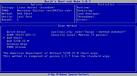
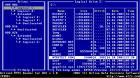
The following example illustrates the boot sector of an NTFS volume that is formatted by using Windows Server 2003. The printout is formatted in three sections:

  • Bytes 0x00– 0x0A are the jump instruction and the OEM ID (shown in bold print).
  • Bytes 0x0B–0x53 are the BPB and the extended BPB.
  • The remaining code is the bootstrap code and the end of sector marker (shown in bold print).

image

The table BPB and Extended BPB Fields on NTFS Volumes describes the fields in the BPB and the extended BPB on NTFS volumes. The fields starting at 0x0B, 0x0D, 0x15, 0x18, 0x1A, and 0x1C match those on FAT16 and FAT32 volumes. The sample values correspond to the data in this example.

Byte OffsetField LengthSample ValueField Name and Definition
0x0B2 bytes00 02Bytes Per Sector. The size of a hardware sector. For most disks used in the United States, the value of this field is 512.
0x0D1 byte08Sectors Per Cluster.The number of sectors in a cluster.
0x0E2 bytes00 00Reserved Sectors. Always 0 because NTFS places the boot sector at the beginning of the partition. If the value is not 0, NTFS fails to mount the volume.
0x103 bytes00 00 00Value must be 0 or NTFS fails to mount the volume.
0x132 bytes00 00Value must be 0 or NTFS fails to mount the volume.
0x151 byteF8Media Descriptor. Provides information about the media being used. A value of F8 indicates a hard disk and F0 indicates a high-density 3.5-inch floppy disk. Media descriptor entries are a legacy of MS-DOS FAT16 disks and are not used in Windows Server 2003.
0x162 bytes00 00Value must be 0 or NTFS fails to mount the volume.
0x182 bytes3F 00Not used or checked by NTFS.
0x1A2 bytesFF 00Not used or checked by NTFS.
0x1C4 bytes3F 00 00 00Not used or checked by NTFS.
0x204 bytes00 00 00 00The value must be 0 or NTFS fails to mount the volume.
0x244 bytes80 00 80 00Not used or checked by NTFS.
0x288 bytes1C 91 11 01 00 00 00 00Total Sectors. The total number of sectors on the hard disk.
0x308 bytes00 00 04 00 00 00 00 00Logical Cluster Number for the File $MFT. Identifies the location of the MFT by using its logical cluster number.
0x388 bytes11 19 11 00 00 00 00 00Logical Cluster Number for the File $MFTMirr. Identifies the location of the mirrored copy of the MFT by using its logical cluster number.
0x401 byteF6Clusters Per MFT Record. The size of each record. NTFS creates a file record for each file and a folder record for each folder that is created on an NTFS volume. Files and folders smaller than this size are contained within the MFT. If this number is positive (up to 7F), then it represents clusters per MFT record. If the number is negative (80 to FF), then the size of the file record is 2 raised to the absolute value of this number.
0x413 bytes00 00 00Not used by NTFS.
0x441 byte01Clusters Per Index Buffer. The size of each index buffer, which is used to allocate space for directories. If this number is positive (up to 7F), then it represents clusters per MFT record. If the number is negative (80 to FF), then the size of the file record is 2 raised to the absolute value of this number.
0x453 bytes00 00 00Not used by NTFS.
0x488 bytes3A B2 7B 82 CD 7B 82 14Volume Serial Number. The volume’s serial number.
0x504 bytes00 00 00 00Not used by NTFS.

How NTFS File System Works: NTFS Physical Structure (3) Read More »

How NTFS File System Works: NTFS Physical Structure (2)

Partition Tables on MBR and GUID disks

Master boot record (MBR) disks use both basic volumes and dynamic volumes. Because partition tables on MBR disks support partition sizes only up to 2 terabytes, you must use dynamic volumes to create NTFS volumes over 2 terabytes. Windows Server 2003 manages dynamic volumes in a special database instead of in the partition table; therefore dynamic volumes are not subject to the 2-terabyte physical limit imposed by the partition table. Dynamic NTFS volumes can be as large as the maximum volume size supported by NTFS. Itanium-based computers that use GUID partition table (GPT) disks also support NTFS volumes larger than 2 terabytes.

Organization of an NTFS Volume

The figure Organization of an NTFS Volume illustrates how NTFS organizes structures on a volume.

Organization of an NTFS Volume

NTFS Volume Structures

The following table describes each of the organizational structures on the NTFS volume.

NTFS Volume Components

ComponentDescription
NTFS Boot SectorContains the BIOS parameter block that stores information about the layout of the volume and the file system structures, as well as the boot code that loads Windows Server 2003.
Master File TableContains the information necessary to retrieve files from the NTFS partition, such as the attributes of a file.
File System DataStores data that is not contained within the Master File Table.
Master File Table CopyIncludes copies of the records essential for the recovery of the file system if there is a problem with the original copy.

Boot Sectors

On MBR disks, the boot sector, which is located at the first logical sector of each partition, is a critical disk structure for starting your computer. It contains executable code and the data required by the code, including information that the file system uses to access the volume. The boot sector is created when you format a volume. At the end of the boot sector is a 2-byte structure called a signature word or end of sector marker, which is always set to 0x55AA. On computers running Windows Server 2003, the boot sector on the active partition loads into memory and starts Ntldr, which loads the boot menu if multiple versions of Windows are installed, or loads the operating system if only one operating system is installed.

GUID partition table (GPT) disks are similar to MBR disks, except they use primary and backup partition structures to provide redundancy. These structures are located at the beginning and the end of the disk. GPT identifies these structures by their logical block address (LBA) rather than by their relative sectors.

A boot sector consists of the following elements:

  • An x86-based CPU jump instruction.
  • The original equipment manufacturer identification (OEM ID).
  • The BIOS parameter block (BPB), a data structure.
  • The extended BPB.
  • The executable boot code (or bootstrap code) that starts the operating system.

All Windows Server 2003 boot sectors contain the preceding elements regardless of the type of disk (basic disk or dynamic disk).

Components of a Boot Sector

The MBR transfers CPU execution to the boot sector, so the first three bytes of the boot sector must be valid, executable x86-based CPU instructions. This includes a jump instruction that skips the next several nonexecutable bytes.

Following the jump instruction is the 8-byte OEM ID, a string of characters that identifies the name and version number of the operating system that formatted the volume. To preserve compatibility with MS-DOS, Windows Server 2003 records “NTFS” in this field.

Note: You might also see the OEM ID “MSWIN4.0” on disks formatted by Windows 95 and “MSWIN4.1” on disks formatted by Windows 95 OEM Service Release 2 (OSR2), Windows 98, and Windows Millennium Edition. Windows Server 2003 does not use the OEM ID field in the boot sector except for verifying NTFS volumes.

Following the OEM ID is the BPB, which provides information that enables the executable boot code to locate Ntldr. The BPB always starts at the same offset, so standard parameters are in a known location. Disk size and geometry variables are encapsulated in the BPB. Because the first part of the boot sector is an x86 jump instruction, the BPB can be extended in the future by appending new information at the end. The jump instruction needs only a minor adjustment to accommodate this change. The BPB is stored in a packed (unaligned) format.
How NTFS File System Works: NTFS Physical Structure (2) Read More »

How NTFS File System Works: NTFS Physical Structure

The following information describes how clusters and sectors are organized on an NTFS volume, how the boot sector on the volume determines the file system, and how the Master File Table (MFT) organizes structures on the volume.

Clusters and Sectors on an NTFS Volume

A cluster (or allocation unit) is the smallest amount of disk space that can be allocated to hold a file. All file systems used by Windows Server 2003 organize hard disks based on cluster size, which is determined by the number of sectors (units of storage on a hard disk) that the cluster contains. For example, on a disk that uses 512-byte sectors, a 512-byte cluster contains one sector, whereas a 4-kilobyte (KB) cluster contains eight sectors.

Computers access certain sectors on a hard disk during startup to determine which operating system to start and where the partitions are located. The data stored on these sectors varies depending on the computer platform.

Sequence of Clusters on an NTFS Volume

Clusters on an NTFS volume are numbered sequentially from the beginning of the partition into logical cluster numbers. NTFS stores all objects in the file system using a record called the Master File Table (MFT), similar in structure to a database.

On NTFS volumes, clusters start at sector zero; therefore, every cluster is aligned on the cluster boundary. Contiguous clusters for file storage allow for faster processing of a file.

Note: Floppy disks do not use NTFS and are always formatted as FAT.

Limitations of Cluster Sizes on an NTFS Volume

Because NTFS uses different cluster sizes depending on the size of the volume, each file system has a maximum number of clusters it can support. The smaller the cluster size, the more efficiently a disk potentially stores information because unused space within a cluster cannot be used by other files. And the more clusters a file system supports, the larger the volumes you can create and format by using a particular file system. NTFS uses smaller cluster sizes, which makes it a more efficient file organization structure.

The table Default NTFS Cluster Sizes lists NTFS volume and default cluster sizes.

Default NTFS Cluster Sizes

Volume SizeNTFS Cluster Size
7 megabytes (MB)–512 MB512 bytes
513 MB–1,024 MB1 KB
1,025 MB–2 GB2 KB
2 GB–2 terabytes4 KB

How NTFS File System Works: NTFS Physical Structure Read More »

How NTFS File System Works: NTFS Architecture

NTFS File System A file system is a required part of the operating system that determines how files are named, stored, and organized on a volume. A file system manages files and folders, and the information needed to locate and access these items by local and remote users.

During the format of a volume you can choose the type of file system for the volume. When you choose the NTFS file system, the formatting process places the key NTFS file data structures on the volume, regardless of whether it is a basic volume or dynamic volume.

During format and setup of a volume file system on a hard disk, a master boot record (MBR) is created. The MBR contains a small amount of executable code called the master boot code as well as a partition table for the disk. When a volume is mounted, the MBR executes the master boot code and transfers control to the boot sector on the disk, allowing the server to boot the operating system on the file system of that specific volume.

Note: The partition table contains a number of fields used to describe the partition. One of these fields is the System ID field, which defines the file system, such as NTFS, on the partition. For NTFS volumes, the system ID is 0x07.

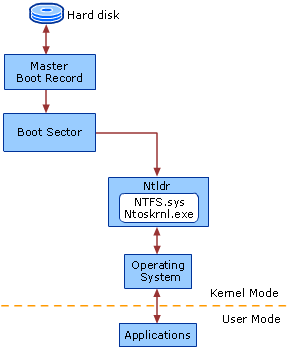
The figure NTFS Architecture shows the architecture of this process.

NTFS Architecture

NTFS File System

The following table describes the components of an NTFS file system.

NTFS Architecture Components on an x86-based System

ComponentComponent Description
Hard diskContains one or more partitions.
Boot sectorBootable partition that stores information about the layout of the volume and the file system structures, as well as the boot code that loads Ntdlr.
Master Boot RecordContains executable code that the system BIOS loads into memory. The code scans the MBR to find the partition table to determine which partition is the active, or bootable, partition.
Ntldlr.dllSwitches the CPU to protected mode, starts the file system, and then reads the contents of the Boot.ini file. This information determines the startup options and initial boot menu selections.
Ntfs.sysSystem file driver for NTFS.
Ntoskrnl.exeExtracts information about which system device drivers to load and the load order.
Kernel modeThe processing mode that allows code to have direct access to all hardware and memory in the system.
User modeThe processing mode in which applications run.

How NTFS File System Works: NTFS Architecture Read More »

Data Recovery User Guide – Through Data Recovery Software

Data Recovery User Guide According to Murphy’s Law of Data Loss, “The probabilities of a hard disk crash increase with the number of days since the drive was last backed up.” No hard disk drive is ever completely safe from crashing, and losing all the important data on it.

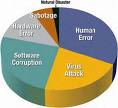
A disk drive can be damaged due to a number of causes such as virus attack, voltage glitches, software malfunction, hard disk format, accidental file/directory deletion, human error or even sabotage. Such events cause corruption or damage to the disk drive, and make the data completely inaccessible to the user.

Data Recovery comes into play when your storage stops responding to your request. This is the most critical time for your data and the impending problem with the hard drive. A wrong step can make your hard drive & data inaccessible for ever. First and foremost thing is Don’t Panic!

Now check whether you have a physical failure or logical failure. Normally in 80% of cases there is a logical failure. To know the type of failure you have hear whether any ticking sound is coming from the hard drive or not? If not that means that it is a logical failure and you can recover your data through data recovery software.

You can choose the data recovery software by searching on Google with keywords like data recovery software, hard drive recovery etc. (See Best Data Recovery Softwares 2009 ) Whilescanning different software product consider these factors:

See to this whether the software supports your systems hardware like RAM (Random Access Memory), Operating Systems (particular Window flavors, Unix, Linux, Solaris etc).

You must check your RAM before installing the data recovery software, as these software uses recursive search operation which requires lots of virtual memory. For a fast recovery you have large size of virtual memory. I would recommend 256 MB or 1 GB would be best.

After selecting the software it’s the turn of software Installation. NEVER means NEVER install the software on the same physical drive from where you have lost your data. As it may get over written and you will lose it for ever.

Always use a working computer with a drive having enough free space to store your recovered data.

Verify that the drive in the PC is connected on the Primary Channel as Master.
You can connect the drive as:

• Slave on the primary channel OR AS
• Master or Slave on the secondary channel

Note: You can take help of support executive in your office or your maintenance engineer if you are not comfortable in connecting the drives.

Attaching the Drive in to slave has three simple steps:

• Set the jumpers on the hard drive or CD ROM
• Plug and screw the drive in
• Boot the computer up and make sure the drive is detected

Data Recovery User Guide – Through Data Recovery Software Read More »

Causes Of Data Loss: Natural Disaster

Causes Of Data Loss: Natural Disaster Natural Disasters is the least likely cause of data loss however they can kill an entire company. The eruption of natural disasters and the complete equipment failure are rare but they do occur. Although it accounts for around 3% of all data loss but the magnitude of data loss is highest.

The disaster may strike anywhere and occurs in many shapes and sizes. Natural disasters may occur in the form of fire, flood, lightening strikes followed by power surges.

You can protect your valuable information from getting destroyed by the evil effects of a disaster by following the below-mentioned preventive measures.

Since, it is statistically unlikely for natural disasters to occur in two locations simultaneously. Hence, the perfect solution to protect your system from a natural disaster is an offsite backup i.e. you can keep your data in two different locations away from each other.

Fire Damage:
When the fire catches your computer, it may damage the plastic encasings and components of the computer but the data present in the metal hard drive may still be recovered. There are many data recovery software & Service companies, which provide data recovery from fire damages.

When the fire strikes, you can do a bit from your end to lessen the extent of damage.

• When your computer becomes wet from fire hoses, take the wet hard drive out of the system and do not dry; instead place it in a plastic and airtight bag. It is because during a fire, with the help of small air vents, extreme pressure changes pull the contaminants and water inside the drive.
• If you notice that you are not able to pull the hard drive out of the melted computer because it is sealed, then leave it like that.

Flood:
When a single drop of water can short out your computer, what when the whole equipment is completely submerged in the river water. Calculate the extent of damage when it is sunken not only for an hour but for days. However, no matter what, your data can still be recovered if you follow the following measures.

• Make sure that you turn off the computer and do not turn it on. It is because the drive may seem dry but there is small amount of water, which may still be present on the components and can cause a short when powered on.
• You may think that drying the wet drive may be of help but it is not the case. However, dried water leaves contaminants on the drive and can cause a head crash to occur when the system is powered on. Hence, it is recommended to place the media in a plastic airtight bag instead.
• Do not store your mission critical data in a flood plain.

Power outage/ surge:
Power outages are known to be the most common cause of data loss than all other natural disasters.

When you notice a spark, smoke or you observe that your hard drive does not spin and if it is, you are unable to access the information, then your system might be victim of a power surge. Power problems caused by small surges, spikes, sparks and line sags in the electricity make it essential to protect servers, workstations, and networks.

When you think of preventing data loss due to power supply problems, you automatically think of connecting your system to a UPS (Uninterrupted power supply), surge protectors, isolation transformers, or a surge suppressor. However, you can follow these protective measures to prevent your computer from a disastrous effect.

• Make sure that you unplug all the power cords connected to your system in order to prevent further damage to have occurred. The cords could be a power cable, modem, printer, or network cable.
• The most severe damage to your hard drive occurs when the power supply returns. Therefore, after the power returns, wait for at least half an hour for the power to get stabilized and then you may power on the computer.
• UPS main objective is to provide continuous, sufficient-grade power to electronics possessing valuable information. So, make sure that you connect your system with a UPS or a surge protector to prevent your computer from further power attacks. It is for the reason that extreme power fluctuations can damage sensitive electronic components.

Causes Of Data Loss: Natural Disaster Read More »

Linux Recovery Software For Linux Based Computer

Linux Data Recovery Software Linux is a great and powerful operating system that has included unique features, advanced technologies and great applications. The reason behind its popularity is its great maintenance and security of data stored into their hard disk. Linux operating system is a multi-user and multi-tasking operating system that is the need of today’s world where unlimited data storage required into the computer. It is very powerful and easy to use operating system that has no required extra efforts. Anyone can use this that has technical sound or not.

Since it has multi-user & multitasking capacities, it is widely used around the world and there is a big community of Linux users. Although it is a high quality product, but sometimes it also face problems like data crash or data corruption. The corrupted data can be user stored data of system data which is necessary to run the system properly. If this kind of unfortunate event happens and you found that you can not access your files then you need to use certain recovery software so save yourself from this disaster. The software which is used to do certain critical operations are known as Linux Data Recovery Software.

The Linux Data Recovery Software can do all kind of recovery based on Ext2, Ext3 & ReiserFS file system recovery, recovers Linux deleted files or other kind of files. It first searches the bad sector, corrupted or deleted files and then it recovers it. Then it repairs all the files. After the repairing process finishes, it stores it on the specified location where you want to store the repaired files.

The Linux data recovery software is a must have product for all the Linux users who are professionals and thoroughly use their Linux based computer. The Linux data recovery software is made to recover all kinds of corrupted or damaged files which are on the Linux operating system. It helps you in following conditions:

  • When your files & folders are lost on your Linux desktop
  • You have accidentally formatted your hard disk
  • You have deleted the files from the trash or recycle bin
  • Operating System corruption
  • Missing files & folders
  • Missing Volumes
  • Deleted Volumes

Linux Data Recovery Software is software which can solve all your problems on your Linux based computers. To save your precious data, you must need to go for the Linux data recovery.

Linux Recovery Software For Linux Based Computer Read More »

What is a Megabyte (MB) and Gigabyte (GB)?

Hard Drive Capacity Defining how hard drive manufacturers and operating system interpret megabytes and gigabytes.

Hard Drive Manufacturer Capacity Definitions
The listed capacity is an unformatted (raw) capacity. After partitioning and formatting, actual storage capacities may vary depending on the operating system and configuration. Maxtor adheres to the NIST and IEC definitions of Megabyte and Gigabyte.

Examples:
1 MB = One Million Bytes
1 GB = One Billion Bytes

Operating System & BIOS Capacity Definitions
Storage devices are marketed and sold in terms of decimal (base 10) capacity. In decimal terms, one Gigabyte (GB) is equal to one billion bytes. Most BIOS is follow this definition as well. However, many operating systems use the binary (base 2) numbering system. That would be two to the thirtieth power, or 1,073,741,824 bytes which equals one binary-Gigabyte (also called Gibibyte or GiB).

According to the NIST and IEC standards, an 80 GB hard drive would contain eighty billion bytes. 80,000,000,000 bytes divided by 1,000,000,000 bytes equals eighty decimal Gigabytes. In binary terms, 80,000,000,000 bytes would be divided by 1,073,741,824 for a total of 74.5 binary GB. However, there are still 80 billion bytes on the drive in either case.

Some utilities use abinary conversion to calculate capacity. This is why users might see 504 MB reported on one utility and 528 MB from another.

What is a Megabyte (MB) and Gigabyte (GB)? Read More »

What is the difference between Normal, LBA or Large mode?

Normal mode is the standard BIOS translation scheme. This mode does not support drives greater than 504 MB. Large mode is a generic translation scheme used by some BIOS’s to access drives up to 1 GB. Logical Block Addressing (LBA) mode is a more advanced method of translation than Large mode. LBA mode is a somewhat faster and can see drives 8.4 GB and greater.

What is the difference between Normal, LBA or Large mode? Read More »

Scroll to Top