Articles

Raid Data Recovery Tips

Raid Data Recovery A large number of users had been made into believing that RAID should not fail, as a result of over emphasis of RAID’s fault tolerance functions or auto rebuilt functions. As a result, up to date backups are seldom performed when the data disaster nightmare unfolds.

RAID may be implemented by hardware or software -based method, differentiated by the presence or absence of a RAID controller, Basically, a number of independent hard disks are connected to form a single and often larger virtual volume. Depending on the RAID configuration, there may be an increase in simultaneous reading and writing of drives along with the fault tolerance feature.

Popular RAID manufacturers such as Mylex, Adaptec, Compaq, HP, IBM etc. promotes the idea of extended data availability and protection when a failed hard disk was detected. In a typical RAID 5 configuration, without even power off, the RAID controller could rebuild the data volume from a hot standby drive or a replacement drive through hot swap. The only time it will fail is when two disks failed simultaneously but such probability is one in a million! As a result, one may tend to believe that RAID can not fail.

The reality: RAID fails

In reality and to the surprise of most, RAID could fail and often fail. See some typical scenario below :

When one hard disk fails, very often, there is no hot standby. As a result, the raid array is running on degraded mode. While waiting for the replacement drive which may take a day or two, the likelihood of next drive failure disabling the raid volume is very high. It is reasonable to assume that all the drives in the array are from the same batch and subject to equal amount of working stress. So if one disk fails, the other is also near imminent failure and it often does.

Most raid server has a single controller. Its failure will result in catastrophic single point of failure.

Frequently, due to power surge, the controller or a number of disk elements could fail resulting in total loss of data. It is also found that a power surge may corrupt the RAID configuration setting of NVRAM in the controller card.

It is also commonly found that while replacing a faulty drive in an attempt to rebuild the raid volume to healthy state, wrong procedures are performed resulting in wrong or partial rebuild, or complete system breakdown upon completion of rebuild.

Not to forget that a RAID configuration with fault tolerance at best only intends to protect the physical failure, but not logical corruption such as system corruption, virus infection, or inadvertent deletion.

Types Of RAID failures

To summarize, RAID server often fails as a result of the following situations and frequently, a combination of them :

  • Malfunctioned Controller
  • Raid rebuild error or volume reconstruction problem
  • Missing RAID partition
  • Multiple disk failure in off-line state resulting in loss of RAID volume
  • Wrong replacement of good disk element belonging to a working raid volume
  • Power Surge
  • Data Deletion or reformat
  • Virus Attack
  • Loss of RAID configuration settings or system registry
  • Inadvertent reconfiguration of RAID volume
  • Loss of RAID disk access after system or application upgrade

RAID Pricing

In general, pricing of raid recovery starts from $1500 onwards and will be more as the situations get more complex.

RAID Recovery Process

Though raid disk arrays offer more redundancy, capacity and performance over standard disk systems, once failed, they are often complex and more difficult to recover.

Normally, we only require the hard disks making up the raid volume in order to recover the lost data.

The process begins by looking at the kinds of failure occurred in a RAID volume. If the RAID server failure is due to multiple failed disks, effort will be spent in getting the failed disks backed to ready state.

The disk image or the low level binary contents of each disk are then copied out. Next, analysis is performed on the disk images. A process of de-stripping will be carried out on each of the extracted disk image upon confirming the RAID types, correct orientation of disk elements forming the RAID volume, the raid strip block size, the associated parity location etc. Different manufacturers may have slightly different RAID settings so additional fine tunings may be needed. Very often, file system repair must also be performed before the data location could be mapped out correctly.

Once the data layout pattern making the RAID logical volume has been identified and confirmed, the critical data will then be uplifted into other disk media. The data integrity is then evaluated to ensure that the data is of acceptable quality before a file list is finally produced for customer review.

Raid Data Recovery Software: Getway Raid Recovery V2.1

Getway Raid Recovery is the professional Raid Data Recovery Software which can extract data from multiple Hard disks in a RAID system, and rebuild the correct data. It can get data back from various types of arrays, including RAID 0, RAID 5, RAID 5E, RAID 5EE and RAID 6.

Raid Data Recovery Tips Read More »

How To Perform Diagnostics on Maxtor (or Quantum) SCSI Drives

SCSIMax SCSIMax is a diagnostic utility for all Maxtor (and Quantum®) SCSI hard disk drives supporting Self-Monitoring, Analysis, and Reporting Technology (S.M.A.R.T). This test will determine hard drive integrity in a short period of time, with a high degree of confidence. If the program completes without error, the problem remains elsewhere in your system. Check SCSI cables, termination and operating system. Maxtor recommends you use this utility for troubleshooting potential hard drive problems. These problems include, but are not limited to: potential hard drive surface media problems (e.g., bad clusters or sectors, partitioning/formatting problems, etc.) and drive recognition problems (e.g. hard drive that is not recognized by the operating system). SCSIMax uses the SCSI controller’s ASPI driver to route Int13 commands to the hard drive. The utility is not data destructive, but Maxtor recommends that you complete a full backup of your hard drive before running this utility.

Note: Incompatible with Apple® systems, and SCSI Ultra320 controllers. This utility does not run from the Windows desktop.

Use SCSIMax on all legacy (ie, up to Ultra160/Ultra3 speed) Maxtor SCSI hard drives prior to warranty replacement.

Seatools Enterprise may be used for these drives as well, but is particularly well-suited for Serial-Attached SCSI and SCSI Ultra320 drives of the newest generations.

SCSIMax supports all Maxtor and Quantum SCSI drives including:

  • Atlas 15K
  • Atlas 10K, Atlas II, Atlas III and Atlas IV
  • Atlas 7200RPM IV and Atlas 7200RPM V
  • Viking II

Depending on S.M.A.R.T. settings, not all tests are performed on all drives.

ASPI Drivers

ASPI (Advanced SCSI Programming Interface) is a software layer that enables programs to communicate with SCSI devices. Adaptec® ASPI drivers will load from the Windows 98SE, or Millennium (ME) startup disks, when the “Start computer with CD-ROM support” option is chosen at the selector prompt. LSI host adapters load their own ASPI drivers during system startup. If you are using another brand of SCSI host adapter, consult your host or system manufacturer for ASPI driver support. SCSIMax is not currently supported to run on SCSI Ultra320 controllers, due to boot issues.

SCSIMax System Requirements

  • Windows 98SE/Millennium startup disk, or equivalent bootable DOS disk that loads compatible ASPI drivers, in accordance to the model of SCSI host, being used to test the hard disk.
  • SCSIMAX.EXE program copied to a clean formatted floppy diskette.
  • PC-compatible system (Pentium or newer).
  • A supported Maxtor/Quantum SCSI S.M.A.R.T. capable hard drive.

Step-by-Step Instructions

    1. Download SCSIMax to an existing directory on your hard drive (for convenience copy to the desktop). The download version is a self-extracting Zip file. After opening you will be prompted to insert a floppy into the (A:\) drive.
    2. After SCSIMax has been extracted to the floppy diskette, remove the diskette and perform a normal shutdown.
    3. Boot your system to the 98SE or Millennium startup disk, and at the selector prompt choose the Start computer with CD-ROM support option. This will automatically load the ASPI manager drivers for Adaptec branded hosts.
    4. When the 98/Me boot disk reaches the A:\ prompt, remove the disk, and insert the disk with the SCSIMax utility. Type SCSIMAX at the A:\ prompt and hit [ENTER].
      Note: SCSIMax is designed to run on Maxtor/Quantum S.M.A.R.T. capable hard drives (the utility will identify a drive as S.M.A.R.T. capable). As with any system test or diagnostic, Seagate recommends that you have a complete backup of your drive before beginning.
    5. SCSIMax will next display a license agreement. Choose [Continue] or[Accept]. The program will identify all SCSI controllers in the computer. If your system has more than one drive, you will see a menu of recognized SCSI controllers with attached drives. Select a drive to test, enter its number or choose 0 for all.
    6. After the Quick Test, you will be prompted to perform a full surface scan. The full surface scan can take quite some time depending upon the drive’s capacity, but will test every Logical Block Address (user’s data area). Seagate recommends the full surface scan if you suspect that the hard disk may report media errors on areas of the drive that are not normally tested by the Quick Test.
    7. When the test finishes you are prompted to Print, Save and Exit. Press S; to save. Regardless of Pass or Fail, SCSIMax saves a drive information text file to the floppy called TESTLOG.prn. If the drive fails any of the tests performed, SCSIMax will display a 6-digit error code. Please make note of the code, or save the TESTLOG.

Note: Owners of O.E.M systems (HP, Compaq, Dell, etc.) that were originally purchased containing a Maxtor or Quantum SCSI drive must contact the O.E.M. or the place of purchase for warranty service.

File Version: 1.21
File Size: 70.0 kb
Supported Operating Systems: Windows NT, Windows XP Home Edition, Windows 2000, Windows Me, Windows 98, Windows 95A, Windows 95B, DOS, Windows XP Professional
Download: SCSIMax

How To Perform Diagnostics on Maxtor (or Quantum) SCSI Drives Read More »

Make your own Cleanbox Cheap

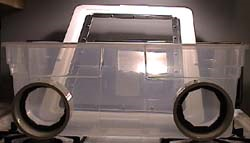
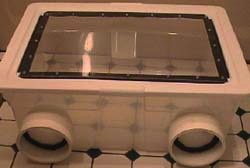
image This is a cheap way to make a cleanroom, or rather glovebox for working on drives.  Works well and will get the small jobs done. When it is something important I usually use a cleanroom but you canuse a glovebox. In addition, when the platters spin, the air bearing created will usually spin off small debris. The drive was actually designed this way. However if you touch it, game over.

It took,
18″ x 24″ piece of plexiglass
rubbermaid 44 qt. clear storage bin
(2) 4″ male pvc adapters
1/8″ thick foam tape
1/8″ drill bit and drill
razor knife
#7 x 1/2″ sheetmetal screws (zip screws)

I had planned on finding some long gloves to use with it attached with large hose clamps but had no luck finding any so far. i will try the bait store next. for now i’ll just use latex gloves with open holes.

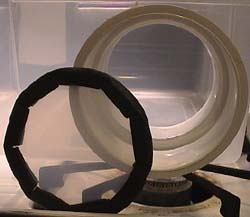
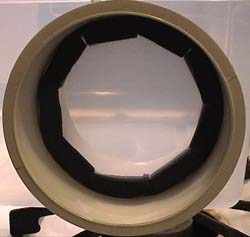
to cut the holes in the sides i used the 1/8″ drill bit and drilled holes close together around the lines i traced around the PVC fittings and connected the dots with the razor knife. then the pvc fittings were screwed in(don’t make the holes too big!) i then saved the circles that came out and foam taped around them with notches in either side of the tape around the circle so it could be applied w/o ripples. i will use them as hole plugs to keep the box clean when not in use. i will prolly epoxy some sort of handles or knobs on these so they can be removed easily from the outside of the box.

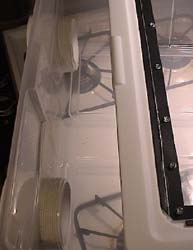
the hole in the lid was easily cut with the razor knife. the plexiglass was scored with the knife then snaped to size. holes were drilled in the plexiglass then wottled out to be oversized so the plexi didn’t crack when i put the screws in. the lid was a softer plastic and was not drilled. plexiglass was applied with foam tape and zip screws manually with a 1/4″ nut driver. the holes have to be close, i.e. 3″, together to ensure the foam tape sealed (silicone could be substituted here for foam tape)

one of these really isn’t essential for making syringes or even grain to grain transfers, but, after trying agar a few times without one, i decided i needed one.

Be careful with flammable disinfectants and flame in a glovebox, they can (and do) explode! Sanitizer fumes are also highly toxic to mycelia

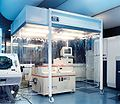
Cleanroom Cleanroom

Cleanroom Cleanroom

What is a Cleanroom?

A cleanroom is an environment, typically used in manufacturing or scientific research, that has a low level of environmental pollutants such as dust, airborne microbes, aerosol particles and chemical vapors. More accurately, a cleanroom has a controlled level of contamination that is specified by the number of particles per cubic meter at a specified particle size. To give perspective, the ambient air outside in a typical urban environment might contain as many as 35,000,000 particles per cubic meter, 0.5 μm and larger in diameter, corresponding to an ISO 9 cleanroom.

If the hard disk needs to be opened up, one has to do it within a cleanroom. The gap between the Read-Write head and the data platter is just a few microns. Any dust particles that get into the gap will induce “crashing” of the Read-Write head onto the data platter (where your magnetic data bits are stored) resulting in total and permanent loss of data.

Make your own Cleanbox Cheap Read More »

Data Recovery Equipment: CleanRoom Environment Control

Cleanroom

What is a Cleanroom?

A cleanroom is an environment, typically used in manufacturing or scientific research, that has a low level of environmental pollutants such as dust, airborne microbes, aerosol particles and chemical vapors. More accurately, a cleanroom has a controlled level of contamination that is specified by the number of particles per cubic meter at a specified particle size. To give perspective, the ambient air outside in a typical urban environment might contain as many as 35,000,000 particles per cubic meter, 0.5 μm and larger in diameter, corresponding to an ISO 9 cleanroom.

If the hard disk needs to be opened up, one has to do it within a cleanroom. The gap between the Read-Write head and the data platter is just a few microns. Any dust particles that get into the gap will induce “crashing” of the Read-Write head onto the data platter (where your magnetic data bits are stored) resulting in total and permanent loss of data.

Cleanroom Standards

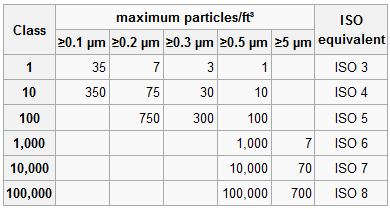
1. US FED STD 209E was officially cancelled by the General Services Administration of the US Department of Commerce November 29, 2001, but is still widely used.

Cleanroom Standard

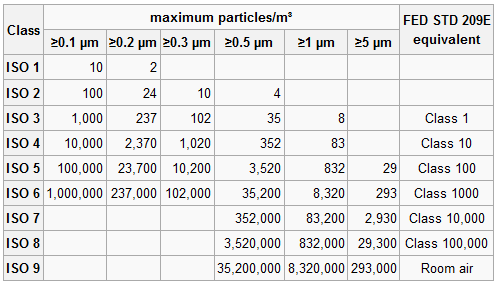
2. ISO 14644-1 cleanroom standards

Cleanroom Standard

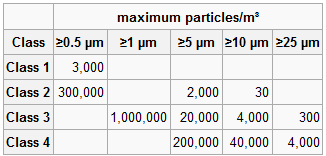
3. BS 5295 Class 1 also requires that the greatest particle present in any sample does not exceed 5 μm.

Cleanroom Standard

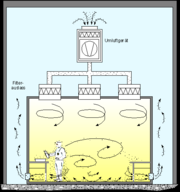
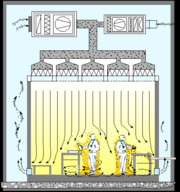
Cleanroom air flow principles

Cleanroom air flow principles Cleanroom air flow principles

picture 1: Air flow pattern for “Turbulent Cleanroom”
Picture 2: Air flow pattern for “Laminar Flow Cleanroom”

What makes cleanroom environment fail?

* Facilities

Walls, floors and ceilings

Paint and coatings

Construction material (sheet rock, saw dust etc.)

Air conditioning debris

Room air and vapors

Spills and leaks

* People

Skin flakes and oil

Cosmetics and perfume

Spittle

Clothing debris (lint, fibers etc.)

Hair

* Tool Generated

Friction and wear particles

Lubricants and emissions

Vibrations

Brooms, mops and dusters

* Fluids

Particulates floating in air

Bacteria, organics and moisture

Floor finishes or coatings

Cleaning chemicals

Plasticizers (outgasses)

Deionized water

* Product generated

Silicon chips

Quartz flakes

Cleanroom debris

Aluminum particles

Cleanroom Control Regulations for reference

1.  All personal items such as keys, watches, rings, matches, lighters and cigarettes should be stored in the personal locker outside the gowning room.

2.  Valuable personal Items such as wallets may be permitted in the cleanroom provided they are NEVER removed from beneath the cleanroom garments.

3.  NO eating, smoking or gum chewing allowed inside the cleanroom.

4.  Only garments approved for the cleanroom should be worn when entering.

5.  NO cosmetics shall be worn in the cleanrooms. This includes: rouge, lipstick, eye shadow, eyebrow pencil, mascara, eye liner, false eye lashes, fingernail polish, hair spray, mousse, or the heavy use of aerosols, after shaves and perfumes.

6.  Only approved cleanroom paper shall be allowed in the cleanroom.

7.  Approved ball point pens shall be the only writing tool used.

8.  Use of paper or fabric towels are prohibited. Use of hand dryers equipped with HEPA filters are suggested.

9.  Gloves or finger cots should not be allowed to touch any item or surface that has not been thoroughly cleaned.

10. Only approved gloves, finger cots (powder-free), pliers, tweezers should be used to handle product. Finger prints can be a major source of contamination on some products.

11. Solvent contact with the bare skin should be avoided. They can remove skin oils and increase skin flaking.

12. Approved skin lotions or lanolin based soaps are sometimes allowed. These can reduce skin flaking.

13. All tools, containers and fixtures used in the cleaning process should be cleaned to the same degree as the cleanroom surfaces. All of these items are a source of contamination.

14. NO tool should be allowed to rest on the surface of a bench or table. It should be place on a cleanroom wiper.

15. Only cleanroom approved wipers are allowed to be used. The wipers must be approved for the Class of cleanroom being cleaned.

16. ALL equipment, materials and containers introduced into a sterile facility must be subjected to stringent sterilization prior to entrance.

17.NO ONE who is physically ill, especially with respiratory or stomach disorders, may enter a sterile room. This is a good practice in any cleanroom environment.

Personal Actions Typically Prohibited in Cleanrooms

1. Fast motions such as running, walking fast or horseplay.

2. Sitting or leaning on equipment or work surfaces.

3. Writing on equipment or garments.

4. Removal of items from beneath the cleanroom garments.

5. Wearing the cleanroom garment outside the cleanroom.

6. Wearing torn or soiled garments.

Data Recovery Equipment: CleanRoom Environment Control Read More »

Download Data Recovery Software: Digital Rescue Premium

image

Software: Digital Rescue Premium
Price: $49.99
Publisher: Data Transfer. LLC
Catalog: Data Recovery Softwares

An easy-to-use interface and “Smart Wizard” make finding and restoring your accidentally deleted photos, videos, music, emails and other files easier than ever before.

Main Features:

  • Recover deleted photos, music and videos.
  • Recover deleted Microsoft Office files, tax documents and more.
  • Restore deleted email messages and attachments from Windows Mail, Outlook Express, Outlook and Thunderbird email programs.
  • Recover deleted Outlook Calendars, Tasks, Notes, Journal Entries, Addresses and More.
  • Recover files deleted after the Recycle Bin has been emptied.
  • Search for recoverable files by name, file type, file extension and more.
  • Preview files before performing a recovery.
  • Recover multiple files at the same time (Batch Recovery).
  • Recover files from PCs, external hard disk drives, USB Flash Drives, SD Cards and more.

Minimum System Requirements

  • Microsoft® Windows Vista™, Windows XP, or Windows 2000 Operating System
  • Intel® Pentium® (or equivalent) 350MHz processor
  • 32MB of RAM (256MB recommended)
  • 800 x 600, 16-bit color Graphics Card
  • 10MB of Available Disk Space
  • CD/DVD ROM drive

FAQS:

1. Why Can’t Digital Rescue see my drive I want to recover?
The device may be showing in the selection menu, just labeled differently. Usually it is called “volume 1”. If you still cannot see the drive, restart your computer and try again. If you continue having issues with Digital Rescue not recognizing your drive please identify the file system for that drive. This can be accomplished using the following steps:

  1. Double Click on “My Computer”
  2. Right Click on the Drive you are identifying (ie “F:”)
  3. Select Properties
  4. Locate the Line on the Properties Page that says “File System”

If the drive has a files system “RAW” you will need to perform a “Quick Format“.
Quick Format can be accomplished using the following Steps:

  1. Double Click on “My Computer”
  2. Right Click on the Drive you are formatting
  3. Select “Format”
  4. Select “Quick Format”
  5. Proceed with Format

Quick format does not erase the drive, it will only place an appropriate file system header on the drive such as “NTFS”. Once your drive has an appropriate file system, Digital Rescue will be able to access the drive.

2. Why can’t Digital Rescue see my SD card?
If you are directly connecting you SD card into the SD card reader in your computer, Digital Rescue may not be able to detect it. Please use either your camera or a USB card reader to access your SD card through the computer. Please make sure your USB reader appears in Windows Explorer as a “Removable Storage Device”

3. I accidentally formatted my drive and I don’t see any files when I perform a scan. Why can’t I see them?
Formatting your drive deletes your old file allocation table and creates a new one. Digital Rescue will not be able to locate those files because they belonged to the old file allocation.

“For the best in data recovery, we recommend the “Top Ten REVIEWS Gold Award” Digital Rescue Premium. This software offers the unbeatable combination of a user-friendly design, a hefty feature set and one the most effective data recovery capacities we’ve seen.”

Download/Buy data recovery software: Digital Rescue Premium

Download Data Recovery Software: Digital Rescue Premium Read More »

Does Western Digital Perform Or Provide Data Recovery Services?

Western Digital will stand behind the warranty that is supplied with the defective hard drive. If your drive is still within its warranty period, the drive can be replaced through Western Digital RMA Process.

We apologize, but Western Digital does not perform data recovery services.

You may however use one of Western Digital’s authorized data recovery service companies. In order to retain the warranty of the defective hard drive, you must use a Western Digital authorized data recovery service company. For more information on Western Digital’s authorized data recovery service companies, please see the information in the following.

Americas Data Recovery Partners:

(North America,Central America,South America)

CBL Data Recovery Technologies

Toll Free: (800) 551-3917
Atlanta: (678) 417-9150
Houston: (281) 895-7515 New York City: (914) 765-0220
San Diego (619) 449-1200
Toronto, Canada: (905) 479-9938

More Locations:
Barbados
Brasil
Canada

Data Mechanix

Toll Free: (800) 886-2231
Phone number: (949) 263-0994
Fax number: (949) 263-1549

DriveSavers Data Recovery

Toll Free: (800) 440-1904
Phone number: (415) 382-2000
Fax number: (415) 883-0780

DTIDATA Recovery Services

Corporate Headquarters
Toll Free: (866)-438-6932
Phone number: (727)-345-9665
Fax number:: (813)-830-6032
WD Customer Discount

ESS Data Recovery

Toll Free: (800) 237-4200
Phone number: (618) 654-3553
Fax number: (800) 299-7815
E-mail: readytohelp@essdatarecovery.com

First Advantage Data Recovery Services

Corporate Headquarters
Toll Free: 877-304-7189
Address:
8650 Freeport Parkway S. Suite 150,
Irving, Texas 75063
WD Customer Discount

Flashback Data

Address:
4029 S Capital of Texas Hwy
Suite 224
Austin, TX 78704

Toll Free: (866) 786-5700
Phone number: (512) 301-5700
Fax number: (512) 301-0333
E-mail: info@flashbackdata.com

Nortek Certified Data Recovery

Address:
2000 Main Street West
North Bay, Ontario – Canada
P1B 8G5

Toll Free: 1-877-474-2058
Phone number: (705) 474-2058
Fax number: (705) 474-2409

Ontrack® Data Recovery

Kroll Ontrack Corporate Headquarters
Address: 9023 Columbine Road, Eden Prairie, MN 55347
Toll Free: 800 872 2599
Phone number: 952 937 5161
Fax number: 952 937 5750

Los Angeles, California
Kroll Ontrack

Address: 18350 Mt Langley St Ste 110, Fountain Valley CA 92708
Toll Free: 800-872-2599
Phone number: 714-641-0530

Washington, DC
Kroll Ontrack

Address: 11411 Isaac Newton Square S, Reston VA 20190
Toll Free: 800-872-2599
Phone number: 703-821-8101

New York City, New York
Kroll Ontrack

Gateway Plaza
Address: 1 Harmon Meadow Blvd Ste 225, Secaucus NJ 07094
Toll Free: 800-872-2599
Phone number: 201-770-0400

Toronto, Canada
Kroll Ontrack

Address: 155 Gordon Baker Rd Ste 100, Toronto Ontario M2H 3N7, Canada
Toll Free: 800-872-2599
Phone number: 416-491-1650

SalvageData Recovery Service Lab

Toll Free: (800) 970-7188
Phone number: (203) 973-0242
Fax number: (203) 621-0628
Contact for FREE Quote

Vogon International

Toll Free: (800) 392-5373
Phone number: (405) 321-2585
Fax number: (405) 364-8242
E-mail: data.recovery@vogon.us

EMEA Data Recovery Partners

(Europe,Middle-east,Africa)

1st Computer Traders Ltd

Address: Unit 6, Mercian Park,
Felspar Road,
Amington Industrial Park
Tamworth, Staffs. B77 4DP,
UK Phone number: +44 (0) 1827 55555
Fax number: + 44 (0) 1827 66666
E-mail: dr@1ct.com

CBL Data Recovery Technologies

Germany
Toll Free: 0 800 5500 999

United Kingdom
Toll Free: 0 800 028 2069

CSSI Africa

Midrand Office
Computer Storage Services, Johannesburg
CSS House
Augrabies Road
Waterfall Park
Midrand
South Africa
Phone number: 011-541 9900
Fax number: 011-541 9920
E-mail: dr@cssi.co.za

Cape Town Office
Computer Storage Services, Cape Town
K3 – Centurion Business Park
Montague Gardens
Cape Town
South Africa
Phone number: 021-555-4450
Fax number: 086-602-9178
E-mail: drcape@cssi.co.za

Durban Office
Computer Storage Services, Durban
4 Pencarrow
Pencarrow Park
Armstrong Avenue
Umhlanga Rocks
South Africa
Phone number: 031-566-5377
Fax number: 086-695-9677
E-mail: infodurban@cssi.co.za

Datex Europe

French:
France 01 69 31 01 01
Others: +33 1 69 31 01 01
E-mail: bienvenue@datex.fr

Spanish
(+34) 626 65 01 37
E-mail: urgencia@DatosExpress.com

Portuguese
+33 1 69 31 01 01

English
UK : +44 28 7082 5678
Others : +33 1 69 31 01 01

Mention WDC and receive special discount rates.

Disklabs

United Kingdom
Unit 6 and 7 Mercian Park
Felspar Road
Tamworth
Staffordshire
B77 4DP, England
UK Phone number: 0800 DATA SOS (0800 3282 767)
Intl Phone number: +44 1827 55999
UK Fax number: 01827 66666
Intl Fax number: +44 1827 66666
Email dr@disklabs.com

Netherlands
Orlyplein 85
1043 DS, Amsterdam
The Netherlands
Entrance Busitel 1, 3rd floor
Open for delivery 08:30 till 17:30
Phone number: 020 403 7579
Fax number: 020 403 7310
Tel Int: +31 (0) 20 403 7579
Fax Int: +31 (0) 20 403 7310
Email info@disklabs.nl

Moscow Data Recovery Laboratory

Russia
Phone number: +7(495)979-12-57
E-mail: support@mhdd.ru
Website: http://www.mhdd.ru

Norman Data Recovery Service

Netherlands
Head office
Diamantlaan 4a
2132 WV Hoofddorp

Phone number: +31-(0)23-78 90 244
Fax number: +31-(0)23-5612670
E-mail: datarecovery@norman.nl
Website: http://www.norman-datarecovery.nl

Belgium
Grote Baan 119/2
3511 KURINGEN

Phone number: +32-(0)11 323 022
Fax number: +32-(0)24027180
E-mail: datarecovery@norman.nl
Website: http://www.norman-datarecovery.be

Ontrack Data Recovery – Europe

Austria
Kroll Ontrack GmbH
Zweigniederlassung Österreich
Landstraßer Hauptstraße 71/2
A-1030 Wien
Österreich
Toll Free: 0800 644 150
Phone number: +43 (0)1 717 28 380

Belgium
Kroll Ontrack Sarl
Pegasuslaan 5
1831 Diegem
Belgique
Phone number: +32 (0)2 709 20 41

Denmark
Ibas Danmark ApS
H. P. Christensensvej 1
3000 Helsingør
Danmark
Phone number: +45 70 22 34 00

Finland
Kroll Ontrack – Ibas

Läkkisepäntie 11
00620 Helsinki
Finland
Phone number: +358 9 2727 210

France
Kroll Ontrack
2 Impasse de la Noisette
91371 Verrieres-le-Buisson Cedex
France
Toll Free: 0800 10 12 13
Phone number: +33 1 69 53 66 99

Germany
Kroll Ontrack
Hanns-Klemm-Straße 5
71034 Böblingen
Deutschland
Toll Free: 0 800 10 12 13 14
Phone number: +49 (0)7031 644 0

Ireland
Kroll Ontrack
Marsh House
25-28 Adelaide Road
Dublin 2
Ireland
Toll Free: 1800 930 183
Phone number: +353 (0)1 6048250

Italy
Kroll Ontrack Srl

Via Lario, 1
22070 Fenegró (CO)
Italy
Toll Free: 800 44 00 33
Phone number: +39 031 3525611

Netherlands
Kroll Ontrack
Holland Office Center
Kruisweg 825c
2132 NG Hoofddorp
Nederland
Toll Free: 0800 5 765 565
Phone number: +31 (0)23-5673030

Norway
Kroll Ontrack – Ibas
Postboks 1250
Arkoveien 14
2206 Kongsvinger
Norge
Toll Free: 810 10 100
Phone number: 47 62 81 01 00

Poland
Ontrack Sp. z o.o.
ul. Jana III Sobieskiego 11
40-082 Katowice
Polska
Toll Free: 0 800 90 90 90
Phone number: + 48 (32) 77 999 99

Russian Federation

Phone number: +7 495 229 44 38

Spain
Kroll Ontrack Iberia S.L.
C. Anabel Segura 7 1ª Planta, Oficina B
28108 Alcobendas
Madrid
España
Toll Free: 900 112 012

Sweden
Kroll Ontrack – Ibas
Märstagatan 4
753 23 Uppsala
Sverige
Phone number: +46 (0)18 10 44 40

Switzerland
Kroll Ontrack S.a.g.l.
Piazza Boffalora 4
P.O.Box 191
6830 Chiasso 3 Boffalora
Suisse
Toll Free: 0800 880 100
Phone number: +41 (0)91 682 86 92

Kroll Ontrack Sagl
Hertistraße 25
28304 Wallisellen
Switzerland
Toll Free: 0800 880 100
Phone number: +41 (0)44 877 30 90

United Kingdom
Kroll Ontrack Limited
The Pavilions1 Weston Rd Kiln Ln
Epsom Surrey KT17 1JG
United Kingdom
Toll Free: 0800 243 996
Phone number: +44 (0)1372 741 999

Recovery Labs

Spain
Parque Empresarial Euronova III
Ronda de Poniente 4
CP: 28760 Tres Cantos
Madrid ESPAÑA
Phone number: 902 109 009/ +34 91 804 94 23
Fax number: 902 199 009/ +34 91 804 94 63
irl@recoverylabs.com

Germany
An der Welle, 4
PLZ: 60322
Frankfurt ALEMANHA
Phone number: +49 (0)69 7593 8454
Fax number: +49 (0)69 7593 8200
irl@recoverylabs.net

Italy
Via Torino 2, 4º Piano
CAP: 20123
Milano ITALIA
Phone number: +39 02 72 54 64 72
Fax number: +39 02 72 54 64 00
irl@recoverylabs.it

Brasil
Rua Willy-Aureli, 623
04789-090 Interlagos
São Paulo S.P. BRASIL
Phone number: (011) 5667-9569
sac-brasil@recoverylabs.com

Portugal
Avenida da Liberdade, 110, 1º Andar
CP: 1269-046
Lisboa PORTUGAL
Phone number: +351 21 340 46 35
Fax number: +351 21 340 45 75
irl@recoverylabs.pt

France
La Grande Arche – Paroi Nord – 14/15 Floor
CP: 92044 La Defense
Paris FRANCE
Phone number: +33 (0) 1 40 90 31 23
Fax number: +33 (0) 1 40 90 31 01
irl@recoverylabs.fr

APAC Data Recovery Partners:
(Australia,New Zealand,Pacific Islands,Asia,China)

CBL Data Recovery Technologies

Australia
5 / 180 Anzac Ave.
Redcliffe, Queensland
Australia 4020
Local Phone number: (07) 3283.3303

China
58 Sanlihe Road
Beijing, P.R. China
100045
Phone number: (0086 10) 68 55 70 58

Singapore
2 No.51, Changi Business Park Central 2
Unit #08-08
The Signature
Singapore, 486066
Phone number: +65 65880261
Fax number: +65 65880484

India
No 10, Sadanand CHS
St. Anthony’s Street
Kalina, Mumbai
400098
India
Tel.: 22 26651499

Japan

3-4-17 Kudan-Minami
Chiyoda-ku
Tokyo 102-0074
JAPAN

Ontrack® Data Recovery

Australia
Kroll Ontrack

28 Donkin St Ste 8
West End Queensland
Australia
Toll Free: 800 872 259
Phone number: +61 7 3255 1199

Hong Kong
Kroll Ontrack (HK) Ltd.
1701-02 Central Plaza,
18 Harbour Road
Wanchai
Hong Kong
Toll Free: 800 930 324

Japan Tokyo
182 Shinkoh, Iruma,
Saitama, 358-0055 Japan
Phone number: +81 (0)42-932-6365
Toll Free: 0120 413 374
Fax number: +81 (0)42-932-6370

Singapore
Kroll Ontrack Singapore Pte. Ltd.
Nordic European Centre
3, International Business Park
#02-17
Singapore 609927
Toll Free: 1800 872 2599

Shanghai Myung Information Technologies Co.,Ltd.

Mr.Chen Du.
Phone number: 021-50815652
Toll Free: 800-820-7077
Cell Phone: 13816888477

Shanghai
Room 8017,Zhangyang Road,
Huacheng Building
Pudong New Area, Shanghai
Phone number: 021-50815662

Beijing
RM 814,office Tower 1,Junefield Plaza,
No.6 Xuanwumenwai Street,Beijing
Phone number: 010-63108100, 010-63108101

Shenzhen
Room 3010,Block A,Stars Plaza
No.38 Hongli Road,Shenzhen
Phone number: 755-83975075, 755-83975076

Guangzhou
Room 1311, Longhui Bldg., No. 5
Longkou East Rd., Tianhe, Guangzhou
Phone number:020-87596211,020-87584150

Vector Technology Company Limited

RM.3010, Block A, Stars Plaza, #38 Hongli Rd., Shenzhen, Guangdong P.R.China 518028
Phone number: 86-755-83975076
Fax number:86-755-83741954

Does Western Digital Perform Or Provide Data Recovery Services? Read More »

Server Recovery Tips

Server Recovery Data disasters will happen. Accepting that reality is the first step in preparing a comprehensive disaster plan. Time is always against an IT team when a disaster strikes, therefore the details of a disaster plan are critical for success.

Here are some suggestions from Ontrack Data Recovery engineers of what not to do when data disasters occur:

  • In a disaster recovery, never restore data to the server that has lost the data – always restore to a separate server or location.
  • In Microsoft Exchange or SQL failures, never try to repair the original Information Store or database files – work on a copy.
  • In a deleted data situation, turn off the machine immediately. Do not shut down Windows – this will prevent the risk of overwritten data.
  • Use a volume defragmenter regularly.
  • If a drive fails on RAID systems, never replace the failed drive with a drive that was part of a previous RAID system – always zero out the replacement drive before using.
  • If a drive is making unusual mechanical noises, turn it off immediately and get assistance.
  • Have a valid backup before making hardware or software changes.
  • Label the drives with their position in a RAID array.
  • Do not run volume repair utilities on suspected bad drives.
  • Do not run defragmenter utilities on suspected bad drives.
  • In a power loss situation with a RAID array, if the file system looks suspicious, or is unmountable, or the data is inaccessible after power is restored, do not run volume repair utilities.

Server Recovery Tips Read More »

How to Fix Windows XP Damaged Boot Sectors?

image The master boot record (MBR) is a small program typically located on the first sector of the hard drive.

It examines the partition table to determine which partition to boot first and then executes the proper commands to run the operating system installed on that partition. If the boot sector becomes corrupt or is overwritten by another operating system, Windows XP will not be able to load. Fortunately, the Windows XP installation CD contains an application that can fix damaged boot sectors.

  • Place the Windows XP CD into the optical drive, and then restart the computer. Enter the BIOS (usually by pressing “F1,” “F2,” or the “Delete” key) and set the system to boot from the optical drive first. Refer to your owner’s manual if necessary. Save the BIOS settings and allow the computer to restart. When prompted, press any key to boot from the Windows XP CD. If you do not press a key at the prompt, the computer will attempt to boot into the hard drive instead of the CD.
  • Click Enter > F8 to accept the Windows XP license agreement. Press “R” to enter the Recovery Console after the Windows XP setup screen appears. Select the drive that contains Windows XP when asked “Which Installation Would You Like to Log Onto?” (usually “1: C:\WINDOWS”), and then press “Enter.”
  • Enter your Windows XP administrator password when prompted, and then press “Enter.” If you do not have a password, leave the box blank and press “Enter.”
  • Type “fixmbr” (omit the quotes) at the command prompt then press “Enter.” The “fixmbr” utility will overwrite and repair the damaged boot sector. After the process is complete, remove the Windows XP CD and restart the computer.

    Note: Some computer viruses are designed to corrupt the master boot record. Keep your antivirus software updated, and set the program to run a full system scan daily.

    How to Create A Windows Xp Boot Record?

  • Place the Windows XP installation CD in your computer’s CD drive and start the computer. The computer will use the information on the CD to start, instead of trying to start using information from the missing boot record on the computer’s hard drive.
  • Follow the prompts in the Recovery Console setup process. Type “R” when the Welcome to Setup screen is displayed. This selects the repair and recovery functions of the Recovery Console.
  • Select the operating system you want to repair and enter the administrator password for that operating system if prompted. The Recovery Console will next display a command prompt.
  • Type “fixmbr” at the command prompt, then press the “Enter” key. This starts the process of creating a new master boot record for your computer’s hard drive.
  • Remove the Windows XP product CD from the CD drive and restart your computer when the repair process is finished.

    How to Restore a Vista Boot Record?

  • Open a DOS prompt. Click the Windows “Start” button and select “Run.” In the textbox, type “cmd” and press “Enter.”
  • Execute Bootsect.exe. In the DOS window, type “Drive:\boot\Bootsect.exe /NT60 All.” Replace “Drive” with the drive letter of your Windows installation. For most people, this location is “C.”
  • Run “Bcdedit.exe” to edit the boot.ini file. To edit the file, type the following into the DOS prompt: Drive:\Windows\system32\Bcdedit /create {ntldr} /d “Description for earlier Windows version”
    “Drive” is the location of the Windows installation files as in Step 2.
    “Description for earlier Windows version” is replaced with any text, but the typical entry is your previous operating system, such as “Windows XP” or “Windows 2003”
  • Restart the computer.

How to Fix Windows XP Damaged Boot Sectors? Read More »

How to Install A (PATA) Hard Disk Drive?

Step 1. Opening The Computer Case

Important: Each computer has a different way of opening the case and location of the hard disk drive. Refer to the user’s manual of your computer for detailed instructions.

Warning: The following procedure listed below will have you working within the chassis of the system. Following a few simple rules will keep you and your hardware safe.

1. Always power OFF your computer and disconnect the power cable before opening the case.

2. Always use an anti-static wrist strap before connecting or disconnecting anything within your computer.

Step 2. Installing The Hard Disk Drive

3. When the hard disk drive is level with the hard drive rack, gently push it in place without exerting too much force. Tighten the hard disk drive in place using the screws supplied with the product.

Note: If screws other than those supplied are used, the PCB board of the hard disk drive may get damaged and cause the hard disk drive to malfunctio.

Step 3. Making Your Connections

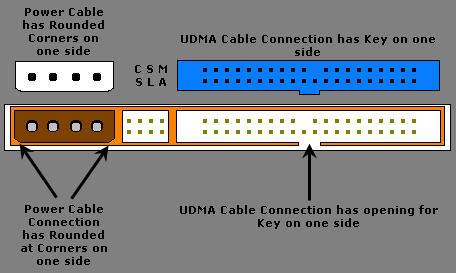
4. Line the key on the UDMA cable with the opening on the hard disk drive.

Note: Make sure the cable is not inserted in reverse since this can damage the connector and hard disk drive. Do not force or rock the connection into it’s socket on the hard disk drive. Push it in straight until it is seated.

Pata UDMA and Power Cable Connections

5. Line the Molex power cable connector with the opening on the hard disk drive.

Note: Make sure the cable is not inserted in reverse since this can damage the connector and hard disk drive. Do not force or rock the connection into it’s sockets on the hard disk drive. Push it in straight until it is seated.

How to Install A (PATA) Hard Disk Drive? Read More »

Scroll to Top