Articles

How to determine the model and capacity of Quantum® hard drive?

To use the table below: The bolded values in the model and capacity code columns are the alpha-numeric characters found on the disk drive’s TLA label. The TLA (Top Level Assembly) number is located on a the bar-code label affixed to either the drive’s top cover or on the drive’s interface connector. See the diagram below for examples and locations.

On Quantum hard drives, the terms “TLA“, “GTLA“, and “Part Number” all refer to the same hard drive model indicator and should be considered interchangeable.

By referring to the drive’s TLA label and then scrolling through the table below, you should be able to identify your drive’s product family and its capacity.

Interface values:

  • A = ATA (IDE)
  • D = SCSI Wide, 68-pin High Voltage Differential (HVD)
  • F = Fibre Channel
  • J = SCSI SCA, 80-pin
  • L = SCSI Wide, 68-pin Low Voltage Differential (LVD)
  • S = SCSI, 50-pin Single Ended (SE)
  • W = SCSI Wide, 68-pin Single Ended

image

image

image

image

image

Capacities are listed in Megabytes (MB) or Gigabytes (GB) as noted.

Early versions of the Atlas and Capella disk drives did not carry the complete TLA number scheme. Please refer to the drive cover label if you suspect your that you may have either of these products. The drive label does contain the product model number displayed in the above table.

DSP drives are not included in this table. DSP series drives were manufactured by Digital and contain Digital part number schemes.

How to determine the model and capacity of Quantum® hard drive? Read More »

WD Ships Industry’s First 1 TB Mobile Hard Drive

Mobile Hard Drive – New Drives Offer the Highest Capacities to Date For Mobile Storage Applications and Notebooks.

WD announced two new mobile hard drives that reach new capacity extremes. The highlight is a one terabyte model – the industry’s highest-capacity 2.5-inch drive available. Industry-leading 333 GB-per-platter technology enables the new WD Scorpio® Blue™ SATA 2.5-inch hard drives to offer mobile storage device and notebook users an enormous 1 TB capacity. A 750 GB WD Scorpio Blue model also will be available.

The WD Scorpio Blue 750 GB and 1 TB hard drives have a 12.5 mm form factor1 and are ideally suited for use in portable storage solutions, such as the newly released My Passport™ Essential™ SE Portable USB Drives. Other applications include select notebooks and small form factor desktop PCs, where quiet and cool operation are important. Both WD Scorpio Blue drives deliver high-performance with a 3 gigabits per second (Gb/s) transfer rate.

“The convergence of the growing mobile computing and digital media trends produces demand for desktop-like capacities in portable devices, Our new WD Scorpio Blue drives enable people to take even more of their digital collections with them wherever they go and, realizing the value of their data, back up their notebooks on their My Passport drives.” said Jim Morris, senior vice president and general manager of client systems at WD.

WD Scorpio Blue hard drives offer high-performance, low power consumption and cool operation in portable applications. They are designed with WD features to be reliable and shock resistant while also delivering industry-leading capacity and performance.

WD Scorpio Blue Features

WhisperDrive™ – WD’s exclusive WhisperDrive technology combines state-of-the-art seeking algorithms to produce one of the quietest 2.5-inch drives available.

ShockGuard™ – Leading-edge ShockGuard technology combines firmware and hardware advancements to meet the highest combined shock tolerance specifications required for mobile and notebook applications.

SecurePark™ – Parks the recording heads off the disk surface during spin up, spin down and when the drive is off. This ensures the recording head never touches the disk surface, resulting in improved long-term reliability due to less head wear and improved shock tolerance.

Price and Availability

WD Scorpio Blue 750 GB drives (model WD7500KEVT) are available now through select distributors and resellers; the 1 TB capacity (model WD10TEVT) is available now configured into My Passport Essential SE USB drives. The manufacturer’s suggested retail price (MSRP) for the WD Scorpio Blue 1 TB drive is $249.99 USD and for the 750 GB version it is $189.99 USD. WD Scorpio Blue hard drives are covered by a three-year limited warranty.

WD Ships Industry’s First 1 TB Mobile Hard Drive Read More »

Error Message: "NTLDR IS MISSING" during Windows boot

image

Problem:
NTLDR IS MISSING” error message encountered during Windows 2000/XP boot.

Cause:
The NTLDR is missing error can be caused by many different things. Generally, it is when a Windows 2000 or XP installation either fails or did not properly complete. This can also occur when the partition table on the drive has become corrupted.

If you are using Data Lifeguard Tools to install your drive, make sure your BIOS is setup to boot from your CD-ROM first, then the hard drive.

Resolution:
Windows 2000/XP will allow you to run the operating system installation process in order to fix a corrupted partition. There are two ways that you can boot your system to start this process:

  • Boot to the floppies supplied by the operating system.
  • Set your computer’s boot sequence so that you can boot from your operating system installation CD-ROM.

While performing the installation, choose to repair the partition instead of reinstalling the entire operating system. If using the operating system to repair the partition does not work, you may need to obtain specialized data recovery software.

Error Message: "NTLDR IS MISSING" during Windows boot Read More »

Windows 2000/XP Restarts Repeatedly After Adding A Drive

Problem:
After adding an additional drive to the system, Windows 2000/XP may fail to completely load. The system may end up in a loop in which it restarts repeatedly.

Cause:
Windows has a setting that dictates what happens when a system failure state occurs. This may be causing the restarts.

Resolution:
To check for this, do the following:

  1. Shut down the system and remove the recently added drive. At this point, Windows should boot up normally.
  2. Once the desktop appears, right-click on My Computer and click Properties.
  3. Click the Advanced tab at the top of the resulting window.
  4. Click Startup and Recovery at the bottom of the next window. Look for the Automatically reboot option and uncheck it.
  5. Click OK twice to close the remaining windows.
  6. At this point, shut the system down and reconnect the drive. You should now be able to start the system and boot up completely into Windows.
  7. If necessary, proceed as normal to configure the drive using Disk Management.

Windows 2000/XP Restarts Repeatedly After Adding A Drive Read More »

FreeAgent Pro Tools Utilities – Performing Drive Diagnostics

How to check the health of my FreeAgent drive?

FreeAgent You should run a diagnostic on your drive regularly as part of general maintenance. A health check determines hard disk integrity and can help troubleshoot potential problems with disk surface, partitioning, and drive recognition. To run a drive diagnostic:

  1. Close all open files located on the FreeAgent drive.
  2. Open the Seagate FreeAgent Tools application. Click Utilities in the Command panel.
  3. The Utilities window opens. Click Run Drive Diagnostics.
  4. The Run Drive Diagnostics window opens. Click Test to begin the drive diagnostic. The diagnostic utility performs its tests without affecting the data on your drive and takes only a short time to complete. When the test is complete, the Utilities window displays the results. If the drive encounters an error during testing, the window displays an error code with instructions to contact Seagate for service and support.
  5. Click OK to return to the Utilities window

Flash Videos: FreeAgent Pro Tools Utilities – Performing Drive Diagnostics

FreeAgent Pro Tools Utilities – Performing Drive Diagnostics Read More »

What’s the difference between duplicating, archiving and backing up data?

An introduction to Backups

Backup Data As applications and hardware can still fail no matter how reliable a PC or server is. It’s vital to have a good backup solution. While once costly and complex, they are now inexpensive, simple-to-use and depending on the solution implemented, completely automated. If your data and your time are truly important, it makes sense to develop a strategy based on those needs to keep your data safe and to choose hardware and software that fits with your strategy.

What’s the difference between duplicating, archiving and backing up data?

Duplication is a 1:1 copy of your data, which means it only keeps one version of each file on your system. You don’t need to open your backup software to access your duplicated data but you can retrieve data through the explorer/finder. Macintosh’s MacOS even gives you the opportunity to boot from your backup drive if you duplicated your complete system.

Archiving is functionally the same as backing up data. The main differences are that backup files are only kept for a short time and NOT DELETED from the original source while archived files are kept for a much longer time, hence the name archive. And archived files are normally deleted from the source, e.g. your system disk or data drive. That’s why with archiving, you would normally use a CD, DVD or tape as storage medium.

Backing up data is faster and more efficient than copying and takes up less space on the storage media because you can make “incremental” opposed to full backups. As a result it’s easier and more cost-effective to make frequent backups of multiple versions of data. Backup software automatically copies data into a single file that can’t be directly read by the original applications. It then compresses this file and prevents unauthorized access by protecting it with passwords or encryption.

Which backup strategy is the right one for you?

You should backup your data as often as it changes. To correlate with Murphy’s Law: “The likelihood of suffering data loss increases in direct proportion to the elapsed time since your last backup “. In layman’s terms, the day you don’t backup your data, something will go wrong. When you start a backup strategy you should backup all data (documents, music, movies, etc.) and applications that you want to protect with a full backup, to be repeated on a more or less weekly basis. In between, you can perform incremental backups to protect data that has changed since the last full backup. The best time to run a backup is when you are not working on your computer, as every file accessed by applications or by the user will be locked and will thus not be backed up. Running your backup can therefore best be done manually when you have finished your work and before you switch off your computer, or it can be scheduled at times when nobody is using the computer in cases where the computer is switched on most of the day or longer.

How many backups do I need?

A good backup strategy should include backups of your backups. The reason for this is that your original data and your backup might be damaged or lost (for example, lightning strikes or a burglary at your home/office). That is why it is wise to use multiple backup media, such as 2 or 3 external drives alternating between them, one of which you always take with you off-site. That is, if this is within your budget.

Other alternatives include CDROM, DVD, online storage, and tape drives.

System recovery

If your system fails completely you will need to do what is called a system recovery. This process calls for reloading the operating system, the backup software, and all applications and restoring the data.

With the aid of a disaster recovery software like Retrospect, where the disaster recovery copy was fully run before the disaster, you would only need to reinstall the operating system and Retrospect.

Once this is done you can restore your system backup, keeping in mind that this only works if your hardware doesn’t change; all applications, system settings and data will be restored to your system. Mac users have one advantage here if they have Retrospect HD, as in this case you can create a bootable backups on your external drive, from which you can boot if your internal system drive fails without first reinstalling the operating system and Retrospect.

What’s the difference between duplicating, archiving and backing up data? Read More »

IPod Touch Troubleshooting Assistant

Is your iPod touch frozen or not operating as expected? These tips will help you resolve most common issues.

Recharge

This screen means to keep iPod touch connected so it continues charging.
Note:

  • Use a high-power USB port such as the one on your computer, or use your iPod touch AC adapter.
  • Don’t use the USB port on your keyboard because it is a low-power port and iPod touch will not charge.
  • Make sure you are using USB to charge. Accessories that use FireWire to charge are not supported with iPod touch.
  • If you see the red part of the battery image flash three times and then the screen goes black, it means that iPod touch is not receiving power to charge.
  • If the iPod touch battery is extremely low on power, the display may be blank for up to two minutes before one of the low-battery images appears.

Restart

Try restarting iPod touch. To turn it off, press and hold the Sleep/Wake button until the red slider appears. Slide your finger across the slider to turn off iPod touch. To turn iPod touch on, press and hold the Sleep/Wake button until the Apple logo appears.

Does iPod touch appear frozen or stuck? To reset iPod touch, press and hold the Sleep/Wake button and the Home button at the same time for at least 10 seconds. During this time, a red “power off” slider may appear and the screen may go black, but do not release Sleep/Wake and Home buttons until the Apple logo appears.

Remove Content

If iPod touch is not working as expected, it may be due to some of the content synced to it. Try selectively removing certain content that may be causing unexpected behavior such as contacts, calendars, songs, photos, videos, or podcasts.

To remove content, connect iPod touch via USB and use iTunes to change the sync settings. Click on iPod touch in the Source list, and select each tab to change what content is synced then click apply.

Reset Settings

Tap Settings > General > Reset > Reset All Settings

Note: This will reset all settings. No data or media will be deleted.

Restore

Try restoring iPod touch using the latest version of iTunes.

Connect iPod touch. When it appears in the Source list, click on Restore in the Summary tab.

IPod Touch Troubleshooting Assistant Read More »

Seagate® Barracuda® 7200.11 Hard Drive

image The Seagate® Barracuda® 7200.11 hard drive offers an unmatched combination of reliability, performance and capacity, and is backed by a 5-year limited warranty. The Barracuda 7200.11 drive—the eleventh generation of this award-winning desktop hard drive family—delivers up to 1 TB of reliable digital storage. The drive is the ideal choice for mainstream PCs, performance PCs, gaming and workstations, desktop RAID and external storage devices.

Kit Includes:

  • Hard drive
  • Product Manual
  • 5 years Limited Warranty

Product Highlights:

  • Designed with four disks to provide the optimal balance of advanced technology and low total cost of ownership
  • Eleventh-generation drive in the successful, award-winning Barracuda® product family
  • Enables up to 1 TB of storage capacity (other capacities at 500 GB and 750 GB)
  • Industry’s most reliable hard drive with proven second-generation perpendicular magnetic recording (PMR) technology
  • Leverages best combination of technology (areal density, PMR) and proven components for volume shipping
  • Industry-leading acoustics and power consumption levels
  • 105-MB/s sustained data rate
  • 32-MB cache

Seagate® Barracuda® 7200.11 Hard Drive Read More »

Jumper settings for Seagate and Maxtor ATA hard drives

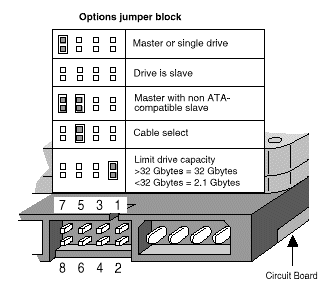
image Master or single drive. If you are installing your Seagate hard drive as the only drive in the system or if it will be the primary boot drive for the system, the jumper should be set as Cable Select. If you are connecting the drive to an older system that has a pre-UDMA Mode 3 ATA controller, or you are connecting this to a cable with a slave device that doesn’t have a cable select jumper setting, jumper the drive as Master instead by putting a jumper on the first vertical set of pins closest to the data cable.

Drive as slave

If you are installing the drive as an additional drive in your system, the drive should be set as Cable Select. If you are connecting the drive to an older system that has a pre-UDMA Mode 3 ATA controller, or you are connecting this to a cable with a master device that doesn’t have a cable select jumper setting, jumper the drive as Slave instead by removing the jumper from the drive.

Cable Select

This setting is the default setting for ATA drives. With the Cable Select jumper set, the BIOS determines whether a drive is a master or a slave by its position on the UltraATA cable. If the drive is jumpered as cable select and is connected to the black connector on the end of the cable, it is recognized as the master drive for that ATA controller. If the drive is jumpered as cable select and is connected to the grey connector on the middle of the cable, it is recognized as the slave drive for that ATA controller.

Drive as master with a non-ATA-compatible slave

On Seagate drives only, set a jumper on pins 5 and 6 and a jumper on pins 7 and 8. Use this jumper setting only if the drive does not work as a master or cable select.

Limit drive capacity (or CLJ)

Use this on computers manufactured before November 1998 when either you start up your computer and see the message, “Hard disc drive controller failure”, your computer does not recognize your newly installed hard drive, or your system stops responding during the boot process after installing this new drive.

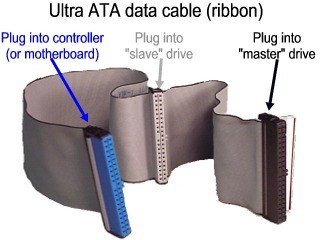
Seagate recommends the use of newer UltraATA cables to achieve the best performance from your new Seagate hard drive. These UltraATA cables have 3 colored connectors, each connector has a specific purpose. Be sure to plug the correct connector into the correct device.

Image

  • The blue connector is for your host bus adapter (using a connector on your motherboard).
  • The black connector at the other end is for your master device, usually the hard drive you boot from.
  • The gray connector is for an optional slave device if you have a second hard drive.

Other devices like CD-ROM drives, tape drives and CD burners are usually plugged into a separate cable which also connects to the motherboard.

Seagate U-Series and Barracuda ATA drive families (ie, most ATA drives above 20 GBytes) follow the jumper configuration noted below:

image

Maxtor (and Quantum) drives follow the jumper configuration noted below:

Image

The drive is configured at the factory for a cable select setting. This allows the drive to assume the proper role of master or slave based on the connector used on the cable (see the UltraATA cable figure above). For the cable select setting to work properly, the cables you are using must support the cable select feature. Current UltraATA cables with the 3 colored connectors do support this feature.

Jumper settings for Seagate and Maxtor ATA hard drives Read More »

3 Ways To Determine Seagate Hard Disk Model And Serial Number

To identify your seagate hard disk drive, retrieve the model number, serial number and firmware revision without removing your drive. There are 3 methods:

  1. Seagate DriveDetect.exe method (recommended)Click here to download Drive Detect

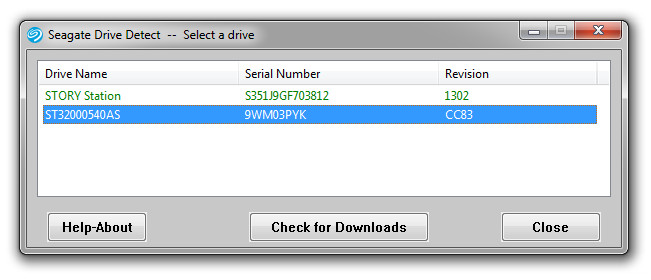
    When running Drive Detect you will see a screen like this.  Look for the drives that are attached:

    Seagate Mode Serial Number

    In the example above the Drive Name is the same as the Model: ST31500341AS, the serial number is 9VS00J20 and the firmware revision is SD1A.

  2. Device Manager Method :

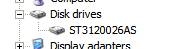
    Use Microsoft Windows Device Manager to see the model numbers of your disk drive.

    • Choose Start | Run | type:  devmgmt.msc
    • Click Ok.
    • Expand the Disk Drive branch to see the model numbers:
      Seagate Model Numbers
  3. Seatools for Windows Method:Download SeaTools for Windows which displays all of the required information.

3 Ways To Determine Seagate Hard Disk Model And Serial Number Read More »

Scroll to Top