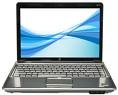
Here are the 10 reasons why you should own a laptop
1. Better resale value.
 PCs hold little resale value – but laptops hold a lot more. Even if you own a Mac, the Macbook will always sell later for more than the desktop
version.
2. Portable.
When I say portable I’m not necessarily referring to sitting in a Panera Bread click-clacking away with their free wi-fi (although you could). Portable can be as simple as bringing it elsewhere in your house or apartment/flat. Sit down in your easy chair or couch, watch the game and surf the ‘net? Sure, why not?
3. Space-saver.
One does not know the joy of owning a laptop until you put it on the computer
desk and then realize all the space you get back. All you have is the laptop and possibly an external mouse and pad. That’s it.
4. Energy-saver.
Laptops use far less energy than desktop PCs do.
5. Easier keyboards.
Laptops use short profile keys with a scissor-style spring underneath. Your typing speed will increase almost instantly. And after using one for a while, going back to the desktop feels old and clunky compared to the super-easy laptop keys. Additionally, the place where the trackpad is serves as a built-in wrist rest, so it’s also ergonomically sound.
6. Better LCD screen.
More often than not the LCD screen on a laptop is far superior to your desktop LCD monitor. The colors look more true, gradients don’t “fuzz” and it has a more crisp picture.
7. Easier to work on.
Most laptops only require one screw to remove the hard drive or RAM. After that it’s literally pop in/pop out to upgrade. It doesn’t get any easier.
8. Proprietary architecture means everything works better.
The vast majority of laptops are very proprietary. This means there is no guesswork as to whether the unit will function properly or not. Even Linux “likes” laptops better because it absolutely knows what to expect, so to speak.
9. Easy-access USB.
Most laptops have 4 USB ports (two on the side, two on the back) and are in easy reach.
10. It’s not a throw-away computer.
This goes back to point 1. The laptop is more or less the only type of computer you can buy where you know it will sell later when it’s time to get rid of it. Even if you have an older laptop with a busted optical drive, someone will still buy it because of what it is. Older desktop PCs on the other hand turn into paperweights that you can’t sell for a decent price no matter what.
Here are the opposite reasons why you should avoid a laptop
David M:
Here are the exactly opposite post, reasons to avoid laptops:
The reasons I don’t own a laptop….
1. They are not upgradable, not like a desktop.
2. You cannot fit two high end graphics cards in SLI in them.
3. I enjoy building computers. You cant really build and totally customize your own laptop.
Raul:
I don’t like laptops because if something goes wrong, you have to send them back to the manufacturer or whoever you bought the warranty (extended) from.
That can usually take days or weeks (Best Buy)
If you don’t buy the expensive warranty, then you end up paying expensive fees, for example, on the monitor, you will most likely pay 400us+ to get the replacement plus any labor fees.
If you want to do it yourself, the parts are delicate and hard to access.
There is also the problems with getting video card drivers, well for Windows anyways, where if your driver has a problem, you can’t just go to Nvidia’s site and download an updated version. You must wait for your manufacturer to update it, this is for everything, like BIOS and other essential drivers that on a desktop, you can normally find easily.
That is why between work and home, I use a LAN party computer, the Sugo SG05 case, with the Zotac 9300 Mini-ITX motherboard and slot loading drive. I have a quad core CPU and 4 GB of RAM. Also using a laptop drive. And it has a handle and is very light.
I’m not saying this thing does not have any disadvantages and that laptops are bad, but unless you get an HP or a Lenovo Thinkpad, in my experience, you are going to have a lot of trouble. Stay away from Gateway (bad drivers, sorry build quality) Acer (overheated for my brother in law, has to open up every month to blow out dust accumulations from bad laptop design).
Felice:
I was about to write an exactly opposite post… good reasons to avoid laptops!
Some examples:
– They cost twice as much for the same performance
– Difficult/impossible to repair due to components integration
– Difficult/impossible to upgrade for space reasons
– Memory, HDD etc upgrades are also more expensive
– Hard Disks are usually slower
– More difficult to find Linux support for the hardware
– Worse, not better LCD screens. And smaller.
– After the 1st year, batteries become a problem.
– And batteries are an expensive replacement
– Fewer USB, serial and other connections available
– Impossible to build your own
…and so on…
Steven:
I don’t have anything against laptops (in fact I even own a laptop, in addition to my desktop), but I need to dispute some of these points.
Point 1, The resale value of (at least PC based) laptops generally revolves around the entry price for laptops (regular laptops, not netbooks) still being higher than desktops, so people are willing to pay more for a used one. Laptops are also usually sold earlier in life because, due to the lesser power and more complex hardware, they generally have a shorter useful life expectancy, at least to the first owner (more on that in counterpoints 7 and 8).
Point 2, When laptops are left as laptops, then yes, they are obviously far more portable than any desktop. However, when people try to use a laptop as a replacement for a desktop, by the time they are finished plugging in their power cord, printer, scanner, external hard drive(s), and in some situations, keyboards, mice, and external monitors, the “portability” of the laptop has been almost completely voided.
Point 3, See point two. Generally yes, a laptop as a laptop doesn’t take up nearly as much room as a desktop, but when used as a desktop they take can up just as much space, if not more because you pretty much loose the option to put the laptop on the floor.
Point 4, This one is true. While a high powered “gaming” and desktop replacement laptops can use as much power as a modest desktop system, for the most part a laptop will use less power than a desktop.
Point 5 is completely a matter of opinion. For the most part, yes, easier to press keys will help with RSI, though this can be achieved on a desktop keyboard with mechanical switches. But, in either case, it won’t necessarily help you type faster, and definitely not immediately. A lot of people have a trouble adjusting to the different feel of laptop keyboards, and generally end up getting an separate keyboard anyway. Also, how ergonomically sound it it is depends more on how your sitting and holding your wrists then how the keyboard is designed. A laptop keyboard with the “built-in wrist rest” isn’t necessarily any better than a desktop keyboard with a wrist rest. Also, In order to get a number pad on a laptop keyboard, you generally need to get a fairly large laptop, which starts to affect portability.
Point 6, if by “Better” you mean lower dot-pitch, then yes laptop monitors are generally “better”. But for the most part, a halfway decent desktop LCD monitor will trounce a laptop monitor in response time, color reproduction, backlight uniformity, viewing angle, and, of course, size. Also, using a super high resolution laptop screen set to it’s highest resolution can be really hard on your eyes and the penalty switching to a non-native resolution on an LCD screen destroys any picture quality gained by the lower dot-pitch. Because of this, a lot of people end up using their laptops with external monitors anyway, which also voids the benefits of point 3.
Point 7, sure if all you want to do is change your RAM, hard drive, or CD drive a laptop is marginally easier to work with than a proprietary desktop. But, usually changing anything else means dismantling half the laptop. What if your monitor dies, what if the CPU fan stops working, motherboard or processor fries, etc… All of those scenarios are much more easily fixed in a desktop. Also, what if you want to add another hard drive to your laptop, upgrade your video card, add a sound card. It’s pretty much impossible to do any of that in most laptops. A lot of DIY desktops are much easier to work with as well, with tool-less PCI slots, hard drive bays, and 5.25″ drive bays, not to mention cases that have removable mother board trays.
Point 8, Most of the reliability problems I have had can be traced to a specific piece of hardware or a driver problems, not usually the interaction between them. I have had these kinds of problems in both laptops and desktops. In my experience once hardware problems are worked out, both laptops and desktops are extremely reliable these days. And, on an individual basis, quality desktop components are generally more reliable than their micro-sized counterparts, thanks to heavier gauge wire, thicker traces, larger electrical components, and heavier duty mechanical parts, which all comes together to give them longer life expectancy.
Point 9, Most LCD monitors have USB hubs built in, and almost all desktops have front or top USB ports that are easily accessible regardless of if your computer is on the floor or on the desk.
Point 10, While a lot of people do simply dispose of or sell their old desktops (and laptops) when they are finished with them, desktops are far more powerful than laptops, which makes them more versatile later in life. When combined with the more reliable parts, easier maintenance, and longer life expectancy, desktops are far easier to re purpose as a file server, HTPC, guest computer, computer for kitchen, etc….
I’m not saying people should not own laptops, but I don’t think they should really be used as a primary system for most people. Laptops are really good when used as a laptop, such as light usage while laying on the couch watching TV, moving around the house, or traveling. But if your going to do even remotely heavy computing, it’s generally more comfortable to work at a desk with a desktop-style setup.
Not long ago I bought a HP Laptop Notebook, I use it every day, write blog, do the design, and development. It is indeed a lot of convenience except for the mouse.
What is your options then?

 Check the following:
 Seagate Introduces New Additions To Its BlackArmor Family Of External Storage Solutions For Small Business, New Products include Networked, Desktop, and Mobile Storage Options to Store, Backup, and Secure Business Critical Data.