Articles

RAID Array & Server Glossary of Computer Terms (Letter D)

Data Caching
Temporary storage of new write data or high-demand read data in solid state memory in order to accelerate performance. The cached data is later overwritten with newly cached data once it is either written to disk or deemed to be of low demand.

Demand caching
A performance caching technique in which the currently requested data is read in anticipation of another request before its allocated blocks are recycled. Reassignment of the blocks is done on the basis of least recently used (LRU).

Degraded Mode
A RAID mode used when a component drive has failed.

Disk
A non-volatile, randomly addressable, re-writable data storage device, including rotating magnetic and optical disks as well as solid-state disks or other electronic storage elements.

Disk Array
A collection of disks from one or more commonly accessible disk systems. Disk arrays, also known as RAID, allow disk drives to be used together to improve fault tolerance, performance, or both. Disk arrays are commonly used on servers and are becoming more popular on desktops and workstations. See also Array.

Disk Drive
A device for the electronic digital storage of information.

Disk Failure Detection
A RAID controller automatically detects SCSI disk failures. A monitoring process running on the controller checks, among other things, elapsed time on all commands issued to disks. A time-out causes the disk to be “reset” and the command to be retried. If the command times out again, the controller could take the disk “offline.” Mylex DAC960 controllers also monitor SCSI bus parity errors and other potential problems. Any disk with too many errors will also be taken “offline.” See also Offline.

Disk Traveling, Drive Traveling
A process that occurs when the drives are placed in a different order than the original order. Disk traveling can occur whether or not a drive has failed.

Disk System
A storage system capable of supporting only disks.

Drive Groups, Drive Packs
A group of individual disk drives (preferably identical) that are logically tied to each other and are addressed as a single unit. In some cases this may be called a drive “pack” when referring to just the physical devices. All the physical devices in a drive group should have the same size; otherwise, each of the disks in the group will effectively have the capacity of the smallest member. The total size of the drive group will be the size of the smallest disk in the group multiplied by the number of disks in the group. For example, if you have 4 disks of 400MB each and 1 disk of 200MB in a pack, the effective capacity available for use is only 1000MB (5×200), not 1800MB.

Disk/data striping
Spreading data evenly over multiple disks to enhance performance. Sometimes referred to as RAID 0, data striping actually has no redundancy scheme and, therefore, does not provide any fault tolerance (data protection).

Drive
Synonym for disk, hard drive, hard disk, disk drive.

Dual Active
A pair of components, such as storage controllers in a failure tolerant storage system, that share a task or set of tasks when both are functioning normally. When one component of the pair fails, the other takes the entire load. Dual active controllers (also called Active/Active controllers) are connected to the same set of devices and provide a combination of higher I/O performance and greater failure tolerance than a single controller.

Duplexing
Mirroring across two host adapters. Used only with software-based RAID storage systems (usually the embedded network operating system RAID software such as NetWare and Windows NT).

RAID Array & Server Glossary of Computer Terms (Letter D) Read More »

RAID Array & Server Glossary of Computer Terms (Letter C)

Cache
A temporary storage area for frequently accessed or recently accessed data. Cache is used to speed up data transfer to and from a disk. See also Caching.

Cache Flush
Refers to an operation where all unwritten blocks in a Write-Back Cache are written to the target disk. This operation is necessary before powering down the system.

Cache Line Size
Represents the size of the data “chunk” that will be read or written at one time, and is set in conjunction with stripe size. Under RAID EzAssistTM, the cache line size (also known as Segment Size) should be based on the stripe size you selected. The default segment size for Mylex RAID controllers is 8K. See also Stripe Size.

Caching
Allows data to be stored in a pre-designated area of a disk or RAM. Caching speeds up the operation of RAID systems, disk drives, computers and servers, or other peripheral devices. See also Cache.

Conservative Cache
An operating mode in which system drives configured with the Write-Back Caching policy are treated as though they were configured for Write-Through operation and the cache is flushed.

Consistency Check
A process that verifies the integrity of redundant data. A consistency check on a RAID 1 or RAID 0+1 configuration (mirroring) checks if the data on drives and their mirrored pair are exactly the same. For RAID Level 3 or RAID Level 5, a consistency check calculates the parity from the data written on the disk and compares it to the written parity. A consistency check from Mylex utilities such as Global Array ManagerTM (GAM) or RAID EzAssistTM give the user the ability to have a discrepancy reported and corrected. See also Parity Check.

Controller
An adapter card, RAID controller, or other module that interprets and controls signals between a host and a peripheral device.

RAID Array & Server Glossary of Computer Terms (Letter C) Read More »

Computer Forensics

Data lost intentionally or accidentally can be recovered with the help of data recovery experts. Computer forensic is one such type where the cause for data loss is identified.

There are many definitions of computer forensics however generally, computer forensic refers to the detail investigation of the computers to carry out the required tasks. It performs the investigation of the maintained data of the computer to check out what exactly happened to the computer and who is responsible for it. The investigation process starts from the analysis of the ground situation and moves on further to the insides of the computer’s operating system.

Computer forensic is a broader concept which is mainly related to the crimes happening in computer which is against law. Various laws have been imposed to check out the crimes but still they exist and are difficult to find the criminal due to lack of evidence. All these difficulties can be overcome with the help of computer forensics.

The main motto of computer forensic experts is not only to find the criminal but also to find out the evidence and the presentation of the evidence in a manner that leads to legal action of the culprit. The major reasons for criminal activity in computers are:

  1. Unauthorized use of computers mainly stealing a username and password
  2. Accessing the victims computer via the internet
  3. Releasing a malicious computer program that is virus
  4. Harassment and stalking in cyberspace
  5. E-mail Fraud
  6. Theft of company documents.

Computer forensic facilitates the organized and careful detection of computer related crime and abuse cases. The computer forensics expert should have a great deal of knowledge of the data recovery software as well as the hardware and should possess the qualification and knowledge required to carry out the task.

Computer Forensics Read More »

Data Storage Glossary

A
1394

The Institute of Electrical and Electronics Engineers (IEEE) designation for an interface developed for easy connection to consumer devices such as video and computer peripherals.

Adapter Card
In order to connect a computer to peripheral devices, an adapter card is often required. The adapter plugs into the computer’s bus, and connects the system’s data path to the peripheral.

Arrays
A group of disk drives that appear to a computer as a single logical unit. In order to use arrays effectively, RAID software and/or hardware is required.

B
Bandwidth
A data transmission rate; the maximum amount of information (bits/second) that can be transmitted along a channel.

Bus
A set of conductors connecting the various functional units in a system.

C
CD-R (Compact Disc-Recordable)
A blank CD that is designed to allow data to be “written” a single time on its surface. Peripheral devices that connect to PCs enable home or office single-time recording of blank CD-Rs.

CD-RW (Compact Disc-Rewritable)
A blank CD that is designed to allow data to be written, erased, and rewritten onto a CD-RW. Rewritable capability makes CDs more versatile by mimicking the usability of floppy disks.

D
Data Caching
Temporary storage of new write data or high-demand read data in solid-state memory in order to accelerate performance. The cached data is later overwritten with newly cached data once it is either written to disk or deemed to be of low demand.

Data Path
Digital information can be transmitted in different sized “paths” within a computer. Generally, the wider the data path, the higher the throughput performance. Today, the most standard data path width is 32-bit, though new products are entering the market with 64-bit paths, providing better I/O performance.

Disk Drive
Computer storage hardware that can read and write information on it.

E
EID

Enhanced Integrated Drive Electronics. A low cost, limited functionality drive interface. Controlled by the ANSI X3T9.2 committee.

Ethernet
A type of networking technology for local area networks.

F
Fault Tolerance
The ability of a system to continue to perform its functions, even when one or more components have failed.

Fibre Channel
A channel/network standard that provides connectivity, distance, and protocol multiplexing.

I
I/O Bus
The I/O bus is where the computer connects to outside peripherals.

I/O Channel
In computer systems, I/O Channel refers to the physical interface that controls the transfer of data between the computer and peripheral devices. With SCSI, each I/O Channel is equivalent to the full functionality of a single SCSI host adapter. For example, a dual-channel SCSI host adapter is equivalent to two single SCSI host adapters.

I/O Subsystem
The combination of technologies that manage the process of moving data into and out of the main computer system. The highest performance I/O subsystems use dedicated processors to minimize the CPU’s need to manage I/O, thereby allowing it to process the information that is moved to it from the I/O subsystem.

M
Mirroring

Also known as RAID 1 or duplexing (when using two host bus adapters). Full redundancy is obtained by duplicating all data from a primary disk on a secondary disk. The overhead of requiring 100% data duplication can get costly when using more than two drives.

Motherboard
The main printed circuit board in a system generally containing the bus, microprocessor, and chips used for controlling any internal peripherals.

Multitasking
The ability for the operating system to perform multiple operations at once. Windows NT Workstation is a multitasking operating system that can perform multiple I/O requests at once. SCSI and a Caching RAID coprocessor take advantage of multitasking.

N
Network Interface Card (NIC)
An adapter installed in a computer to provide a physical connection to a network.

P
Parity
When the data stream is split between several disks with an extra disk providing error protection.

PCI (Personal Computer Inter-connect)
PCI is the most common high-performance bus type. Currently, PCI uses a 32-bit wide data path, but newer PCI products are adopting a 64-bit wide data path for improved performance.

Peripheral
Internal or external devices connected by cable to a system.

R
RAID (Redundant Array of Independent/Inexpensive Disks)
A method of combining multiple disk drives into a single logical storage unit. Multiple levels of RAID provide different features. RAID Level 0 is the fastest type of RAID. It stores data across all the drives, letting users access information from multiple drives simultaneously. RAID Level 1 protects data by mirroring it on multiple drives, so performance is only slightly better than that of a single drive. RAID Level 5 does a combination of the two, providing the best overall balance.

Read-ahead Caching
A performance caching technique in which data is anticipated and read into the cache before it is actually requested.

S
SAN (Storage Area Network)
SANs are an evolving approach to storage, where multiple storage devices are connected to multiple servers for higher capacity, throughput, and reliability. SANs require sophisticated RAID management software and high-performance I/O connectivity.

SCSI (Small Computer System Interface, pronounced “scuzzy”)
SCSI is the preferred industry standard for high-performance I/O interface. Particularly valuable in servers where one system must connect to many high-capacity storage devices without lowering the I/O speed to the slowest device.

S.M.A.R.T. (Self-Monitoring Analysis and Reporting Technology)
Drives equipped with this feature report predicted failures based on threshold values determined by the manufacturer. This allows the network manager to replace a drive before it fails.

Storage
Computers store information on a variety of devices, some inside the system, and others external to the computer. Typically, data is written to a particular kind of storage medium using a disk drive. Common media include flexible (floppy disk drive), rigid (hard disk drive), tape, or optical (CD).

Striping
Also known as RAID 0. Two or more drives store and retrieve data in parallel, accelerating performance.

W
Write-back Caching

A performance caching technique in which the completion of a write request is signaled as soon as the data is in cache. Actual writing to the disk occurs at a later time.

Write-through Caching
A caching technique in which the completion of a write request is not signaled until data is safely stored on disk

Data Storage Glossary Read More »

Guideline for Diagnostics – Data Recovery

This is intended to be a guideline for determining whether a hard drive is failing physically or if the drive is a candidate for software recovery by technicians in the field.

There are many commercial utilities that will allow users or qualified technicians to recover data from a hard drive that is otherwise inaccessible. Commercial utilities work with varying degrees of success. The question to be asked is when is it a good idea to use these utilities versus when is a good idea to send the hard drive to Data Recovery Group?

The first step is to determine if the hard drive is functioning. If the hard drive is functioning properly it should be recognized in the CMOS and you should be able to boot the system from another media source, such as a floppy, CD-ROM, or another hard drive. If there are any BIOS errors when attempting to boot the system the hard drive has malfunctioned and needs to be sent to Data Recovery Group. If during the boot process the system is unable to boot from an alternate media source, this is another indication that hard drive is malfunctioning. Further attempts to boot the system could seriously reduce the likelihood of a successful data recovery.

If the system can be successfully booted the next step is to attempt to run the data recovery utility. Most utilities work in the same way. The first step the data recovery utility performs is to scan the drive to locate the file system components. Most utilities will display this scan with some type of progress meter. It is necessary to monitor progress and to stay with the hard drive while the utility is operating. If the hard drive starts to make unusual noises stop the scan immediately and power down the computer. The hard drive will need to be sent to us. Another thing that needs to be watched is the rate of progress for the utility. Usually there will be a count of sectors read. The count should steadily increase and it should not stop. If the count or progress does stop the scan should be terminated and the computer powered down. Failure to stop could jeopardize the likelihood of a successful data recovery. The hard drive should be sent to Data Recovery Group.

If there are any signs that the hard drive is failing physically, it is important that software data recovery utilities not be used on the hard drive. Hard drives usually fail gradually and this failure process will be accelerated during a full scan of the hard drive necessary for most data recovery utilities to recover the data.

It is important to read the instructions provided with any data recovery utility you may use on a hard drive. It is important that if you can complete a scan of the failing hard drive that the recovered files are not saved back to the hard drive you are trying to recover. It is possible o save recovered files on the source drive and if this occurs the recovered files could overwrite other files you are trying to recover.

In conclusion, it is very important to determine if a drive has any physical failure before attempting to recover the data using a utility. Data Recovery Group has received many hard drives from customers where the data could have been recovered had we received the drive right after the original failure. Repeated attempts to recover the data with software rendered the drive useless and the data not recoverable.

Guideline for Diagnostics – Data Recovery Read More »

The Evolution of Mass Storage

Even before the first commercial electronic computers appeared in 1951, “mass” storage – although minuscule by today’s standards – was a necessity. As early as the mid-1800s, punch cards were used to provide input to early calculators and other machines. The 1940s ushered in the decade when vacuum tubes were used for storage until, finally, tape drives started to replace punch cards in the early 1950s. Only a couple of years later, magnetic drums appeared on the scene. And, in 1957, the first hard drive was introduced as a component of IBM’s RAMAC 350. It required 50 24-inch disks to store five megabytes (million bytes, abbreviated MB) of data and cost roughly $35,000 a year to lease – or $7,000 per megabyte per year.

For years, hard disk drives were confined to mainframe and minicomputer installations. Vast “disk farms” of giant 14- and 8-inch drives costing tens of thousands of dollars each whirred away in the air conditioned isolation of corporate data centers. The personal computer revolution in the early 1980s changed all that, ushering in the introduction of the first small hard disk drives. The first 5.25-inch hard disk drives packed 5 to 10 MB of storage – the equivalent of 2,500 to 5,000 pages of double-spaced typed information – into a device the size of a small shoe box. At the time, a storage capacity of 10 MB was considered too large for a so-called “personal” computer.

The first PCs used removable floppy disks as storage devices almost exclusively. The term “floppy” accurately fit the earliest 8-inch PC diskettes and the 5.25-inch diskettes that succeeded them. The inner disk that holds the data usually is made of Mylar and coated with a magnetic oxide, and the outer, plastic cover, bends easily. The inner disk of today’s smaller, 3.5-inch floppies are similarly constructed, but they are housed in a rigid plastic case, which is much more durable than the flexible covering on the larger diskettes.

With the introduction of the IBM PC/XT in 1983, hard disk drives also became a standard component of most personal computers. The descriptor “hard” is used because the inner disks that hold data in a hard drive are made of a rigid aluminum alloy. These disks, called platters, are coated with a much improved magnetic material and last much longer than a plastic, floppy diskette. The longer life of a hard drive is also a function of the disk drive’s read/write head: in a hard disk drive, the heads do not contact the storage media, whereas in a floppy drive, the read/write head does contact the media, causing wear.

By design, hard disk drives contain vastly greater amounts of data than floppy disks and can store and retrieve it many times faster. Rapid declines in price for hard disk drives meant that by the mid-1980s, a drive of at least 20 MB capacity was a standard component of most PCs. (Because floppy diskettes are a cheap and removable storage media, floppy drives still are included in most PCs as a means for loading software and transporting and archiving vital data.)

Like any other product of the electronics industry, hard drives were subject to the inexorable law of miniaturization. By the mid-1980s, 5.25-inch form factor drives had shrunk considerably in terms of height. A standard drive measured about three inches high and weighed only a few pounds, while lower capacity “half-height” drives measured only 1.6 inches high. By 1987, 3.5-inch form factor hard drives began to appear. These compact units weigh as little as a pound and are about the size of a paperback book. They were first integrated into desktop computers and later incorporated into the first truly portable computers – laptops weighing under 12 pounds. The 3.5-inch form factor drives quickly became the standard for desktop and portable systems requiring less than 500 MB capacity. Height also kept shrinking with the introduction of one-inch high, ‘low-profile’ drives.

Even as 3.5-inch form factor drives were gaining acceptance, yet a smaller form factor of 2.5 inches appeared on the scene. This was in direct response to the need to further reduce size and weight in portable computers for four to six pound notebook computers. Today’s 2.5-inch drives are about the size of a deck of cards, weigh as little as four ounces, and deliver capacities of more than 500 MB.

Not surprisingly, the march to miniaturization did not stop at 2.5-inch drives. By 1992, a number of 1.8-inch form factor drives appeared, weighing only a few ounces and delivering capacities up to 40 MB. Even a 1.3-inch drive, about the size of a matchbox, was introduced. Of course, smaller form factors in and of themselves are not necessarily better than larger ones. Disk drives with form factors of 2.5 inches and less currently are required only by computer applications where light weight and compactness are key criteria. Where capacity and cost-per-megabyte are the leading criteria, larger form factor drives are still the preferred choice. For this reason, 3.5-inch drives will continue to dominate for the foreseeable future in desktop PCs and workstations, while 2.5-inch drives will continue to dominate in portable computers.
The drive to smaller form factors is made possible by continuing advances in electronics, disk media, read/write heads, and other disk drive technologies – all of which provide the ability to store ever more data on a given disk surface area. Historically, technology advances have resulted in the doubling of areal density – and thus the megabyte capacity of a disk – about every 18 months.

Since its introduction, the hard disk drive has become the most common form of mass storage for personal computers. Manufacturers have made immense strides in drive capacity, size, and performance. Today, 3.5-inch, gigabyte (GB) drives capable of storing and accessing one billion bytes of data are commonplace in workstations running multimedia, high-end graphics, networking, and communications applications. And, palm-sized drives not only store the equivalent of hundreds of thousands of pages of information, but also retrieve a selected item from all this data in just a few thousandths of a second. What’s more, a disk drive does all of this very inexpensively. By the early 1990s, the cost of purchasing a 200 MB hard disk drive had dropped below $200, or less than one dollar per megabyte.

A Look Ahead
Microsoft ex-CEO Bill Gates predicted that as PC users evolve into “knowledge navigators,” the demand for mass storage speed and capacity will continue to outpace technology developments. Gates speaks with authority as the mastermind behind dozens of PC applications and the leading PC operating environment, Microsoft Windows, all of which require increasing amounts of storage at higher levels of performance. As just one example, a complete installation of Microsoft Word, with its built-in spell checker, thesaurus, and grammar checker, now occupies 24 MB of hard drive space – more than two times the entire hard disk drive capacity of the original IBM PC/XT. Emerging applications such as multimedia, which requires storage of video images, demand even more hard drive capacity and performance. For example, a single frame of video can comprise over 4 MB of data. Given that “true motion” video operates at 30 frames per second, it’s not hard to understand how a multimedia application can easily devour a gigabyte of storage. The remainder of this book will familiarize you with mass storage options, and the hard disk drive in particular, one of the most vital components of the modern computer. You will learn about computer systems, disk drives, and other forms of mass storage. Finally, this book looks into the future to highlight new technology developments that promise to keep hard disk drives revolutionizing our lives for years to come.

“The Evolution of Mass Storage” is 1998-99 Quantum Corporation

The Evolution of Mass Storage Read More »

RAID Array & Server Glossary of Computer Terms (Letter B)

Background Initialization
Where the initialization process of a disk array takes place in the background, allowing use of a disk array within seconds instead of several hours. Also known as Immediate RAID Availability.

Benchmarks
A set of conditions or criteria against which a product or system is measured. Computer trade magazine laboratories frequently test and compare several new computers or computer devices against the same set of application programs, user interactions, and contextual situations. The total context against which all products are measured and compared is referred to as the benchmark. Programs can be specially designed to provide measurements for a particular operating system or application.

Berkeley RAID Levels
A family of disk array protection and mapping techniques described by Garth Gibson, Randy Katz, and David Patterson in papers written while they were performing research into I/O systems at the University of California at Berkeley. There are six Berkeley RAID levels, usually referred to as RAID Level 0 through RAID Level 5. See also RAID Levels.

Bridge RAID Controller
A device appearing as a single ID in a Storage Area Network (SAN), but which bridges to multiple devices, typically used to control external RAID subsystems (compare to Internal PCI-based RAID subsystems, see Internal RAID Controller). A bridge RAID controller is often referred to as an External RAID Controller.

Bootable array
An array which includes system disk files and allows a server to boot from the array while protecting the network operating system disk — and other data on the array — from drive failure.

Cold swap Power must be switched off before the removal or insertion of a component.

RAID Array & Server Glossary of Computer Terms (Letter B) Read More »

RAID Array & Server Glossary of Computer Terms (Letter A)

Array
Multiple disk drives configured to behave as a single, independent disk drive. See also Disk Array.

Array adapter
A bus-based (usually PCI) hardware device — such as an add-in card, group of motherboard ASICs, or a combination of both — that converts the timing and protocol of a host’s memory bus and an I/O bus. Usually used in entry-level servers, an array adapter also includes an on-board RAID co-processor to offload most of the RAID operations — for example, secondary RAID 1 writes and RAID 5 parity calculations — from the host CPU. This is in contrast to the microprocessor-based array controllers used in midrange and high-end servers, which also offload I/O commands. Array adapters improve performance over software RAID solutions embedded within network operating systems such as NetWare and Windows NT. These adapters provide the same connectivity functions as a standard host adapter.

ATA
Short for AT Attachment. A hard drive with an integrated controller. There are multiple levels of ATA standards including the base-level 16-bit IDE, ATA-2 (Enhanced IDE), Ultra ATA (ATA33), ATA66 and ATA100. A good explanation and tutorial is available at PC Guide.

ATAPI
ATA Packet Interface. Defines a set of commands supported through the ATA-2 interface for peripherals other than hard drives, such as CD-ROM, DVD-ROM, and tape drives.

RAID Array & Server Glossary of Computer Terms (Letter A) Read More »

Freeware File Recovery

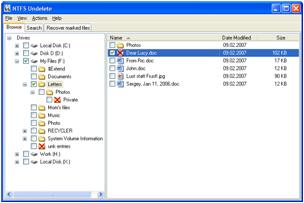
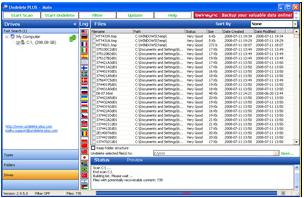
Undelete Plus
Undelete plus is a quick and effective way to restore accidentally deleted files. It can also recover files that have been emptied from the Recycle Bin, permanently deleted files within Windows using the Shift + Delete, and files that have been deleted from within a Command Prompt.
Undelete-plus

Easeus Deleted File Recovery (removable drive and full Vista support)
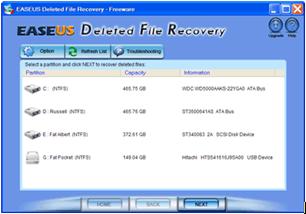
Easeus is an easy to use data recovery program with full support for FAT 12/16/32 and NTFS file systems for all versions of Windows up to Vista. It can retrieve deleted files from any mounted drive visible to the operating system and, importantly, it works well from an second or removable drive (you should never install anything onto the drive you are trying to recover from).

One especially nice touch with Easeus is the recovery preview which lets you visually scan through all deleted files and select which you would like to recover. The smooth GUI makes this process painless. Because it works with any mountable drive, you can recover lost cell phone pictures, iPod files or digital camera shots.
easeus-deleted-file-recovery

NTFS-reader (Lightweight free undelete-type data recovery!)
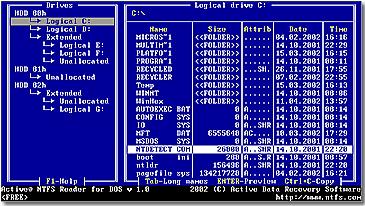
NTFS Boot Disk provides access to your NTFS drives in an MS-DOS environment (long filenames are supported). NTFS Reader for DOS will allow you to browse and recover all kinds of deleted files.

Although it looks rudimentary, the DOSishness is actually a real boon since Windows isn’t running and mucking up your data with disk
swapping. NTFS provides good data browsing and preview functionality and runs straight from a boot disk (which you should make on another computer).
ntfs-reader

Restoration (Small, fast and Easy. No install but runs from Windows)
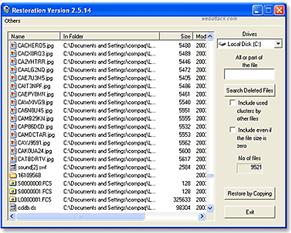
Restoration is an easy to use and straight forward tool to undelete files that were removed from the recycle bin or directly deleted from within Windows. Upon start, you can scan for all files that may be recovered and also limit the results by entering a search term or extension.

In addition, Restoration also provides an option to wipe the found files beyond simple recovery. And as such it is not only a data-recovery tool but also a security cleanup application. You can use it to totally delete your files so that no recovery is possible.

The program is very small and completely stand-alone, it does not require installation and can also run from a Floppy disk. Restoration works with FAT and NTFS as well as digital cameras cards.
restoration

Drive Rescue
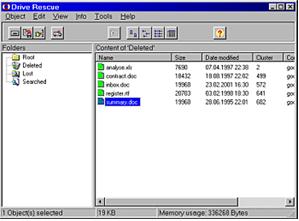
Drive Rescue can find any lost and deleted data on your drive (e.g. hard disk) even if the partition table is lost or the hard disk has been quick-formatted. Drive Rescue is claimed by the author to be Freeware and free to use.
drive-rescue

NTFS Undelete
When you delete a file, its content physically remains intact on the media, but the occupied space becomes marked as free. NTFS Undelete is free software that allows you to recover deleted files. It recovers files directly from hard drive, and it will work even if you empty Recycle Bin.
ntfs-undelete

TeraCopy
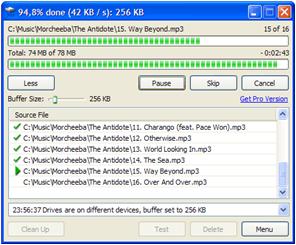
TeraCopy is a free utility designed to copy/move files faster and more secure. Can resume broken file transfers. TeraCopy skips bad files during copy and even shows the skipped files at the end of files transfer. Calculates files CRC checksum on the fly to speed up source and target files comparsion. Seamless integration with Windows Explorer allows you to keep working with files as usual.
teracopy

R-Linux Free Recovery
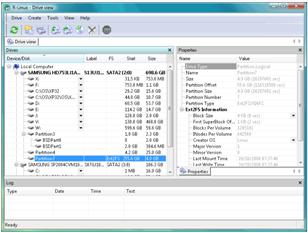
R-Linux is a free data recovery and undelete utility for Ext2FS/3FS (Linux) file system. File recovery after power failure, system crash, virus infection or partition was reformatted, even for the different file system. The utility creates image files an entire disk, partition or its part. Such drive image can be processed like regular disks. Recovered files can be saved on any (including network) disks accessible by the host OS.
r-linux-free-recovery

Recuva – File Recovery
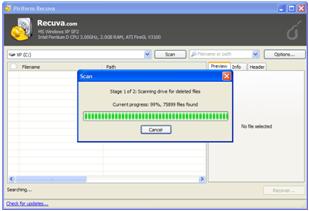
Recuva is a file undeletion tool that enables you to scan your hard drive(s) or media cards for files that have been deleted. It presents you with a list of files that were found, along with an assessment of their recovery potential, a preview option and a hex viewer to inspect the content. You can limit your search to files of a certain type (e.g images, audio etc.) and choose between a fast and a deep scan approach.
The program also includes a secure deletion option that allows you to permanently delete files that were found during the scan, in order to prevent any future recoveries.
recuva-file-recovery

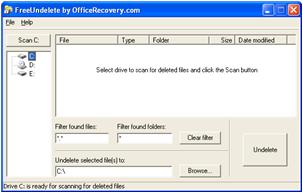
FreeUndelete (File undelete software. Free for personal use)
FreeUndelete restores deleted files, including those removed from Windows Recycle Bin. In case of accidental removal of files on a NTFS (default for Windows Vista, XP, 2000 and NT), FAT32 or FAT16 file systems this is the utility to help.

Supported file systems:NTFS, FAT32 and FAT16

The recovered files are saved into a new location to prevent overwriting the deleted files on the original media.
freeundelete

TOKIWA DataRecovery
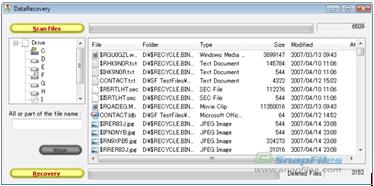
TOKIWA DataRecovery is a simple data recovery tool that enables you to undelete files, even if they have been removed from the recycle bin.It supports FAT12, FAT16, FAT32 and NTFS file systems. The interface is plain and simple, choose the drive to be scanned and then select the file(s) to be recovered, you can recover multiple files by using the Shift or Ctrl key. TOKIWA DataRecovery does not require an installation,and can be run from a USB drive or floppy disk.
tokiwa-datarecovery

CD Recovery Toolbox Free
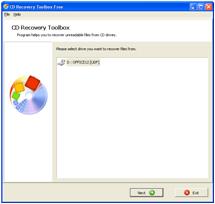
CD Recovery Toolbox Free is a data recovery tool, designed to recover files from scratched or otherwise damaged or corrupt CD, DVD,HD DVD and Blu-Ray disks. Just select the drive that contains the media you want to recover from, check the files you want to restore and start the recovery process. Depending on the level of damage, the recovery process may take a long time, and may not recover all the files. It did recover a good portion of images for us from a badly scratched CD that Windows was not able to read properly.
cd-recovery-toolbox-free

Pandora Recovery
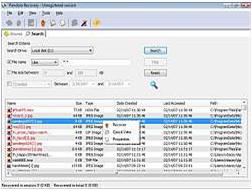
Pandora Recovery enables you to recover accidentally deleted files from NTFS formatted drives, even if they have been emptied from the recycle bin. The program offers a quick scan for recently deleted files and a time consuming surface scan that attempts to find all deleted JPG, BMP, GIF and PNG files. Pandora Recovery does not work with media cards or any other drives that are not NTFS formatted.
pandora-recovery

SoftPerfect File Recovery
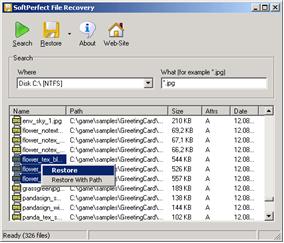
SoftPerfect File Recovery is a tool to recover accidentally deleted files from hard disks, USB flash drives, CF and SD cards and other storage media. We tested the program with images deleted from a USB stick and they were recovered without problems – however the program will not be able to recover any files if the media has been formatted (or files have been overwritten). SoftPerfect File Recovery supports popular file systems such as FAT12, FAT16, FAT32, NTFS and NTFS5 with compression and encryption.
softperfect-file-recovery

ICE ECC
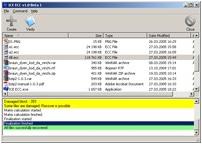
ICE ECC is a file verification and repair tool that enables you to protect your important files against digital corruption using Reed-Solomon codes. The program is not intended as a main backup solution, but rather as a backup for your backup – it can be included on CDs or DVDs before you store your data, allowing you to recover data that has become corrupt due to age of the media or scratches. You can protect selected files or entire folders by simply selecting them and having the program generate an ECC file. If you ever need to verify whether the data has been modified or corrupted, just select the appropriate .ECC file and load it into ICE ECC, which will then analyze the files and can recover any corrupted data.
ice-ecc

geProduct Key Finder
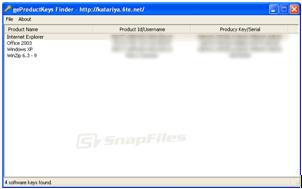
geProduct Key Finder enables you to recover your product CD-keys and serial numbers for most Microsoft products as well as several 3rd party products. If you need to reinstall or upgrade your PC and no longer have your original registration keys, this program can help you retrieve them.
geproduct-key-finder

MjM Free Photo Recovery Software
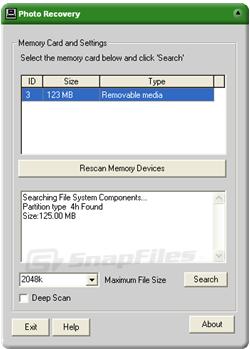
MjM Free Photo Recovery Software will recover images that have been deleted from a memory card, or from memory cards that have been formatted. The easy-to-use interface will automatically detect the media card in the card reader and scan it, while displaying thumbnail images of the photos that are found during the scan. You can view each photos in full-size and recover them all or only save selected images. During our review, we first deleted all images from the card the via Windows – the program found and recovered all of them. We then formatted the card in the camera and restarted the search – and again it found them all (recovery results after formatting may vary depending on the formatting method used by the camera). Works with Compact Flash, SmartMedia, Memory Sticks and other media storage cards.
mjm-free-photo-recovery-software

PC-Inspector File Recoery (Fast Free but requires installation)
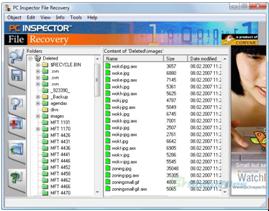
PC Inspector File Recovery is a data recovery program with support for FAT 12/16/32 and NTFS file systems. It recovers files with the original time and date stamp, and can optionally restore them to a network drive and can recover many files, even when a header entry is no longer available. On FAT systems, the programs finds partitions automatically, even if the boot sector or FAT has been erased or damaged. PC Inspector File Recovery offers an easy to use interface that will scan your drive and automatically make files that can be recovered available from a “Deleted” folder in an Explorer Style navigation tree.

To be able to use PC Inspector File Recovery you need a working Windows System. Never install the current version on the drive from which you intend to recover data! The program must be installed and run on a second, independent drive.
pc-inspector-file-recovery

PC Inspector Smart Recovery
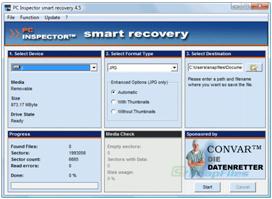
PC Inspector Smart Recovery is a data recovery program for Flash Card, Smart Media, SONY Memory Stick, IBM Micro Drive, Multimedia Card, Secure Digital Card(SD) or any other data device for digital cameras. It enables you to recover accidentally deleted or formatted pictures, videos or sound files from the selected media. The program also offers a mode that enables you to check the media for errors.
pc-inspector-smart-recovery

Zero Assumption Digital Image Recovery
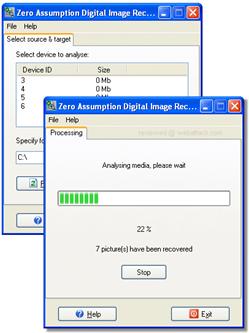
Zero Assumption Digital Image Recovery is an easy to use data recovery tool for the recovery of accidentally delete image files on removable media disks (Compact Flash, SmartMedia, Memory Sticks etc.). The interface is very easy to use, just select the device that contains the images that need to be recovered and specify the folder to save the images to. Zero Assumption Digital Image Recovery works with images that have been deleted or formatted by the camera. Supported formats are TIFF, Exif, JPEG and GIF. We tested it successfully with a freshly camera formatted 1GB Flash card and were able to recover all images.
zero-assumption-digital-image-recovery

Disk Investigator
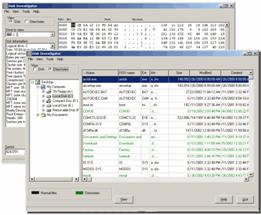
Disk Investigator helps you to discover all that is hidden on your computer hard disk. The program can display the true drive contents by bypassing the operating system and directly reading the raw drive sectors. You can view and search raw directories, files, clusters, and system sectors and also verify the effectiveness of file and disk wiping programs. The directory mode allows you to browse the file system in a file structure, the raw mode displays a sector-by-sector view (for advanced users).
disk-investigator

ADRC Data Recovery Software Tools
Free data-recovery rogram for Windows, which can: undelete files, recover files from damaged disks, copy a raw disk image to another disk, create and write disk image files to/from internal and removable drives, import/export the boot sector of a drive, etc.

Adrc recovery

Easy Recovery
Non free. Very useful tool to recover damaged, lost or deleted files. Free time-limited evaluation version available.


NT File Recovery
A free Windows utility to restore accidentally deleted files from NTFS file system.

S2 Services Data Recovery Freeware List
Large directory containing freeware, commercial software, tips and information on how to recover lost data.

TestDisk
Free utility for recovering lost or damaged partions on a harddrive. Supports: NTFS, FAT, FAT32, BeFS, BSD, CramFS, HFS, JFS, Ext2, Ext3, ReiserFS, Linux Swap, etc. TestDisk can run on DOS, Windows, Linux, BSD, SunOS and MacOS.

Freeware File Recovery Read More »

Top 10 About Data Recovery

1. Top 10 disaster recovery tips
This week Stephen Owen, EMEA product manager at Adaptec, runs through the basic steps for ensuring that IT disaster doesn’t entail doom for your business.Disaster recovery is one of those things that can make or break a company.

The majority of firms that suffer a disaster without a recovery plan go out of business within two years, according to research. But even the simplest check list can give you a much better chance of a happy outcome.

2. Top 10 Hard Drive Recovery Services
If your hard drive makes noises, is unable to read data or you need to recover your valuable data,shut down the computer, remove the hard drive, and call any of these data recovery services.

3. Top 10 data loss disasters of 2008
Data recovery firm Kroll Ontrack has announced its fifth annual data disaster league, featuring the top 10 worst data mishaps from 2008.

A video of the top five data disasters has also been produced by the firm.

The annual global list consists of real data loss situations compiled by engineers from the firm’s 32 offices worldwide, who have helped users to recover data.

“No matter how stringently you protect your data with encryption and back-ups, there’s little you can do when your laptop goes for a swim,” said Phil Bridge, managing director of Kroll Ontrack UK.

“Previous list-topping incidents include ant and cockroach invasions, a dirty sock encasing a hard drive, and the weight of an aeroplane driving over a laptop.”

4. Top 10 things you must read about Disaster Recovery/Business Continuity and VMware
Disaster recovery can often be painful and difficult to setup but is usually a necessity in large corporate environments. Implementing a proper DR strategy can always be challenging but fortunately virtual servers can simplify your DR implementation. Often some companies use a few virtual servers as a lower cost alternative to many physical servers at their DR sites. There are many different methods and approaches to implementing DR in virtual environments and based on your requirements you may use either one or a combination of these methods. There are also many vendors that offer products to help you replicate data between your main and DR sites. This top 10 list covers the many types of implementation stategies that can be used with DR as well as some of the 3rd party products that can help you with this. It mostly consists of VMworld presentations where an entire track is devoted to disaster recovery and business continuity.

5. Top 10 most unusual data recovery jobs this year
Kroll Ontrack is a company specializing in recovering our all important data from hard drives that have suffered some form of accident. Some of the accidents come under the heading of “Bizarre,” and the company has been kind enough to release a list of its top 10 most unusual recoveries.

6. Data-recovery firm reveals top client mishaps
Ant infestations, oil saturation and failed parachute jumps are some of the unusual fates which have befallen innocent data-storage devices recently, according to data-recovery company Kroll Ontrack’s list of the most unusual recovery jobs it has faced in the last year.

7. Top 10 Reasons for Using Disk-based Online Server Backup and Recovery
Data protection solutions that combine the latest advancements in disk-based backup with secure, integrated online technologies offer small and medium-sized businesses (SMBs) fast and assured data protection.

8. Top 10 FREE Data Recovery Software
Recently there is a discussion in forum about data recovery. I am quite surprised to know that many people don’t think that data recovery software works. In my experience, it does work and it saved my @$! many times after accidentally deleting important files or after formatting a hard drive and forgot to backup some files. There was only once, I wrongly formatted my external hard drive and somehow I wasn’t able to get back all my files. I have 7 external hard drives, all same casing and no label. I guess the reason I wasn’t able to get back my files is because I might have copied some files to the hard drive.

9. Top 10 Data Recovery Bloopers
1. People Are the Problem, Not Technology

Disk drives today are typically reliable – human beings aren’t. A recent study found that approximately 15 percent of all unplanned downtime occurs because of human error.

10. Top 10 Free Computer System Recovery Tools
Your data’s trapped on a dead computer. You lost your login password. You never wrote down the product key on a non-working Windows installation. Your Mac won’t start.

11. Top 10 data backup news stories and tips
The top 10 data backup news stories of the year are listed below along with related expert advice. Some of the backup topics that we’ve been following this year include data deduplication, backup as a service, remote backup, tape transport and bare-metal restore.

Top 10 About Data Recovery Read More »

Scroll to Top