Articles

Top 10 Data Recovery Companies

Secure Data Recovery (Recommended, USA)
Data Recovery Service provider with data recovery lab locations located throughout the United States. Our experience in the data recovery industry is unmatched. We have been operating since 1997 and offer world-class service and support. Our team of data recovery professionals are experts in providing advanced data recovery solutions. Our network of data recovery specialists provide: fast, friendly, accurate and reliable service.
http://www.securedatarecovery.com/

1. Kroll Ontrack®
Kroll Ontrack provides technology-driven services and software to help recover, search, analyze and produce data efficiently and cost-effectively. Commonly bridging the gap between technical and business professionals, Kroll Ontrack services a variety of customers in the legal, government, corporate and financial markets around the world.
http://www.ontrackdatarecovery.com/

2. R-Tools Technology Inc.
The leading provider of powerful data recovery, undelete, drive image, data security and PC privacy utilities for the Windows OS family.
http://www.r-tt.com/

3. DTIData
DTI DATA is the industry’s premier data recovery service and recovery software company for both physical and logical hard drive recovery.
http://www.dtidata.com/

4. SalvageData
SalvageData is the first and only US based ISO 9001:2000 certified data salvaging & recovery service lab in North America specializing in advanced data salvaging and recovery from all digital media storage types and formats.
http://salvagedata.com/

5. DriveSavers
DriveSavers is the worldwide leader in data recovery services and provides the fastest, most secure and reliable data recovery service available.
http://www.drivesavers.com/

6. Stellar Information Systems Limited
Stellar Information Systems Limited is an ISO 9001-2000 certified company specializing in data recovery and data protection services and solutions.
http://www.stellarinfo.com/

7. Data Clinic Ltd
Data Clinic Ltd provide you with a professional, cost effective and prompt data recovery service from crashed hard disks and other computer based media.
http://www.dataclinic.co.uk/

8. First Advantage Data Recovery Services (DRS)
With more than 25 years involvement in hard drive data recovery, Data Recovery Services has and will continue to lead the industry in those areas.
http://www.datarecovery.net/

9. CBL
CBL provide data recovery for failed hard drives in laptops, desktop computers, data servers, RAID arrays, tapes and all other data storage media.
http://www.cbltech.com/

10. Data Recovery Centre (ADRC) Pte Ltd
Adroit Data Recovery Centre (ADRC) Pte Ltd is the data recovery expert established since 1998.
http://www.adrc.net

Top 10 Data Recovery Company

Top 10 Data Recovery Companies Read More »

What is Data Carving?

Data Carving is a technique used in the field of  Computer Forensics when data can not be identified or extracted from media by “normal” means due to the fact that the desired data no longer has file system allocation information available to identify the sectors or clusters that belong to the file or data.

Currently the most popular method of Data Carving involves the search through raw data for the file signature(s) of the file types you wish to find and carve out.  Since the file system has no information on the size of the file being carved, the current methods involve specifying a block size of data to “carve” upon finding the desired signature.

This current method relies on some assumptions:

1) that the beginning of the file, which is where the signature resides, is still present;

2) the signature you are searching for is not so common that you would find the string of characters in many other files, thereby creating many “false hits”; and

3) that the files identified through the signature search are contiguous and not fragmented.

In addition to the issue listed in the previous paragraph, the current Data Carving methods also rely on the user making adjustments to the “block size” they are carving out for a specific fill signature.

As files are identified through a search, the files are typically manually reviewed by opening in a program capable of viewing the specified file type.  This manual review gives the examiner an idea if they need to “carve” a larger or smaller block of data for a given file in order to carve the file in its entirety.

This current process is not optimal, as it relies on guess work and a lot of trial and error on the part of the forensic examiner.

In this paper, submitted for the 2006 DFRWS Data Carving Challenge, I will look at the process of Advanced (Smart) Data Carving, which removes the “guess work” when carving certain compound file formats that contain information about the size and layout of the file in question,  regardless of the existence of file system allocation information for the file.

The below documents, detailing the various file format specifications, were used to manually carve all files, listed on pages 1-2 of this submission, from the file “dfrws-2006-challenge.raw.”

X-Ways Forensics which is used to manually carve and hash all files.

http://www.x-ways.net/forensics/index-m.html

Office Document File Format Specification

http://sc.openoffice.org/compdocfileformat.pdf

Exif/Jpg File Format Specification

http://www.media.mit.edu/pia/Research/deepview/exif.html

Zip File Format Specification

http://www.pkware.com/business_and_developers/developer/popups/appnote.txt

What is Data Carving? Read More »

Why did data loss?

Physical damage

A wide variety of failures can cause physical damage to storage media. CD-ROMs can have their metallic substrate or dye layer scratched off; hard disks can suffer any of several mechanical failures, such as head crashes and failed motors; and tapes can simply break. Physical damage always causes at least some data loss, and in many cases the logical structures of the file system are damaged as well. This causes logical damage that must be dealt with before any files can be recovered.

Most physical damage cannot be repaired by end users. For example, opening a hard disk in a normal environment can allow dust to settle on the surface, causing further damage to the platters. Furthermore, end users generally do not have the hardware or technical expertise required to make these sorts of repairs; therefore, data recovery companies are consulted. These firms use Class 100 clean room facilities to protect the media while repairs are made, and tools such as magnetometers to manually read the bits off failed magnetic media. The extracted raw bits can be used to reconstruct a disk image, which can then be mounted to have its logical damage repaired. Once that is complete, the files can be extracted from the image.

Logical damage

Far more common than physical damage is logical damage to a file system. Logical damage is primarily caused by power outages that prevent file system structures from being completely written to the storage medium, but problems with hardware (especially RAID controllers) and drivers, as well as system crashes, can have the same effect. The result is that the file system is left in an inconsistent state. This can cause a variety of problems, such as strange behavior (e.g., infinitely recursion directories, drives reporting negative amounts of free space), system crashes, or an actual loss of data. Various programs exist to correct these inconsistencies, and most operating systems come with at least a rudimentary repair tool for their native file systems. Linux, for instance, comes with the fsck utility, and Microsoft Windows provides chkdsk. Third-party utilities are also available, and some can produce superior results by recovering data even when the disk cannot be recognized by the operating system’s repair utility.

Two main techniques are used by these repair programs. The first, consistency checking, involves scanning the logical structure of the disk and checking to make sure that it is consistent with its specification. For instance, in most file systems, a directory must have at least two entries: a dot (.) entry that points to itself, and a dot-dot (..) entry that points to its parent. A file system repair program can read each directory and make sure that these entries exist and point to the correct directories. If they do not, an error message can be printed and the problem corrected. Both chkdsk and fsck work in this fashion. This strategy suffers from a major problem, however; if the file system is sufficiently damaged, the consistency check can fail completely. In this case, the repair program may crash trying to deal with the mangled input, or it may not recognize the drive as having a valid file system at all.

The second technique for file system repair is to assume very little about the state of the file system to be analyzed and to, using any hints that any undamaged file system structures might provide, rebuild the file system from scratch. This strategy involves scanning the entire drive and making note of all file system structures and possible file boundaries, then trying to match what was located to the specifications of a working file system. Some third-party programs use this technique, which is notably slower than consistency checking. It can, however, recover data even when the logical structures are almost completely destroyed. This technique generally does not repair the underlying file system, but merely allows for data to be extracted from it to another storage device.

While most logical damage can be either repaired or worked around using these two techniques, data recovery software can never guarantee that no data loss will occur. For instance, in the FAT file system, when two files claim to share the same allocation unit (“cross-linked”), data loss for one of the files is essentially guaranteed.

The increased use of journaling file systems, such as NTFS 5.0, ext3, and xfs, is likely to reduce the incidence of logical damage. These file systems can always be “rolled back” to a consistent state, which means that the only data likely to be lost is what was in the drive’s cache at the time of the system failure. However, regular system maintenance should still include the use of a consistency checker in case the file system software has an error that may cause data corruption. Also, in certain situations even the journaling file systems can not guarantee consistency. For instance, if the physical media disk used delays the writing back of data or reorders it in ways invisible to the file system (for instance, some disks lie about the changes being flushed to the disk, saying they have been flushed when they actually haven’t) a power loess may cause such errors to occur (note that this is usually not a problem if the delay/reordering is done by the file system software’s own caching mechanisms). The solution is to use hardware that doesn’t report data as written until it actually is written or using disk controllers equipped with a battery backup so that the waiting data can be written when power is restored. Alternatively, the entire system can be equipped with a battery backup (UPS) that may make it possible to keep the system on in such situations, or at least give some time to have it shut down properly.

And BACKUP YOUR DATA is a good way to protect data.

But backup technology and practices have failed to adequately protect data. Most computer users rely on backups and redundant storage technologies as their safety net in the event of data loss. For many users, these backups and storage strategies work as planned. Others, however, are not so lucky. Many people back up their data, only to find their backups useless in that crucial moment when they need to restore from them. These systems are designed for and rely upon a combination of technology and human intervention for success. For example, backup systems assume that the hardware is in working order. They assume that the user has the time and the technical expertise necessary to perform the backup properly. They also assume that the backup tape or CD-RW is in working order, and that the backup software is not corrupted. In reality, hardware can fail. Tapes and CD-RW do not always work properly. Backup software can become corrupted. Users accidentally back up corrupted or incorrect information. Backups are not infallible and should not be relied upon absolutely.

Why did data loss? Read More »

Solve Disk Imaging Problems (Part 3)

Customizing Imaging Algorithms

Consider the following conflicting factors involved in disk imaging:

§§ A high number of read operations on a failed drive increase the chances of recovering all the data, and decrease the number of probable errors in that data.

§§ Intensive read operations increase the rate of disk degradation and increase the chance of catastrophic drive failure during the imaging process.

§§ Imaging a drive can take a long time (for example, one to two weeks) depending on the intensity of the read operations. Customers with time-sensitive needs may prefer to rebuild data themselves rather than wait for recovered data.

Clearly these points suggest the idea of an imaging algorithm that maximizes the probable data recovered for a given total read activity, taking into account the rate of disk degradation and the probability of catastrophic drive failure.

However, no universal algorithm exists. A good imaging procedure depends on such things as the nature of the drive problem, and the characteristics of the vendor-specific drive firmware. Moreover, a client is often interested in a small number of files on a drive and is willing to sacrifice the others to maximize the possibility of recovering those few files.To meet these concerns, the judgment of the imaging tool operator comes into play.

Drive imaging can consist of multiple read passes. A pass is one attempt to read the entire drive, although problem sectors may be read several times on a pass or not at all, depending on the configuration. The conflicting considerations mentioned above suggest that different algorithms, or at least different parameter values, should be used on each pass.

The first pass could be configured to read only error-free sectors. There is a fair possibility that the important files can be recovered faster in this way in just one pass. Moreover, this pass will not be read-intensive since only good sectors are read and the more intensive multiple reads needed to read problem sectors are avoided. This configuration reduces the chances of degrading the disk further during the pass (including the chances of catastrophic drive failure) while having a good chance at recovering much of the data.

Second and subsequent passes can then incrementally intensify the read processes, with the knowledge that the easily-readable data have already been imaged and are safe. For instance, the second pass may attempt multiple reads of sectors with the UNC or AMNF error (Figure 2). Sectors with the IDNF error are a less promising case, since the header could not be read and hence the sector could not be found. However, even in this case multiple attempts at reading the header might result in a success, leading to the data being read. Successful data recovery of sectors with different errors depends on the drive vendor. For example, drives from some vendors have a good recovery rate with sectors with the IDNF error, while others have virtually no recovery. Prior experience comes into play here, and the software should be configurable to allow different read commands and a varying number of reread attempts after encountering a specific error (UNC, AMNF, IDNF, or ABRT).

Drive firmware often has vendor-specific error-handling routines of its own that cannot be accessed directly by the system. While you may want to minimize drive activity to speed up imaging and prevent further degradation, drive firmware increases that activity and slows down the process when faced with read instability. To minimize drive activity, imaging software must implement a sector read timeout, which is a user-specified time before a reset command is sent to the drive to stop processing the current sector.

For example, you notice that good sectors are read in 10 ms. If this is a first pass, and your policy is to skip problem sectors at this point, the read timeout value might be 20 ms. If 20 ms have elapsed and the data has not yet been read, the sector is clearly corrupted in one way or another and the drive firmware has invoked its own error-handling routines. In other words, a sector read timeout can be used to identify problem sectors. If the read timeout is reached, the imaging software notes the sector and sends a reset command. After the drive cancels reading the current sector, the read process continues at the next sector.

By noting the sectors that timeout, the software can build up a map of problem sectors. The imaging algorithm can use this information during subsequent read passes.

In all cases the following parameters should be configurable:

  • Type of sectors read during this pass
  • Type of read command to apply to a sector
  • Number of read attempts
  • Number of sectors read per block
  • Sector read timeout value
  • Drive ready timeout value
  • Error-handling algorithm for problem sectors

Other parameters may also be configurable but this list identifies the most critical ones.

Imaging Hardware Minimizes Damage
In addition to the software described above, data recovery professionals also need specialized hardware to perform imaging in the presence of read instability. Drive firmware is often unstable in the presence of read instability, which may cause the drive to stop responding. To resolve this issue, the imaging system must have the ability to control the IDE reset line if the drive becomes unresponsive to software commands. Since modern computers are equipped with ATA controllers that do not have ability to control the IDE reset line, this functionality must be implemented with a specialized hardware. In cases where a drive does not even respond to a hardware reset, the hardware should also be able to repower the drive to facilitate a reset.

If the system software cannot deal with an unresponsive hard drive, it will also stop responding, requiring you to perform a manual reboot of the system each time in order to continue the imaging process. This issue is another reason for the imaging software to bypass the system software.

Both of these reset methods must be implemented by hardware but should be under software control. They could be activated by a drive ready timeout. Under normal circumstances the read timeout sends a software reset command to the drive as necessary. If this procedure fails and the drive ready timeout value is reached, the software directs the hardware to send a hardware reset, or to repower the drive. A software reset is least taxing on repower method is most taxing. A software reset minimizes drive activity while reading problem sectors, which reduces additional wear. A hardware reset or the repower method deals with an unresponsive hard drive.

Moreover, because reset methods are under software control via the user-configurable timeouts, the process is faster and there is no need for constant user supervision.

The drive ready timeout can also reduce the chances of drive self-destruction due to head-clicks, which is a major danger in drives with read instability. Head-clicks are essentially a firmware exception in which repeated improper head motion occurs, usually of large amplitude leading to rapid drive self-destruction. Head-clicks render the drive unresponsive and thus the drive ready timeout is reached and the software shuts the drive down, hopefully before damage has occurred. A useful addition to an imaging tool is the ability to detect head-clicks directly, so it can power down the drive immediately without waiting for a timeout, thus virtually eliminating the chances of drive loss.

Solve Disk Imaging Problems (Part 3) Read More »

Solve Disk Imaging Problems (Part 2)

Disabling Auto-Relocation and SMART Attribute Processing

While the methods outlined in the previous section go a long way to obtaining an image of the data, other problems remain.

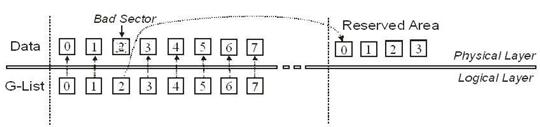
When drive firmware identifies a bad sector, it may remap the sector to a reserved area on the disk that is hidden from the user (Figure 3). This remapping is recorded in the drive defects table (G-list). Since the bad sector could not be read, the data residing in the substitute sector in the reserved area is not the original data. It might be null data or some other data in accordance with the vendor-specific firmware policy, or even previously remapped data in the case where the G-list was modified due to corruption.

Moreover, system software is unaware of the remapping process. When the drive is asked to retrieve data from a sector identified as bad, the drive firmware may automatically redirect the request to the alternate sector in the reserved area, without notifying the system before the error is returned. This redirection occurs despite the fact that the bad sector is likely still readable and only contains a small number of bytes with errors.

disk imaging
Figure 3: G-List Remapping
This process performed by drive firmware is known as bad sector auto-relocation. This process can and should be turned off before the imaging process begins. Auto-relocation on a drive with read instability not only obscures instances when non-original data is being read, it is also time-consuming and increases drive wear, possibly leading to increased read instability.

Effective imaging software should be able to turn off auto-relocation so that it can identify problem sectors for itself and take appropriate action, which ensures that the original data is being read.

Unfortunately, the ATA specification does not have a command to turn off auto-relocation. Therefore imaging software should use vendor-specific ATA commands to do this.

A similar problem exists with Self-Monitoring Analysis and Reporting Technology (SMART) attributes. The drive firmware constantly recalculates SMART attributes and this processing creates a large amount of overhead that increases imaging time and the possibility of further drive degradation. Imaging software should be able to disable SMART attribute processing.

Other drive preconfiguration issues exist, but auto-relocation and SMART attributes are among the most important that imaging software should address.

Increasing Transfer Speed with UDMA Mode

Modern computers are equipped with drives and ATA controllers that are capable of the Ultra Direct Memory Access (UDMA) mode of data transfer. With Direct Memory Access (DMA), the processor is freed from the task of data transfers to and from memory. UDMA can be thought of as an advanced DMA mode, and is defined as data transfer occurring on both the rise and fall of the clock pulse, thus doubling the transfer speed compared to ordinary DMA.

Both DMA and UDMA modes are in contrast to the earlier Programmed Input Output (PIO) mode in which the processor must perform the data transfer itself. Faster UDMA modes also require an 80-pin connector, instead of the 40-pin connector required for slower UDMA and DMA.

The advantages are obvious. Not only does UDMA speed up data transfer, but the processor is free to perform other tasks.

While modern system software is capable of using UDMA, imaging software should be able to use this data transfer mode on a hardware-level (bypassing system software) as well. If the source and destination drives are on separate IDE channels, read and write transfers can occur simultaneously, doubling the speed of the imaging process. Also, with the computer processor free, imaged data can be processed on the fly. These two advantages can only be achieved if the imaging software handles DMA/UDMA modes, bypassing system software. Most imaging tools currently available on the market use system software to access the drive and so don’t have these advantages.

Solve Disk Imaging Problems (Part 2) Read More »

Solve Disk Imaging Problems (Part 1)

Imaging tools provide custom hardware and software solutions to the challenges of read instability.

Processing All Bytes in Sectors with Errors

While the system software works well with hard disk drives that are performing correctly, read instability must be dealt with using specialized software that bypasses the BIOS and operating system. This specialized software must be able to use ATA read commands that ignore ECC status. (These commands are only present in the ATA specification for LBA28 mode, though, and are not supported in LBA48.) Also, the software should have the capability of reading the drive error register (Figure 2), which the standard system software doesn’t provide access to. Reading the error register allows specialized software to employ different algorithms for different errors. For instance, in the case of the UNC error (“Uncorrectable Data: ECC error in data field, which could not be corrected”), the software can issue a read command that ignores ECC status. In many cases, the AMNF error can be dealt with in a similar way.

disk imaging

Bit 0 – Data Address Mark Not Found: During the read sector command, a data address mark was not found after finding the correct ID field for the requested sector (usually a media error or read instability).

Bit 1 – Track 0 Not Found: Track 0 was not found during drive recalibration.
Bit 2 – Aborted Command: The requested command was aborted due to a device status error.
Bit 3 – Not used (0).
Bit 4 – ID Not Found: The required cylinder, head, and sector could not be found, or an ECC error occurred in the ID field.
Bit 5 – Not used (0).
Bit 6 – Uncorrectable Data: An ECC error in the data field could not be corrected media error or read instability).
Bit 7 – Bad Mark Block: A bad sector mark was found in the ID field of the sector or an Interface CRC error occurred.

Figure 2: ATA Error Register

Only when the sector header has been corrupted (an IDNF error) is it unlikely that the sector can be read, since the drive in this case is unable to find the sector. Experience shows, however, that over 90 percent of all problems with sectors are due to errors in the data, not in the header, because the data constitutes the largest portion of the sector.

Also, the data area is constantly being rewritten, which increases read instability. Header contents usually stay constant throughout the life of the drive. As a result, over 90 percent of   sectors that are unreadable by ordinary means are in fact still readable. Moreover, problem sectors usually have a small number of bytes with errors, and these errors can often be corrected by a combination of multiple reads and statistical methods.

If a sector is read ten times and a particular byte returns the same value eight times out of ten, then that value is statistically likely to be the correct one. More sophisticated statistical techniques can also be useful.

In fact, some data recovery solution providers have encountered situations in which every sector of a damaged drive had a problem. This situation would normally leave the data totally unrecoverable, but with proper disk imaging, these drives were read and corrected in their entirety.

Unfortunately, most imaging tools currently available on the market use system software to access the drive and are therefore extremely limited in their imaging capabilities. These products attempt to read a sector several times in the hope that one read attempt will complete without an ECC error. But this approach is not very successful. For example, if there is even a one percent chance of any byte being read incorrectly, the chances of reading all 512 bytes correctly on one particular read is low (about 0.58 percent). In this case, an average of 170 read attempts would be necessary to yield one successful sector read. As read instability increases, the chances of a successful read quickly become very low. For example, if there were a ten percent chance of reading any byte wrong, an average of 2.7 x 10²³ read attempts would be needed for one successful one. If one read attempt took 1 ms, this number of reads would take 8000 billion years, or many times the age of the universe. No practical number of read attempts will give a realistic chance of success.

However, if imaging software can read while ignoring ECC status, a 10 percent probability of a byte being read in error is not an issue. In 10 reads, very few bytes will return less than seven or eight consistent values, making it virtually certain that this value is the correct one. Thus, imaging software that bypasses the system software can deal with read instability much more easily.

Solve Disk Imaging Problems (Part 1) Read More »

Disk Imaging Problems

Disk imaging is not a trivial task. Degraded drives and drives whose physical defects have been repaired often yield a high read error rate, or read instability. Read instability means that multiple readings of the same data tend to yield different results each time. Read instability differs from cases where data originally written in error is read consistently each time, or where a physical scratch makes an entire part of the disk unreadable no matter how many read attempts are made.

What Causes Read Instability?

Repaired drives may have high read instability for a number of reasons. Donor parts, while nominally identical to the original failed parts, differ slightly due to tolerances in the manufacturing process. The majority of modern hard disk drives are individually tested at the factory and have optimized adaptive parameters burned into the read-only memory. If one or more parts are later replaced, the adaptive parameters are no longer optimized to the new configuration. Because modern drives are fine-tuned to obtain maximum performance and capacity, even small deviations from optimum can introduce a high rate of read errors.

In drives that have not been repaired, physical degradation due to normal use also means that adaptive parameters are no longer optimum, thus leading to read instability. For example, wear in the actuator bearings causes slight deviations in the distance the arm moves across the platter. As a result, the current that was once required to move the actuator to a certain track is no longer sufficient to move the arm precisely. Read errors can also be caused by dust infiltration into the disk drive over the course of its life, which may make the read process electronically noisy.

The important point is that failed drives tend to have read instability no matter what the reason for failure.

For the purposes of imaging a disk, read instability is not a major obstacle in principle, since each sector can be read several times and statistical methods can be applied to obtain the most likely correct value for each byte. However, because of the way that the basic input/output system (BIOS), operating system (OS), and drive firmware behave, it is impossible to obtain data during drive read instability without specialized hardware and software.

Why System Software Can’t Handle Read Instability

System software consists of a computer’s BIOS and OS. The primary reason that computers can’t handle read instability without specialized tools is that the system software reads each disk sector presuming that the sector is not corrupted—that is, that the data is read-stable. A sector on a disk typically consists of a header, 512 bytes of data, and error correction code (ECC) bytes (Figure 1). Other bytes are present to facilitate read/write synchronization.

For simplicity, the ECC bytes can be thought of as a checksum to validate data integrity. Most current hard disk drives are Advanced Technology Attachment (ATA) compliant devices. The system software reads the drive sector-by-sector, using the standard ATA read sector command. If a sector has a wrong ECC checksum, it returns no data, just an error, despite the fact that most of the bytes in the sector are likely correct and all are actually readable, even if some of the data is corrupt. The system software is unable to access data byte-by-byte, using other ATA read commands that read data regardless of ECC status.

 Example of Sector Format.

The system software reads drives in this way because the mandate of computer architecture is to create a reliable, stable machine that runs at the highest possible speed. The system software cannot allow errors to be propagated from the hard drive to the computer’s random access memory (RAM). These errors might be part of an executable file that would then cause the computer to stop responding. Thus, system software has a low tolerance for read instability and assumes that the drive is working correctly without delving into drive errors except to flag whole sectors as bad and to avoid reading them.

Also, in many cases the system software is unable to handle drive errors, a situation that may cause the system to stop responding.

Using the system software to read a drive is also time-consuming and involves intense drive processing, leading to further wear. This wear increases the likelihood of further disk degradation during the imaging process. See “Processing All Bytes in Sectors with Errors ” for more information on how disk imaging is by its nature very demanding on the drive, involving multiple reads on the entire disk and modifying its firmware data. Since progressive disk degradation is common (that is, read instability increases with use), it is desirable to reduce the
demands on the drive.

Thus, even a relatively low level of read instability, which is common for drives in recovery, can lead to the computer not being able to read the drive at all, despite the fact that the drive is still readable by other means.

Disk Imaging Problems Read More »

3D Data Recovery process

Data recovery firms are missing out on data they could retrieve with the complete 3D Data Recovery process. Proper data recovery involves three phases: drive restoration, disk imaging, and data retrieval. But data recovery professionals can face frustrating problems when imaging a damaged disk. The drive may repeatedly stop responding in the middle of copying data. The drive may fail completely because of the stress caused by intensive read processes. Significant portions of data may be left behind in bad sectors.

These issues plague firms that use traditional disk imaging methods. Read instability makes it difficult to obtain consistent data quickly, and system software is not equipped to read bad sectors. However, these problems can be solved with imaging tools that address disk-level issues.

Imaging software bypasses system software and ignores error correction code (ECC), processing each byte of data in bad sectors. Inconsistent data is evaluated statistically to determine the most likely correct value. Faster transfer methods speed up the process, and customizable algorithms allow the data recovery professional to fine-tune each pass. Imaging software provides feedback on the data recovered while imaging is still underway.

Imaging hardware can reset the drive when it stops responding, which minimizes damage from head-clicks and allows the process to run safely without supervision.

1.Drive Restoration: Damage to the hard disk drive (also referred to as HDD) is diagnosed and repaired as necessary. There are three main types of damage:

  • Physical/mechanical damage: Failed heads and other physical problems are often repaired by replacing the damaged hardware with a donor part.
  •  Electronic problems: Failed printed circuit boards (PCBs) are replaced with donor PCBs, and the contents of the failed PCB read-only memory (ROM) are copied to the donor.
  •  Firmware failure: Firmware failures are diagnosed and fixed at the drive level.2.Disk Imaging: The contents of the repaired drive are read and copied to another disk, Disk imaging prevents further data loss caused by working with an unstable drive during the subsequent data retrieval phase.Drives presented for recovery often have relatively minor physical degradation due to wear from normal use. The wear is severe enough for the drive to stop working in its native system. However, imaging software can work with slightly degraded drives, so part replacement is often not required. In these cases, the data recovery process can skip drive restoration and start with disk imaging.3. Data Retrieval: The original files that were copied onto the image drive are retrieved. Data retrieval can involve these tasks:
  • File system recovery: The recreation of a corrupted file system structure such as a corrupted directory structure or boot sector, due to data loss.
  • File verification: Recovered files are tested for potential corruption.
  • File repair: If necessary, corrupted files are repaired. Files might be corrupt because data could not be fully restored in previous phases, in which case disk imaging is repeated to retrieve more sectors. File repair is completed, where possible, using vendor-specific tools.Drive restoration and data retrieval, the first and last phases, are well-serviced by the data recovery industry. Many data recovery companies have the necessary software, hardware, knowledge, and skilled labor to complete these phases. However, the technology for effective disk imaging has been relatively neglected because of its challenges, making it a weak link in the data recovery process. Data recovery firms that skim the surface with traditional imaging methods often miss out on potential revenue.

3D Data Recovery process Read More »

Ultimate Boot CD

You need the Ultimate Boot CD if you want to:

  • Run floppy-based diagnostic tools from CDROM drives. More and more PCs are shipped without floppy drives these days, and it is such a royal pain when you need to run diagnostic tools on them.
  • Free yourself from the slow loading speed of the floppy drive. Even if you do have a floppy drive, it is still much much faster to run your diagnostic tools from the CDROM drive, rather than wait for the tool to load from the floppy drive.
  • Consolidate as many diagnostic tools as possible into one bootable CD. Wouldn’t you like to avoid digging into the dusty box to look for the right floppy disk, but simply run them all from a single CD? Then the Ultimate Boot CD is for you!
  • New! Run Ultimate Boot CD from your USB memory stick. A script on the CD prepares your USB memory stick so that it can be used on newer machines that supports booting from USB devices. You can access the same tools as you would from the CD version.

Ultimate Boot CD is completely free for the download, or could be obtained for a small fee. If you had somehow paid a ridiculous amount of money for it, you have most likely been fleeced. The least you could do is to make as many copies of the offical UBCD and pass it to your friends, relatives, colleagues or even complete strangers to minimize the per unit cost of your loss!

When you boot up from the CD, a text-based menu will be displayed, and you will be able to select the tool you want to run. The selected tool actually boots off a virtual floppy disk created in memory.

Ultimate Boot CD Read More »

Glossary of Hard Disk Drive Terminology (Letter E)

ECC On-the-Fly
A hardware correction technique that corrects errors in the read buffer prior to host transfer without any performance penalties. These error corrections are invisible to the host system because they do not require assistance from the drive’s firmware.

EIDE (Enhanced Integrated Drive Electronics)
The primary interface used by desktop PCs to handle communication between hard drives and the central processing unit. The equivalent interface system in most enterprise systems is SCSI.

Embedded Servo Control
The embedded servo control design generates accurate feedback information to the head position servo system without requiring a full data surface (which is required with a “dedicated” servo control method) because servo control data is stored on every surface.

Encoding
The process of modifying data patterns prior to writing them on the disk surface.

Enterprise
The series of computers employed largely in high-volume and multi-user environments such as servers or networking applications; may include single-user workstations required in demanding design, engineering and audio/visual applications.

Enterprise Storage Group
The Western Digital operation that designs, produces and markets hard drives for the enterprise market.

Error Correction Code (ECC)
A mathematical algorithm that detects and corrects errors in a data field.

Error Log
A record that contains error information.

Error Rate
The number of errors of a given type that occur when reading a specified number of bits.

Extended Partition
You can create multiple partitions on a hard disk, one primary partition and one or more extended partition(s). Operating system files must reside on the primary partition. An extended partition is a partition where non-system files (files other than DOS or operating system files) can be stored on a disk. You can also create logical drives on the extended partition.

Glossary of Hard Disk Drive Terminology (Letter E) Read More »

Scroll to Top