Articles

Glossary of Hard Disk Drive Terminology (Letter D)

Database
A collection of data stored on a computer system medium, such as a hard drive, CD-ROM, etc., that can be used for more than one purpose.

Data Lifeguard
A Western Digital exclusive data reliability feature that automatically detects, isolates and repairs problem areas on the hard drive before data loss can occur.

Data Synchronizer
An electronic circuit that uses a clock signal to synchronize data to facilitate interpretation.

Dedicated Landing Zone
The designated radial zone of the disk, usually at the inner portion of the disk, where the heads are stored to avoid contact with the data cylinders when power to the drive is off.

Defect Free
A term used to describe recording surfaces that have no detectable defects.

Defect Management
A general methodology of eliminating data errors on a recording surface by mapping out known defects on the media. The defective areas are rendered inaccessible, so that when information is written to the disk, it is stored to non-defective locations on the disk.

Desktop
A personal computer sized to fit on or under your desktop. Western Digital EIDE hard drives are designed to fit into a desktop PC.

Differential SCSI
An electrical signal configuration which uses pairs of lines for data transfer. Used primarily in applications requiring long cable lengths of up to 82 feet (25 meters).

Direct Memory Access (DMA)
A process for transferring data directly to and from main memory, without passing through the CPU. DMA improves speed and efficiency by allowing the system to continue CPU processing even while it is transferring data to/from the hard drive.

Disk
A rigid platter, usually constructed of aluminum or mylar, with a magnetic surface that allows the recording of data, that is stored inside the drive.

Disk Controller
The chip or circuit that controls the transfer of data between the disk and buffer. (See also disk drive controller and interface controller).

Disk Drive Controller
The hard disk drive controller electronics which include the disk controller and the interface controller. (See also disk controller and interface controller.)

Disk Operating System (DOS)
The computer program that controls the organization of data, files and processes on the computer.

Disk Transfer Rate
Speed at which data transfers to and from the disk media (actual disk platter); a function of the recording frequency. Typical units are bits per second (BPS), or bytes per second. Hard drives have an increasing range of disk transfer rates from the inner diameter to the outer diameter of the disk.

Distribution Channel
Electronics distributors and certain retail chains that deliver electronic goods to end users through value-added resellers and some retail stores.

Glossary of Hard Disk Drive Terminology (Letter D) Read More »

Glossary of Hard Disk Drive Terminology (Letter C)

Cable Select (CSEL)
An alternative option which can be used in place of setting Master/Slave jumpers in the designation of drives in a dual drive configuration. Master/Slave designation is based on the position of the drives relative to the cable. Special cabling is required by the system manufacturer to selectively ground the CSEL signal on one of the IDE cable connectors. For example, when one of the drives is connected to the grounded CSEL conductor, it configures itself as the Master. When the second drive is connected to the other connector, on which CSEL is not grounded, it becomes the slave. This eliminates the need for unique jumpering configurations between the Master and Slave drives.

Cache
High-speed RAM used as a buffer between the CPU and a hard drive. The cache retains recently accessed information to speed up subsequent accesses to the same data. When data is read from or written to disk, a copy is saved in the cache, along with the associated disk address. The cache monitors the addresses of subsequent read operations to see if the required data is already in the cache. If it is, the drive returns the data immediately. If it is not in the cache, then it is fetched from the disk and saved in the cache.

Capacity
The amount of information, measured in bytes, that can be stored on a hard drive. Also known as storage capacity.

Channel
A connection or socket on the motherboard or controller card. A motherboard may have one or two channels (primary and secondary). If your motherboard has only one channel, you may need to add a controller card to create a secondary channel.

Channel Assembly
In the computer industry, the final assembly of a system by a distributor or reseller from kits provided by the manufacturer and from components shipped directly to the assembler by subsystem makers.

Clean Room
An environmentally controlled, dust-free, assembly or repair facility in which hard drives are assembled or opened for internal servicing.

Cluster
A cluster is defined as an allocation unit. At least one cluster is allocated to each file, regardless of the file’s size, that is stored in the DOS environment. The cluster size increases with the partition size determined during formatting. With a 1024 MB partition, the cluster size is 32 KB. Each file stored consumes 32 KB of storage space, no matter how small the file. Create multiple, smaller partitions to avoid wasting space on small files. (This definition applies to FAT16).

CMOS Setup
A program supplied in most systems that allows you to configure internal and external devices.

Command Aging
A SCSI feature that prevents the command reordering algorithm from keeping I/O processes waiting in the command queue for extended periods of time.

Command Queuing
A feature that enables the drive to receive I/O processes from one or more initiators and execute them in an optimum sequence.

Command Reordering
A feature that allows the drive to reorder I/O processes in the command queue, which results in minimizing the seek time and rotational latency and thus increases throughput.

Controller
See disk controller, interface controller, and disk drive controller.

Controller Card
An adapter with the control electronics for one or more hard drives. Usually installed in a bus slot in the computer.

Correctable Error
An error that the drive can correct by using Error Detection and Correction schemes.

Customer Configuration Code (CCC)
A firmware revision tracking code that defines a major product change. This number increments as form, fit or function changes are implemented. The CCC code guarantees that the correct revision of drive product is provided to the customer.

Cyclic Redundancy Check (CRC)
Data stored or transmitted with data to detect corruption. By calculating the CRC data and comparing it to the original data sent, the receiver can detect some types of transmission errors.

Cylinder
The cylindrical surface formed by identical track numbers on vertically stacked disks.

Cylinder, Head, Sector (CHS) Addressing
A method of referencing the sectors on a drive as a collection of unique cylinder, head and sector addresses. Each block on the drive will have a unique cylinder, head and sector address.

Glossary of Hard Disk Drive Terminology (Letter C) Read More »

Glossary of Hard Disk Drive Terminology (Letter B)

Bandwidth
The amount of data that can be sent over a given circuit. See also buffer bandwidth.

BIOS (Basic input/output system)
A program or set of programs that control the basic functions of the computer.

Bit
An abbreviation for a binary digit which can be either 0 or 1. A bit is the basic data unit of all digital computers. It is usually part of a data byte, or data word; however, a single bit can be used to control or read logic ON/OFF functions. A bit is a single digit in a binary number. Bits are the basic unit of information capacity on a computer storage device. Eight bits equal one byte.

Bit density
Expressed as bits per inch (BPI), the number of bits that can be written onto one inch of track on a disk surface.

Block
A group of bytes handled, stored, and accessed as a logical data unit, such as an individual file record. A block in UNIX workstation environments is the smallest contiguous area that can be allocated for the storage of data. (Note: A different definition of the term is used when referring to the physical configuration of a hard drive.)

Boot
To start or restart your computer; loading the operating system.

BPI
Bits per inch. Indicates the density of information on a hard drive. See bit density.

Buffer
A temporary data storage area used to make up for a difference in data transfer rates and/or data processing rates between sender and receiver. For example, a printer buffer copies data from the computer and holds it until the printer is ready to print it.

Buffer Bandwidth
The speed of transferring data to or from the buffer.

Build-to-order
In the computer industry, the assembly of a system in response to a customer’s order, rather than for inventory or mass shipment. A system utilized by Dell Computer and Gateway, now being emulated to some degree by other PC makers like IBM, HP and Compaq.

Business Model
A company’s financial plan, including product pricing and margin calculations.

Burst Mode Transfer Rate
The transfer rate into the buffer RAM of the hard disk. This rate does not factor in delays due to latencies or host delays. See also transfer rate.

Bus
The path that carries data between the computer (microprocessor) and peripheral devices. An IDE interface cable and a SCSI cable are both examples of a bus.

Byte
A sequence of eight binary digits or bits regarded to be a unit or binary word. The storage capacity of a disk drive is commonly measured in megabytes, which is the total number of storable bits divided by eight million.

Glossary of Hard Disk Drive Terminology (Letter B) Read More »

How to select a data recovery provider

Data Recovery ProviderScan the web for data recovery providers, and you’ll find hundreds of companies promoting data recovery capabilities. Choosing the right provider can be a deciding factor in whether you will get your lost data back – and if so – how long you will have to wait. The information below will help you identify misleading sales tactics and select the provider that offers the highest level of professional service and overall best value.

Step 1: Identify companies that have the technology and resources to solve a wide array of data loss challenges.

  • How long has the provider been in the data recovery service business?
  • Does the provider have a clean-room laboratory to safely open, repair and recover data from media storage devices?
  • How many recovery labs with clean-rooms, does the provider operate? Does the provider have global coverage?
  • Does the provider have a sufficient number of engineers to handle large and complex recovery jobs and handle peak-demand seasons (e.g. hurricane season)?
  • Can the provider recover data from systems that are proprietary to their clients? Does the provider have the technology and resources to develop customized data recovery tools if required?
  • Does the provider have the expertise to recover data from virtually any type of platform, storage device, database or operating system?
  • Does the provider have the resources to perform emergency and/or on-site data recoveries?

Step 2: Identify companies that provide a range of data recovery solutions to fit your specific needs.

  • Does the provider have service and/or do-it-yourself software options to fit your budget?
  • Does the provider offer a fast enough level of recovery service to address the most urgent data loss situations?
  • Can the provider offer a secure remote data recovery service for data loss situations where no mechanical damage has occurred to the storage device?
  • What is the standard turn-time required for desktop recovery and laptop data recoveries? For more complex systems?
  • Does the provider retain your recovered data for a period of time after the client’s recovery is complete?

Step 3: Identify providers that will provide you with the information required to make an educated purchase decision.

  • Will the provider give you a file listing report showing the recoverability of your files before you commit to recovery fees?  Is this included in their evaluation service?
  • If the provider offers a file listing report, how long will it take them to deliver the report?
  • Will the provider commit to quoted price ranges in writing to ensure the services fit your budget?

Step 4: Identify companies that offer professional customer service whenever and wherever you need it.

  • Does the provider offer 24/7/365 customer service?
  • In which languages does the provider offer customer support?
  • Will the provider offer you free, no-obligation consultation and present you with a range of recovery options?
  • Will the provider allow you to speak one-to-one with a data recovery engineer to discuss your options?
  • Does the provider have a technical support team on staff to offer pre- and post-recovery support?
  • Does the provider have online customer portals to allow you to track the progress of your data recovery from start to finish?

Step 5: Identify companies that have well documented and established procedures for maintaining the security and confidentiality of your data.

  • Is the provider authorized by private and government entities to handle highly sensitive data?
  • Does the provider have the expertise to properly document chain of custody if the storage media is likely to be involved in an investigation or court case?
  • Does the provider have the ability to recover encrypted data?
  • Does the provider have the ability to return your data in an encrypted form?
  • Does the provider perform employee background checks for anyone that may come into contact with your data?
  • Does the provider participate in the U.S. GSA (General Services Administration) Program?
  • Do the provider’s facilities meet all U.S. Department of Defense specifications?

Step 6: Avoid the gimmicks! Select a data recovery provider you can trust by eliminating those who use questionable sales tactics

  • If the provider offers “free evaluations”, what is included in the free service? Will you receive a file listing report showing which files can be recovered before you are required to approve additional charges?
  • If the provider offers “no data, no charge”, what will they charge you if they recover data but not the data that you need.
  • If the provider quotes a price range for their recovery service, will they put it in writing?
  • Does the provider charge you for parts or are there other hidden fees?
  • Does the provider use outside or third parties to perform the data recovery service?

How to select a data recovery provider Read More »

Reasons and Costs of Data Loss

Computer data may be one of your company’s most valuable and vulnerable assets. According to our experience, the primary threats to your data include:

  • Hardware or System Problems
  • Human Error
  • Software Corruption or Program Problems
  • Computer Viruses
  • Natural Disasters

These five major threats to your computer data share two things in common: they are unpredictable and, in many cases, uncontrollable. Therefore, the precautions taken by IT professionals to safeguard company data cannot always prevent a data loss.

Computer users and many experts often consider lost data permanently destroyed, with no hope of recovery. Information about lost data can be complex, inconsistent or inaccurate, so it’s not surprising that data loss and data recovery are some of the most confusing and misunderstood concepts.

In addition to being a vulnerable asset, computer data is also a valuable asset.

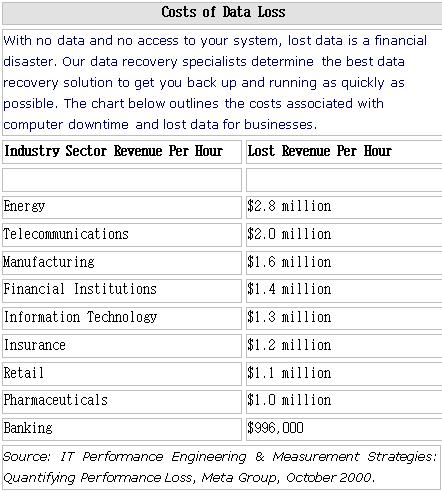
Based on the information below it is easy to see how significant the costs of lost or inaccessible data can be. The following is a summary of the average hourly impact of lost data on a selection of different businesses.

Type of Business & Average Hourly Impact

Costs Of Data Loss

When time is crucial and data is mission-critical, data recovery may be the most practical option available. Data recovery professionals recover data from the damaged media itself, providing several advantages over alternative methods of data retrieval.

1) Complete – Data recovery professionals can safely enter the system or media to achieve a comprehensive data recovery.

2) Current – Although many people revert to backups following a data loss, those backups typically contain outdated information or could be corrupt themselves. Data recovery can help you access the most recent version of the lost data.

3) Fast – Every second that passes following a data disaster means time and money lost to your company. Data recovery reduces this downtime by quickly recovering and returning your data.

4) Cost-effective – The expense in time, money, and effort of rebuilding or re-keying lost data can be overwhelming to your company. Data recovery can provide the quickest and most complete data recovery possible.

Reasons and Costs of Data Loss Read More »

Glossary of Hard Disk Drive Terminology (Letter A)

Access
Retrieval of data from or transfer of data into a storage device or area such as RAM or a register.

Access Time
The amount of time, including seek time, latency and controller time, needed for a storage device to retrieve information.

Active Partition
The partition of the drive that contains the operating system. If the drive has multiple partitions, only the primary partition can be made active. A hard drive can have only one active partition.

Active Termination
One or more voltage regulators that produce termination voltage. The voltage regulator(s) drive a constant voltage along the bus to ensure that the data signal stays constant and strong over the entire length of the bus. The result is increased data integrity and reliability.

Actuator
A mechanical assembly that positions the read/write head over the appropriate track.

Actuator Arm
The part of the actuator assembly that includes the positioning arm and the read/write heads.

Adaptive Caching
A feature of Western Digital drives that enables them to improve performance and throughput by adapting to the application being run.

Address
In the hard drive industry, there are several types of addresses; an address may refer to that of a drive, called a unit address; radial position, called a cylinder address; or circumferential position, referred to as a sector address.

AFR
Annualized Failure Rate.

Allocation
The method DOS uses to assign a specific area of the hard drive to a given file. (See also cluster.)

American National Standards Institute (ANSI)
A governmental body of the United States responsible for approving US standards in many areas, including computers and communications. ANSI is a member of the International Standards Organization (ISO).

Arbitrated Loop
Fibre channel topology where two or more ports can interconnect but only two ports can communicate at the same time.

Arbitration
The act of determining which command, device, or communication protocol controls the operating environment.

Areal Density
The number of bits of data that can be recorded onto the surface of a disk or platter usually measured in square inches. The areal density is calculated by multiplying the bit density (BPI – Bits Per Inch) by the track density (TPI – Tracks Per Inch).

ASP
Average selling price.

Asynchronous Transmission
Each byte of information is synchronized individually through the use of request and acknowledge signals.

AT Bus Attachment (ATA-4)
The interface defined by IBM for the original AT disk controller. Western Digital designed the WD Caviar® drives to be fully ATA-4 compatible.

Auto Defect Retirement
If the drive finds defective sectors during reads or writes, they are automatically mapped out and relocated.

Auto Park
Turning off the drive power causes the drive to move the read/write heads to a safe non-data landing zone and lock them in place.

Average Access Time
The average length of time a drive takes to perform seeks, usually measured with 1/3 stroke.

Average Seek Time
Length of time it takes the drive to move the read/write heads to a safe non-data landing zone and lock them in place.

Glossary of Hard Disk Drive Terminology (Letter A) Read More »

The Hidden Costs of Increasing Data Storage

data storage costLarge-scale IT environments have the resources to manage all aspects of a network expansion, including the initial analysis, equipment installation and wiring, and proper access management to users. In smaller environments the planning may not go beyond the immediate reaction to the user’s needs—that is, “we’re out of space!” While the size of the environment may determine how storage needs are addressed and managed, such things as proper equipment cooling, storage management software that allows for scalable growth (SRM), disaster recovery (including backup contingencies), and data recovery concerns apply to IT environments of every size.

In one scenario, picture a small business with five desktop machines. Despite following careful data compression procedures and rigorous archiving of old files, their system is running out of space. They have a small file server sitting near the users’ desks. Can the business owner upgrade the file server with a bigger hard drive or should he add a separate rack of inexpensive drives? How much space will they need? Will a terabyte be enough? What if they need to upgrade in the future? How hard will it be? What other hidden costs are they going to run into?

In another scenario, a business that uses 30-40 desktop machines has a file server located in a separate room with adequate cooling, user access management, and a solid network infrastructure. But they too are running out of space. When they plan for an expansion, what hidden costs will they need to consider?

In addition to equipment investment, there are many hidden costs to consider when determining storage needs and subsequent management. Following are some hidden costs identified when it comes to storage.

How can you get the most out of existing storage space, not allowing it to fill up so quickly? In conjunction, how do you prevent your storage space from running out before the full life expectancy is realized? This is where storage management software, such as SRM and ILM, enters the picture. Storage Resource Management (SRM) software provides storage administrators the right tools to manage space effectively. Information Lifecycle Management (ILM) software helps the management of data through its lifecycle.

While a viable solution, SRM and ILM software may not cover all the needs of a business environment. SRM and ILM software are designed to manage files and storage effectively, and with a level of automation. Beyond this is where good old-fashioned space management is required. Remember the days when space was at a premium and there were all sorts of methods to make sure that inactive files were stored somewhere else—like on floppies? Remember when file compression utilities came out and we were squeezing every duplicate byte out of files? Those techniques are not outdated just because the cost per MB has dropped, or tools exist to help us manage data storage. Prudent storage practices never go out of style.

Power consumption
Manufacturers are working hard to optimize the performance of their machines, yet server power consumption remains on the increase. What will be the power requirement of your company’s new storage solution? Luiz André Barroso at Google reports that if performance per watt is to remain constant over the next few years, power costs could easily overtake hardware costs, possibly by a large margin.

Power consumption can be a hidden fixed cost that may not have been expected with the expansion of storage space. Especially when consider the fluctuating costs of energy, unanticipated power usage increases can be an expensive budget buster affecting the entire enterprise.

Cooling requirements
Closely related to power consumption is the need to keep cool the more powerful processors found in the latest machines. Both the performance and life expectancy of the equipment are related to the component temperature of the equipment. Ever since the Pentium II processor in 1997, proper heat dissipation using heat sinks and cooling fans has become a standard for computer equipment. Today’s high performance processors, main boards, video cards, and hard drives require reliable temperature management in order to effectively and efficiently work day in, day out.

If you or your client’s storage requirements grow, proper ambient server room temperature settings are going to be required. Adding such a room or creating the necessary environment may add build-out costs, not to mention increase those power consumption and energy costs mentioned about earlier.

Noise
With proper heat dissipation and cooling comes noise. All those extra fans and cooling compressors can create a noticeable amount of decibels. A large-scale IT environment has the luxury of potentially keeping its noisy machines away from the users. However, in a smaller-scale business or home business, some have found the sound levels generated by their storage equipment to be intolerable or at minimum concentration breaking. Such noise makes surrounding areas non-conducive to work and productivity, hindering employee’s ability to simply think. When increasing your data storage, make sure the resulting noise generated is tolerable. Be sure, too, that noise suppression efforts don’t interfere or defeat heat dissipation or cooling solutions.

Administrative cost
The equipment investment for the expansion may be significant, but how does this increased storage relate to administrative needs? Should management hire a network consultant to assess user needs, then install, setup, and test the new equipment? Or can the company’s in-house network administrator do the work? A small company has a risk because although they might not be able to afford to have a professional assessment and installation, they may learn the hard way with an inexpensive solution the old adage of “you get what you pay for.”

A non-professional might misdiagnose storage usage needs, set up the equipment incorrectly, or buy equipment that isn’t a good fit for the environment. Such unintentional blunders are why there are certifications for network professionals. Storage management is not as simple as adding more space when needed, it is a complicated, multi-layered endeavor affecting every aspect and employee of a business.

Although using the skills of a professional greatly increases the success of the storage expansion, it will raise the final cost. When considering the monetary expense, businesses must also remember to consider how much other ‘costs’ – overall risk, loss of data availability, system downtime if the implemented solution fails – they can afford.

Backup management
How does your business currently manage backup cycles and corresponding storage needs? Do you store your backups on-site, or do you have a safe alternate location at which to store this precious data? Natural disasters such as fires and floods, and extreme disasters like Hurricane Katrina are wakeup calls to many resistant to the idea of offsite data storage. Offsite data storage may be as simple as storing backup tapes off site or archiving data with data farms for a monthly space rental fee, or as complex as having a mirrored site housing a direct copy of all your data (effective but costly).

Whatever backup management and storage process utilized, backups created should be tested, as well as the backup system with the expanded storage to make sure it’s actually backing everything up. There is nothing worse than relying on a backup that doesn’t work, was improperly created, or doesn’t contain the vital data your business needs.

Database storage
Databases created as a result of daily business activities can be staggering (as referenced in the earlier example of one large retail corporation’s generation of a billion rows of sales data daily). This activity can result in large amounts of data being stored. One way to optimize database performance is by separating the database files and storing them in three separate locations. In this process, data files are stored in one location, transaction files or logs in a second location, and backups in a completely different location. This not only makes data processing more efficient but prevents having an “all the eggs in one basket” scenario, beneficial when experiencing a process disruption such as equipment failure.

Undertaking this type of database optimization involves the aforementioned planning and equipment costs. But keep in mind how database information has reached into all areas of the business – customer information, billing information, and inventory management information – and how vital it is that this information be protected. Hidden costs associated with protecting database information can escalate quickly.

Installation and cabling
The old trend was a standalone unit where the processor and storage were one system. Now the trend is to build a separate networked storage system that can be accessed by many users and servers. In general, there are two types of separate storage systems, the storage area network (SAN), and the network attached storage (NAS).

The separate storage system offers a number of advantages, including easier expansion. The consideration however, is that you will need the network infrastructure to support a separate storage system. In other words, if your storage system is in a separate building, you will need faster network connectivity to avoid a “bottleneck” in communication between the server and the storage device.

Disaster recovery
A disaster recovery plan encompasses everything that could happen if there is a system failure due to destruction, natural disaster, fire, theft or equipment failure. Part of a good disaster recovery plan includes a business continuation plan, that is, how to keep the business going and doing business despite the disaster. When planning for a data storage expansion, the disaster recovery plan should be reviewed to make sure the company’s data is accessible in the event of a contingency, and be closely aligned to business continuity planning and efforts.

Data recovery
Data recovery can become a hidden cost if not planned for. Every business continuity plan and disaster plan should include professional data recovery services as part of their overall solution.

As you can see, there is much more to scalable growth than just adding more storage space. Although prudent planning and every precaution in instigating and undertaking an effective storage management solution has been enacted, failures and unforeseen circumstances can and do occur. Simply put, despite the best preparation disasters do.


The Hidden Costs of Increasing Data Storage Read More »

Avoide the Backup Tape Graveyard?

Many businesses could find that when in need of a data recovery, their data is not retrievable because it is stored on old tape formats.

Many organizations have electronic data dating back decades and the chances of it being retrieved or rendered inaccessible over time are fairly high. Furthermore, retrieving data that is stored on out-of-date tapes can be costly and may require special equipment.

It is important for a company to look at its past as well as its future. Information that may need to be accessed must be transferred to modern media formats in order to be compliant with current legislation and recoverable in the event of data loss. By maintaining up-to-date records and data on modern media formats, extraction can be quick and painless. Furthermore, storage costs will decrease and the organization will be better aligned with compliance regulations.

In addition to ensuring backups are stored on modern media formats, the following tips may help minimize the chance of backup failure/data disaster.

1.Verify your backups. Backups, regardless of age, are known to fail or not work. This often goes undiscovered until they are needed.

2.Store backup tapes off site. This will ensure your files are preserved if your site experiences a fire, flood or other disaster.

3.Create a safe “home” for your backup tapes. Keep backup tapes stored in a stable environment, without extreme temperatures, humidity or electromagnetism.

4.Track the “expiration date.” Backup tapes are typically rated to be used from 5,000 to 500,000 times, depending on the type of tape. Tape backup software typically will keep track of the tapes, regardless of the rotation system.

5.Maintain your equipment. Clean your tape backup drive periodically, following directions in its manual regarding frequency. Most businesses just send the drive back to the manufacturer when it begins to have problems, but if a drive has problems, so can the backup tapes.

Avoide the Backup Tape Graveyard? Read More »

Lost Data: to recovery or not recovery

data lossA data loss has occurred – now what? Determining the need to recover lost data can be a difficult one. There are several things to take into consideration when determining if data recovery is required.

Backup, Backup, Backup
Everyone knows the importance of a good backup system, so your first step should be to determine if the data is actually backed up. Many times lost data is stored on a backup tape, backup hard drive, on the network or other various locations throughout an organization.

Unfortunately, locating and reloading the lost information can be time consuming and deplete resources. If a backup is located, it is important to check that the most recent copy of the data is available. Many times backups occur on a set schedule and if modifications to the data were saved after the backup occurred that information will not be accessible.

Re-Creation
Another important option to consider is if the data can or should be re-created. Two items to take into account when considering this option include the type of data lost and the amount lost:

  • Type of Data – Different data may have different perceived value. Recovering a customer database is (probably) more important than recovering a file containing possible names for a pet goldfish. Is the missing data a high-volume transaction database such as a banking record? This would be nearly impossible to recreate the thousands of transactions that were happening in real time. Other types of data may not be able to be re-created such as digital photos. Understanding the type of data that was lost is imperative to determining your next steps.
  • Amount of Data – Understanding how much data was lost can help you understand how much time and resources would be required to re-create the data. The more data lost, the more time and resources required to re-create it – if re-creation is even possible.

An additional point to consider is that with strict regulatory and legal requirements, many companies need access to their lost data in order to comply with these requirements. Accessibility to data and the legal requirements surrounding that data are essential to understand when considering if data recovery is necessary or not.

Data recovery costs can be difficult to plan for because they are unexpected. No one wants to lose data just like no one wants their car to break down or to have to call a plumber for a broken pipe. However, to help put it into perspective with other business related costs – vending services and that morning cup of coffee can run between $500 and $1000 every month for a small business office. An average recovery fee for a typical desktop, Windows-based system is around $1,000. Comparing those figures – the true value of data recovery becomes clear

Lost Data: to recovery or not recovery Read More »

Protecting Data from Severe Weather

You can protect your data by following some simple precautions. With that said, even the most well-protected hard drives can crash, fail, quit, click, die… you get the picture. So here are a few tips for how to respond when extreme weather does damage your computer equipment.

1. Summer heat can be a significant problem as overheating can lead to drive failures can result. Keep your computer in a cool, dry area to prevent overheating.

2. Make sure your servers have adequate air conditioning. Increases in computer processor speed have resulted in more power requirements, which in turn require better cooling – especially important during the summer months.

3. To prevent damage caused by lightning strikes, install a surge protector between the power source and the computer’s power cable to handle any power spikes or surges.

4. Invest in some form of Uninterruptible Power Supply (UPS), which uses batteries to keep computers running during power outages. UPS systems also help manage an orderly shutdown of the computer – unexpected shutdowns from power surge problems can cause data loss.

5. Check protection devices regularly: At least once a year you should inspect your power protection devices to make sure that they are functioning properly.

Responding to Data Loss Caused by Severe Weather

1. Do not attempt to operate visibly damaged computers or hard drives.

2. Do not shake, disassemble or attempt to clean any hard drive or server that has been damaged – improper handling can make recovery operations more difficult which can lead to valuable information being lost.

3. Never attempt to dry water-damaged media by opening it or exposing it to heat – such as that from a hairdryer. In fact, keeping a water-damaged drive damp can improve your chances for recovery.

4. Do not use data recovery software to attempt recovery on a physically damaged hard drive. Data recovery software is only designed for use on a drive that is fully functioning mechanically.

5. Choose a professional data recovery company to help you.

Protecting Data from Severe Weather Read More »

Scroll to Top