 In today’s competitive business environment, data is the life line of any business, small or large corporate or individual. If your laptop suffered a crash, was damaged by impact or water, started making clicking noises, was accidentally formatted, or otherwise failed, you need professional help.
Common Causes of Laptop Data Loss:
- Water or another liquid was spilled on the hard drive or computer
- Water or another liquid was spilled on the hard drive or computer
- The computer or hard drive was physically damaged by dropping, hitting against the wall, etc.
- The computer or hard drive overheated for any reason or was damaged by fire
- The computer or hard drive was damaged as a result of an electrical power surge or outage
- The computer or hard drive was damaged as a result of an earthquake, storm, or natural disaster
- Some or all of the partitions have been formatted (e.g., using fdisk)
- You hear grinding or clicking noises coming from the computer or hard drive
- A file or folder on your hard drive becomes inaccessible due for no apparent reason, or due to virus attack or virus infection
- A file or folder was accidentally deleted
- The hard drive is no longer recognized by the BIOS after rebooting
- The system BIOS displays the message “Primary hard disk failure” or “Secondary hard disk failure”
- The system displays the error message “boot disk error, insert boot disk press any key to continue”
- The system displays the message “NTLDR is missing, Press any key to restart”
- The partition table is corrupt or damaged for any reason.
- The system displays the message “Operating system not found” or “missing operating system”
- The BIOS recognizes the hard drive but with incorrect parameters
- The BIOS recognizes the hard drive but the data is inaccessible
- The hard drive reports bad sectors
How is Laptop Data Recovery Different?
Mobility, the laptop computer’s greatest advantage, is also its biggest threat. One of the leading causes of data loss in laptops is physical damage resulting from dropping or hitting the laptop while moving it around. Water damage is also a big contributor: spilling tea or coffee can break not only the hard drive, but any of the countless electronic components inside the laptop. The tight packing of all the hardware makes the situation even more dangerous.
Recovering data from a laptop demands new tools, new knowledge, and oftentimes, a whole new approach. Our engineers use specialized, custom-built equipment to handle the tiny parts found inside a laptop, and have the in-depth knowledge and experience of laptop architecture that is essential for successful laptop data recovery.
What To Do If You Lose Data On Laptop?
Stop Immediately & shut down your computer, If you detect any problem or hear any clicking grinding scratching noise coming from the disk drive. You need professional help.


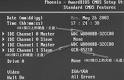 The BIOS limitation or BIOS capacity barrier is the computer’s inability to recognize hard drive capacities larger than allowed by the hard-coded programming contained in your system BIOS. For example, your system BIOS might only be capable of understanding a hard drive capacity of up to 32 GB. If you then attempt to install and auto-detect a 40 GB hard drive, the system will freeze because the BIOS is not capable of understanding the capacity reported by the hard drive. In short, that particular BIOS cannot count past 32 GB.