

Hard Drive Platters

Platters in physical
The physical material of Platters: Aluminum alloy comprises the physical material of the platter. It is rigid, easy to work with, lightweight, stable, inexpensive and readily available. The speed that the platters spin is increasing to store data much quicker and in intensive tracks, it is creating more demands on the platter material itself. That’s why the first glass Platters of IBM HDD failed to dominate the market;

Media Layer: The physical material (Aluminum alloy) of which the platters are made forms the base upon which the actual recording media is deposited. The media layer is a very thin coating of magnetic material which is where the actual data is stored, typically only a few microinches in thickness. The media layer is usually comprised of a special alloy. That’s why the data will lose or inaccessible by ages of using. It is because the thin media layer become dull or damaged and can’t react the signals from the HDD or commands from a PC;

Does it make any sense to wash Platters with distilled water or alcohol?
You must laugh at my silly question. But it happened, someone told me before that He did wash the platters with pipe water because there are many fingerprints on them, and, huh, according to his words, he had fixed it and that drive got working.

Can we put the hard drive near with some magnetic materials?
People put the hard drive in some antistatic storage and they avoid to put their credit cards and other magnetic cards together.

Protective Layer: The surface of each platter is normally covered with an extra-thin, protective, lubricating layer, on top of the magnetic media layer itself. This material is used to protect the disk from damage caused by accidental contact from the heads or other foreign matter that might get into the drive. That’s why you can use your HDD to store data for years, not for a couple of months;

Platters in Logically
Platters Divisions: The platter is divided into Tracks and Sectors and is read by Zone Recording or Clusters.
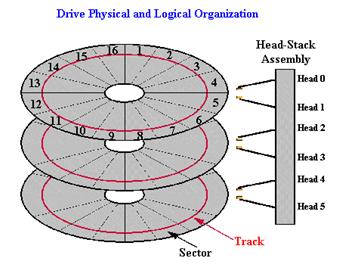
Tracks:
Platters are organized into specific structures to enable the organized storage and retrieval of data. Each platter is broken into several thousand tracks, which are   tightly-packed concentric circles. (These are similar in structure to the annual rings of a tree.,see the circle in red of the Picture).

But, you will find that the ones on the outside of the platter are much larger than the ones on the inside–typically double the circumference or more. Since there is a constraint on how tight the inner circles can be packed with bits, they were packed as tight as was practically possible given the state of technology, and then the outer circles were set to use the same number of sectors by reducing their bit density. This means that the outer tracks were greatly underutilized, because in theory they could hold many more sectors given the same linear bit density limitations.
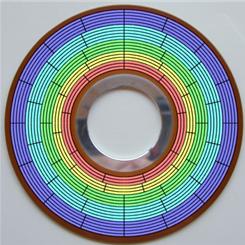
To eliminate this wasted space, modern hard disks employ a technique called zoned bit recording (ZBR), also sometimes called multiple zone recording or even just zone recording. With this technique, tracks are grouped into zones based on their distance from the center of the disk, and each zone is assigned a number of sectors per track. As you move from the innermost part of the disk to the outer edge, you move through different zones, each containing more sectors per track than the one before. This allows for more efficient use of the larger tracks on the outside of the disk.
Read More

Wireless networking – Is it really possible for most enthusiasts to crack people’s Wi-Fi networks?

Can most enthusiastic users (even if they are not professionals) use well-known techniques to break through the average home router’s security? Some basic security options are: strong network password with various encryption methods custom router access password WPS no SSID broadcast MAC address filtering Are some of these compromised and what to do to make…

Read More

How to use Disk Management to set up a Hard Drive

How to use Disk Management to set up a Hard Drive To start Disk Management:

  1. Log on as administrator or as a member of the Administrators group.
  2. Click Start -> Run -> type compmgmt.msc -> click OK. Alternatively, right-click on the My Computer icon and select ‘Manage’.
  3. In the console tree, click Disk Management. The Disk Management window appears. Your disks and volumes appear in a graphical view and list view. To customize how you view your disks and volumes in the upper and lower panes of the window, point to Top or Bottom on the View menu, and then click the view that you want to use.

How to create a new partition or a new logical drive:

To create a new partition or logical drive on a basic disk:

  1. In the Disk Management window, complete one of the following procedures, and then continue to step 2:
    1. To create a new partition, right-click on the Unallocated space on the Basic disk where you want to create the partition, and then click New Partition.
    2. To create a new logical drive in an Extended partition, right-click on the free space on an Extended partition where you want to create the logical drive, and then click New Logical Drive.
  2. In the New Partition Wizard, then click Next.
  3. Click the type of partition that you want to create (either Primary partition, Extended partition, or Logical drive), and then click Next.
  4. Specify the size of the partition in the Partition size in MB box, and then click Next.
  5. Decide whether to manually assign a drive letter, let the system automatically enumerate the drive, or not assign a drive letter to the new partition or logical drive, and then click Next.
  6. Specify the formatting options you want to use (such as setting a drive label name) by using one of the following procedures:
    1. If you do not want to format the partition, click Do not format this partition, and then click Next.
    2. If you want to format the partition, click Format this partition with the following settings, and then complete the fields in the Format dialog box.
  7. Confirm that the options selected are correct, and then click Finish.
  8. You should be able to see the new drive listed under My Computer with the new drive letter assignment and the drive label name.
Read More

2060-771933-000 WD PCB Circuit Board

HDD Printed circuit board (PCB) with board number 2060-771933-000 is usually used on these Western Digital hard disk drives: WD7500BPVX-22JC3T0, DCM HBOTJHBB, Western Digital 750GB SATA 2.5 Hard Drive; WD20NPVX-00EA4T0, DCM EHMTJBBB, Western Digital 1TB SATA 2.5 Hard Drive; WD10JPVX-75JC3T0, DCM HHOTJHBB, Western Digital 1TB SATA 2.5 Hard Drive; WD20NPVX-00EA4T0, DCM HBMTJHBB, Western Digital 1TB…

Read More

2060-701499-000 WD PCB Circuit Board

HDD Printed circuit board (PCB) with board number 2060-701499-000 is usually used on these Western Digital hard disk drives: WD800BEVT-75ZCT2, DCM FHCTJABB, Western Digital 80GB SATA 2.5 Hard Drive; WD3200BEVT-75ZCT0, DCM HHCVJANB, Western Digital 320GB SATA 2.5 Hard Drive; WD2500BEVS-22UST0, DCM FACVJBB, Western Digital 250GB SATA 2.5 Hard Drive; WD2500BEVT-75ZCT2, DCM HHCTJHB, Western Digital 250GB…

Read More