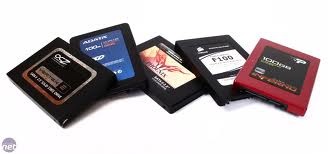
Your hard drive just stopped working. It never made any odd sounds like screeching, popping, or clicking, and it didn’t crash. It just quit and it has some priceless data that isn’t backed up to another device. This guide may help you troubleshoot and correct any problems related to your drive. Note: this is much more likely to work on a newer drive than an older one, especially when searching for a sacrificial clone. Be sure to read all warnings before proceeding.
Steps:
1. Remove the hard drive from the computer or device.
2. Examine it carefully for ‘hot spots’ or other damage on the external controller board.
3. Move it gently from side to side and then front to back. Listen for metallic rattling noises. Don’t be too rough when you shake the drive. The drive’s heads are probably loose if there is a rattling sound. If so, stop here and contact your computer or drive’s manufacturer for a replacement. Data recovery is extremely expensive. If you need your data regardless of the cost, contact a data-recovery specialist.
4. Place the drive back into the computer or device.
5. Switch drive pin settings. This only applied to PATA (IDE/EIDE) drives. In a computer, if it was slave or ‘cable select’, try making it ‘master’ and plugging it in alone, or plugging it into an external drive adapter or external drive case (i.e. USB).
6. Try it on another IDE, SATA, or SCSI connection, depending upon the drive’s type.
7. Try other IDs and another controller if it is a SCSI drive.
8. Connect the drive with another data cable.
9. Attempt to access the drive on another device. If possible, connect the drive to another computer with a working drive and attempt to access it through that computer’s operating system.
10. Another option to try is to freeze the drive for several hours, let it warm to room temperature, and try the drive again. If successful, backup all data immediately and consider replacing the drive because it will probably fail again soon.
Replace Controller Board
1. Inspect the drive’s controller board carefully to see if it can be removed without exposing the drive’s platters. Most drives will have an externally-mounted controller board. If not, stop here.
2. Find a sacrificial drive. It is important to match the exact same model number and stepping.
3. Remove the controller board of the failing drive. Learn everything about how it is connected to the drive. Most drives are connected via ribbon cables and pin rows. Be gentle. Do not crimp or damage the connectors.
4. Remove the controller board from the working drive. Again, be extremely careful.
5. Attach the working board to the failing drive.
6. Connect the drive to your computer or device and test. If it works, immediately copy your data onto another form of media or a different hard disk drive. If that didn’t work, try to re-assemble the sacrificial drive with the working controller board. It should still work. Re-assemble the failing drive. If that works, it wasn’t the externally accessible board.
Tips
1. Back up your data!
2. If data comes in faster than backups, and is precious like this, consider RAID 1, RAID 5 or RAID 10 disk configurations. A RAID array will keep running when one physical drive dies. A good one will even re-write a replacement drive that’s “hot swapped” into it without stopping.
3. NEVER use RAID 0 for anything but scratch data. It’s fast, but has no redundancy, so it’s much more likely to crash than a single drive, and take your data with it in a really irrecoverable manner. Especially ‘built in’ PC motherboard RAID configurations. Virtually all motherboard RAID controllers are bad.
4. Programs like GRC’s Spin rite does an excellent job at getting down to every last bit and ensuring that everything is working on the most basic of levels, however, if it finds that a sector of a hard drive is corrupted, it will attempt a recovery of it. It has saved many hard drives from failing, and has helped recover gigabytes of data. Spin rite is in its 6th version and has proven very successful. Please note, while Spin rite and other software hard disk recovery programs work well, they will not permanently fix a problem every time. Therefore, it is recommended that software recovery only be used to backup the data.
5. Some programs, such as Spin rite mentioned above, perform maintenance on hard drives to prevent flaws from forming.
6. Putting the hard drive in the freezer has been known to revive a failing hard drive for a short time, possibly long enough to recover files.
Warnings
1. Configuring drives in a RAID 1, 5, or 10 is not a substitute for a regular backup routine. RAID controllers will fail eventually, writing bad data to the drives. RAID controller failure is difficult to detect until it’s to late.
2. If you are not good with delicate hardware tinkering, don’t follow these instructions. Find a professional or someone who is experienced with hardware tinkering to try it for you. Don’t hold it against the person if they fail to recover your data. Most retail outlet technicians are not trained for component-level repair of this type.
3. Static electricity grounding precautions should be observed.
4. You will void both hard drive warranties. These instructions are for recovering data that is far more valuable than the drives themselves.
5. If the failing drive was sold with a computer or device, you may void the manufacturer’s warranty if you follow these instructions. Make sure the data, or your attempt to recover data, is worth voiding that warranty.
6. Do not disassemble a hard drive in a manner that will expose its disks/heads unless you plan to just throw it away afterwards. That operation must be done in a ‘very clean’ clean room. If you don’t have a completely dust-free environment and gear, opening the hard drive and exposing the platters and heads poses a great risk in ruining the drive.
7. Don’t believe you’ve “never had a problem” with RAID 0 array, or even “never had a problem” from not backing up your data. Just because the drive in question was working for a certain period of time before it failed does not mean it was configured properly.
8. After the a controller board swap, you will certainly have two failing hard drives, whether you recovered the data or not. Do not re-use these drives. Consider other identical drives you purchased from the same batch ‘suspect’.
9. This procedure is not for logically erased data (i.e. ‘un-formatting’). This procedure is for physically inoperable drives with intact data.