2060-771698-004 WD PCB Circuit Board

HDD Printed circuit board (PCB) with board number 2060-771698-004 is usually used on these Western Digital hard disk drives: WD20EARX-00MMMB0, DCM HARCHT2AAB, Western Digital 2TB SATA 3.5 Hard Drive; WD10EUCX-63YZ1Y0, DCM HANNHT2MAB, Western Digital 1TB SATA 3.5 Hard Drive; WD20EARX-00PASB0, DCM HHNNNTJMHB, Western Digital 2TB SATA 3.5 Hard Drive; WD20EURS-63S48Y0, DCM HHRNNTJMHB, Western Digital 2TB…

Read More

How To Fix Hard Drive with built-in Hard Drive Utility

Fix Hard DriveBefore you start to fix a hard drive, make sure you have an up-to-date backup. After that, let us do some simple diagnostics and repairs. Both Windows and Mac OS come with built-in hard-drive utility that scans your hard disk for errors and attempts to fix them.

Fix Bad Sectors on a Hard Drive

For Windows
1. Double-click on My Computer to open the My Computer window.
2. Select the Drive that you want to diagnose and repair.
3. Choose Properties from the File menu. You should see the Properties window for the drive that you selected.
4. Choose the Tools tab.
5. Click the Check Now button under Error Checking Status.
6. Depending on your version of Windows, choose either “Thorough” or “Scan for and Attempt Recovery of Bad Sectors.”
7. Click on Start

Fix Hard Drive Crash

Computer hard Drives may fail or crash. One of the common causes is a computer virus, it may have corrupted or broken your computer system.  Here is a way to fix a hard Drive that has crashed.

1. Look for tell-tale signs that your computer is about to crash or fail. Extreme slowness, repeated blue screen and noise or clicking are sometimes signs that your computer hard drive is about to crash. When you hear the sound of clicking, scraping or grinding, immediately turn off or shut down your computer. Doing so will prevent any loss of data.

2. Power down and then power up. Sometimes, hard drive crashes can be easily recovered by doing a power shutdown of the computer. Then, after waiting for a couple of minutes, power it back up again. The initial hard drive crash may not be too serious, but if it happens often, start performing a full system backup, if you haven’t been doing so, to be able to recover your data should the inevitable happen.

3. Ensure that your hard drive and other internal components are seated properly. If Steps 1 and 2 do not work, you may need to open your computer’s CPU to check on some of the drive connections. Sometimes connections get dislodged, especially if you move your computer box often. The symptom will manifest as if the hard drive has crashed, giving you a “Drive error” when you try to boot up your computer. First, turn off your computer and unplug it. Then remove the case of your computer box. Press on each connector to connect it properly. Put the cover back again, plug the computer and power it back up.

4. Insert your boot disc and try to boot up your computer using the disc. Once you are able to do so, you can reinstall your operating system. After installing your software, proceed to perform data recovery using your ghost CD or backup.

5. Use an emergency repair disc to get your computer to work again. Then restore from the last known good configuration.

6. Reinstall your operating system using the installation or system restore CD that came with your computer when you first purchased it. It will take you through a series of steps that include formatting your hard drive, which will then erase your data. Do this as a last resort.

7. Recover your data by using a restore and recovery software or using your most recent backup after you have reinstalled the operating system in the previous step.

8. Reinstall your applications that did not come with your computer when you bought it. Some examples would be Adobe Photoshop, anti-virus software and movie-making software.

Fix Locked Up Hard Drives

A hard Drive is a computer storage device that manages and organizes computer data from the actual CPU. The hard Drive also stores all critical system data required for a computer to startup. Without a hard Drive, a computer cannot function. Fixing a locked up hard drive that prevents a computer from functioning is an important aspect of computer maintenance and repair.

1. Check that the computer hardware is plugged into a reliable power source. Turn on the computer.

2. Hold down the “F2” key on your keyboard if you’re using the Microsoft Windows operating system. If using the Mac operating system, hold down “Option-Command-Shift-Delete” on your keyboard.

3. Use your keyboard’s arrow keys to select “BIOS Setup Menu” in the screen that appears (Windows OS). If using a Mac, wait for the startup bypass process to finish and use your keyboard’s arrow keys to select a primary startup volume.

4. Select “Hard Drive Priority” in your Windows BIOS system, or your main hard drive in the Mac operating system.

5. Check that your boot hard drive is listed on the top of the boot-up list (applicable in both PCs and Macs). In Windows, continue further by selecting the “Disable Hard Drive Auto-lock” option in the BIOS system screen.

6. Save and exit, allowing the operating system to boot-up. This will clear any system errors causing the wrong hard drive to lock up.

Fix an External Hard Drive

As with any piece of electronic equipment, plenty of things can go wrong with an external hard drive. There are two types of problems: hardware and software. Hardware problems are physical flaws that prevent the Drives from spinning and accessing data. Software problems are digital mixups that make retrieving data more difficult.

1. Figure out whether you need a hardware or software fix. Look for grinding sounds from your drive or humming that starts or stops. These are signs that the actuator arm and discs are no longer in alignment and your drive is timing out. If it seems as though nothing is wrong with your hard drive, it’s probably time for a software fix.

2. Run one of the many software fixes, if you think the problem is related to software. These programs feature on-screen directions, making it easy for you to progress through them. If this works, you don’t need to fix a physical problem.

3. Remove the many tiny screws that holds the drive together. Eventually, you’ll get to the innards of your drive. Be very careful not to bend or force a piece to go where it doesn’t want to.

4. Determine if you’ve set things straight. Look to see whether anything was loose inside your external hard drive. If you have recently dropped it or traveled with it, it is possible that something came loose. Also check that all the arms and platters are straight and do not appear bent in any way. If they are bent, straighten them with your hands or pliers.

5. Put everything back together and check that everything in your external hard drive is working properly.

6. Try using the external hard drive on another computer. Maybe your computer or USB port is the problem and needs replaced.

Fix a Physically Broken Hard Drive

Like cars, computer parts can give out when you need them most. The hard drive is one of the most important computer components. Luckily, it gives warning signs before a complete crash. “Bad Sector” or “Read/Write Errors” warn that the hard drive is failing. It is important to back up your important data at least once a week.

The hard Drive Makes No Noise, or Powers on and Makes a Grinding Noise
1. Open the computer and remove the hard drive. Find and remove the drive’s logic board. Inspect the area underneath the board. Look for signs of other damage.

2. Replace the board with the logic board from an identical working hard drive. If you find more damaged areas, just replace the entire hard drive.

3. Test the repaired drive.

The Hard Drive Powers on and Then Goes Silent
1. Separate the logic board from the hard drive. Ground the hard drive to an electrostatic point.

2. Replace the logic board and re-install the hard drive.

3. Boot the hard drive. If successful, immediately back up all data. Disk utilities, like ScanDisk, can move data from bad sectors to undamaged areas. This is only a temporary solution-the drive will fail again.

4. If the drive does not boot, you will need to make it a secondary drive in a different computer. Change the jumpers from “master” to “slave” position. Use Data Recovery Software to transfer your data.

Useful Tools:
1. Free Disk Image/Backup Software
2. Hard drive diagnostic software
3. Free file and disk Utilities
4. Disk Repair Tools
5. Data Recovery Softwares


Read More

What exactly is the consequence of changing the “system locale” in Windows 8?

I read http://windows.microsoft.com/en-US/windows-vista/change-the-system-locale (windows 8 linked me to this help page) and I still can’t completely understand what that means. In which way is the system locale different than the display language? Solution: System Locale (Language for non-Unicode Programs): This setting has three major purposes: Specifies the default ANSI, OEM, MAC, and EBCDIC code pages…

Read More

Data Recovery From Physical & Logical Damage

Logical Damage Data Recovery:

Data Recovery From Physical & Logical DamageOverwritten data
When data have been physically overwritten on a hard disk it is generally assumed that the previous data are no longer possible to recover. In 1996, Peter Gutmann, a computer scientist, presented a paper that suggested overwritten data could be recovered through the use of Scanning transmission electron microscopy. In 2001, he presented another paper on a similar topic. Substantial criticism has followed, primarily dealing with the lack of any concrete examples of significant amounts of overwritten data being recovered. To guard against this type of data recovery, he and Colin Plumb designed the Gutmann method, which is used by several disk scrubbing software packages.

Although Gutmann’s theory may be correct, there’s no practical evidence that overwritten data can be recovered. Moreover, there are good reasons to think that it cannot.

Corrupt filesystems
In some cases, data on a hard drive can be unreadable due to damage to the filesystem. In the majority of these cases, at least a portion of the original data can be recovered by repairing the damaged filesystem using specialized data recovery software. This type of data recovery can be performed by knowledgeable end-users as it requires no special physical equipment. However, more serious cases can still require expert intervention.

Online Data Recovery
“Online” or “Remote” data recovery is yet another method to restore the lost or deleted data. It is same as performing the regular software based recoveries except that this kind of recovery is performed over the Internet without physically having the drive or computer in possession. The recovery technician sitting somewhere else gains access to user’s computer and complete the recovery job online. In this scenario, the user doesn’t have to travel or send the media to anywhere physically.

Although online data recovery is convenient and useful in many cases, it still carries some points making it less popular than the classic data recovery methods. First of all, it requires a stable broadband Internet connection for it to be performed correctly, which many third world countries still lack. Also, it cannot be performed in case of physical damage to media and for such cases, the traditional in-lab recovery has to take place.

Physical Damage Data Recovery:
A wide variety of failures can cause physical damage to storage media. CD-ROMs can have their metallic substrate or dye layer scratched off; Hard disk drives can suffer any of several mechanical failures, such as head crashes and failed motors; Tapes can simply break. Physical damage always causes at least some data loss, and in many cases the logical structures of the file system are damaged as well. Any logical damage must be dealt with before files can be salvaged from the failed media.

Most physical damage cannot be repaired by end users. For example, opening a hard disk in a normal environment can allow airborne dust to settle on the platter and become caught between the platter and the read/write head, causing new head crashes that further damage the platter and thus compromise the recovery process. Furthermore, end users generally do not have the hardware or technical expertise required to make these repairs. Consequently, costly data recovery companies are often employed to salvage important data.

Physical Damage Recovery Techniques:
Recovering data from physically damaged hardware can involve multiple techniques. Some damage can be repaired by replacing parts in the hard disk. This alone may make the disk usable, but there may still be logical damage. A specialized disk-imaging procedure is used to recover every readable bit from the surface. Once this image is acquired and saved on a reliable medium, the image can be safely analysed for logical damage and will possibly allow for much of the original file system to be reconstructed.

Hardware repair
Media that has suffered a catastrophic electronic failure will require data recovery in order to salvage its contents.

Examples of physical recovery procedures are: removing a damaged PCB (printed circuit board) and replacing it with a matching PCB from a healthy drive, performing a live PCB swap (in which the System Area of the HDD is damaged on the target drive which is then instead read from the donor drive, the PCB then disconnected while still under power and transferred to the target drive), read/write head assembly with matching parts from a healthy drive, removing the hard disk platters from the original damaged drive and installing them into a healthy drive, and often a combination of all of these procedures. Some data recovery companies have procedures that are highly technical in nature and are not recommended for an untrained individual. Many of these procedures will void the manufacturer’s warranty.

Read More

Backup VS Data Safety

data backup

Entry-level RAID controllers allow administrators to create secure multi-drive storage arrays to host a server’s operation system and vital data.

Many people don’t appreciate the value of backups and data safety until they experience what it means to lose data. Whether it is music, videos or photos at home or project files, customer data or other digital assets in the office, people don’t think of data safety – until it’s too late.

Imagine how you would feel if your vacation photos or videos of your wedding and daughter’s birth were destroyed? Such scenarios can lead to divorce court when your better half finds out. Or how would your boss react if his or her email and project files were lost due to a faulty hard drive? Your life might be spared, but you could still get fired.

No warranty in the world protects you from such an incident. Make no mistake about it: these things happen every day! If it’s your data, it’s your responsibility to protect it. And even if you’ve got a boss who eventually is responsible, he or she might still blame the loss of data on you. In the end, you can do no wrong by developing awareness of threats and paying attention to data safety.

Backup Vs. Data Safety

At this point we have to differentiate between a backup and basic data safety. Both mean something different and every business should rely on both regular backups and a safe data repository.

Performing a backup means copying files or complete system images from your hard drive onto another storage device, where the data is safe from hardware malfunction, viruses or accidental modification. If anything happens to your primary data, you can access the backup “snapshot” and restore whatever you need.

Any type of drive can be used for backups, but you should pay attention to data safety offered by the solution you pick. A hard drive, for example, cannot be considered a safe medium, as it uses mechanical components that may fail. A perfect backup is performed frequently, is written onto alternating media that are partially stored off-site and should be written onto media that is widely available.

When we talk about data safety, we specifically address the issue that every computer stores all key data on hard drives, and that every hard drive will eventually fail. The challenge is to create a storage subsystem that is unsusceptible to hard drive failures. This is where the five RAID storage controllers come into play.

AMCC, Areca, HighPoint, LSI Logic and Promise Technology offer PCI Express add-on cards that run up to four hard drives to create fast and secure storage array.

Read More

SATA Hard Drive Detected As IDE

Hello, I have a problem with my Western Digital Caviar Blue 500GB SATA 3.0 hard drive.  When i Run Speccy it detects my hard drive as an IDE.. and because of this the S.M.A.R.T. Function is not detected but when i go through my Bios setup, it says [Enabled].. How Can This be? did i do something wrong? Do i need to reinstall my OS?

My MOther Board is a GIGABYTE GA-M68MT-S2P
My other PC specs are:
4GB DDR3 PC1333 ram
AMD Athlon II X4 640
Sapphire 6770 1GB DDR5..

oh and i have one dvd drive i think its Lite on Lightscribe.. it is also sata. Please..i really cant solve this problem.

You should be able to change it to ACHI mode in BIOS without reinstalling. This error might occur but here is the fix: http://support.microsoft.com/kb/922976

Read More

Hard Disk Details (3)

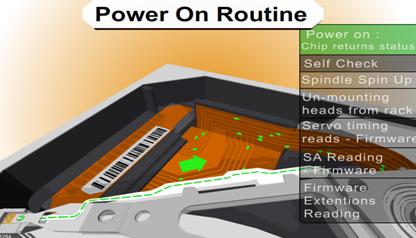
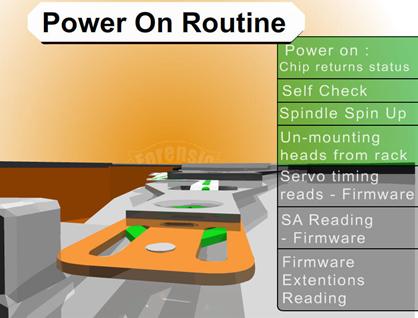
Slide 1289: The first thing a hard drive will do after it receives power is check for a return status from it’s chips to make sure the electronics are functioning. Then the drive will begin the self-check of its parts and wait for a return status. If both status checks are returned then the drive continues on to the next step and spin up the spindle.

Slide1389: The drive begins to spin the spindle or as you would see, the platters begin to revolve.  When the platters begin to revolve the air flow around the platter creates a force that is called an air bearing.  This air bearing will fling off debris on the platters such as any dust particles or metal fragments from the standard operation of the drive. This air bearing also causes the plastic locking arm mechanism to move out of the way as soon as there is enough air flow for the head to float. Without that airflow the arm is locked in place and will not move over the platter. This is a way to protect the platter from the head touching the platter and causing physical damage. The opposite is true during a power down. When power is cut to the drive, during the last revolutions of the motor, it generates enough power to move the head back to it park position.  Because of this, as you can imagine,  if you get enough power on and power off cycles in a row it is possible for the head to be stuck in the center of the platter and never to be parked correctly causing several types of damage. In certain 80 gig laptop 2.5″ inch drives it is common for the head to be stuck to the center of the platter, never having parked and keeping the platters from spinning. In most cases there is very little damage if the drive is opened and manually turned slow enough not to damage the head, and the data can be recovered, obviously never using this drive again.

Slide 1483: At this point, if the all has proceeded correctly the air bearing will allow the head to float over the platter allowing it to move freely without scratching the surface of the platter.

Slide 1545: At this point, if the head is reading the Servo Timing info from the platter and relaying it to the circuitry so the controller knows the geographic information for the placement of data.  (See previous speech at Defcon 14 for discussion about Voice Coil and stepping motors to understand the servo info).

Slide 1679: At this point the head moves to the System Area (SA) of the platters and reads the content that it requires as well as any additional firmware and overlays.
Most of the time, the system area is on the outer tracks – the extreme outer edge. This is chosen by the manufacturer but is most common on the outside on 3.5 and is sometimes written to the inside tracks on a 2.5″ inch drive.

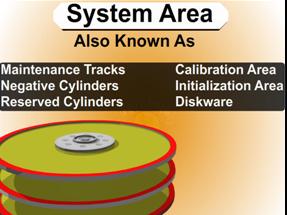
System Area Information Common Names

 1.      System Area
 2.      Maintenance Tracks
 3.      Negative Cylinders
 4.      Reserved Cylinders
 5.      Calibration Area
 6.      Initialization Area
 7.      Diskware

Read More