Unfamiliar with raid architecture error replacement hard disk data recovery

Case:The customer originally discovered that the#4 hard disk was dropped, and the new hard disk replacement was purchased by themselves but because the architecture was not familiar with the original#1 hard disk, causing the system to collapse … Send to the data recovery center data recovery. Solution:After understanding the reasons, the engineer of the data…

Read More

The basic knowledge about Hard Disk Drive

Firmware files that you can find on a site like this, contain a lot of files. First, there is the ‘loader’ file (*.LDR). This file is the ‘temporary’ firmware code, that’s being uploaded to the RAM (so, it’s not being written to disk). Then, there are a lot of ‘*.RPM’ files. These files represent the different modules, which can be written to the SA. The filenames consist of 8 numbers. The first 4 numbers specify the (hex) UBA and the second 4 numbers represent the hexadecimal module size in sectors (each sector normally contains 512 bytes, so for example, if a filename ends in 0002, then that module is 1024 bytes long). So, in short, after uploading the loader to RAM, the user can start replacing damaged modules by overwriting them with correct ones.BTW, please note that the term ‘firmware’ for the packages on this site is symantically not very well chosen, since these packages contain all needed modules to repair a HDD and not just the firmware (=code) module.
Anyway, if you’re looking for a specific firmware module, you can do 3 things:
1) rip the firmware modules from the SA of an identical HDD
2) get these modules from a friend (or for example, from the files section on this site)
3) use a firmware updater program from the vendor.

About this last option: firmware updates from vendors are pretty rare, since firmware code almost never needs to be replaced. However, Maxtor for example, had some problems with the firmware code on some Diamondmax HDD models. So, they issued a firmware update. This update consists of 2 files:

1) the executable file that issues the ATA ‘download microcode’ command to upload the firmware files to the HDD
2) The firmware code, consisting of the ‘main’ firmware code and ‘overlay’ code modules.

Firmware ‘overlay’ code are specific code functions. Why not just put all firmware code into one section ? Well, since the RAM in the drive is a limited resource, they’ve put some code into ‘overlay files’, so that this specific code can be swapped into RAM when that specific function is needed. When the fuction is not needed, it can be swapped out of ram and some other function can be swapped into it again.

The firmware update files from maxtor (I think the same goes for the other vendors) are not scrambled/encrypted/packed in anyway. In fact, you can find the exact same code in these files also in the ‘*.RPM’ files that PC3K produces for example.

Maxtor distributes their firmware file in a so called “.DMC” file. This DMC file is a package of 4 files, a ‘.Bxx’ file, a ‘.cxx’ file, a ‘.bbr’ file and a ‘.cbr’ file. Like I mentioned, this DMC container is not packed or scrambled in anyway. You can just cut the files out of it. The first 0x150 bytes of this file is the header. This header contains the four filenames, the offsets at which bytes in the package these files can be found, the length of the files and a checksum (not 100% sure about the checksum though). The ‘.bxx’ file is the biggest file and contains the overlay modules. You can find all code overlay modules by looking for ‘MO’ in the file. Right after this 2 byte string, you’ll find the hexadecimal overlay module ID. The ‘.bbr’ file contains the main firmware code. The last 2 files are very small, not sure what they contain, probably some checksums for the firmware and overlay modules.

Like said, the firmware code and overlay modules can also be found in the ‘*.RPM’ files of course, since this represents the firmware code on disk. So, you can look through these RPM files and scan for the ‘MO’ string to find any specific overlay module.

So, in short, if a vendor has released a firmware uploader tool (most vendors have), BUT haven’t released a firmware file for your specific drive type, you could create your firmware, if you have the dumped modules (for example, obtained from this site). You could rip the main code and overlay modules and paste them into an existing DMC package. However, since I don’t know the checksum calculation and the meaning of these .cxx and .cbr files (probably checksums), you’d have to do more research, but in theory, it would be possible to create your own firmware files and flash them with such standard Vendor program to disk, so you wouldn’t need to buy an expensive tool like PC3000 (at least not if your sole goal was to upload a new firmware).

Modern hard disks feature an area that contains information that the CPU on the HDD logic board uses to operate the drive. That area is called the “system area” SA. This area contains for example the drive ‘microcode’ (a.k.a. firmware), HDD Configuration Tables, Defect sector tables, SMART information, Security info (drive passwords etc), Disk ID info (serial nr etc) and more. These categories of information are called ‘modules’. So the SA contains a module for the firmware code, a module for the SMART info etc.The SA is stored on ‘negative cylinders’ of the HDD and therefore is not accessible by normal read commands. However, the area can be accessed with other ATA commands. An example of a (more or less) ‘standard’ ATA command that can access info on the SA is the ‘download microcode’ ATA command, which can be used to update information in the firmware code module. However, most of the commands that can be used to access the SA are vendor specific. Since vendors (obviously) don’t want users to mess around with the SA, these commands are generally not made public. However, these commands can be deduced by, for example, reverse engineering the firmware code itself.
This reverse engineering has been done and led to development of tools that can issue these (vendor specific) ATA commands and can read/write almost all sectors in the SA. One example of such tool is PC3000. A tool like this contains tables per HDD model, containing these vendor specific ATA commands and also tables with sector numbers on which the different modules are stored, also per HDD model. SA Sector numbers are counted in “UBA’s”. For example, one specific HDD might use UBA 4 to store the ‘DISK ID’ module, where another HDD model might use another sector for this module.
So in short, to create a tool that can read/write data in the SA, you need to:

A) know (and understand) the (vendor-) specific ATA commands that can be used to access this area and
B) know on which UBA sector the specific modules are stored.

If a drive has damaged data in the SA, for example in the firmware code module, it might become unusable. To repair these disks, the HDD can be switched to a so called ‘safe mode’, by setting specific jumpers on the drive. If the drive is operating in safe mode, it bypasses its own firmware. Instead, it wants the user to upload firmware to its ram. If the user uploads a correct ‘temporary’ firmware to RAM, it starts executing that firmware. If this uploaded RAM code (the ‘loader’) starts operating, the user can then start to issue ATA commands to the drive to modify the damaged modules.

Of course, you could also create your own flasher program, instead of using the one supplied by the vendor. However, since vendors use specific versions of the ‘download microcode’ ATA command, you’d have to do research into this.

Furthermore, you could create a program that does EVERYTHING that a tool like PC3000 does. However, like pointed out, you’ll need very detailed information on the vendor specific ATA commands and the structure of the SA for that specific drive type and since this info is not made public by anyone, this means a LOT of work. “But hey, the PC3000 tool features a special hardware PCI card!” Yes, but as you’ll understand by now, you can think of that card as nothing more than a copy protection. They could have perfectly created the tool without it, but I guess they would have sold quite some copies less. So you really can’t blame them for it, in fact, I think it’s quite a smart move to stop piracy.

So, in short, if you want to mess around with the SA, you have 2 options: invest a lot of time and energy into learning or simply empty your pockets and buy a tool like PC3000.


Read More

Special Requirements to use an Ultra DMA Hard Drive

Special Requirements to use an Ultra DMA Hard Drive Are there any special system or software requirements to use an Ultra DMA 33/66/100/133 ATA hard drive? Yes as follows:

  • To utilize the Ultra DMA (UDMA) capability of a hard drive, the system that the drive is being installed into must contain the appropriate hardware chipset and have the necessary software drivers installed. The system’s motherboard must be designed with a core logic chipset that provides the desired UDMA support. Also, it is the motherboard or system manufacturer’s responsibility to provide any additional software drivers that may be necessary to implement UDMA (Ultra ATA) operation.
  • Pentium II and newer motherboards and systems will typically contain some level of hardware support for UDMA operation (this could be UDMA 33, 66, 100, or 133 depending on the age of your system). It will be necessary to consult the system or motherboard manufacturer’s documentation to determine the level of UDMA supported by your particular hardware. For example if you install a new Maxtor hard drive capable of Ultra DMA/100 (UDMA mode 5), but your system is only capable of supporting Ultra DMA/33 (UDMA mode 2), you will only be able to achieve the Ultra DMA/33 performance. In this case you may want to consider upgrading your motherboard or purchasing an add-on PCI adapter, such as Maxtor’s Ultra ATA card, that is capable of supporting the latest Ultra DMA transfers. This is an inexpensive alternative to replacing your entire system or motherboard.

All Maxtor UDMA drives are fully backward compatible to earlier, non-UDMA systems. Just keep in mind that the transfer rate (performance) of your drive will be limited by the system’s capabilities and not necessarily by the hard drive.

  • Windows 95 (all versions), Windows 98 (all versions), and Windows NT 4.0 all have limited “bundled” driver support for UDMA operation. If you are attempting to use a hard drive capable of UDMA/66 or greater with one of these operating systems, you will more than likely need to obtain updated drivers for your system. It is best to always check with your system or motherboard manufacturer for UDMA driver requirements and availability. In some cases updated drivers may be available directly from Microsoft or from Intel if an Intel chipset is being used by your motherboard. Maxtor Corp. does not provide software drivers for UDMA operation since any required drivers are specific to the chipset and not the hard drive.
  • Windows ME, Windows 2000, and Windows XP all have expanded “bundled” driver support for UDMA operation and may already contain the necessary driver support. Updated drivers may or may not be required depending on your motherboard’s chipset. Once again, it is always best to check with the system or motherboard manufacturer for driver requirements. A good resource for Ultra ATA drivers for systems with Intel based chipsets is at the following site: support.intel.com/support/chipsets/storagedrivers/ultraATA.
  • For systems and hard drives which have all of the prerequisites for UDMA mode 3 and greater (UDMA/66 and faster), a special 80 conductor, 40-pin interface Ultra ATA interface cable is required. The 80 conductor cable reduces cross talk and improves signal integrity by providing additional ground lines between the 40-pin ATA signal and ground lines. Due to the higher transfer rates and shorter cycle times of UDMA data transfers, this cable is required for UDMA/66, UDMA/100, and UDMA/133 operation. It is also highly recommended for UDMA/33 operation as well to help prevent any possible noise related issues.

All Maxtor Retail Kits that contain a UDMA/66 or greater hard drive will also include the 80-conductor Ultra ATA interface cable. This Ultra ATA Interface Cable conforms to the ANSI Specifications.

Read More

HDD Makes Random Clicks When Windows is Booting

When I boot my computer up in the morning, my hard drive(Maxtor 500 GB) makes random clicks as it loads windows. I never seem to notice it making those sounds once windows is booted up or if I restart the computer after it has been running for a while. Only when it starts up cold. I have also noticed that occasionally the MSE icon won’t load into the tray, even though the program is running and is set to display in the tray. A restart fixes that issue.

Is there something wrong with my drive? Should I be looking into buying a new drive and having the old one copied over to it? Or is this nothing to really worry about? It has been doing this since at least June of 2011 with no changes.

At a minimum backup the data you do not want to lose. You might even want to clone your HDD to another HDD. It sounds like yours is dying.

Read More

Computer crashes when an ATA drive larger than 32 GB is installed

ATA Hard Drive If your computer crashes once an ATA drive larger than 32GB is installed, it is probable that the capacity of the hard drive is too large for the BIOS to support.

This article and its troubleshooting refer only to ATA drives, as Serial ATA controllers do not have any issues seeing large capacity SATA drives.

Computer systems built prior to October of 1998 (such as Pentium 2 processors and some Pentium 3 processors) typically hang or freeze while auto-detecting large hard disks during system startup.

Common BIOS capacity barriers include 528 MB, 2.1 GB, 8.4 GB, and 32 GB. There are multiple solutions to work around BIOS capacity barriers.

First of all,

  1. turn off your computer
  2. disconnect the ATA and power cables from the large drive

before booting the computer and entering the BIOS, in order to keep the system from hanging.

To allow your system’s hardware to recognize the full capacity of the hard drive, it is recommended that you either

  1. upgrade your system’s BIOS (see the motherboard manufacturer website or contact their technical support department), or
  2. purchase a PCI ATA controller card.  This is the best solution, and these cards are usually inexpensive.

The following steps can allow older systems to access ATA drives of larger capacity.  However, the drive will operate with a reduced capacity.

  1. Create a SeaTools for DOS CD or floppy diskette.  SeaTools for DOS tutorial for help.
  2. Restart and enter the system BIOS to set the drive parameters manually.Entering the system BIOS is usually accomplished by pressing F1, F2, or DEL right after powering the system on. Look for an on-screen message stating which key to press.
    Alternately, the correct key to press may be found in the motherboard documentation.
  3. Set the BIOS parameters for the drive from Auto-Detect to None, or Off.
  4. Save BIOS settings.
  5. Exit setup.
  6. Power the system off.
  7. Reconnect the power and ATA cables.
  8. Insert the SeaTools for DOS CD or floppy diskette.
  9. Power on the computer.
  10. When the system boots to the SeaTools program, press C to set the drive capacity.
  11. If you don’t know the maximum capacity drive your system’s BIOS can handle, press S to set the maximum to 32GB, which is a common limit on older systems. If you do know the maximum, you can press Mto set the limit manually.Once you have changed the capacity for the drive and SeaTools for DOS accepts it, completely power down your system to clear any cached information. If you simply restart without completely powering the computer off first, the drive size changes may be lost.
  12. Power the system back on and enter the system BIOS.
  13. Set the drive parameters back to Auto-Detect.
  14. Save BIOS settings.
  15. Exit setup.
  16. (If necessary) Insert your Windows install CD.
  17. (If necessary) Reboot the computer to launch the normal Windows installation procedures.

Alternate Settings: Steps 1 and 2 above will not work on some system BIOSes. You will notice this if the system still hangs at startup or if SeaTools for DOS is unable to detect the drive after the BIOS settings have have been set to None.
So, try setting the drive’s parameters to a User Definable Type with 1024 cylinders, 16 heads, and 63 sectors.

  1. With the computer’s power off, disconnect the large ATA drive’s cables.
  2. Boot to the BIOS.
  3. Set the LBA to Normal, Standard or Disabled.
  4. Set Write Pre Comp (WpCom) and Landing Zone (LZ) settings to zero.
  5. Save BIOS settings.
  6. Exit setup.
  7. Power the system off.
  8. Reconnect the power and ATA cables of the large drive.
  9. Power the system on.
  10. Reboot the computer to launch the normal Windows installation procedures.

This process will also set the drive to operate at a reduced capacity.  Please remember that the best solution is to connect the drive to PCI ATA controller card, which should solve the system hang problem and also allow the drive to function at full capacity.

Read More

Change From RAID 0 to RAID 1

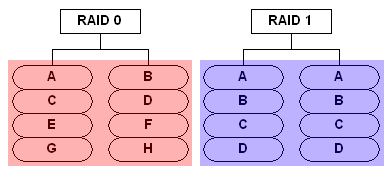
I am puchacing a new computer that is configured for raid 0. I would like to reconfigure it for raid 1. I prefer to reinstall win 7 to get rid of the junk new machines are shipped with so OS reinstallation is not a problem. Will I need new drivers or hardware (it is a Dell XPS system).

RAID0_RAID1

Change From RAID 0 to RAID 1

It should be fine. Just download all necessary drivers from dell. You may want to create media disks before doing this so that you can restore to factory settings if need be.you need not new hard drives, as we know the raid 0 is congifure with two hard drive, and raid 1 also need 2 hard drives, you just recongigure the raid array, and reinstall the windwos 7, that’s OK, you’d better do a fresh format before reconfigure.

Read More